
Quick Summary
Set up two-factor authentication across agency Business Managers without blocking team access, losing recovery options, or delaying campaign work.
Agency Business Managers face more risk than one-person ad accounts. Several staff may access billing, pages, pixels, and live campaigns. Set up two-factor auth before a stolen password or lost phone stops delivery. A clear setup protects spend limits, keeps access clear, and gives your team a way to regain access.
Why agency teams need stronger login controls
Password sharing causes confusion and weakens trust. It also makes staff changes harder to manage. Each person should use a separate profile with the right Business Manager role.
Two-factor authentication adds a second check after the password. That check may use an authenticator app, security key, or approved text message. This step can stop many unwanted logins when a password leaks.
Account security also supports backup access. If one team member loses access, another approved admin can keep campaigns running. This matters when several clients share one agency workflow.
Set up two-factor auth step by step
Open the personal Facebook account used for admin access.
Go to Settings and privacy, then Password and security.
Choose Two-factor authentication and select the account.
Pick an authenticator app, text message, or security key.
Complete the check on your device.
Save recovery codes in a safe team vault.
Repeat the setup for every approved admin.
For agencies, authenticator apps often work well. They do not depend on mobile coverage during a login. Security keys offer stronger protection for high-value admin accounts.
Keep recovery codes out of group chats. Store them in a password manager with limited access. Also, keep a written owner list for each Business Manager.
Use the right role for each person
Give full control only to trusted owners. Staff who build campaigns may need less access. Review each role before adding a new user.
Team role | Suggested access | Review timing |
|---|---|---|
Business owner | Full control | Quarterly |
Media buyer | Campaign access | Monthly |
Finance staff | Billing access | Monthly |
Contractor | Limited assets | Weekly |
Meta may ask for extra proof when access changes. Keep the business owner on hand during setup. This helps avoid delays when the platform checks a new device or admin.
Prepare agency access before delivery
When adding a verified Business Manager, check your admin profile first. Use a stable email and a known device. Keep two-factor protection active.
After buying, check your customer dashboard and delivery email. Follow the BM invite link in the message. Do not forward it to people outside your approved team.
Our Verified BM 1 suits smaller campaigns that need one verified Business Manager. Larger teams can review Verified BM 10 for more account capacity.
Delivery steps should name the receiving admin and the next login step. Check that the Business Manager name, assigned assets, and permissions match your order.
For account questions, use the VERIFIED BM SHOP FAQ or contact support. Keep your order details ready. This helps support check access without asking for sensitive passwords.
What to check after the handoff
Confirm the Business Manager appears in your account.
Check your assigned role and business permissions.
Review linked pages, ad accounts, and pixels.
Test login with your protected admin profile.
Remove unknown people and old access.
Save recovery codes outside your email inbox.
Do not rush into major spending after access arrives. First, confirm your team can sign in and regain access. Then connect only the assets needed for the first campaign.
Keep protection working after setup
Security is a routine, not a single check. Review admins when employees leave, contractors finish, or client duties change.
Set a calendar reminder for permission reviews. Check active sessions after odd login alerts. Sign out devices that no longer belong to your team.
When a setting looks different, use official guidance. Meta's Business Help Center guidance on two-factor authentication covers current account security steps.
Never ask support to share a password, authentication code, or recovery code. Real support should not need those details. Replace hacked credentials through the official account settings.
A protected admin profile helps keep risk apart between clients. Separate Business Managers also make access reviews easier. Together, these habits cut avoidable breaks without slowing normal campaign work.
Frequently Asked Questions
Quick answers to the questions buyers ask most.
Should agencies share one administrator login?
What happens if an admin loses their phone?
Which two-factor method should an agency choose?
Does every agency admin need two-factor auth?
How this helps verified BM buyers
Apply this guidance when buying verified Business Managers or WhatsApp Business API assets to reduce policy risk, improve account stability, and scale campaigns with cleaner operational workflows.
Compare Verified BM options · Next steps: compare products in the Shop, review implementation details in FAQ, and contact support from the Contact page.
Recommended for You
Hand-picked from our shop — delivered fast after payment.
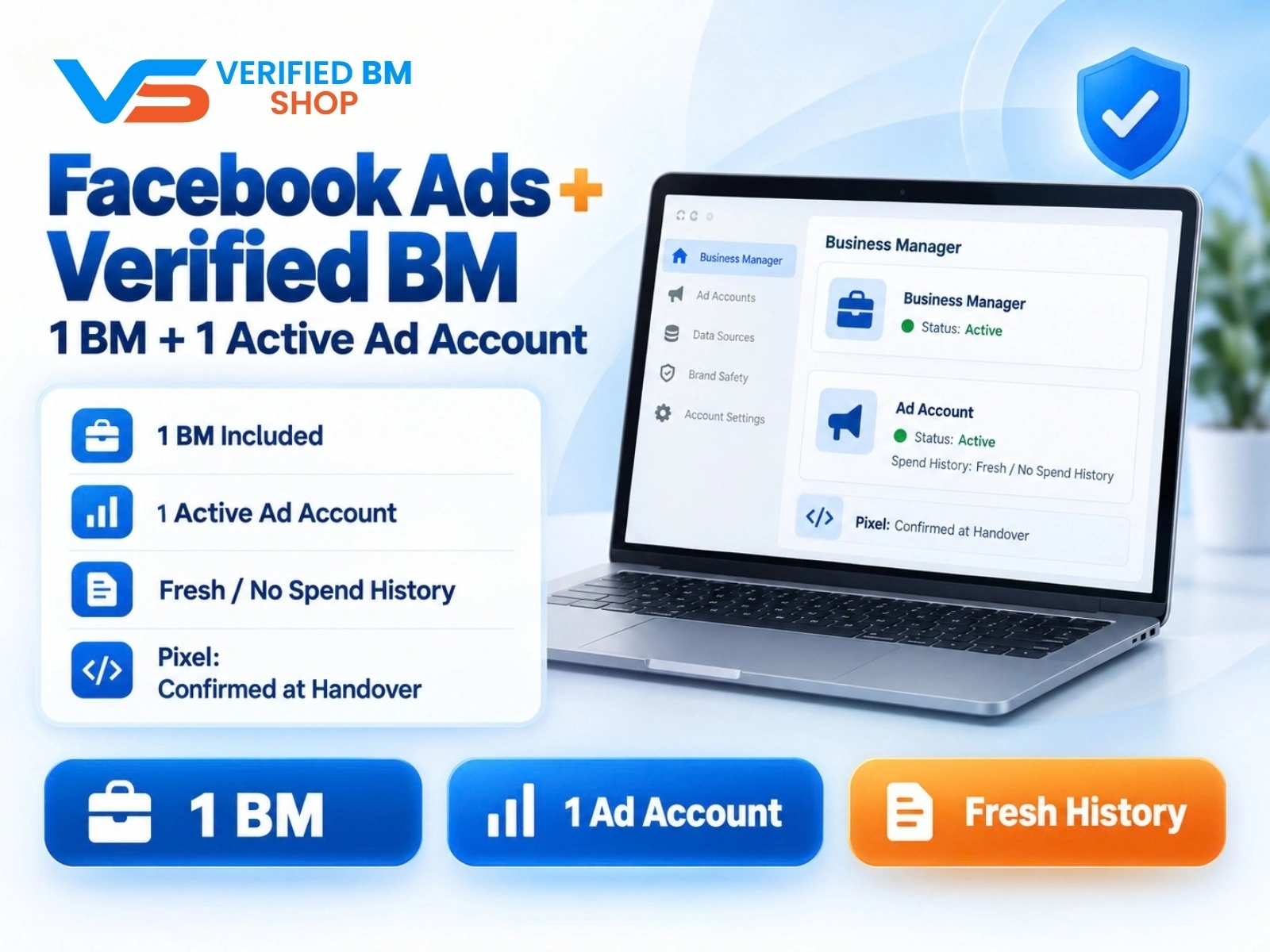
Facebook Ads Account + Verified BM Bundle
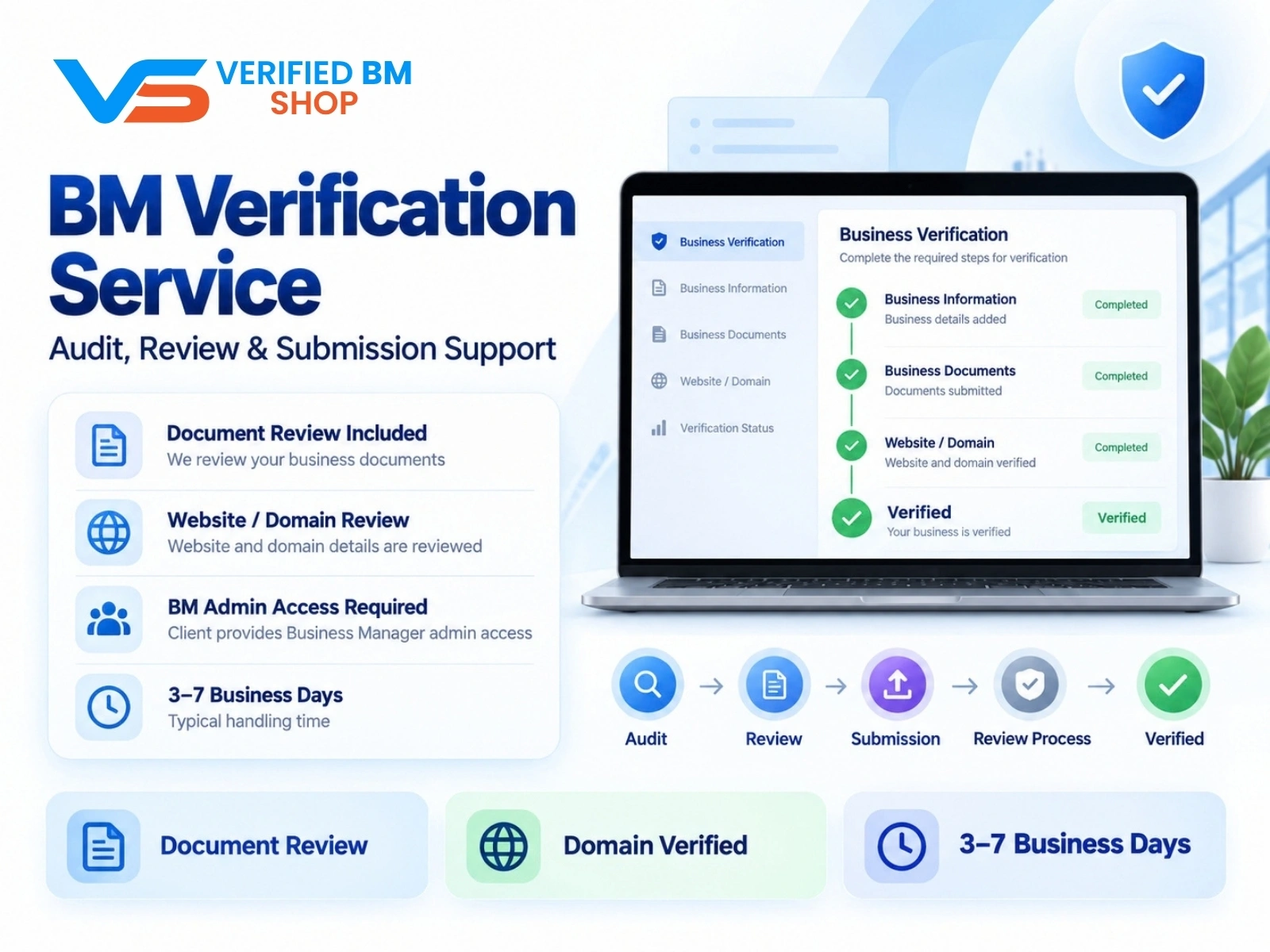
BM Verification Service
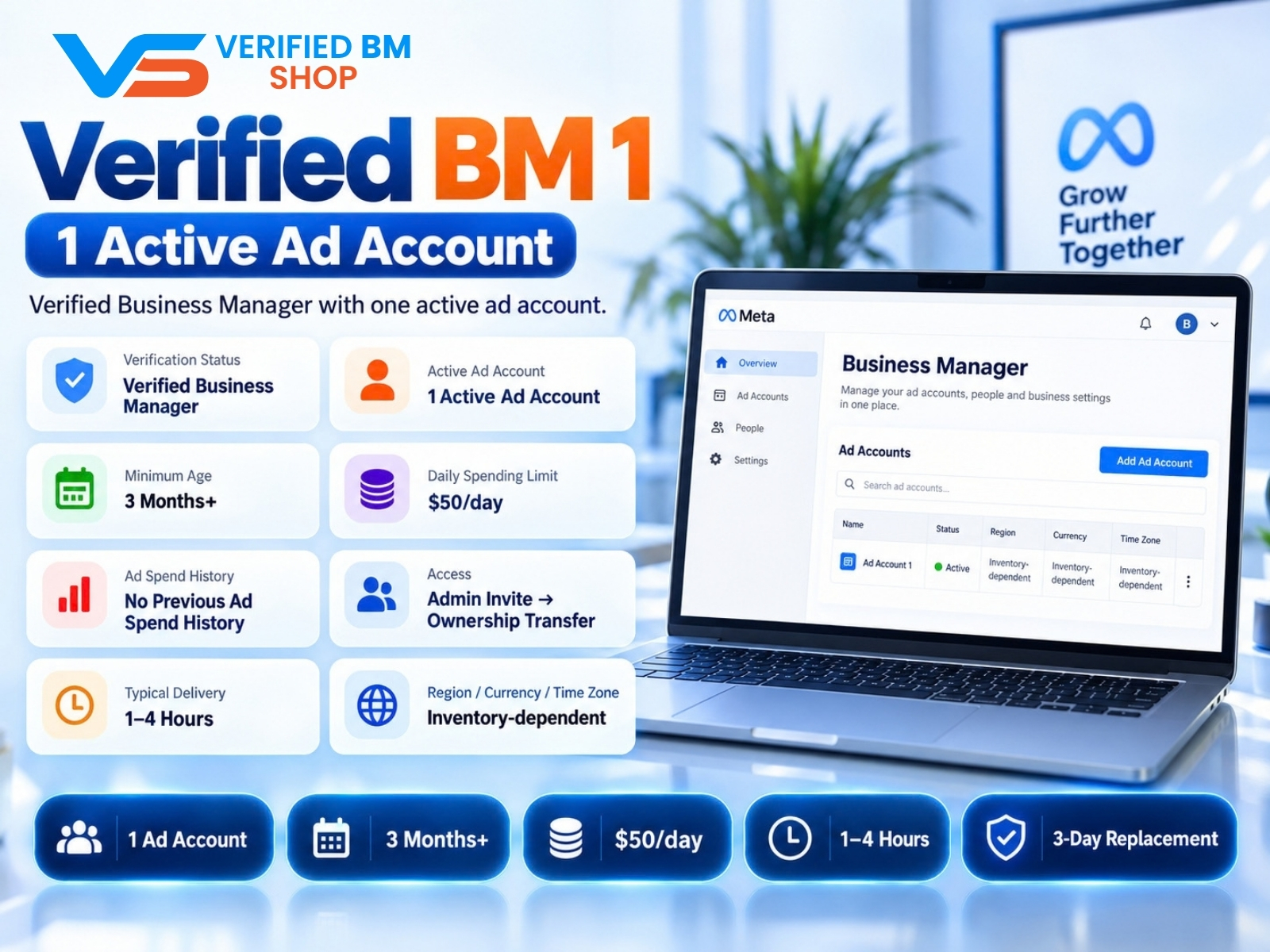
Verified BM 1 - Verified Meta Business Manager

Written by
Verified BM TeamThe VERIFIED BM SHOP team shares real-world experience in buying and selling verified Business Managers, WhatsApp API accounts and advertising platforms.
Comments (0)
No comments yet. Be the first to share your thoughts!
Leave a Comment
Your email will not be published. All comments are moderated.