
Quick Summary
Learn how to choose the right Meta review path, prepare evidence, track a support case, and protect your account when an issue remains unresolved.
Account escalation support means asking Meta to review a business, ad account, Page, payment, or access issue through an official support or appeal path. A clear case with relevant evidence can make the issue easier for Meta to assess, but it does not guarantee a particular response or outcome.
Before submitting another request, identify the correct review route and check whether the existing case is still open. Keep related information in that case where possible, and follow the instructions shown by Meta for submitting additional requests.
What Is Account Escalation Support?
Escalation is not a special way to bypass Meta enforcement. It is a request for help or review when a normal tool, review form, or initial support response does not resolve the issue.
Meta may show support or appeal options through Business Help, a support inbox, chat, email, or an account review form. Available support and appeal options may differ between accounts and products, so check the options shown in your own Meta interface and the current official guidance.
Use the official Meta Business Help Center and Business Support Home when those options appear. Third-party providers should not claim that they can bypass enforcement, guarantee reinstatement, obtain special priority, or predict Meta's decision.
When Should You Escalate a Meta Account Issue?
Consider another review request after you have checked the notice, followed the listed steps, and confirmed that the issue remains unresolved. A further request may be appropriate when the first response does not address key facts, provided that Meta's available process allows it.
- The review button is missing, broken, or returns an error.
- A restriction remains after you addressed the stated issue.
- An automated response does not address your question.
- You cannot access Business Manager because an admin, payment, or security issue blocks you.
- A business asset was disabled after activity that does not match your account records.
- A technical fault affects ads, billing, catalogs, pixels, WhatsApp, or permissions.
Where possible, keep related information in the existing case so the case history is easier to review. Follow the instructions shown by Meta for submitting additional requests instead of repeatedly sending the same appeal.
Which Meta Issues Commonly Need Escalation?
| Issue | Best first action | What to clarify in a review |
|---|---|---|
| Ad account restriction | Check Account Quality and use the review option shown there. | Which asset or decision needs review and what evidence supports your position. |
| Business Manager access | Check admins, login alerts, and available account recovery options. | Who controls the business and which access event caused the lock. |
| Billing or payment error | Review payment status, invoices, and account notices. | Whether the issue involves a failed charge, a payment review, or a technical fault. |
| Verification problem | Check the requested business details and document status. | Which requirement remains incomplete or needs clarification. |
| Product or API fault | Record the error and test the affected asset. | When the fault began, its impact, and the steps already tested. |
For policy-related restrictions, read the notice before replying. The guide on appealing a profile restricted from advertising can help you distinguish a profile issue from an ad account or Business Manager issue.
Check Your Support and Appeal Options First
Open Business Help while signed in to the profile that has business access. Look for contact options, open cases, Account Quality alerts, and review buttons associated with the affected asset.
The applicable route may be an appeal form rather than a support chat. Support may direct you to the review process that Meta makes available for the issue, but the outcome depends on that process and its available options.
Meta may use business-verification information as part of certain product or feature eligibility processes. Check the current requirements for the specific product or feature, including the guidance in Meta's business verification documentation.
Prepare Your Account Escalation Evidence
Relevant account details can help Meta assess what happened and identify the affected asset. Gather the information before opening or updating a case, but share only what the official form requests.
- Business Manager ID, ad account ID, Page ID, or WhatsApp Business account ID.
- The exact error text, restriction notice, or case reference number.
- The date and time the issue began, including your time zone.
- A short timeline of actions taken before the problem appeared.
- Screen captures showing the relevant page, URL, asset name, and error.
- Relevant invoices, payment details, or transaction references with sensitive data hidden.
- Business documents only when Meta requests them through an official flow.
Never share your password, one-time login code, recovery key, full card number, or other authentication secret with a third party. Use only the official Meta flow to provide requested information, and redact documents that contain information unrelated to the case.
If verification is the blocker, use the Meta Business Manager document checklist to review names, addresses, dates, and file quality before replying. Use the exact business details and documents requested in the applicable Meta flow, and check the current requirements for that process.
How to Open a Meta Business Support Case
- Sign in to the Facebook profile with access to the relevant business.
- Open Meta Business Help and select the affected business asset.
- Choose the closest issue category and review any available appeal, chat, email, or contact form.
- State one clear problem and attach focused, relevant evidence.
- Save the case ID, confirmation email, and submitted message.
Menus change, and some accounts may not show every contact method. If no case option appears, check the relevant Account Quality page, product dashboard, and official review link in the restriction notice.
For technical faults, this Meta technical support case guide explains how to record errors and present a useful troubleshooting history.
What to Include in Your Escalation Message
Keep the first message short enough to scan. State what happened, identify the affected asset, explain the impact, and ask for one clear action.
Simple message format
Subject: Review needed for Business Manager [ID] — [issue]
Message: “Our Business Manager [ID] lost access to [asset] on [date and time]. The notice says [exact wording]. We completed [steps taken], but the issue remains. Please confirm the specific reason, the applicable review path, and any action still required. Evidence is attached.”
Avoid blame, threats, long marketing claims, or several unrelated questions. If an earlier agent gave instructions, quote them and explain which step failed.
How to Track and Follow Up on a Support Case
Check Support Inbox, Business Support Home, and the email linked to the case. Save any case or reference number and use the support interface or email instructions provided by Meta to locate the conversation.
Reply in the existing thread while it remains open. Include new evidence rather than copying the same message, and send documents through the official case channel when Meta requests them.
Set a reminder based on the response or stated review period. If no period appears, send one polite update after a reasonable wait and follow any instructions Meta provides instead of repeatedly opening requests about the same event.
What to Do If Meta Closes or Denies the Case
Read the closing reason carefully. A closed case may indicate that the request was answered, that the issue belongs in an appeal form, or that Meta's instructions require a new case for a different asset.
- Check for a separate review button in Account Quality.
- Reply to the case if Meta still allows replies.
- Correct incomplete or inaccurate business details before trying again.
- Use a new case only when the issue or affected asset is genuinely different, or when Meta instructs you to do so.
- Keep the old case ID and explain what changed.
Meta may uphold a decision after review. Any review remains subject to Meta's own process and the options it makes available for the issue.
How Verification and Security Affect Account Support
Meta may ask for business records, admin details, or proof of control. Use the exact business details and documents requested in the applicable Meta flow, and check the current requirements for that process.
Review admin security before filing or updating a case. Remove unknown users, review partner access, confirm active admins, and check login alerts while following the account's available security procedures.
Never add a stranger as an admin because they claim to have an internal Meta contact. Never share your password, one-time login code, recovery key, or other authentication secret with a third party; use only official Meta channels to provide requested information.
When Third-Party Account Escalation Assistance May Help
A specialist can help organize IDs, timelines, screenshots, document checks, and a support message. This may be useful when an agency manages several assets or when internal records are scattered.
Choose help that keeps you in control of the official account and case. Ask what work the provider will perform, what information it needs, how it protects your data, and whether you can review submissions before they are sent.
Third-party providers should not claim that they can bypass enforcement, guarantee reinstatement, obtain special priority, or predict Meta's decision. Any review remains subject to Meta's own processes, and you remain responsible for policy compliance and account security.
Account Escalation Support Checklist
- Identify the exact affected asset and issue type.
- Check Account Quality, Business Help, and the review option in the notice.
- Collect IDs, timestamps, error text, screenshots, and case history.
- Remove passwords, codes, full card data, and unrelated personal information.
- Send one focused message through an official Meta channel.
- Save the case ID and monitor the support thread.
- Reply with new facts and follow Meta's instructions for additional requests.
- Review admin access and security while the case remains open.
If you need help arranging account details and next steps, you can contact our team. We can help prepare information for an official review, but we cannot promise reinstatement or override a Meta decision.
Official Sources
Frequently Asked Questions
Quick answers to the questions buyers ask most.
When should I use account escalation support for a Meta business issue?
Use Meta’s support process after reviewing the relevant Help Center guidance and completing the recommended troubleshooting steps. Escalation is appropriate when the issue remains unresolved, a review appears incorrect, or you need help with a specific business asset or case.
How do I contact Meta account escalation support?
Sign in to the Meta Business Help Center or Business Support Home and check whether a support or contact option is available for your account. The available contact methods depend on your business assets, account status, and the type of issue.
What information should I include in a Meta support case?
Include the Business Manager or business portfolio ID, relevant ad or commerce account IDs, a clear description of the problem, error messages, screenshots, and the steps you have already taken. If you have an existing case, provide its case number so the support team can review the history.
Does Meta require business verification before providing support?
Not every support request requires business verification, but Meta may require it for certain business features, permissions, or account reviews. If prompted, complete the verification process in Meta Business settings and follow the instructions shown for your business.
What documents can I use for Meta business verification?
Submit the business documents requested in the verification workflow, ensuring they are clear, valid, and consistent with the business information on your Meta account. The exact documents accepted can vary by location and verification request, so follow Meta’s current instructions rather than uploading unrelated files.
Why was my Meta business verification rejected?
Common problems include information that does not match the submitted documents, unclear or incomplete files, expired documents, or documents that are not accepted for the request. Review the rejection message, correct the business details or files, and submit the verification again if Meta provides that option.
How can I check the status of an escalated Meta support case?
Check Business Support Home or the support inbox associated with the business account, if those features are available to you. Keep the case number and review any follow-up requests there, because replies sent through the case may require additional information.
What should I do if my Meta account or business asset is restricted?
Review the notice in Account Quality or the relevant Meta business interface and use the review or appeal option provided there. Explain the issue accurately, submit any requested information, and avoid creating duplicate accounts or repeatedly submitting incomplete appeals.
How this helps verified BM buyers
Apply this guidance when buying verified Business Managers or WhatsApp Business API assets to reduce policy risk, improve account stability, and scale campaigns with cleaner operational workflows.
Compare Verified BM options · Next steps: learn what a verified bm is, compare products in the Shop, review implementation details in FAQ, and contact support from the Contact page.
Recommended for You
Hand-picked from our shop — delivered fast after payment.
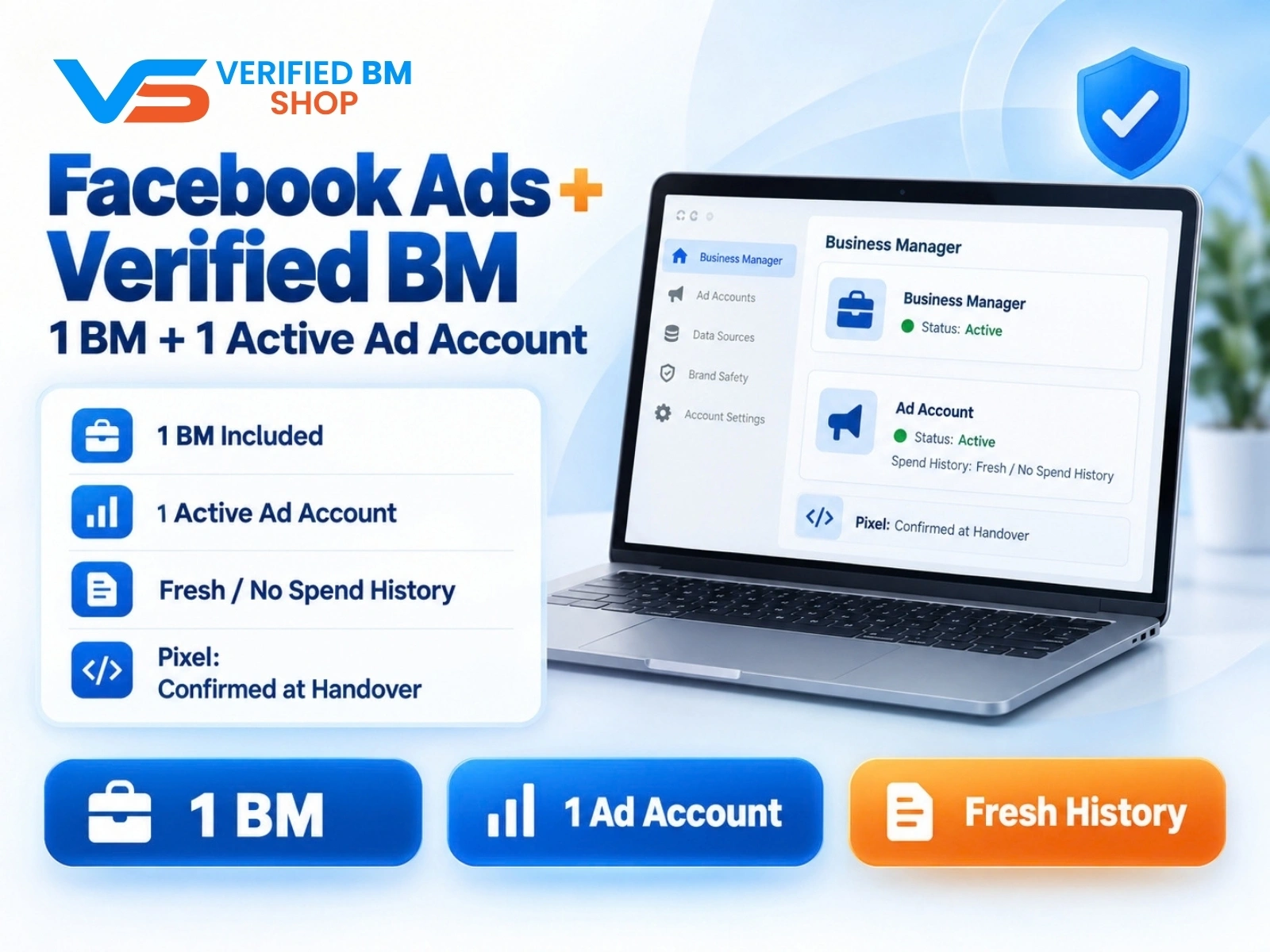
Facebook Ads Account + Verified BM Bundle
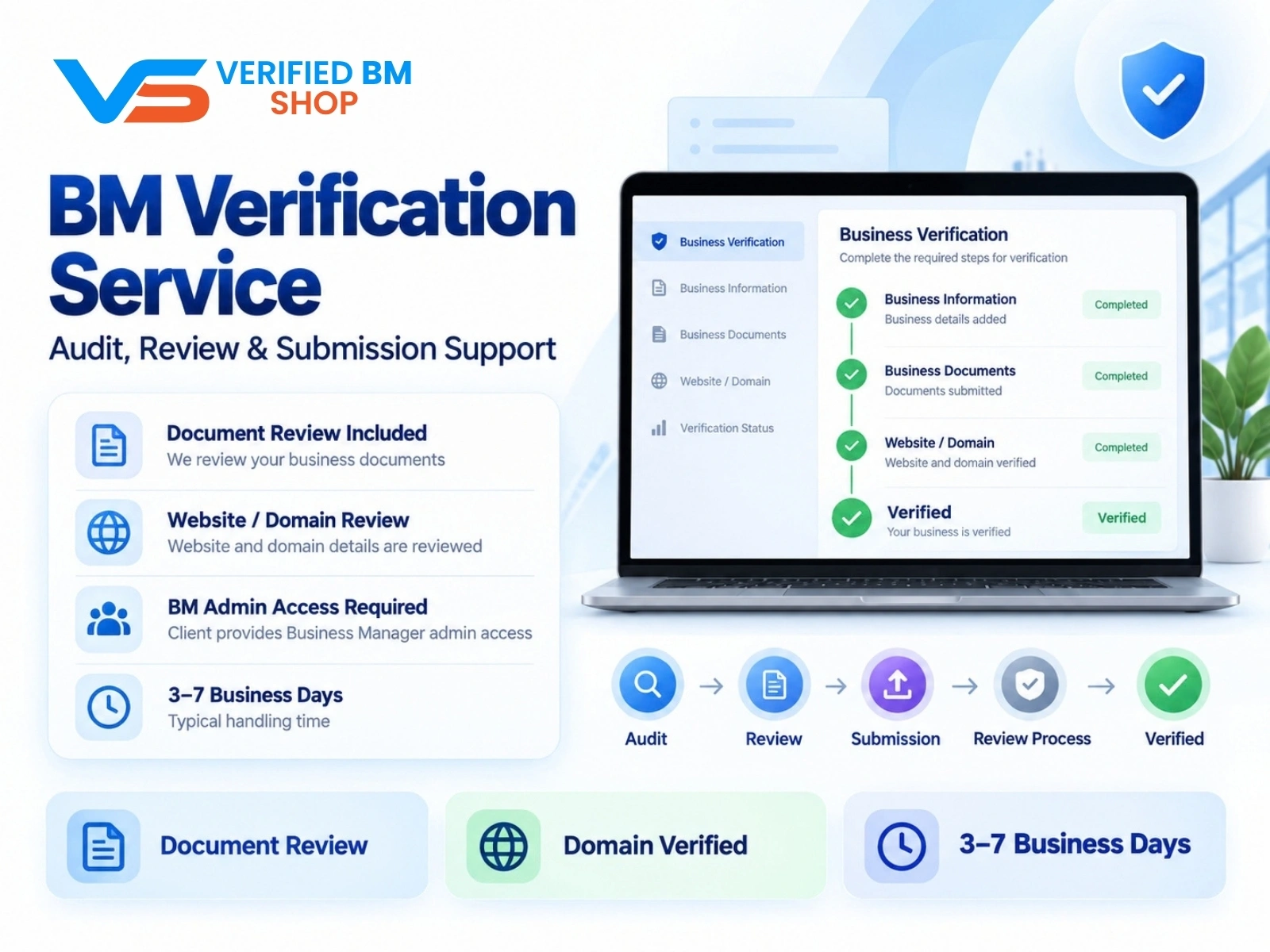
Meta BM Verification Service by VERIFIED BM SHOP
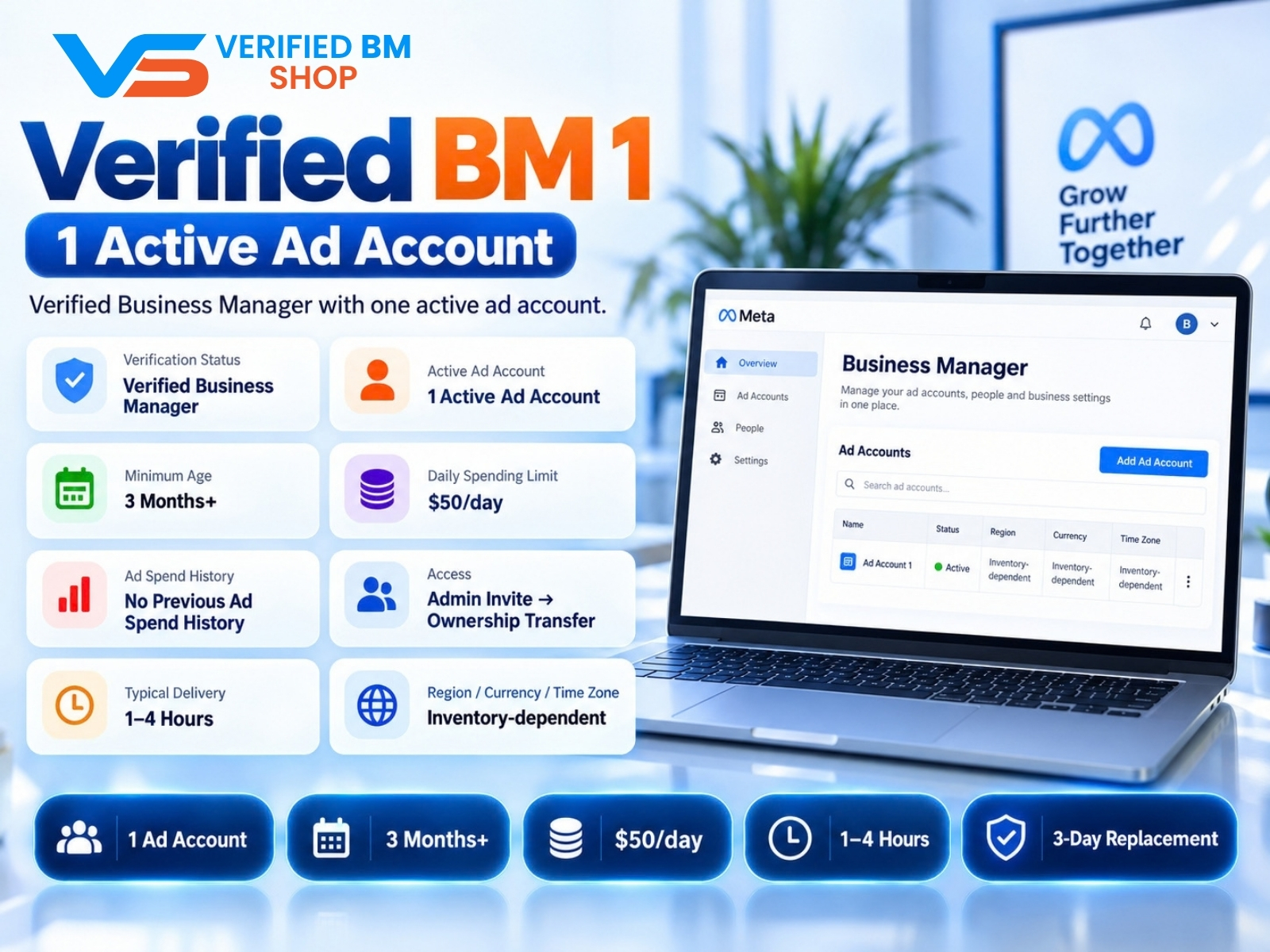
Verified BM 1 - Verified Meta Business Manager

Written by
Verified BM TeamThe VERIFIED BM SHOP editorial team shares real-world experience in buying and selling verified Business Managers, WhatsApp API accounts and advertising platforms.
Comments (0)
No comments yet. Be the first to share your thoughts!
Leave a Comment
Your email will not be published. All comments are moderated.