
Quick Summary
Learn how Meta and WhatsApp automation works, what business verification does and does not provide, and how to build compliant customer messaging workflows.
Automated messaging uses rules, triggers, templates, or software to reply when a customer takes a set action. Meta Business Suite supports simple inbox automation. In contrast, the WhatsApp Business Platform supports API workflows that link to CRMs, help desks, ecommerce systems, and other tools.
Therefore, your best setup depends on message volume, customer channels, team size, and the need to trigger messages from business events.
What Is Automated Messaging?
Automated messaging sends a reply or starts a workflow after an event. For example, events can include a new Messenger chat, a keyword, a form entry, an order-status change, or an incoming WhatsApp message.
A basic workflow can send a greeting, show FAQs, collect contact details, and alert a human agent when needed. In addition, more advanced flows link WhatsApp to a CRM, help desk, ecommerce platform, booking system, or internal database.
How Automated Messaging Works Across Meta and WhatsApp
Meta Business Suite can bring chats from supported business assets into one place. It offers instant replies, away messages, saved replies, and basic question-and-answer flows. However, features and access rights may vary by Page, Instagram account, region, interface, and Meta product changes.
Messenger automation often starts when someone contacts a Facebook Page. The business can confirm the message, ask a question, share a link, or send the chat to a staff member. As a result, these tools suit simple support and early lead response.
WhatsApp automation has two main paths:
WhatsApp Business app: This suits smaller teams that use greeting messages, away messages, labels, and quick replies. Teams usually manage it in the app, not through a full developer link.
WhatsApp Business Platform: This supports API messaging, multiple agents, approved templates, webhooks, software links, and set workflows. Businesses can access it through Meta or an approved solution provider.
For tech details, see Meta's WhatsApp Cloud API docs. Also, the WhatsApp connection workflow explains how to link the API with a Meta business portfolio.
Native Meta Business Suite Automation vs WhatsApp API Automation
Area. | Native Meta automation. | WhatsApp API automation. |
|---|---|---|
Best for. | Basic inbox replies and small-team response handling. | CRM workflows, support operations, notices, and higher-volume messaging. |
Setup effort. | Usually low; set up in the business inbox. | Higher; needs business assets, phone setup, templates, access rights, and software. |
Customization. | Rules, saved replies, FAQs, and available routing options. | API calls, webhooks, databases, bots, agent tools, and event triggers. |
Outbound rules. | Governed by the relevant Meta messaging product. | Needs opt-in, approved templates for many business-initiated messages, and compliance with WhatsApp policies. |
Team operation. | Useful for a small number of inbox users. | Built for linked systems and larger support or sales teams. |
Native automation often works well for routine questions and simple lead handling. However, the API route fits cases where business events trigger messages or several agents and systems must work together.
What a Verified Business Portfolio Does for Automated Messaging
Meta now often places Business Manager functions within a business portfolio. A verified portfolio shows that Meta reviewed some submitted business details. It may also help organize related assets and access. However, verification does not prove a public identity or check every linked asset.
The portfolio provides an admin layer for people, system users, apps, and assets. A clear setup can separate ownership from daily access. It can also make access removal easier when an employee, agency, or vendor no longer needs it.
Verification may form part of WhatsApp onboarding or review needs. Still, the result can depend on the account, provider, business use case, and current Meta rules. It does not guarantee approval, higher messaging limits, unrestricted sending, better delivery, or protection from enforcement. Therefore, see the difference between verified and unverified business portfolios before choosing a structure.
Requirements Before You Set Up Automated Messaging
Prepare these items before you connect an API or build a workflow:
Access to the right Meta business portfolio with admin rights.
Accurate legal business details that match available records and submitted documents.
A Facebook Page or other Meta asset if the workflow uses Messenger or Page-based lead capture.
A WhatsApp Business Account and a phone number meant for the Business Platform.
A display name that follows WhatsApp rules and represents the business clearly.
A website, privacy info, customer-support contact, and recorded opt-in process.
An approved API provider or tech setup if the business is not using a direct Cloud API link.
A CRM, help desk, ecommerce system, or developer endpoint if messages rely on customer or order data.
Record ownership, billing, phone access, and developer rights. Do not add needless admins. Also, avoid repeated changes to core business details during a review unless there is a clear reason.
How to Set Up Automated Messaging with a Business Portfolio
Confirm ownership: Check that the right portfolio owns or can access the Page, WhatsApp Business Account, app, and other assets.
Secure administrator access: Use individual profiles, strong passwords, and two-factor authentication. Do not share one login across an agency team.
Complete business details: Keep the legal name, address, website, and contact info the same across the portfolio and onboarding records.
Connect WhatsApp: Create or select the WhatsApp Business Account. Add a valid phone number, then set the display name and profile details.
Choose the message path: Use inbox automation for simple replies. Connect the API to a CRM, bot, help desk, or custom app for event-based workflows.
Request template approval: Submit templates for notices or business-initiated chats when WhatsApp rules require them.
Test with a small audience: Check opt-in records, format, links, routing, fallback replies, and human handoff before you expand.
Monitor quality: Watch delivery, blocks, complaints, template status, phone status, and customer replies after launch.
The business verification document checklist can help you find missing or inconsistent info. If onboarding becomes unclear, pause major changes and contact support instead of recreating assets again and again.
WhatsApp Opt-In, Templates, and Conversation Rules
Get clear customer opt-in before sending WhatsApp messages. Customers should know what they agree to receive, such as order updates, appointment reminders, support messages, or sales content. Keep the consent source, date, purpose, and wording.
Under current WhatsApp Business Platform rules, businesses may generally send free-form service replies during the applicable customer-service window. Outside that window, business-initiated messages usually need an approved template. Sales content must also meet policy and consent rules. Therefore, check WhatsApp's docs for the current window, conditions, and template rules.
Templates should state their purpose and include useful, expected details. Do not present ads as a transaction notice. Also, do not reuse a template for an unrelated purpose or keep messaging after a customer opts out.
Automated flows should identify the business when needed and offer a clear path to human help. Handle a stop, unsubscribe, or support request promptly instead of trapping the customer in a bot loop. Review the current WhatsApp Business Platform rules because policies and template groups can change.
Automated Messaging Use Cases for Businesses and Agencies
Instant replies and away messages
Set expectations when a customer starts a chat. A useful reply can state hours, give a typical response time, and link to urgent support steps.
FAQs and qualification
Help customers with common questions about price, availability, locations, eligibility, or services. A short menu can gather details for a salesperson without replacing a proper consultation.
Lead follow-up
After a lead form entry or ad-driven chat, automation can confirm receipt, ask a qualifying question, and send the lead to the right team. However, the follow-up must match the consent the person gave.
Order and appointment updates
API workflows can send confirmations, reminders, shipping notices, and status changes from an order or booking system. Messages should give accurate, useful details and a support route for exceptions.
Customer support
A bot can identify the issue, collect an order number, suggest approved answers, and transfer the chat to an agent. The handoff should keep the chat history so the customer does not repeat the issue.
Messaging Limits, Quality, and Deliverability
Business verification alone does not set WhatsApp sending capacity or delivery. Other factors include account history, phone status, user feedback, message quality, approved templates, recipient engagement, policy compliance, and limits set for the business account.
High complaint rates, blocks, poor template quality, low engagement, or unexpected contact can reduce delivery or cause limits. In addition, a higher messaging limit does not make unsolicited messaging acceptable.
Expand slowly and focus on opted-in contacts. Remove invalid numbers. Pause workflows that create unusual complaint or block rates. For planning guidance, not a fixed capacity promise, review WhatsApp API scaling practices.
How to Monitor and Troubleshoot Automated Messages
Track more than sent message counts. Useful measures include delivered messages, read rates where available, replies, opt-outs, blocks, rejected templates, failed webhooks, handoff time, and resolution rate.
Delivery problems often come from an inactive or misconfigured phone number, missing access rights, a rejected or paused template, bad recipient data, an expired customer-service window, a webhook failure, or a policy limit.
Review error details in the relevant Meta or provider dashboard. Check that the asset and phone number connect to the intended portfolio. Then test with a valid contact. Do not keep deleting and recreating accounts or changing many settings at once. If the cause remains unclear, use the WhatsApp API troubleshooting guide or contact support.
Automated Messaging Compliance and Safety Checklist
Use clear, recorded customer opt-in for WhatsApp messages.
Explain the message types customers will receive and provide an easy opt-out.
Use approved templates when a template is required.
Keep sales, transaction, and support messages accurately grouped.
Identify the business and provide a human-support route.
Limit access through role-based rights and remove former users promptly.
Enable two-factor authentication for admins and agency operators.
Protect customer data in your CRM, links, logs, and webhook endpoints.
Test every trigger, fallback, link, language version, and opt-out path.
Pause campaigns when quality or complaint signals worsen.
Keep business records, privacy notices, and contact info current.
What Business Verification Does Not Guarantee
Business verification reviews info submitted for a Meta business setup. It does not guarantee WhatsApp API approval, a specific messaging tier, template approval, a set delivery rate, freedom from policy enforcement, or lasting access to every feature.
Account behavior still matters. For example, a verified business can face limits or blocks if it sends unwanted messages, breaks applicable policies, uses false templates, mishandles data, or creates poor quality signals.
When to Use Meta Business Suite and When to Use the WhatsApp API
Choose native Meta Business Suite automation when a small team needs quick replies, FAQs, away messages, and simple lead or support handling from a few inboxes. It usually needs less development and is easier to maintain.
Choose WhatsApp API automation when orders, bookings, payments, lead stages, or support events must trigger messages. It also suits teams that need shared workflows, a CRM as the source of truth, clear reports, or webhooks.
A well-set-up Meta business portfolio can clarify ownership and access rights for either path. This also helps when an agency manages assets for several clients. However, verification remains a separate review. It does not create those controls or override consent and platform requirements.
Frequently Asked Questions
Quick answers to the questions buyers ask most.
What is automated messaging on WhatsApp?
Do I need Meta business verification to use WhatsApp automated messaging?
Can WhatsApp automatically send messages whenever a business wants?
What can businesses automate with WhatsApp?
How this helps verified BM buyers
Apply this guidance when buying verified Business Managers or WhatsApp Business API assets to reduce policy risk, improve account stability, and scale campaigns with cleaner operational workflows.
Compare Verified BM options · Next steps: compare products in the Shop, review implementation details in FAQ, and contact support from the Contact page.
Recommended for You
Hand-picked from our shop — delivered fast after payment.
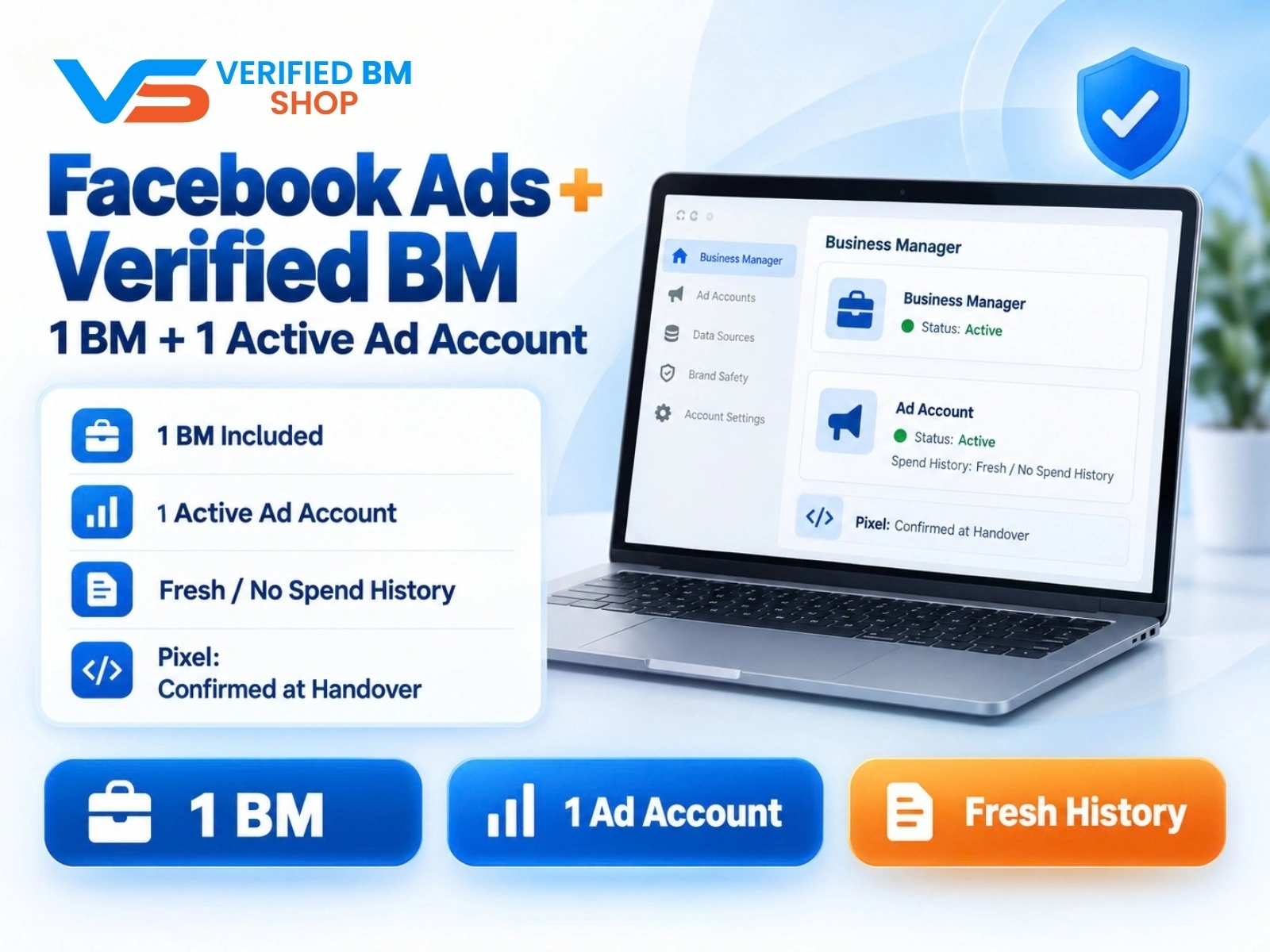
Facebook Ads Account + Verified BM Bundle
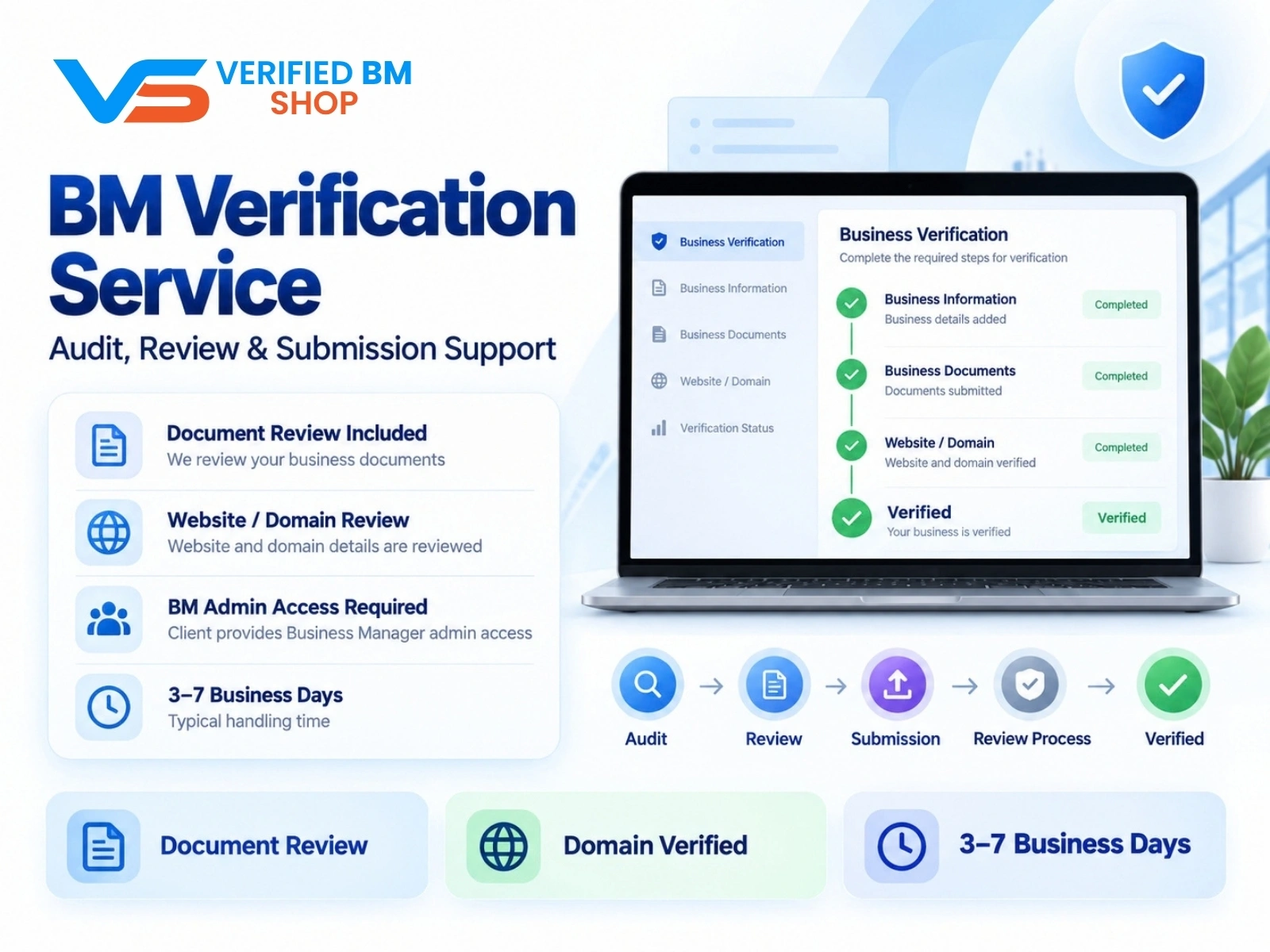
BM Verification Service
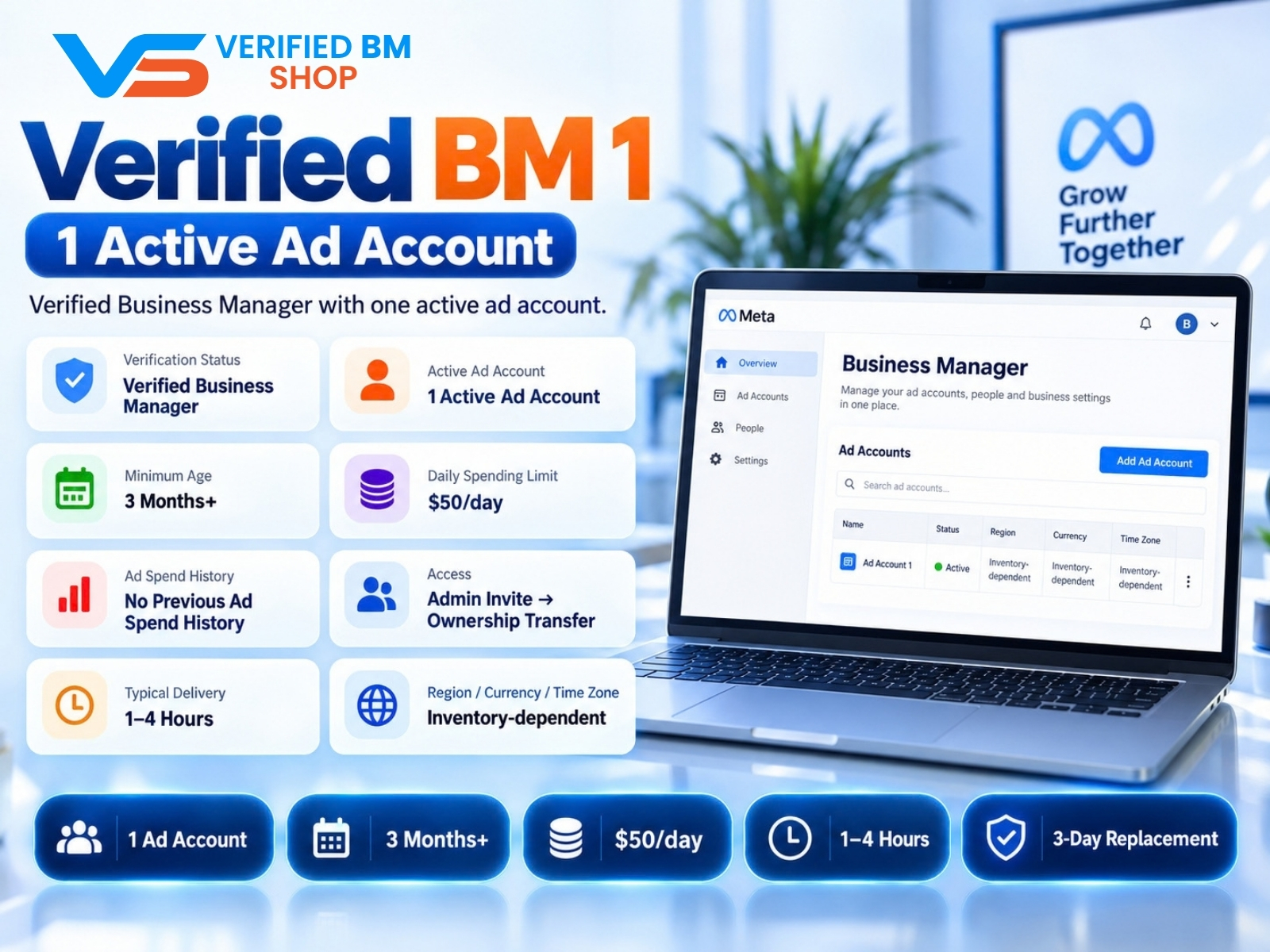
Verified BM 1 - Verified Meta Business Manager
Written by
Verified BM TeamThe VERIFIED BM SHOP team shares real-world experience in buying and selling verified Business Managers, WhatsApp API accounts and advertising platforms.
Comments (0)
No comments yet. Be the first to share your thoughts!
Leave a Comment
Your email will not be published. All comments are moderated.