

Quick Summary
Learn how to identify the affected Meta asset, review the notice, submit the correct appeal, secure your account, and respond when review options are limited.
A Facebook profile restricted from advertising notice means Meta has limited your personal profile’s ability to create, manage, or access ads. The next step depends on the affected asset. It may be your profile, ad account, business portfolio, Page, or full account.
First, start with the notice in Facebook or Meta Business tools. Do not create replacement profiles or send conflicting information. Therefore, confirm the restricted asset and the review options Meta offers.
Facebook Profile Restricted From Advertising: What It Means
Your personal Facebook profile can act as an admin, advertiser, or business asset manager. Meta may restrict that profile while a linked Page or business portfolio stays active.
However, this differs from a post removal or short feature limit. The notice may stop you from running ads, adding payment methods, creating ad accounts, or managing business assets.
Review options differ by user. The button, deadline, document request, and support route may vary by region, account history, and restriction type.
Is Your Profile Restricted, or Is the Facebook Ad Account Disabled?
Identify the affected level before you appeal. A profile restriction and a restricted Facebook ad account need different checks.
What is affected? | Typical sign | What to inspect |
|---|---|---|
Personal profile | You cannot advertise or manage ads from your profile. | Profile notices, Account Status, and security alerts. |
Ad account | A specific ad account cannot run, create, or publish ads. | Account Quality, policy notices, billing, and rejected ads. |
Business portfolio | Several assets or admins lose access at once. | Business Support Home, business restrictions, and admin activity. |
Facebook Page | The Page cannot publish, advertise, or use certain features. | Page access, Page quality, and content warnings. |
Disabled account | You cannot log in or use core Facebook features. | The login message and the recovery flow shown by Meta. |
One profile can manage more than one affected asset. Record each asset ID and notice separately. As a result, Meta may offer different review options for each restriction.
Why Meta May Restrict a Profile From Advertising
Meta may limit ad access because of policy, identity, payment, or security concerns. A restriction notice may not name one clear mistake.
Repeated ad or landing-page violations.
Misleading claims, banned products, or unclear business practices.
Odd login activity, new devices, or sudden admin changes.
Unconfirmed identity, business details, or account ownership.
Payment failures, chargebacks, or a payment method that needs review.
Links to other accounts or assets with serious policy problems.
False information, impersonation, or activity that conflicts with Meta’s authenticity rules.
The restriction may relate to the profile, linked business assets, payments, security activity, or other factors in Meta’s notice.
For more ad-level causes, see our guide to why Facebook ad accounts get restricted. This article covers profile access and the appeal process.
How to Check Your Account Status and Restriction Details
Use the account that received the warning. Open Facebook’s account or profile status area. Then check Meta’s business tools for affected ad accounts and business portfolios.
Sign in with a secure, legitimate access method.
Next, open Account Status, if it is available in your Facebook settings.
For ad accounts, Pages, and business assets, open Account Quality.
Check Business Support Home for open cases, review requests, and business restrictions.
Finally, save screenshots of the notice, stated reason, asset ID, and any appeal deadline.
These tools may appear in different menus. If a direct menu is missing, start from Meta Business or the help link inside the warning.
Also, look for terms such as “advertising access restricted,” “ad account disabled,” “business restricted,” or “identity confirmation required.” Similar wording can lead to different review paths.
What to Review Before You Submit an Appeal
Read the notice first. Then check the activity tied to your profile. Keep the appeal short, factual, and focused on the notice. Do not guess about the cause.
Check policy and business details
Review recent ads, rejected ads, landing pages, and claims.
Confirm that your business name, website, contact details, and offer match.
Check the people and partners with admin, finance, or advertiser access.
Review payment activity. Do not add several new cards during the appeal.
After securing access, remove unknown users, apps, domains, and business partners.
Check for signs of account takeover
Look for login alerts, changed email addresses, new devices, unfamiliar ad activity, or messages you did not send. If you see these signs, secure the profile before asking Meta to review the restriction.
Avoid needless changes during the review. Keep records of any valid changes so you can explain them if asked.
How to Submit a Facebook Advertising Restriction Appeal
Use the review button in the restriction notice when Meta provides one. It may appear in Account Status, Account Quality, Business Support Home, or the login recovery flow.
Open the restriction notice. Select Request Review, Appeal, or the closest available option.
Next, select the affected profile, ad account, Page, or business.
Answer each question with facts that match your records.
Upload only the documents Meta requests through its official flow.
Send the requested details through the available official flow. Save the case number and follow any further instructions or review options Meta provides.
If the form asks you to explain the issue, state what happened, what you checked, and what you changed. Do not accuse reviewers or claim that approval is certain.
You can also review Meta’s official business help resources for the route shown for your account.
What to Include in an Account Recovery Appeal
Keep the appeal clear and specific. Meta may request different evidence, so submit only real documents that match the profile or business under review.
Provide your full name and the email or phone linked to the profile.
List the affected asset name and ID, if shown.
Add a short description of the restriction and when it appeared.
State your business name, website, role, and relationship to the assets.
Include details of any unusual login, hacked access, or unauthorized ad activity.
Describe steps taken to address policy, security, identity, or payment concerns.
Meta may ask for government ID, business records, proof of address, payment information, or a video selfie. Follow the exact upload instructions. Hide unrelated sensitive data where the form allows it.
Example appeal wording
“My profile received an advertising restriction on [date]. I reviewed the listed assets and found [brief finding]. I removed unauthorized access, checked the ads and website, and confirmed that the business details are accurate. Please review the profile and the affected asset [ID]. I can provide documents that verify my identity and business role.”
What to Do If Your Appeal Is Rejected or the Review Option Is Missing
However, a rejected appeal does not show every factor considered in the decision. Read the notice again. Check whether Meta offers another review path, document request, or case reply.
If no review button appears, try these steps:
Check Account Status, Account Quality, and Business Support Home separately.
Open the notice from the affected asset, not only from your profile.
Check the support inbox and the email linked to the account.
Finish any identity or security check before seeking another review.
Use an available Meta Business Support contact route from an eligible business account.
Support access is not available to every account. Avoid agents who promise reinstatement, request your password, or ask for payment through an unofficial channel.
Creating a replacement profile, sending false documents, or moving activity to another person’s account can cause new policy or security issues. If the main problem affects a business, our Meta Business Account Recovery guide covers safer access steps.
Secure Your Profile and Business Assets Before Trying Again
Before sending another appeal, secure the account. An attacker or unknown admin may otherwise continue unauthorized activity while Meta reviews the case.
Change your Facebook password and your email password.
Turn on two-factor authentication with an authenticator app or security key.
Review active sessions and remove devices you do not recognize.
Check admin, employee, partner, and finance permissions.
Remove unknown apps and revoke suspicious business integrations.
Confirm the payment users and billing details.
For agency teams, follow this two-factor authentication checklist for Business Managers. Give each person their own access instead of sharing one login.
Mistakes to Avoid During a Facebook Advertising Review
During the review, avoid these mistakes:
Sending appeals with conflicting explanations.
Uploading altered, expired, or unrelated documents.
Making needless account-access changes during the review.
Adding new cards or launching many ads to test the restriction.
Deleting evidence before recording the notice and asset IDs.
Buying, renting, or transferring profiles as a shortcut to access.
Trying to bypass enforcement with replacement accounts or hidden ownership.
Use secure, legitimate access methods. Keep information truthful and consistent. Attempts to evade enforcement, such as using bought profiles or hidden ownership, may cause more policy or security issues and affect related assets.
When to Contact Account Appeal Support
Therefore, contact official Meta support when the notice is unclear, the profile was hacked, several assets were affected, or the review flow fails after you complete the required checks.
Prepare your case number, screenshots, asset IDs, timeline, and proof of your business role. Provide these items in an organized format.
Meta makes the final decision on account and advertising restrictions. A consultant can help organize records or review business documents, but no third party can guarantee reinstatement.
How to Prevent Future Facebook Advertising Restrictions
To prevent future issues, use one authentic profile per person. Keep business information consistent across your website, Page, payment profile, and Meta business records.
Review Meta advertising rules before launching new offers.
Use clear claims, prices, terms, contact details, and landing pages.
Limit admin access and remove former staff quickly.
Turn on two-factor authentication for every business admin.
Monitor rejected ads, payment alerts, login notices, and support cases.
Make valid changes with care and keep records of business activity.
Final Checklist for Recovering a Restricted Facebook Advertising Profile
Identify whether the profile, ad account, business portfolio, Page, or full account is affected.
Save the notice, asset IDs, dates, and case details.
Review ads, landing pages, business information, payments, and admin access.
Secure the profile and remove unknown users or integrations.
Use Meta’s official appeal or review form.
Send truthful details and only the requested documents.
Monitor the support inbox and follow any additional review instructions Meta provides.
Never use purchased profiles, false documents, or enforcement workarounds.
Contact official support or a trusted consultant if the route is unclear.
Finally, recovery starts with the right diagnosis. Once you know which asset Meta restricted, use the related review path instead of changing accounts and causing more access or security issues.
Frequently Asked Questions
Quick answers to the questions buyers ask most.
Why is my Facebook profile restricted from advertising?
How can I appeal a Facebook advertising restriction?
What should I do if Facebook restricted my profile but does not show an appeal button?
Can I advertise from another Facebook profile while my account is restricted?
How do I recover my Facebook account if the advertising restriction is related to hacking or a login problem?
How can I prevent Facebook from restricting my advertising access again?
How this helps verified BM buyers
Apply this guidance when buying verified Business Managers or WhatsApp Business API assets to reduce policy risk, improve account stability, and scale campaigns with cleaner operational workflows.
Next steps: compare products in the Shop, review implementation details in FAQ, and contact support from the Contact page.
Recommended for You
Hand-picked from our shop — delivered fast after payment.
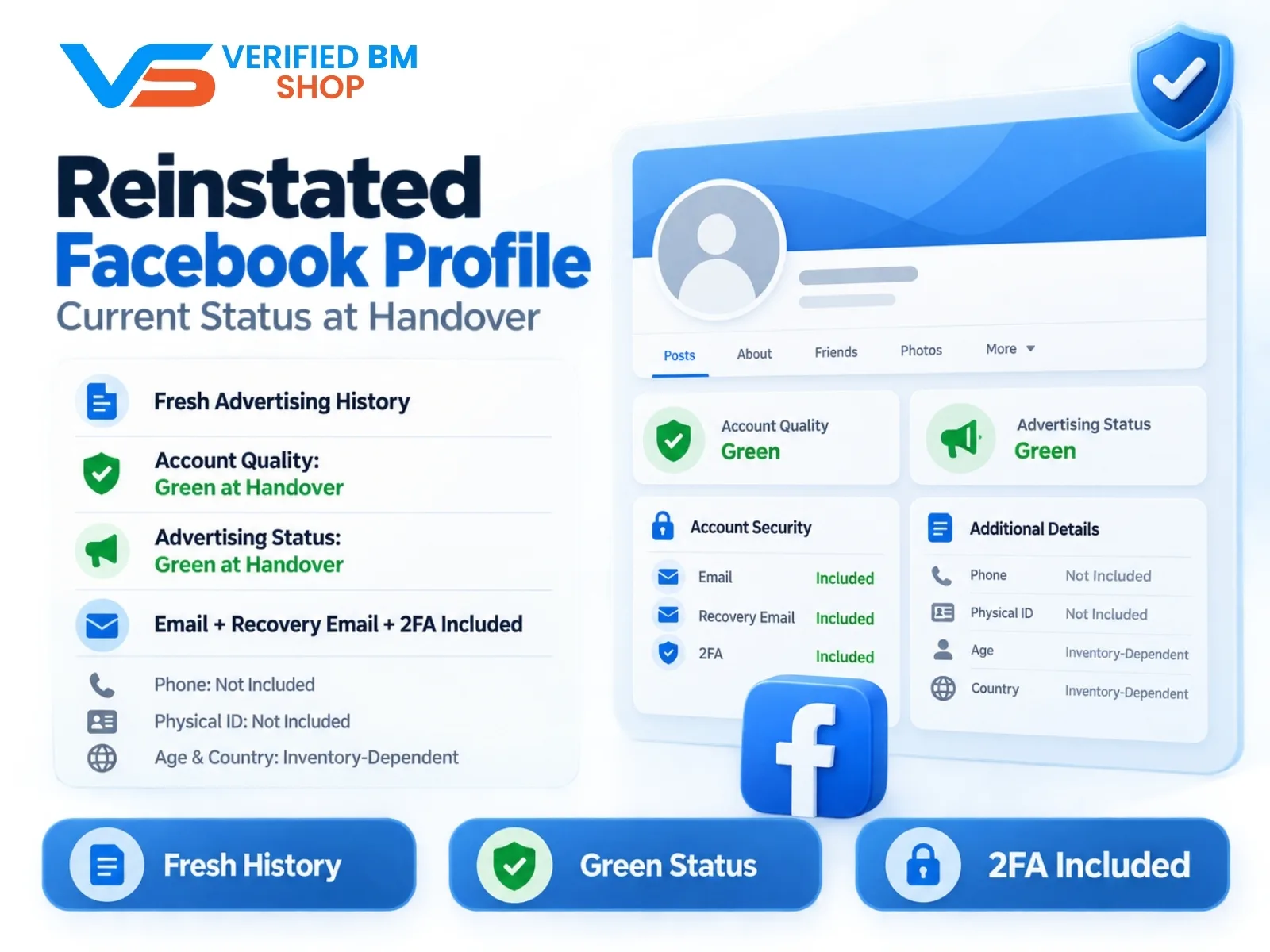
Reinstated Facebook Profile - Current Status at Handover
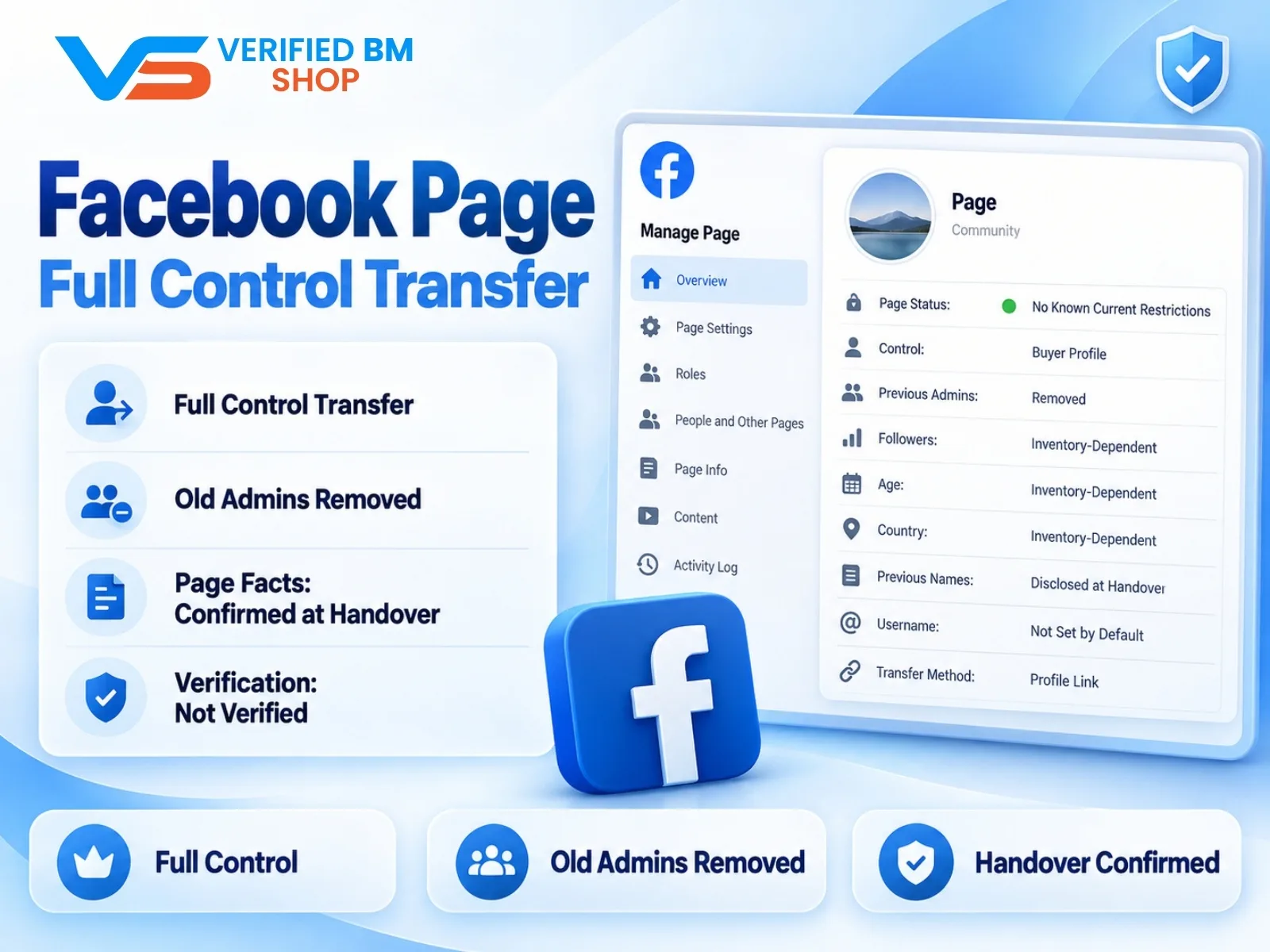
Facebook Page - Full Control Transfer
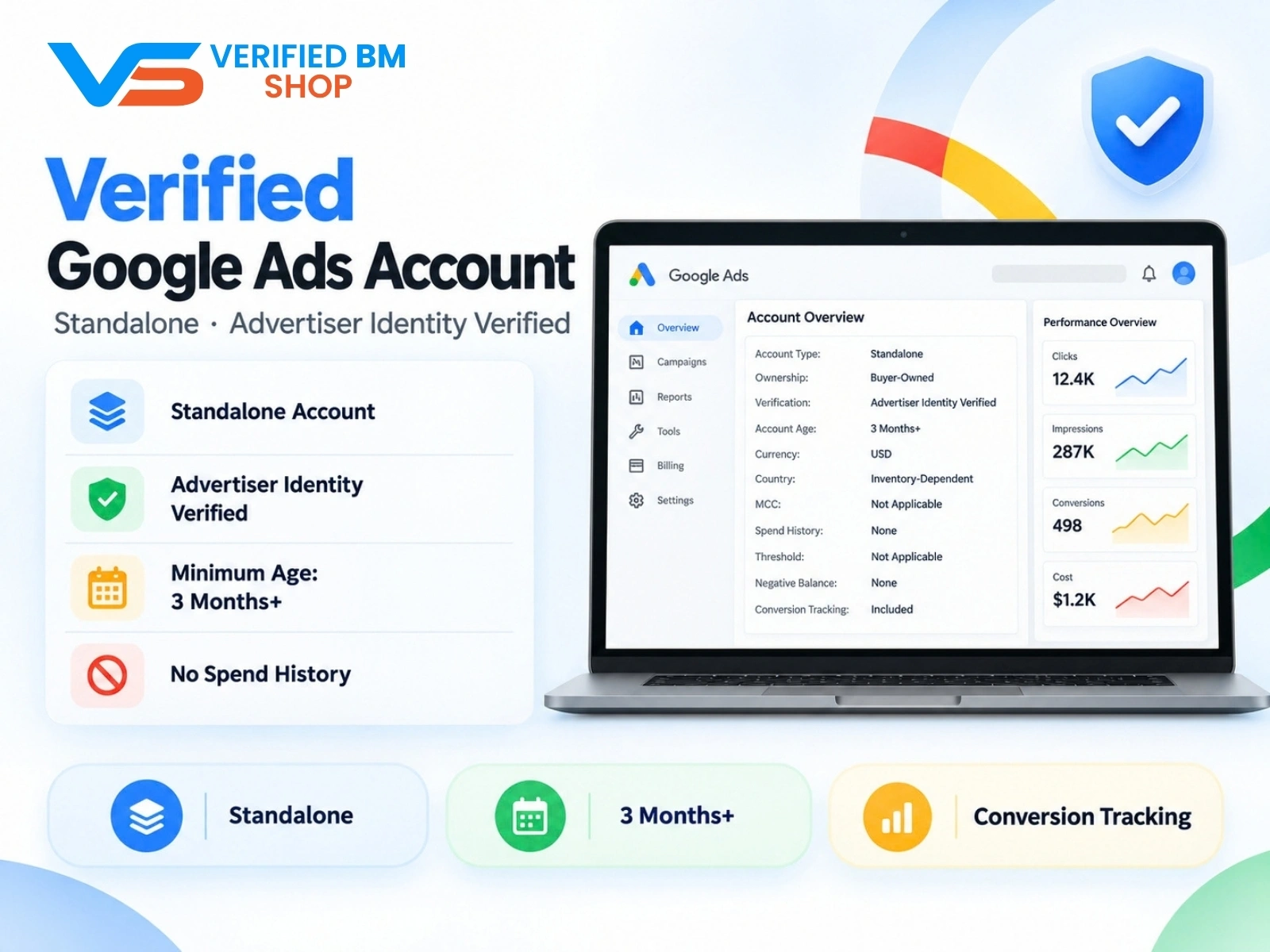
Google Verified Ads Account - Standalone, Advertiser Identity Verified

Written by
Verified BM TeamThe VERIFIED BM SHOP team shares real-world experience in buying and selling verified Business Managers, WhatsApp API accounts and advertising platforms.
Comments (0)
No comments yet. Be the first to share your thoughts!
Leave a Comment
Your email will not be published. All comments are moderated.