
Quick Summary
Learn why a Meta ad account may be restricted after a card is added, how to identify the issue, verify payment details, secure access, and request a review.
If you are asking, “Why is my Meta ad account disabled after adding a card?” the timing may point to a payment, identity, security, or ad policy review. Adding a payment method does not prove the card caused the issue. The restriction may involve the ad account, Business Manager, user profile, payment activity, or ad activity.
Check the exact notice in Meta’s account tools. Do this before adding cards again or opening a replacement account. The notice may point to payment, security, identity, or ad policy. It may not give the full reason.
Why is my Meta ad account disabled after adding a card?
Adding a payment method can happen near a review. Meta does not share all the signals it uses to assess payment methods and account activity. A restriction may also follow a failed authorization, disputed transaction, unpaid balance, security event, identity question, or ad policy decision.
Sometimes the card works, but the related details do not match. The cardholder name, billing address, business details, country, account access, and payment currency may differ from the advertiser or payment profile.
A disabled ad account has limited or stopped ad access. This alone does not prove card fraud or a policy violation. The decision may be temporary or open to review. It may also link to a separate restriction on the Facebook profile or Business Manager.
What kind of restriction did Meta apply?
Look for the restriction in Ads Manager, Billing, Account Quality, and Business Support Home. Menu names and access vary by account, country, and product. You may not see every option below.
| What you see | Likely area to investigate | First action |
|---|---|---|
| Payment failed, payment method disabled, or outstanding balance | Billing and payment activity | Check the charge, card status, balance, and bank response. |
| Confirm payment method, verify card, or submit documents | Payment or identity verification | Follow the request and submit clear, unaltered information. |
| Ad account disabled for policy reasons | Account Quality and ad review history | Review rejected ads, landing pages, and business practices before requesting review. |
| Suspicious activity, compromised account, or unusual login | Personal profile and Business Manager security | Secure access, remove unknown users, and review recent activity. |
Account Quality may show the reason and an option such as Request review. If the notice points to a payment balance or security event, resolve that issue first. An ad appeal may not be available until then.
For more on enforcement causes, see our guide to why Facebook ad accounts get restricted and how to fix them.
The most common reasons a card coincides with a Meta ad account review
Payment-method mismatch
The name, billing address, country, or other billing data in Meta may not match the bank’s records. A business card used on an account run by an unrelated person may also raise questions. Meta may question who approved the payment or the link between the payer and advertiser.
Failed, reversed, or disputed charges
A bank decline, low funds, expired card, reversed authorization, or chargeback can leave an unpaid balance. Repeated failed attempts can leave the issue open. They may also lead Meta or the bank to request more action. Avoid repeat tries and follow the displayed instructions.
Unusual billing or account activity
Changes in spending, payment details, account access, or login activity may lead to more review. Meta does not share its full criteria. This does not mean every new card or international payment is banned.
Identity or business concerns
Meta may ask for personal identity, business, or payment records. It may need more detail about who controls the account or who may pay for ads. Mismatched legal names, addresses, business details, or documents can delay the decision.
Account-security signals
Compromised profiles, unknown admins, shared logins, odd browser activity, or payment changes can cause a restriction. Secure the profile before you appeal if the notice points to account security.
Advertising-policy enforcement
The timing may be a coincidence. An ad, landing page, product, or business practice may have breached Meta’s Advertising Standards. Adding the card may have happened shortly before that policy review.
Check these areas before requesting a review
- Ads Manager: Open the disabled account. Record the exact warning, account ID, outstanding balance, and any review button.
- Billing: Check payment activity, failed charges, invoices, spending limits, and any amount still due. Save receipts and bank decline messages.
- Account Quality: Review restrictions on the ad account, Business Manager, Facebook profile, Page, and rejected ads. A restriction on another asset may affect the account you want to use.
- Business Support Home: Check open cases, requested actions, case status, and any contact or review option.
- Business settings: Confirm that the business name, address, website, Page, ad account, and admins belong to the same real organization or documented client relationship.
- Security: Review active sessions, login alerts, connected apps, admins, employees, partners, and recent payment changes.
Take screenshots for your records. Submit only the documents and explanations Meta asks for. Do not send sensitive card numbers when a masked statement or other approved proof will work.
How to troubleshoot the payment method
Confirm the card with the bank
Ask the bank if it blocked an online, recurring, international, or merchant-initiated transaction from Meta. Confirm that the card is active, has funds or credit, supports the transaction currency, and has not expired.
The bank may explain a decline code, but it cannot remove a Meta account restriction. If the bank says the card is valid, keep that detail for your support case.
Check the billing information
Compare the billing address and cardholder details in Meta with the bank’s records. Use the real address and legal name tied to the payment method. Do not change details to make unrelated information seem consistent.
Be careful with prepaid and virtual cards
Prepaid, virtual, debit, corporate, and international cards may follow different rules for authorization or recurring payments. Acceptance varies by country, bank, currency, and account. Meta has no universal rule that one card type always works.
If a card keeps failing, stop trying and contact the issuer. For step-by-step help, read how to handle a failed Meta Business Manager payment method.
Change payment methods only when necessary
Frequent payment-method changes can make your records harder to follow. They may also make the payment history harder to explain. Use an authorized method and avoid needless changes. Do not add cards owned by unrelated people or businesses.
How to complete Meta’s payment, identity, or business verification
Follow the prompt inside Meta’s account tools. Meta may ask for proof that you own the payment method. This may include a bank statement with sensitive details covered, a government-issued identity document, business registration details, proof of address, or an explanation of the payer’s link to the advertiser.
- Use documents that are current, readable, complete, and issued by the right authority or financial institution.
- Make sure the name and address match the account and payment profile.
- Upload files through Meta’s official form or dashboard. Do not use an unsolicited message or unknown support page.
- Do not crop out required information, edit documents, or submit documents belonging to another person or business.
- Explain any valid difference, such as an agency paying for a client, in a short, factual statement.
Meta’s document rules can vary by case and location. Use our Meta Business Manager verification document checklist to sort the payment, identity, and business details you may need. Treat the live Meta request as the main requirement.
How to request a review of the disabled ad account
- Open the restriction notice in Account Quality, Ads Manager, or Business Support Home.
- Choose the available review, appeal, or dispute option.
- State what happened. Say when you added the card, whether a charge failed, whether you paid the balance, and why the payment method is authorized.
- Answer the specific concern. Do not send a long, general statement about your business.
- Attach only the requested evidence. Submit the form when the information is correct.
A useful explanation is specific and calm: “The card ending in 1234 is issued to [legal name]. The billing address in Meta matches the issuer’s records. The declined charge was confirmed with the bank, and the balance has been paid. Please review the payment restriction on ad account [ID].” Never post a full card number, security code, password, or identity document in a public support conversation.
Review access, status messages, and response times vary. A pending status means Meta has not finished its review. It does not confirm that Meta will restore the account.
What to do if Meta rejects the review or provides no appeal option
Read the rejection with care. Check whether it names payment, security, identity, or ad policy concerns. If Meta gives you a new fix, complete it before seeking another review.
If there is no appeal button, check Business Support Home for an open case. Confirm that you are an admin with the needed permissions. You can also read the relevant official guidance in Meta’s Business Help Center.
Do not create replacement accounts to evade a restriction. Meta may review or restrict a replacement account too. Creating one can also make the original issue harder to explain.
Mistakes that can make the restriction worse
- Repeatedly adding and removing cards after each failed authorization.
- Using a card owned by someone with no clear business or agency link to the advertiser.
- Changing the business name, country, address, or admin details only to match a payment method.
- Submitting altered, expired, blurry, incomplete, or mismatched documents.
- Sharing one Facebook login among several people instead of giving each person the right business access.
- Opening replacement ad accounts or Business Managers to evade a restriction.
- Sending several conflicting appeals before the first review ends.
How to prevent future payment-related ad account restrictions
- Use a payment method approved by the person or business responsible for the ad spend.
- Keep billing details, business data, website ownership, and admin access accurate and current.
- Keep enough funds or credit available. Respond quickly to bank declines or unpaid balances.
- Limit admin access, remove former staff, and turn on two-factor authentication for connected profiles.
- Review payment activity and account notices often instead of waiting for a campaign to stop.
- Keep invoices, receipts, approval records, and client agreements ready for valid billing questions.
- Check ad and landing-page compliance before launch. A payment review does not replace a policy review.
For agency teams, our guide on setting up two-factor authentication on agency Business Managers covers a practical security step that helps reduce the risk of unauthorized access.
Final checklist for recovering a Meta ad account after adding a card
- Identify the exact restriction message and affected asset.
- Check Ads Manager, Billing, Account Quality, and Business Support Home.
- Resolve failed charges, unpaid balances, bank blocks, or disputed transactions.
- Confirm that the card, billing address, business, and advertiser link are valid and consistent.
- Secure the Facebook profile and Business Manager, including passwords, sessions, apps, and admins.
- Prepare clear, unaltered documents only if Meta asks for them.
- Submit one accurate review request through Meta’s available channel.
- Wait for the case status and follow any new instructions instead of creating a replacement account.
If the restriction remains after you complete Meta’s official steps, contact VERIFIED BM SHOP for account-specific guidance. We can help sort the details and explain possible next steps. No third party can guarantee Meta approval or reinstatement.
Frequently Asked Questions
Quick answers to the questions buyers ask most.
Why is my Meta ad account disabled after adding a card?
How can I find out why Meta disabled my ad account?
What should I check on my card when Meta ads are disabled?
Can I appeal a Meta ad account disabled for payment or security reasons?
Should I remove the card or add another payment method to fix the restriction?
Can I create a new Meta ad account if the original one is disabled?
What if I cannot log in to appeal the disabled ad account?
How this helps verified BM buyers
Apply this guidance when buying verified Business Managers or WhatsApp Business API assets to reduce policy risk, improve account stability, and scale campaigns with cleaner operational workflows.
View all Facebook options · Next steps: compare products in the Shop, review implementation details in FAQ, and contact support from the Contact page.
Recommended for You
Hand-picked from our shop — delivered fast after payment.
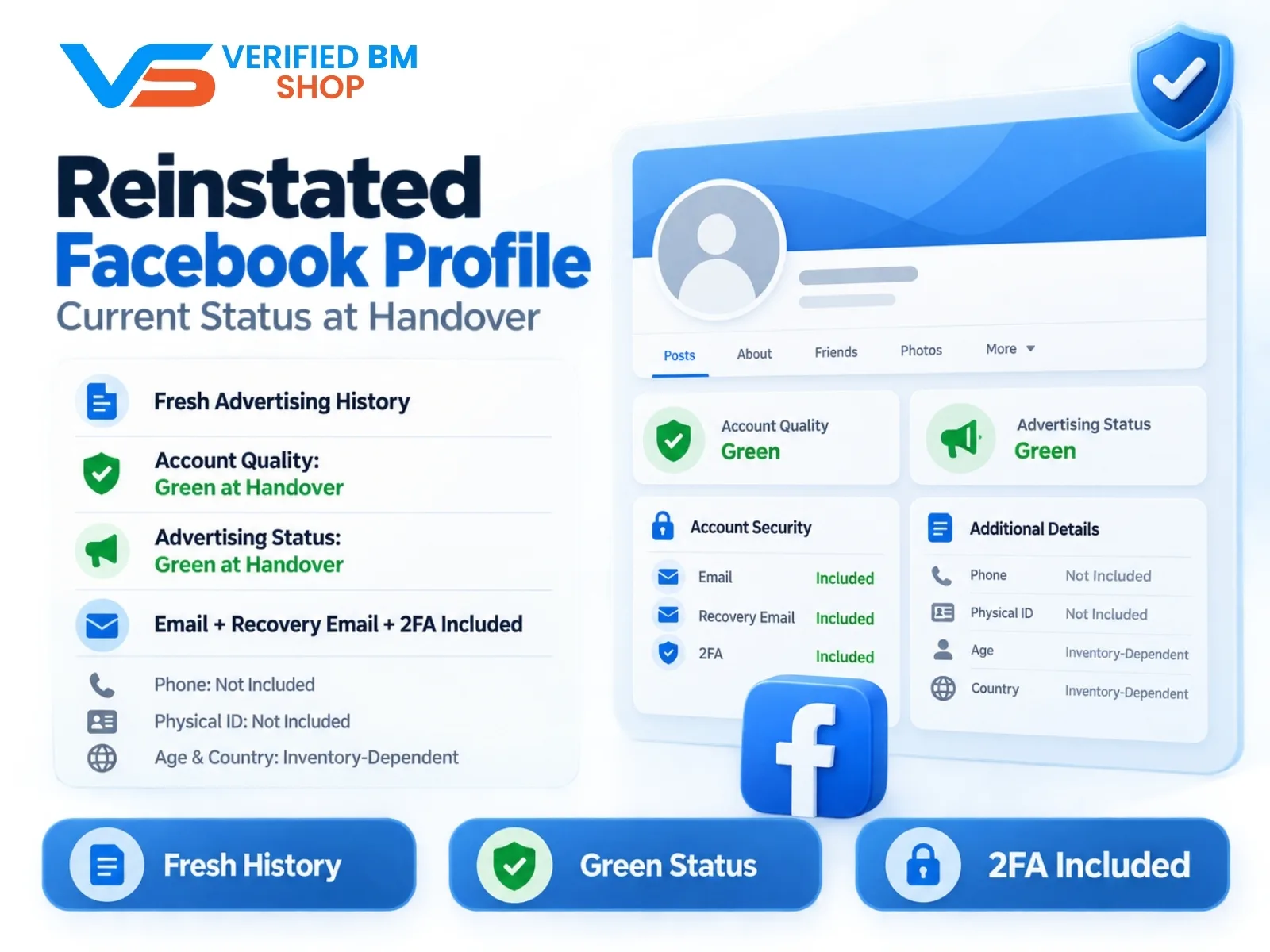
Reinstated Facebook Profile - Current Status at Handover
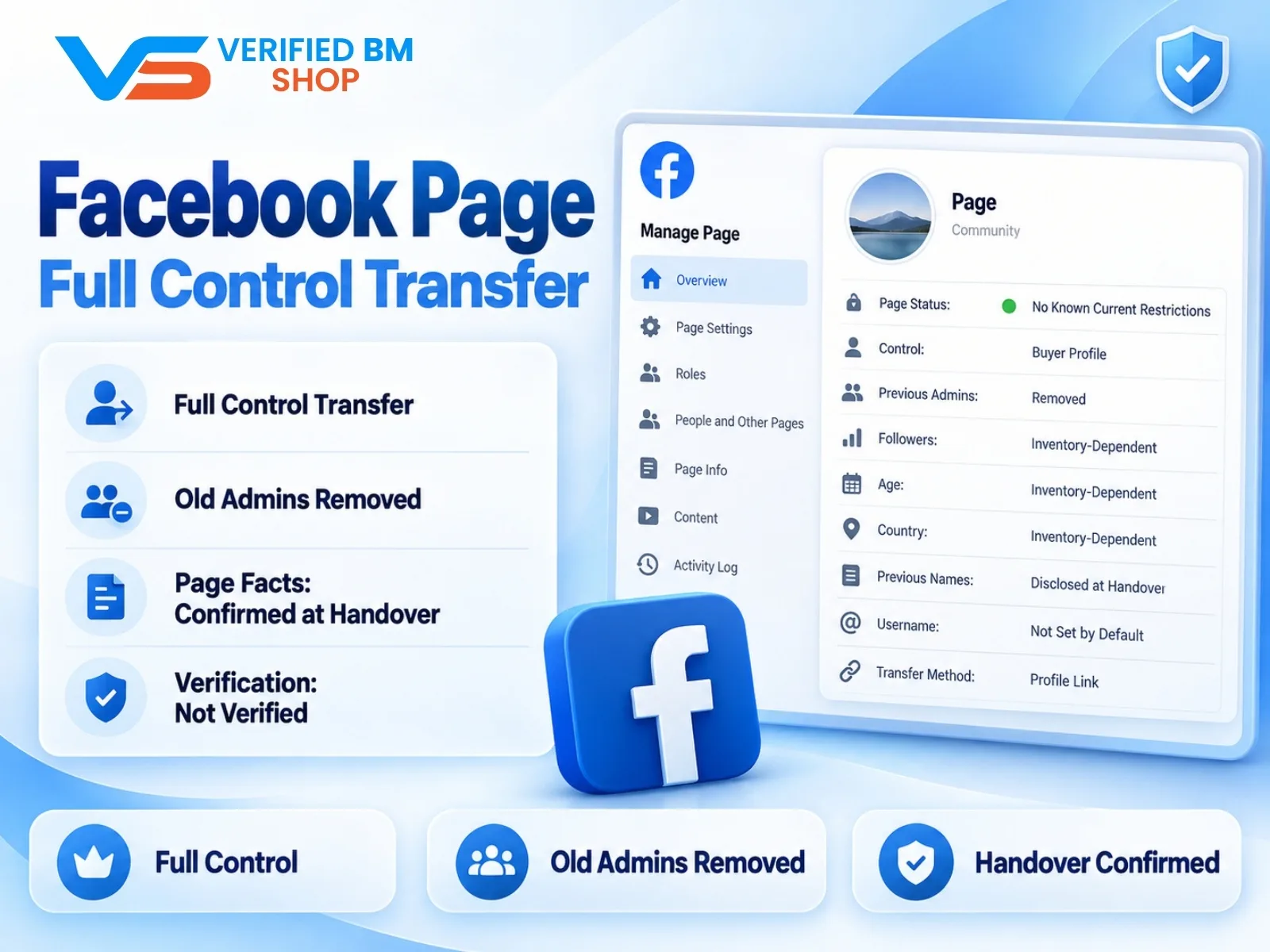
Facebook Page - Full Control Transfer

Written by
Verified BM TeamThe VERIFIED BM SHOP team shares real-world experience in buying and selling verified Business Managers, WhatsApp API accounts and advertising platforms.
Comments (0)
No comments yet. Be the first to share your thoughts!
Leave a Comment
Your email will not be published. All comments are moderated.