

Quick Summary
Learn how to locate, share, secure, and troubleshoot a product catalog for Meta Shops, product tagging, catalog ads, agencies, and supported event tracking.
Connecting a product catalog to a Meta business portfolio gives the right people and business assets controlled access to product data. Depending on your setup, the catalog may support Shops, product tags, catalog ads, and other Commerce Manager tools.
This guide explains how to connect a product catalog to Meta Business Manager. Meta may use different labels and steps based on your account type, country, commerce setup, catalog type, and interface version.
Commerce Manager usually manages catalogs. Business Settings manages related people, partners, Pages, ad accounts, and other business assets.
What It Means to Connect a Product Catalog to Meta Business
A product catalog is a set of items. It can include products, prices, descriptions, images, availability, and product IDs. Meta may use this data in eligible Shops, product tags, collection ads, catalog campaigns, and other commerce placements.
Connecting a catalog does not connect every asset needed for ads or commerce tools. You may still need to set up people, partners, an ad account, a Facebook Page, a shop, and a supported website, app, or server-side event source.
Asset | Typical purpose |
|---|---|
Catalog. | Stores and organizes product information. |
Facebook Page. | Represents the business or shop identity. |
Ad account. | Creates and pays for eligible catalog advertising. |
Website, app, or event source. | Reports supported product-related events when connected and set up correctly. |
People and partners. | Control who can view, manage, or advertise with the catalog. |
What You Need Before Connecting the Catalog
Access to the correct Meta business portfolio, formerly called Business Manager.
Catalog access that suits the task, or approval from the business that owns or controls the catalog.
A product feed, ecommerce platform link, manual upload, scheduled feed, or another supported data source.
The Facebook Page, ad account, and other business assets you plan to use.
A business and commerce setup that meets the rules for your account, products, country, and Meta feature.
Before changing ownership or access, record the catalog ID, business portfolio ID, Page ID, and ad account ID. Also record the people or partners who should keep access. If ownership or permissions are unclear, contact our support team before making changes that may be hard to undo.
How to Find Your Product Catalog in Commerce Manager
Open Meta Business and sign in with a profile that can access the relevant business portfolio.
Use the business portfolio selector to review the businesses linked to your work.
Open Commerce Manager. Select the relevant catalog under the commerce accounts, catalogs, or data sources shown in your account.
Open the catalog settings or permissions area. Check the catalog ID, owner or controlling business, product count, data source, and current access.
If the catalog is missing, switch through each business portfolio you manage. Also confirm that you use the right login profile. A catalog can appear in Commerce Manager under one business while you work inside another.
How to Assign or Share a Catalog with a Business
Depending on the account and commerce setup, Commerce Manager may create the catalog. A business portfolio may own it, or another business may receive access through the available permissions controls. The menu may appear as Settings, Business assets, Permissions, or Assign business assets.
Open Commerce Manager and select the catalog.
Go to Settings, Permissions, or the equivalent access area.
Look for an option to share the catalog, add a business, assign business assets, or manage partners.
Select the business or partner shown in the interface. Choose the permissions needed for the task.
Review the ownership and access notice before confirming. Then check Business Settings to verify that the catalog is available to the intended business.
Only an owner or a person with enough catalog and business permissions may see sharing or assignment controls. If the option is missing, the catalog may belong to another business. Your role may also be too limited, or the catalog may have shop or commerce account restrictions.
How to Create a New Product Catalog
Create a new catalog when no existing catalog contains the products you need. A separate catalog may also help when you need to split brands, regions, currencies, or product lines.
Open Commerce Manager and choose Create a catalog or the equivalent creation option.
Select the product category that best describes your inventory.
If the creation flow offers an ownership or business-selection option, choose the right business portfolio. Otherwise, review the owner and sharing settings after creation.
Select a product upload method. Options may include manual entry, a spreadsheet, a scheduled feed, an ecommerce platform link, or an approved API connection.
Add products and review image URLs, prices, availability, currency, titles, descriptions, and unique content IDs.
Use one clearly documented catalog for each product group unless separate catalogs meet a specific work or access need. Duplicate catalogs can cause confusion when a Page, event source, ad account, or product set links to the wrong version.
How to Give People Access to the Catalog
People usually need access to the business portfolio and a suitable catalog permission. Open the catalog in Commerce Manager. Select Settings or Permissions, then choose the people-management option shown in your account. Add an existing person from the business portfolio, or follow the invitation method in the interface.
Meta may offer separate catalog permissions for viewing, managing, or advertising. Names and access levels depend on the account, catalog type, business setup, and interface.
View access: Review catalog details and products without changing them, where this capability is available.
Management access: Edit products, data sources, settings, or access to the extent allowed by the assigned role.
Advertising access: Use the catalog for eligible advertising without necessarily receiving full management rights.
Meta may show these capabilities as separate checkboxes instead of named roles. Grant only the access needed for each person's work. Avoid giving full control to contractors who only need to launch or watch campaigns.
How to Assign a Partner or Agency to the Catalog
Use partner access when an agency, freelancer, or technology provider needs to work with the catalog without owning it. Ask the partner for its Business ID and check it before sharing assets.
Open Business Settings or the catalog's permissions area.
Select Partners, Add partner, or the equivalent option.
Enter the agency's Business ID if the interface requests it.
Choose the catalog and assign only the permissions needed for the engagement.
Ask the partner to confirm that the catalog and assigned capabilities appear in its business portfolio.
Partner access can make it easier to limit and remove an agency's permissions than sharing passwords or granting needless administrator access. The actual risk still depends on the permissions granted and how both businesses manage their accounts.
Remove the partner when the engagement ends. Then review related Page, event-source, ad-account, shop, and other business-asset permissions.
How to Connect the Catalog to a Facebook Page or Shop
For a Shop or product-tagging workflow, the catalog and Page usually need to be in the same commerce setup. They may also need to be shared with the right business. In Commerce Manager, open the shop or catalog settings. Look for Business assets, Pages, Sales channels, or Shop settings.
Select the Facebook Page that represents the store, if the interface provides a Page-selection option.
Choose the catalog that the Page or shop should use.
Review the commerce account, checkout options, domain, and business information requested by Meta.
Submit or publish the connection if Meta requires a review or approval step.
Shop availability and product-tagging tools vary by country, account status, product category, and applicable policies. A catalog can connect correctly while a specific Shop or tagging tool remains unavailable.
How to Connect an Ad Account and Event Source
Assign the ad account
In Business Settings, open Accounts and Ad accounts. Select the ad account and confirm that the relevant people or partner have advertising access. Return to the catalog's business-asset settings. Assign or share the ad account with the catalog if that option is available.
When you create a catalog sales or collection campaign, Meta may also ask you to select an eligible catalog and product set. Ad account access alone may not allow the account to advertise with a particular catalog.
Connect a website, app, or server-side event source
Where the catalog and campaign setup support it, connect the relevant website, app, or server-side event source. Check that its events use product identifiers that match the catalog. The required connections and controls vary by catalog, campaign type, events setup, and Meta's current product configuration.
Match your website or app content IDs with the catalog's product IDs. Mismatched IDs can cause weak event matching, missing products, or unavailable items in dynamic advertising. For implementation details, see our Meta Pixel and Conversions API setup guide.
How to Check Product Catalog Permissions
Review permissions in both Commerce Manager and Business Settings. A person may have business-portfolio access without catalog access. The reverse can also happen. They may also lack permission to use a connected Page, ad account, or event source.
Check | What to confirm |
|---|---|
Catalog owner or controller. | The expected business owns the catalog or has authorized access to it. |
People. | Each person has only the catalog capabilities needed for their role. |
Partner. | The agency Business ID is correct, and the intended catalog is shared. |
Page or shop. | The intended Page is available in the relevant commerce setup. |
Ad account. | The ad account can advertise with the catalog, where supported. |
Event source. | Supported events are connected, and product identifiers match catalog identifiers. |
How to Confirm Catalog Access in Business Manager
Sign in as the person or partner who needs access.
Open the correct business portfolio. Then open Business Settings.
Check Data sources, Catalogs, or Business assets, based on the interface.
Open the catalog and review assigned people, partners, Pages, ad accounts, and event sources.
In Commerce Manager, confirm that products load, the feed is current, and no key diagnostics block the intended use.
For advertising, create a draft catalog campaign. Check whether the catalog and relevant product sets are selectable.
These checks can find many access and catalog problems. They do not guarantee publishing, review approval, delivery, product tagging, commerce eligibility, or feature availability. More policy, billing, account, and review checks may occur later.
Common Catalog Connection Problems and Fixes
The catalog is missing
Check the business portfolio selector, catalog ID, and login profile. Ask the catalog owner whether the catalog belongs to another business or was shared only with a different partner.
The assignment option is unavailable
Your role may not include enough control. The catalog may also have ownership or commerce-account restrictions. Ask an owner to make the change, or request partner access instead of trying to claim the catalog.
Meta says you do not have permission
Confirm access at every needed level: business portfolio, catalog, Page, ad account, and event source. If an old assignment seems stuck, ask an authorized owner to remove and re-add the correct person or Business ID.
The catalog belongs to another business
Do not create duplicate ownership claims or remove the existing owner without approval. Ask the owning business to share the catalog with your business portfolio or partner account. Ownership transfers may be unavailable or restricted, especially when the catalog links to a shop, commerce account, or other business assets.
Products are not appearing in ads
Review feed errors, product approval status, inventory availability, product sets, currency, and content IDs. Also confirm that the selected ad account can advertise with the catalog and that the campaign uses the right catalog.
The Page or Shop will not connect
Check Page control, country eligibility, commerce-account status, domain requirements, product-policy compliance, and whether the Page already links to another shop or catalog. Some commerce features may need more eligibility or review checks. These can vary by country, account, product category, and the specific Meta feature.
If ownership, eligibility, or permissions remain blocked, request help with the Business Manager access issue. Include screenshots, IDs, and the exact error message. Do not send passwords or payment details.
Best Practices for Managing Catalog Access
Keep the catalog under the business that owns the products and customer relationship, where the setup permits this.
Use partner access for agencies instead of sharing personal logins.
Grant only the catalog capabilities required for each person's responsibility.
Use separate catalogs when brands, regions, currencies, or teams need different controls.
Review product feeds and diagnostics on a schedule, especially after changing platforms or URLs.
Remove former employees, contractors, and agencies promptly.
Turn on two-factor authentication for people with administrative access. This two-factor authentication guide covers the related security setup.
Keep a record of catalog, business, Page, ad account, and partner IDs for support requests.
Final Checklist for Connecting Your Product Catalog
The correct business owns the catalog or has authorized access to it.
The catalog contains current products that meet the rules for your setup.
Required people have only the catalog capabilities they need.
Agency access uses the correct Business ID and limited asset permissions.
The Facebook Page or Shop connects to the intended commerce setup, where eligible.
The ad account is assigned or shared and can advertise with the catalog, where supported.
The relevant website, app, or server-side event source is connected where required.
Product identifiers match between event data and the catalog feed.
Commerce Manager diagnostics show no blocking errors.
Former users and partners have been removed, and administrator accounts use two-factor authentication.
Once these checks pass, the catalog may be ready for the relevant Shop, Page, product-tagging, or catalog-advertising workflows. Meta's separate eligibility, policy, review, and feature-availability rules still apply. If your team is preparing a larger Meta advertising structure and needs a second review of ownership or permissions, contact VERIFIED BM SHOP for practical setup support.
Frequently Asked Questions
Quick answers to the questions buyers ask most.
How do I connect a product catalog to Meta Business Manager?
What do I need before connecting a catalog to Meta Business?
How can I add products to a Meta catalog?
How do I assign a catalog to a Meta ad account?
Can I connect one product catalog to more than one Meta ad account?
Why is my product catalog not showing in Ads Manager?
How often does a Meta product catalog update?
What should I do if Meta rejects products in my catalog?
How this helps verified BM buyers
Apply this guidance when buying verified Business Managers or WhatsApp Business API assets to reduce policy risk, improve account stability, and scale campaigns with cleaner operational workflows.
View all Facebook options · Next steps: compare products in the Shop, review implementation details in FAQ, and contact support from the Contact page.
Recommended for You
Hand-picked from our shop — delivered fast after payment.
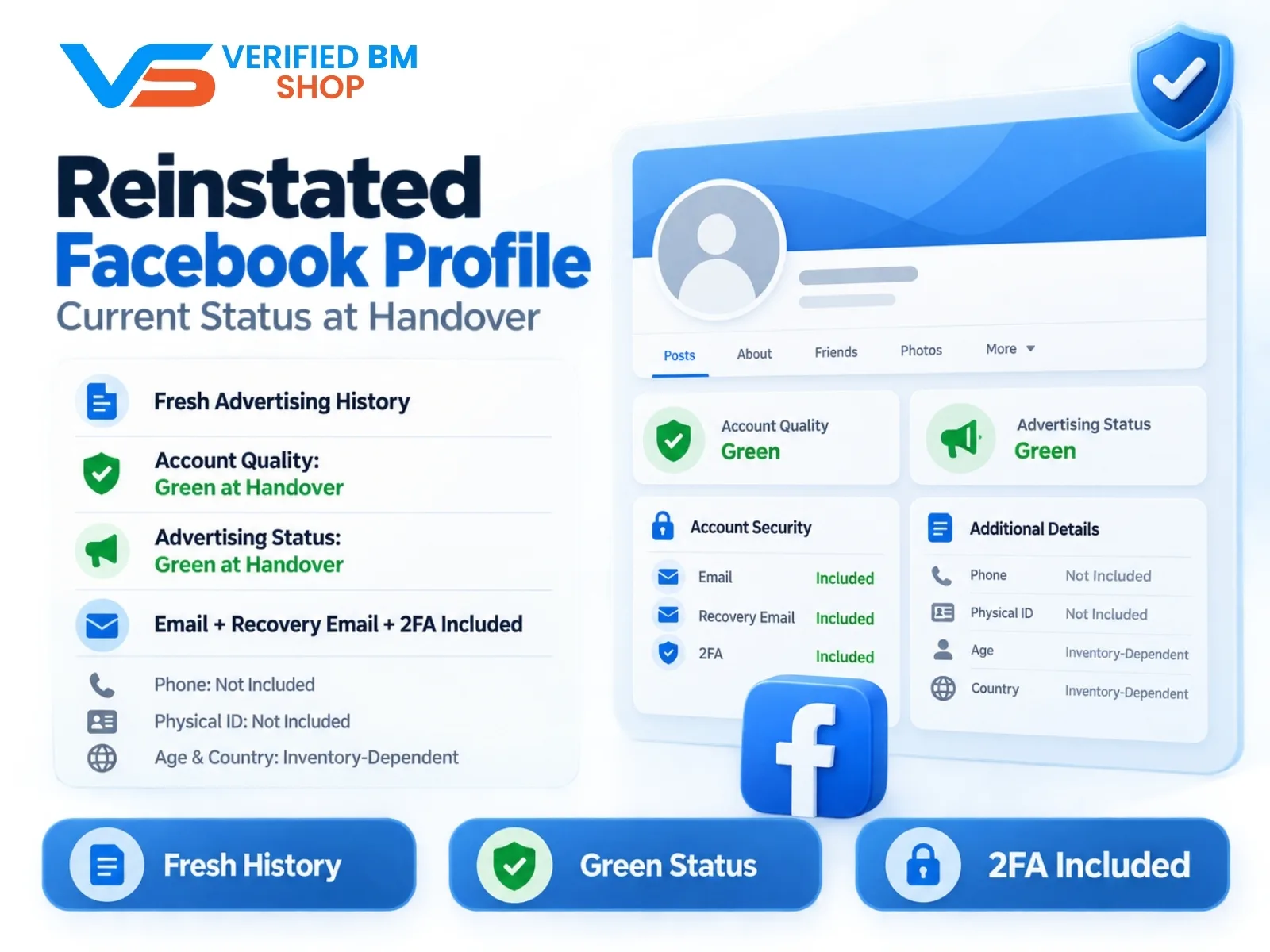
Reinstated Facebook Profile - Current Status at Handover
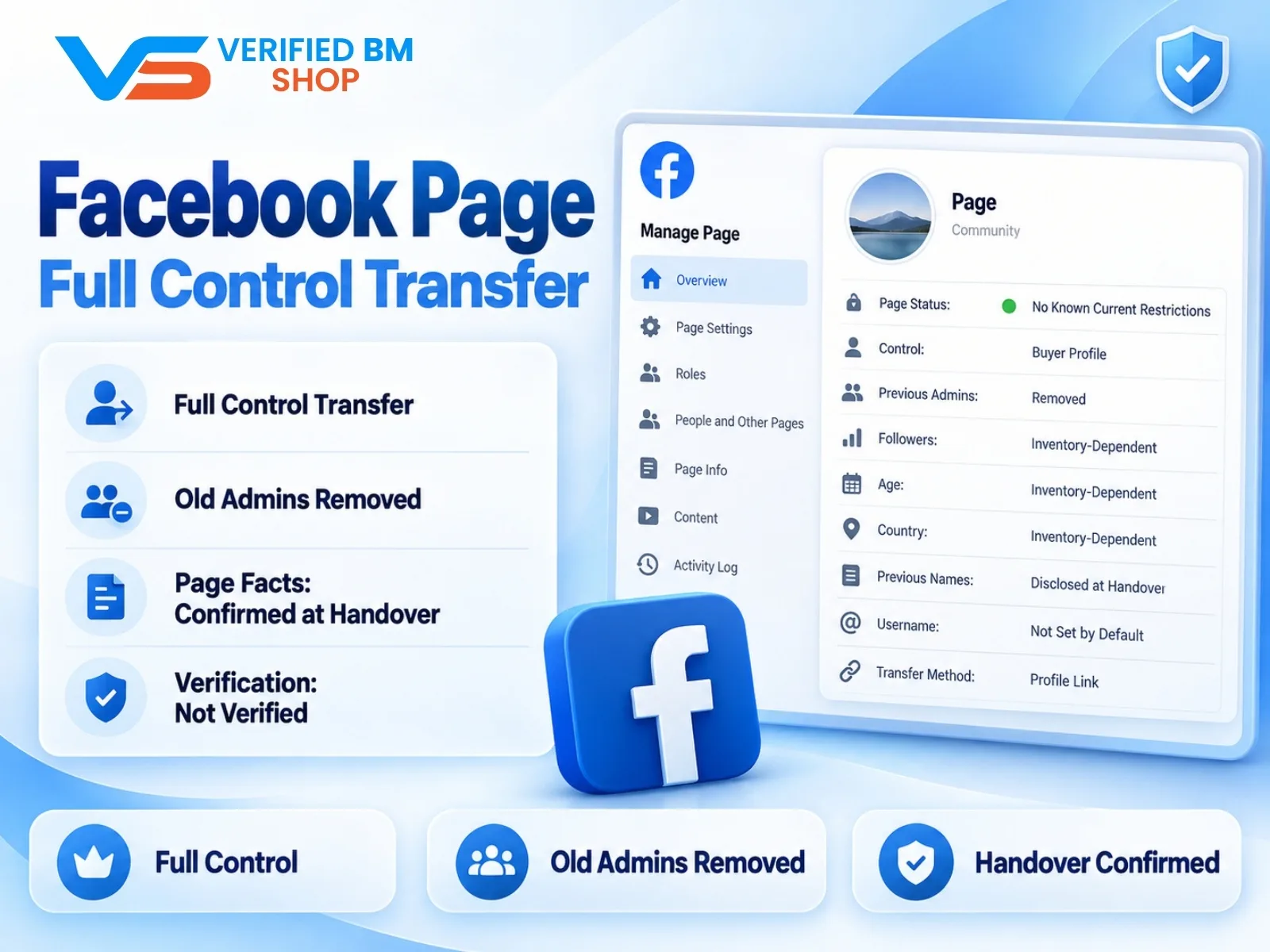
Facebook Page - Full Control Transfer
Written by
Verified BM TeamThe VERIFIED BM SHOP team shares real-world experience in buying and selling verified Business Managers, WhatsApp API accounts and advertising platforms.
Comments (0)
No comments yet. Be the first to share your thoughts!
Leave a Comment
Your email will not be published. All comments are moderated.