
Quick Summary
Learn how to find Meta business support, prepare a clear case, troubleshoot common issues, and follow up safely when direct contact options are limited.
Meta technical support may help with ads, billing, business access, verification, policy processes, and WhatsApp Business issues. Start with a clear case from the affected Business Suite, Business Manager, or ad account. This is better than sending several duplicate requests.
What Is Meta Technical Support?
Meta technical support helps with Meta business portfolios, Pages, ad accounts, catalogs, pixels, billing, business verification, and WhatsApp Business Platform setup. Contact methods depend on the account, asset type, region, issue, and Meta’s current support setup.
Support may offer troubleshooting guidance or review a technical or billing problem. It may also send you to the right policy review process. Support does not promise reinstatement, verification approval, a policy exception, or a set response time.
When Should You Contact Meta Technical Support?
Contact Meta when the account interface and published help steps do not solve the problem. Common examples include:
An ad account, Page, business portfolio, or payment feature is restricted and the available review path is unclear.
A business verification submission is stuck, rejected, or showing inconsistent information.
You cannot assign a legitimate person, partner, Page, pixel, catalog, or ad account because of an unexplained error.
Charges, invoices, payment failures, or billing thresholds appear incorrect.
An administrator has lost access or an authentication flow is failing.
WhatsApp Business Platform onboarding, phone-number registration, templates, or messaging limits show a technical error.
For a restricted advertising account, record the exact restriction and any available review button first. This guide on common causes of Facebook ad account restrictions can help separate a policy issue from a technical fault.
How to Access Meta Business Support
Sign in to the Facebook profile with legitimate access to the affected business asset.
Open the Meta Business Help Center. Choose the relevant business, advertising, commerce, or WhatsApp topic.
From Meta Business Suite or Business Manager, open the Help or question-mark menu. Look for Contact support, Get help, or a similar option.
In Ads Manager, check the help menu while the affected ad account is selected. In Business Suite, check the support or help area for the correct business portfolio.
Follow the prompts. Select the affected asset, describe the issue, and submit the case through the channel shown in your account.
Meta changes menu names and support flows. A link may open a general help article instead of a contact form. If that happens, sign in again and select the correct business portfolio. Then check the support area from the affected account, not a personal or unrelated account.
How to Check Available Support Options
Support options are not the same for every business. One business may see live chat, while another sees email, a form, self-service articles, or no direct contact option. Options can vary by region, account, asset type, issue, and Meta’s current support setup. Check the options shown in your own account.
Option | What to expect | Best use |
|---|---|---|
Live chat. | A real-time conversation when Meta makes it available. | Time-sensitive technical or billing questions with clear evidence. |
Email or web form. | A written case with replies in the support area or by email. | Issues that need screenshots, IDs, documents, or detailed explanation. |
Support Inbox. | A place to review messages and case updates associated with your account. | Tracking replies, requests for information, and case status. |
Self-service help. | Articles, automated checks, or appeal and review flows. | Common access, policy, payment, and setup problems. |
Buying an advertising product, having a verified business, or spending a certain amount does not automatically provide live support. Use the channel shown in your account and keep the case reference.
What to Prepare Before Opening a Support Case
A precise first message gives the agent useful context. It may also reduce avoidable follow-up questions. Prepare the following information:
Business portfolio or Business Manager ID, ad account ID, Page ID, WhatsApp Business Account ID, and phone number ID when relevant.
The login email and role of the affected administrator, without sharing the password.
The exact error message, including any error code, date, time, and affected device or browser.
A short timeline: what changed, what worked previously, and when the issue began.
Relevant campaign, payment transaction, catalog, domain, pixel, phone-number, or case reference IDs.
Redacted screenshots or a short screen recording showing the problem and the steps that produce it.
Business information that matches the account, plus requested identity or registration documents submitted only through an official Meta flow.
Remove passwords, authentication codes, full card numbers, unnecessary customer data, and private employee information. For verification matters, review the Meta Business Manager document checklist before submitting anything.
How to Submit and Track a Meta Support Request
Write a focused case description
Use one case for one connected problem. State the asset ID, exact error, impact, steps already tried, and outcome you want support to clarify or address.
Example: “Business portfolio ID 123456789 cannot assign ad account 987654321 to our legitimate admin. The error ‘Request failed’ appears after selecting Assign. Two admins tested current browsers on 12 March. Please confirm whether this is a permissions, asset ownership, or technical issue.”
Save the case details
Record the case number, submission date, selected topic, asset IDs, screenshots, and every reply. Check the support area or Support Inbox for status changes and requests for information. Also monitor the email address connected to the case.
Reply in the same case
Answer the existing thread with new evidence instead of opening several identical requests. If the case closes before the issue is resolved, explain what remains broken. Quote the original case number and ask whether it can be reopened or sent to the relevant team.
Common Meta Issues to Troubleshoot First
Login and administrator access
First, confirm that the person signing in uses the correct Facebook profile. Check that they have the required business role and have completed two-factor authentication if the business requires it. Test a supported browser, clear stale sessions, and see whether another approved administrator can access the asset.
For a lost administrator or compromised profile, use the steps in our Meta Business account recovery guide. Do not create duplicate profiles or transfer control to an unknown person while access is under review.
Disabled or restricted advertising assets
Open Account Quality or the relevant account status area. Identify whether the restriction affects the user, business, Page, ad account, or individual ad. Pause problematic activity, review the cited policy, and use the official review flow if one is offered.
Do not submit altered documents, repeatedly appeal without new information, or try to avoid a restriction with replacement accounts. These actions can make the review harder.
Verification problems
Make sure the business information and documents are accurate, consistent, current, and formatted as required by the specific Meta verification flow. Confirm that the submitting person has the right business role. Check that documents are readable and uploaded through the official interface.
A missing or disabled verification control may reflect eligibility, account setup, or an active review rather than a browser fault. For structured preparation and submission support, see our BM Verification Assistance service; no third party can promise Meta approval.
Billing and payment errors
Check the payment method, billing country, account spending activity, invoice history, and any bank decline message. Avoid adding cards again and again when the account shows a security or payment review. Capture the exact notice and contact support through the affected ad account.
WhatsApp Business issues
Confirm that the WhatsApp Business Account, business portfolio, phone number, app, and messaging product connect to the intended assets. Check display-name status, phone-number ownership, template status, quality signals, and the precise API response before opening a case.
For setup and error-specific checks, use the WhatsApp API troubleshooting guide. Include the WABA ID, phone number ID, request timestamp, endpoint or product area, and error code in the support request.
What to Do If the Meta Support Option Is Missing
Confirm that you are signed in to the profile with access to the affected business and that the correct portfolio is selected.
Check Meta Business Suite, Business Manager, Ads Manager, and the Help Center because the entry point may differ by issue.
Use the official troubleshooting or review flow attached to the restriction, billing notice, or verification screen.
Use a current browser, disable conflicting extensions, and test a private window without exposing your credentials.
Ask an existing, trusted administrator to check whether the support option appears for their role without sharing login details.
Save screenshots showing that no contact option is available and include them if a later form becomes accessible.
Do not pay a stranger who claims to have an internal Meta contact. Do not send documents through an unverified form. Support access can be limited, and no chat option alone does not mean the account is permanently blocked.
How to Follow Up or Escalate an Unresolved Case
Follow up inside the original case with a short update. Restate the asset ID, quote the case number, list new tests, attach new evidence, and explain the business impact. Ask a specific question, such as whether the issue is a permissions conflict, policy review, payment review, or platform defect.
If the first response does not address the problem, ask in the same case whether the relevant specialist team can review it. Avoid opening multiple identical tickets, changing business ownership during review, or sending conflicting explanations. A clear evidence trail can help the relevant team understand the issue, but it does not guarantee a response or decision.
Meta Support Security and Scam-Prevention Tips
Use Meta properties and links reached from your logged-in business account; check the domain before signing in.
Never share a password, one-time authentication code, recovery code, or full payment details with a supposed support agent.
Do not grant permanent admin control, remote desktop access, or unrestricted Business Manager access to troubleshoot a case.
Verify unexpected messages through the official support area instead of replying to a suspicious email or direct message.
Enable two-factor authentication for administrators and review active sessions and business roles regularly.
Our guide to two-factor authentication for agency Business Managers covers a practical account-security baseline. Legitimate support should not require you to bypass identity checks or send secrets.
When to Seek Professional Help
Professional help may be useful when several assets are connected, access has changed hands, verification documents need organizing, or your team cannot find which account owns the problem. A specialist can help build a timeline, map assets, redact evidence, and control administrator changes.
Choose a provider that works within Meta’s policies and never promises guaranteed approval, reinstatement, unbanning, or faster support. You remain responsible for the account, submitted information, permissions, and advertising activity.
Meta Technical Support Checklist
Identify the affected business, user, Page, ad account, WABA, phone number, or payment profile.
Capture the exact error, error code, URL or screen, timestamp, and recent account changes.
Test basic browser, session, permissions, payment, and status checks without changing multiple variables at once.
Prepare IDs, a short timeline, redacted screenshots, and relevant case or transaction references.
Submit through the official Meta business support path available in your account.
Save the case number and continue in the same thread.
Protect passwords, codes, payment data, documents, and admin access.
If you need help organizing the evidence before contacting Meta, contact our team for practical troubleshooting assistance.
Frequently Asked Questions
Quick answers to the questions buyers ask most.
How do I contact Meta technical support for a business issue?
Why can’t I see the option to contact Meta technical support?
What information should I include when opening a Meta support case?
How can I check the status of a Meta technical support case?
Does business verification help with Meta support or account troubleshooting?
How this helps verified BM buyers
Apply this guidance when buying verified Business Managers or WhatsApp Business API assets to reduce policy risk, improve account stability, and scale campaigns with cleaner operational workflows.
Compare Verified BM options · Next steps: compare products in the Shop, review implementation details in FAQ, and contact support from the Contact page.
Recommended for You
Hand-picked from our shop — delivered fast after payment.
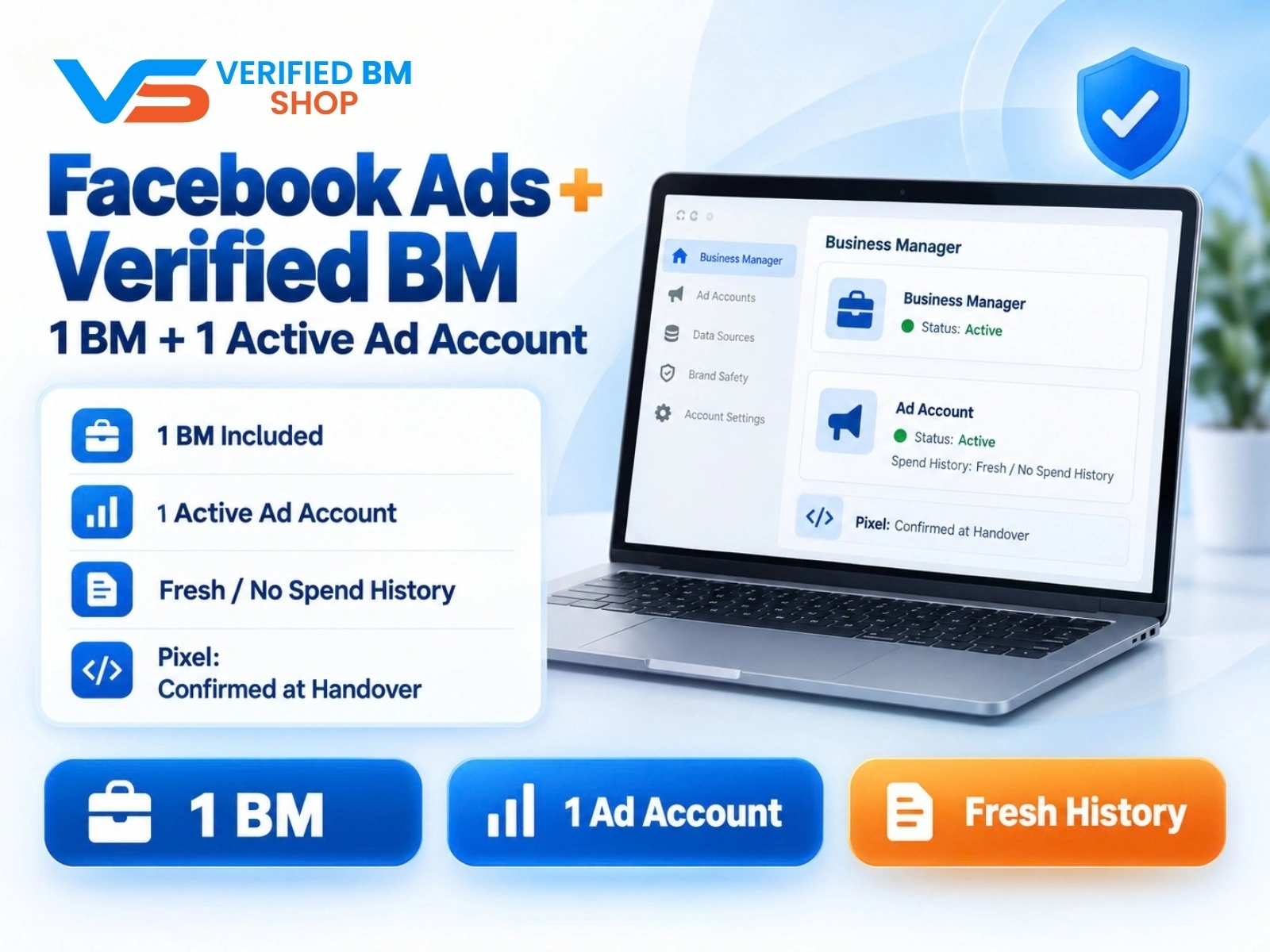
Facebook Ads Account + Verified BM Bundle
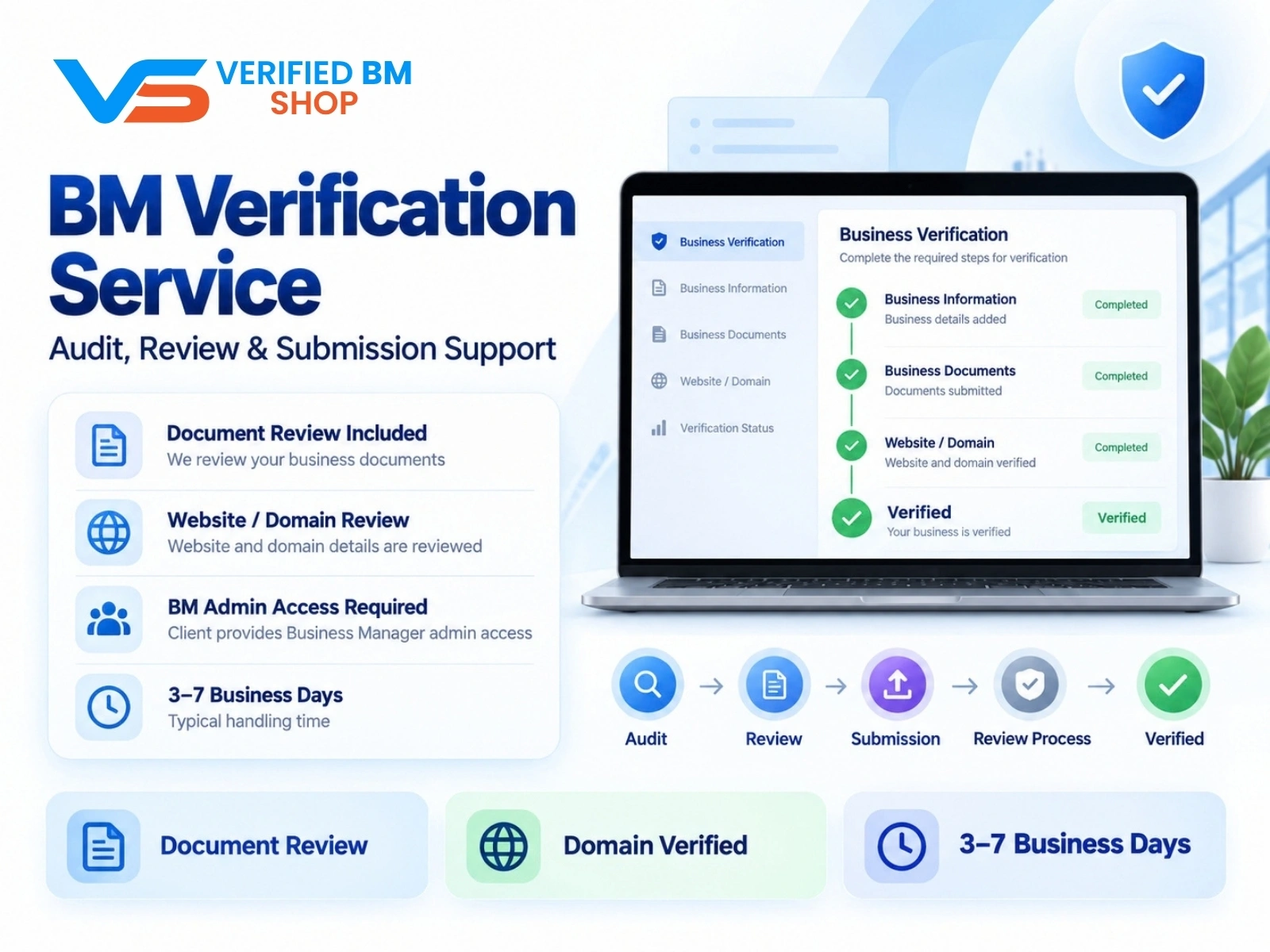
BM Verification Service
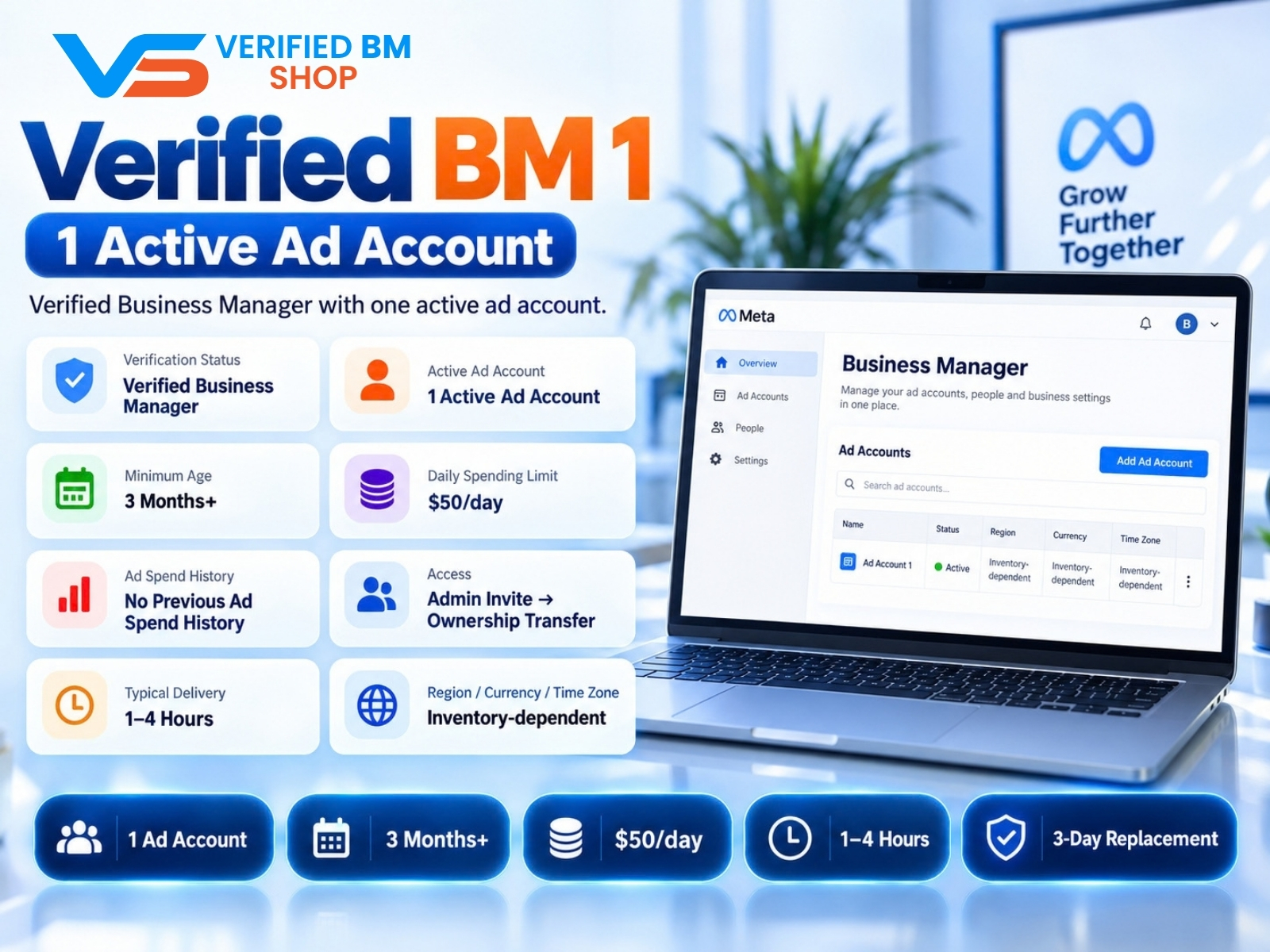
Verified BM 1 - Verified Meta Business Manager
Written by
Verified BM TeamThe VERIFIED BM SHOP team shares real-world experience in buying and selling verified Business Managers, WhatsApp API accounts and advertising platforms.
Comments (0)
No comments yet. Be the first to share your thoughts!
Leave a Comment
Your email will not be published. All comments are moderated.