
Quick Summary
Learn how to create a WABA, register a phone number, configure Cloud API access and webhooks, test messages, and prepare a compliant WhatsApp launch.
A correct WABA setup links a WhatsApp Business Account to a Meta Business Portfolio. It assigns a business phone number, sets up API access, and prepares approved message templates. Because Meta can change its setup screens and rules, use the current Cloud API docs with these steps.
What Is a WABA?
A WhatsApp Business Account, or WABA, is a business asset for managing WhatsApp Business Platform use. Depending on the setup, it can link to phone numbers, display names, message settings, templates, quality data, and connected apps.
The WhatsApp Business app supports manual chats from a phone. By contrast, the WhatsApp Business Platform supports API-based messages through tools such as a CRM, customer service inbox, or custom app. A WABA does not replace that software. Instead, it links the software to WhatsApp under Meta’s platform rules.
What You Need Before Starting WABA Setup
- A Meta account with admin access to the right Business Portfolio, once often called Business Manager.
- A real business name, address, website, and contact details that match your business records.
- A business phone number that can get SMS or voice checks.
- A choice between using Cloud API on its own or working through a WhatsApp Business Solution Provider.
- A public HTTPS webhook endpoint if your app will get incoming messages and delivery updates.
- A customer consent process, privacy notice, opt-out method, and support flow.
Phone number access depends on the number’s current WhatsApp status. Usually, a number already used in the WhatsApp or WhatsApp Business app must be removed from that account before Platform setup. This does not apply when you use an approved move path.
Removing a number can affect current app access and chat history. Plan the change before you start. If you need managed systems, review the WhatsApp API category before creating an account.
Choose Your WhatsApp Business Platform Setup Method
| Method | Best for | What you manage |
|---|---|---|
| Cloud API direct onboarding | Developers and teams with their own software | Meta assets, app settings, tokens, webhooks, templates, and monitoring |
| Solution Provider | Businesses that want an inbox, support, or integration package | Provider setup, billing, software setup, and account admin |
Direct Cloud API access gives your tech team more control. It also needs coding work and ongoing care for credentials. A provider may make setup and support easier. Prices, ownership, data use, and available features vary by provider and plan.
For a short comparison, read this WhatsApp Business Platform onboarding checklist. When comparing managed products, review the 250 daily messaging product, 2,000 daily messaging product, or 10,000 daily messaging product. Check the current terms and access rules before purchase.
Step 1: Prepare and Verify Your Meta Business Portfolio
Open Meta Business Settings and check that you are in the right Business Portfolio. Before creating anything, review the portfolio name, legal business details, time zone, admins, security settings, and current WhatsApp assets.
Turn on two-factor authentication for admins. Keep ownership with the real business. Do not create a WABA with borrowed papers, false details, or another company’s identity.
Is business verification required?
Some businesses may start setup before business checks. However, extra checks or access rules may apply to some features or message limits. Follow the rules shown in the current Meta setup flow and docs.
Send true documents when Meta asks for them. Keep the business name and address the same on your website, records, and form. For document help, see the Meta Business Manager verification document checklist. Verification does not replace WhatsApp policy or customer consent rules.
Step 2: Open WhatsApp Manager and Create a WABA
- Open Business Settings or WhatsApp Manager from the right Business Portfolio.
- Choose the option to add or create a WhatsApp Business Account.
- Enter the business details Meta asks for.
- Give the right people, system users, and partners access.
- Save the WABA ID and check that the asset shows under the right portfolio.
Keep one clear owner for the WABA. Give agencies and developers only the access they need. Remove old users or partners when their work ends.
Step 3: Add and Verify Your Business Phone Number
In WhatsApp Manager, add the number you plan to use. Pick a display name and business type. Ask for a check by SMS or voice call. Enter the code soon. Also, check that the number can get the chosen method.
The number must not link to another WhatsApp account or live link. If it is now used in the app, follow Meta’s move guide or remove it first. Do not make many check attempts. If Meta limits code requests for a time, wait for the time shown on screen. Then follow the current steps to recover access.
Choose a compliant display name
Your display name should show the business that customers expect to reach. It should also match your public brand. Avoid vague claims, extra marks, sales lines, or names not tied to the legal or public business name. Meta may check the name before customers see it.
Step 4: Complete Your WhatsApp Business Profile
Add the business description, type, website, email, address, and profile image that WhatsApp Manager allows. Keep each field true and clear to customers. Mixed details can cause review issues or lower trust.
Use a support email your team checks. The profile should say what the business does and how customers can get help. Do not make claims about delivery, price, or results that you cannot confirm.
Step 5: Connect the WABA to the Cloud API
For direct Cloud API setup, create or pick a Meta developer app. Add the WhatsApp product. Meta may give you a test phone number, test recipient, short-term token, phone-number ID, and WABA ID. These let you send a first request before you link live systems.
For live use, check that the app, WABA, phone-number ID, and Business Portfolio belong to the right operation. Store IDs in a safe settings system. Do not place them in public code or apps used by customers.
Step 6: Create Access Credentials and Configure Webhooks
Access tokens and permissions
A short-term token helps with a first test, but it should not run a live service. A live link often uses a system user with the needed assets and a token with the right scope. This still depends on Meta’s current app and access rules.
Cloud API work often uses whatsapp_business_management for business assets and whatsapp_business_messaging for messages. Check the access and approval rules shown for your app and setup path.
Limit token access. Change credentials when staff or vendors change. Never share tokens in browser code, screenshots, code stores, or support tickets.
Webhook configuration
Make a public HTTPS endpoint that can answer Meta’s check request. Set the callback URL and check token in the developer dashboard. Link the app to the WABA. Handle events such as incoming messages, sent messages, delivery status, read status, and failures.
Your endpoint should send a fast success reply and check incoming requests. Log event IDs with care, and allow for repeat events. Test the webhook with Meta’s tools. Then send a controlled message to an allowed test recipient.
Step 7: Create and Submit Message Templates
Businesses often need an approved template to start a chat or send a message outside the customer service time allowed by the rules. Meta checks templates and gives them types such as marketing, utility, or authentication. It uses the template’s goal and content to set the type.
Write templates that fit the chosen type. Use clear examples for variables. Avoid false claims and name the business. Keep login codes apart from sales content. An approved template may later pause or face limits if it gets poor feedback or starts Meta’s rule checks.
For messages within an allowed customer service chat, use useful replies. Do not push a sales template into the chat. Follow the current WhatsApp API compliance guidance.
Step 8: Review Pricing, Messaging Limits, and Quality Rating
WhatsApp Business Platform pricing can depend on message type, target market, current Meta price rules, and the chosen setup path. Meta’s price plan and any free or service-based treatment can change. Check the current official price data before you plan costs.
Meta sets message capacity and access under its current rules. These may vary by account, phone number status, quality data, check status, region, and product limits that apply. Do not assume that a check will raise capacity.
Quality signals can include blocks, reports, poor feedback, unwanted messages, and policy breaches. These signals may affect template status or message access under Meta’s current rule system. Watch the quality data shown in WhatsApp Manager.
Step 9: Test the WABA Before Launch
- Send a test template to an opted-in staff member.
- Check that the message reaches the right phone number and that delivery and read events reach your webhook.
- Reply from the customer side and check that your app gets the incoming message.
- Test bad numbers, old tokens, repeat webhook events, and short-term API faults.
- Check opt-out handling, human handoff, support hours, and paths for urgent cases.
- Check that logs do not show access tokens or extra customer data.
Do not start with a large broadcast. Send a small, useful batch to people who gave clear consent. Watch delivery and complaint signals. Fix issues before you grow the send volume.
Common WABA Setup Problems
Business verification is pending or unavailable
Check that you have admin access. Make sure the business details match the papers you sent. Also, check that the website and contact details are public and the same.
Do not send many forms with changed details. Read Meta’s request and use the support path offered. See what to do when Meta Business verification is pending.
The phone number cannot be added
Check that the number is not live in the WhatsApp app or linked to another WABA. Confirm that it can get SMS or voice calls and uses the right country code. If you just removed or moved the number, follow the release or move steps Meta shows. Try again only when the number shows as free.
The display name is rejected
Use the known business name shown on your website and customer messages. Remove sales lines, claims without proof, symbols, and names that point to another company or product.
Messages fail or webhooks remain inactive
Check the phone-number ID, WABA ID, token access, system-user link, app mode, webhook check reply, and WABA link. Review the API reply and event logs. Do not send the same request again and again.
For setup errors, read common WhatsApp API issues and errors.
WABA Compliance Checks Before Sending Messages
- Get clear, specific consent for WhatsApp messages and keep proof of when and how you got it.
- Tell customers what types of messages they will get and name the business sending them.
- Give a simple opt-out method and act on it without delay.
- Send only useful messages to people who asked for them.
- Use approved templates for the right type and goal.
- Do not use WhatsApp for banned goods, false offers, illegal acts, or harmful automation.
- Keep personal data safe, limit staff access, and post a fit-for-purpose privacy notice.
- Watch blocks, complaints, delivery quality, template status, and account notices.
A checked Business Portfolio does not cancel these rules. Meta can check, limit, or remove access when activity breaks platform terms or harms customer care.
WABA Setup Checklist
- Right Meta Business Portfolio selected.
- Admin access and two-factor authentication checked.
- Legal business details and check papers ready.
- Cloud API or provider path selected.
- Eligible phone number freed from conflicting WhatsApp use.
- WABA created and ID saved in a safe place.
- Phone number checked and display name sent.
- Business profile filled out with correct details.
- App, system user, token, and access set up.
- Webhook checked, linked, and tested.
- Templates sent in the right types.
- Pricing, limits, consent, opt-out, and support steps reviewed.
- Small live test done before wider sending.
For a pre-launch review, contact VERIFIED BM SHOP with your business region, phone-number status, intended integration method, and current Meta onboarding state. Check the rules against the Meta flow that applies before live setup or purchase.
Frequently Asked Questions
Quick answers to the questions buyers ask most.
How do I complete a WABA setup with Meta Business?
What do I need before starting a WhatsApp Business Account setup?
Can I use an existing WhatsApp phone number for WABA setup?
How do I connect a WABA to the WhatsApp Cloud API?
Is Meta business verification required to set up a WABA?
How much does using the WhatsApp Business Platform cost after setup?
What should I do if my WABA phone number or messages are not working?
How this helps verified BM buyers
Apply this guidance when buying verified Business Managers or WhatsApp Business API assets to reduce policy risk, improve account stability, and scale campaigns with cleaner operational workflows.
Compare Verified BM options · Next steps: compare products in the Shop, review implementation details in FAQ, and contact support from the Contact page.
Recommended for You
Hand-picked from our shop — delivered fast after payment.
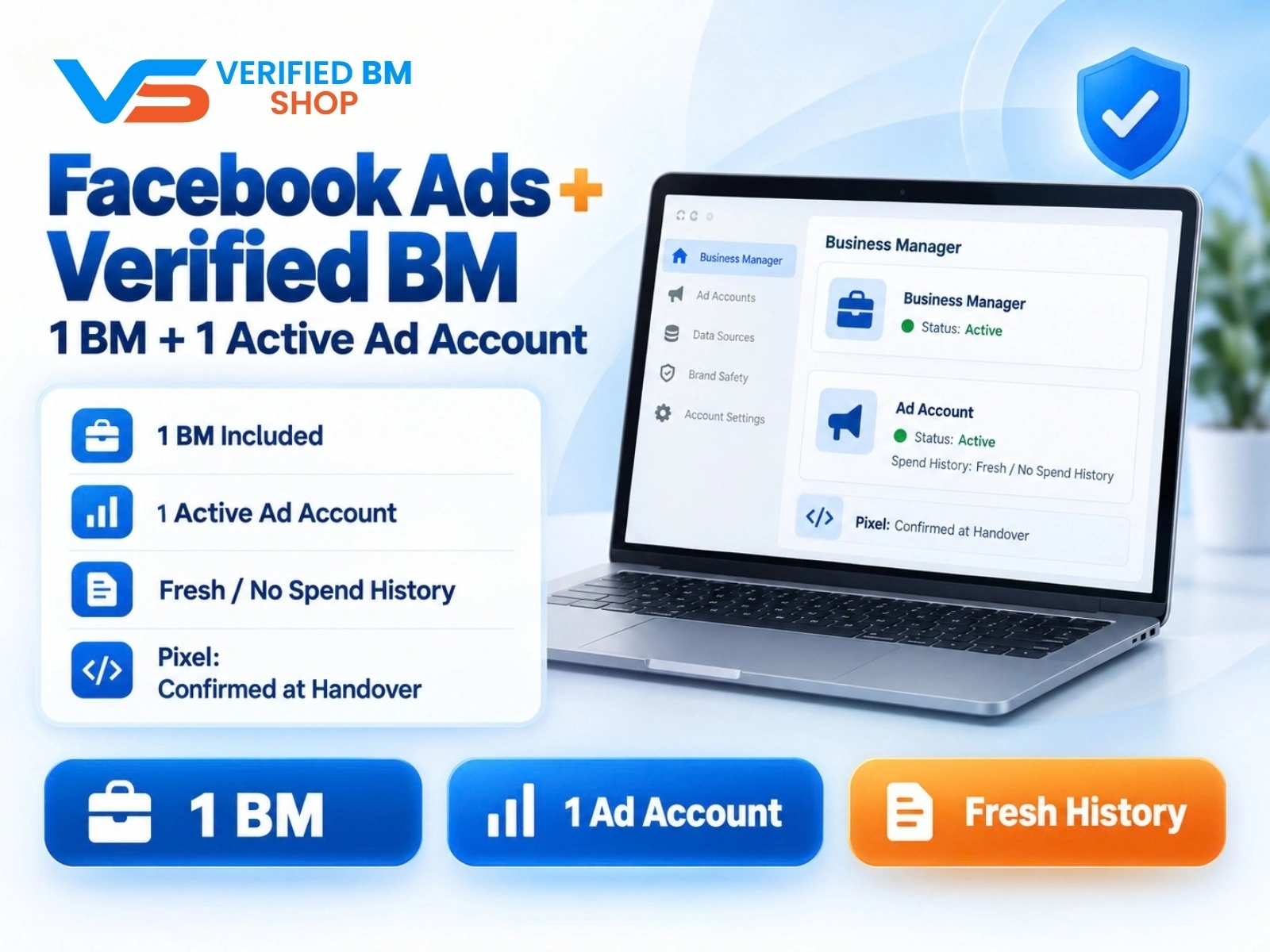
Facebook Ads Account + Verified BM Bundle
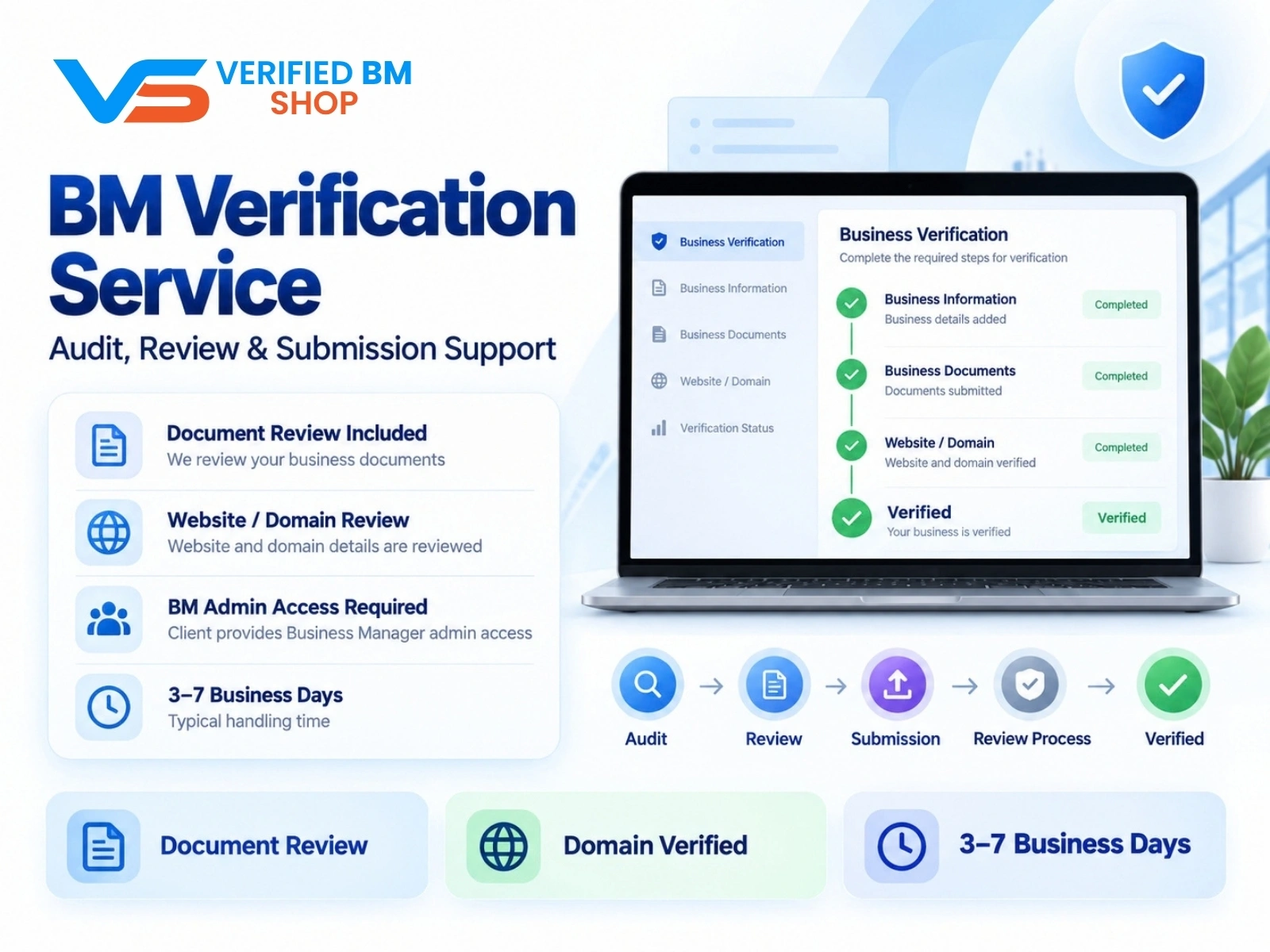
BM Verification Service
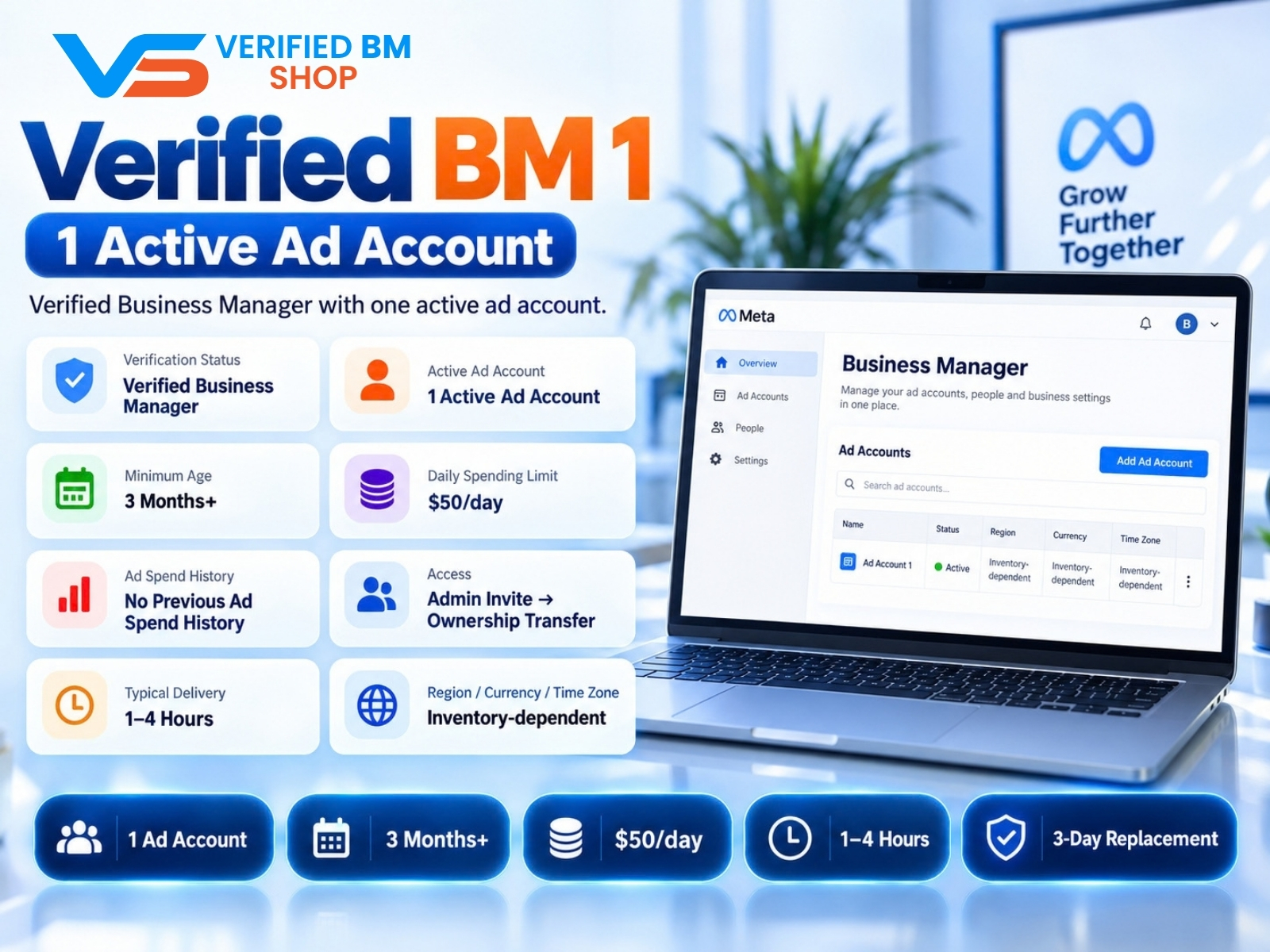
Verified BM 1 - Verified Meta Business Manager
Written by
Verified BM TeamThe VERIFIED BM SHOP team shares real-world experience in buying and selling verified Business Managers, WhatsApp API accounts and advertising platforms.
Comments (0)
No comments yet. Be the first to share your thoughts!
Leave a Comment
Your email will not be published. All comments are moderated.