
Quick Summary
Learn how to add new admins to your purchased Business Manager safely while following normal Meta account-security and verification requirements.
You just grabbed a fresh asset from VERIFIED BM SHOP. Next, you need to bring your team on board.
However, adding people too quickly can create avoidable security friction. Meta reviews sudden changes on new logins more closely. Therefore, let us walk through the safe method step by step.
Preparation Before You Start
Do not rush this process. Log into your main profile first. Also, warm up the session by browsing normal pages.
Then check your customer dashboard for the exact delivery email we sent. Make sure your connection is stable.
Basic Safety Rules
Use a clean IP address.
Match your browser language.
Avoid VPN jumps.
Keep cookies enabled.
These simple checks help reduce the chance of sudden lockouts.
Step-by-Step Admin Addition
Head straight to your Business Settings page. Next, click the Users tab on the left. Select People from the drop-down menu. Then hit the blue Add button near the top right.
Type the email address of your new admin.
Use a real email.
Check spelling twice.
Avoid temporary mailboxes.
Assign employee access or admin access based on your needs.
Handling the Invite Link
Meta sends an invite email automatically. Sometimes that email lands in the spam folder. Meanwhile, you can also copy the invite link directly from your dashboard.
Also, share this link over a secure chat channel. Tell your teammate to open the link in a fresh browser session.
Common Mistakes to Avoid
Never add five people in one hour. Instead, space out your team invites over a few days.
Do not use old banned profiles to send invites. Finally, verify that your email matches the business domain. Small errors can cause avoidable restrictions.
Comparing Access Levels
You must pick the right role for your staff.
Role Type | Ad Accounts | Settings | Billing |
|---|---|---|---|
Employee | Limited | No | No |
Admin | Full | Yes | Yes |
Finance Editor | None | No | Yes |
Analyst | View Only | No | No |
Keep admin counts low for maximum safety. Most media buyers only need standard employee access.
Troubleshooting Failed Invites
Did the invite link expire? Then generate a new link from your settings panel.
Is the button grayed out? For example, confirm your primary page has an active admin.
Reach out to our 24/7 support if you get stuck. Also, we help you fix login loops fast. You can also grab a Verified BM 1 — Facebook Business Manager if your current setup acts up.
Need more ad slots? Next, try a Verified BM 3 — 3 Ad Accounts right now.
For heavy spenders, a Verified BM 10 — 10 Ad Accounts works best.
Frequently Asked Questions
Quick answers to the questions buyers ask most.
Why did my admin invite fail?
Can I use any email for new admins?
How many admins should I add?
What if my account gets restricted?
How this helps verified BM buyers
Apply this guidance when buying verified Business Managers or WhatsApp Business API assets to reduce policy risk, improve account stability, and scale campaigns with cleaner operational workflows.
Compare Verified BM options · Next steps: compare products in the Shop, review implementation details in FAQ, and contact support from the Contact page.
Recommended for You
Hand-picked from our shop — delivered fast after payment.
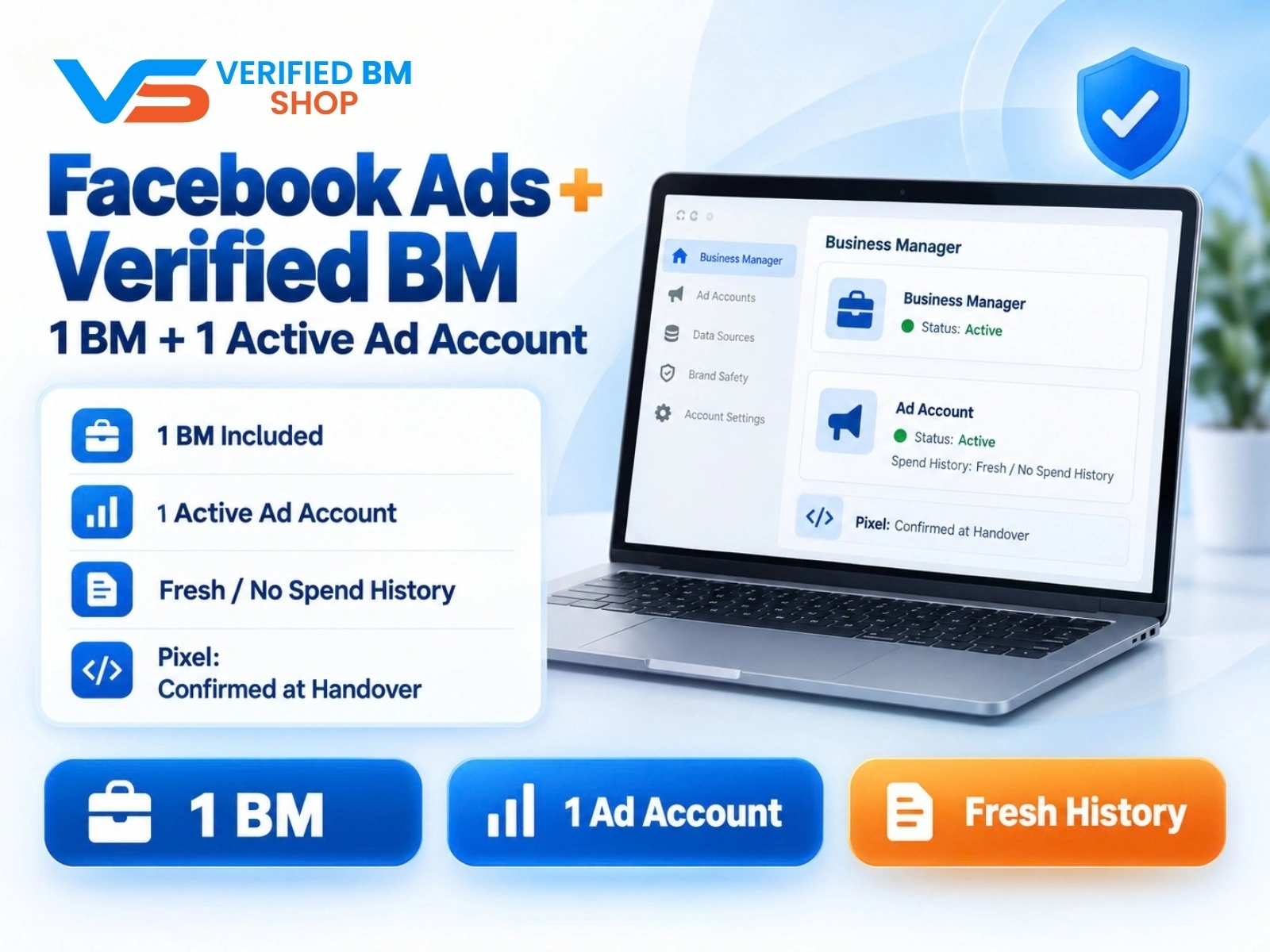
Facebook Ads Account + Verified BM Bundle
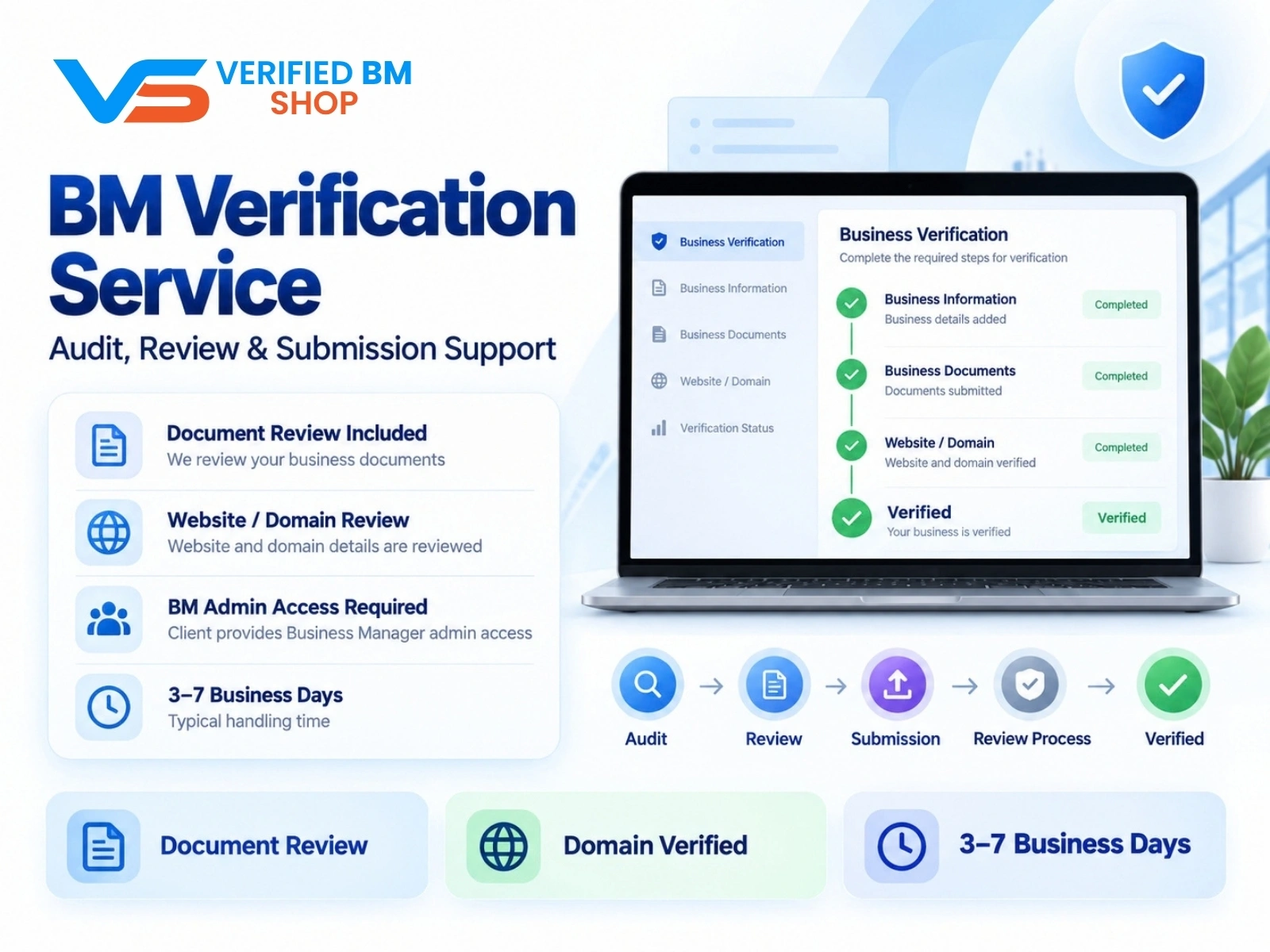
Meta BM Verification Service by VERIFIED BM SHOP
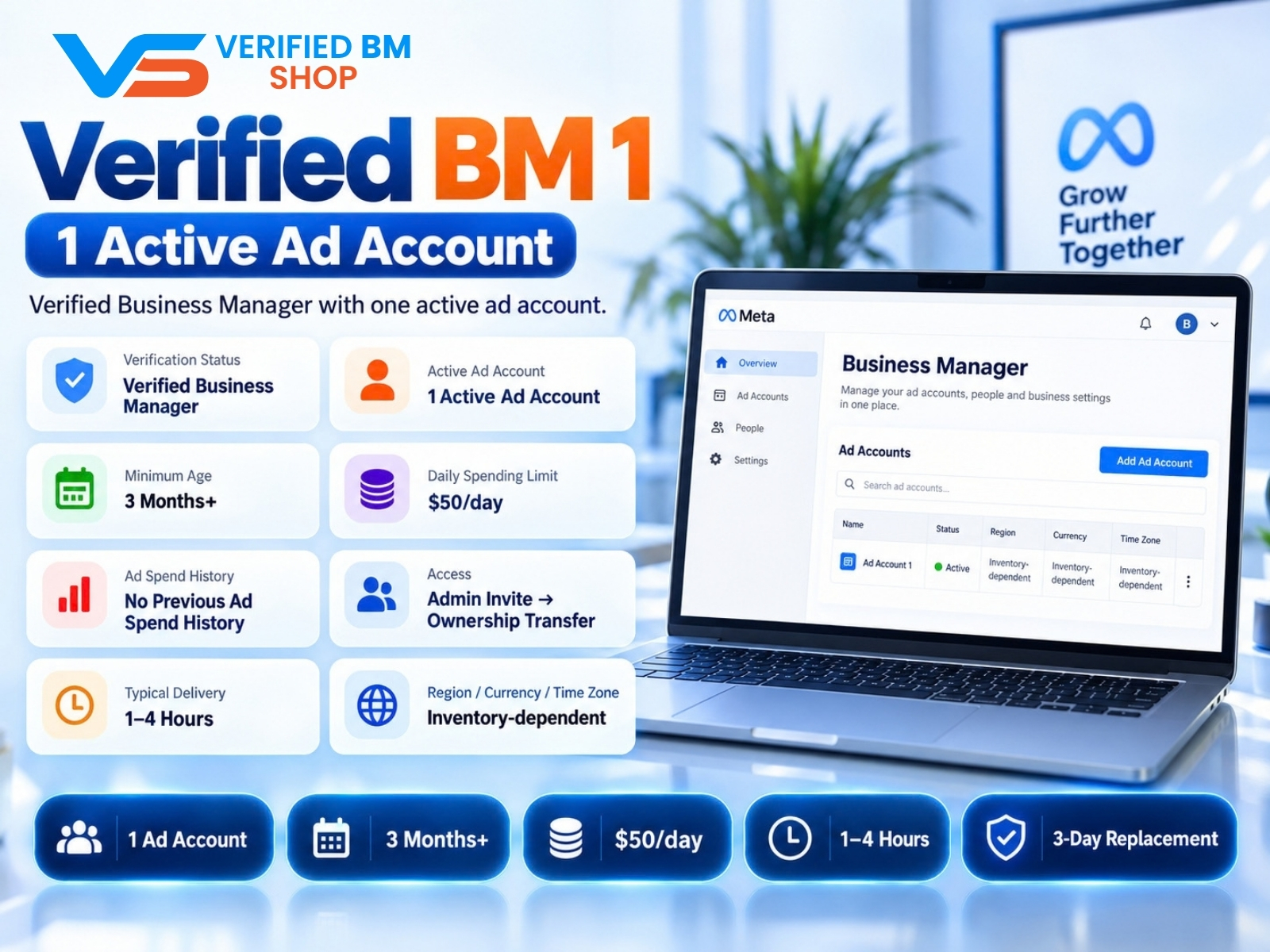
Verified BM 1 - Verified Meta Business Manager

Written by
Verified BM TeamThe VERIFIED BM SHOP editorial team shares real-world experience in buying and selling verified Business Managers, WhatsApp API accounts and advertising platforms.
Comments (0)
No comments yet. Be the first to share your thoughts!
Leave a Comment
Your email will not be published. All comments are moderated.