
Quick Summary
A practical guide to Meta business portfolios, verification requests, ad accounts, tracking, security, billing, policy checks, and account recovery.
A Facebook ads knowledge hub should answer one practical question: how can a team set up, verify, run, and scale Meta advertising without losing control of its assets? This guide maps the main systems, checks, and recovery steps in one place.
Facebook Ads Knowledge Hub: What This Guide Covers
Meta advertising involves more than creating an ad. Your business portfolio, Facebook Page, ad account, payment method, tracking tools, domains, catalogs, users, and messaging assets all need clear ownership.
These systems are connected, so an access error, billing issue, tracking failure, or policy notice can affect campaign operations. Common risks include sharing personal logins, adding untrusted admins, using inconsistent business details, and launching before tracking works.
Business verification and the information Meta may request.
Ad account setup, billing, permissions, and asset access.
Security controls for staff, agencies, and recovery.
Pixel, Conversions API, domains, catalogs, and WhatsApp connections.
Ad policy, restrictions, disabled profiles, and review paths.
Controls for scaling across several accounts and business assets.
How Meta's Facebook Advertising Ecosystem Fits Together
Meta Business Suite is a workspace for publishing, messages, insights, and other business tasks. Business settings, often displayed within a business portfolio, are used to manage ownership, people, partners, and asset permissions.
Part | What it does |
|---|---|
Business portfolio | Groups business assets and helps manage ownership and access. |
Facebook Page | Represents the public brand and can support ads, posts, and messages. |
Ad account | Holds campaigns, billing settings, audiences, ads, and spending activity. |
Meta Business Suite | Provides an interface for content, inboxes, insights, and business tools. |
Pixel and Conversions API | Send website and server events to measure actions and support campaign optimisation. |
Catalog | Stores products or services for catalog-based advertising and commerce features. |
A person can receive access through their own Facebook profile. An agency can receive partner access without taking ownership of the client's business, while asset assignments determine what each person or partner can view or change.
Keep ownership separate from daily access. This makes staff changes, agency offboarding, and account recovery easier to manage.
Why Meta Business Verification Matters for Advertisers
Business verification is a Meta review process that may require a business to provide consistent information and supporting records, depending on the product and account. The information requested can vary by region and review flow.
Depending on the product and account, Meta may request business verification as part of an eligibility or compliance process. Verification does not guarantee ad approval, higher spending limits, better delivery, or protection from restrictions.
Use the official Meta Business Help Centre when a screen asks for a requirement that differs from an older guide. Meta changes menu names and eligibility rules by region, account history, and product.
Teams preparing for a request can review the Meta Business Manager verification document checklist. Submit only genuine, current information and records that relate to the business.
Before You Start: Prepare Your Business for Verification
Accurate, consistent information may make it easier to respond to Meta's verification requests, but it does not guarantee a faster review. Start by checking the legal name, registered address, phone number, website, and business email used in your records.
Check your business details
Use the same legal name across your business settings and supporting documents where applicable.
Confirm that your address and phone number are current and reachable.
Use a business domain that matches your organisation where possible.
Make sure the website loads, identifies the business, and shows clear contact information.
Give one trusted admin responsibility for coordinating the verification request.
Meta may offer an account-specific contact or verification method; follow only the options shown in the current Meta interface. If Meta offers email confirmation, use a business-controlled address where appropriate; this does not replace any additional information or documents Meta requests.
Keep files clear and valid. Names, dates, addresses, and registration details should accurately correspond to the information entered in Business settings.
How to Verify Your Business in Meta Business Suite
Open Meta Business Suite or Business settings, select the relevant business portfolio, and look for a Security Centre, Business info, or Verification area. The exact label and availability can differ between accounts.
Review the business details shown in the account.
Correct any legal name, address, phone, or website errors.
Start the verification request if the option is available.
Choose the contact or verification method Meta displays and complete the requested step.
Upload only the records requested by Meta.
Check the status in Business settings and respond to any follow-up request.
If the button is missing or disabled, check whether the business is eligible, whether required details are complete, and whether another admin already started a request. Avoid creating duplicate portfolios to force the option to appear.
Verification can remain pending while Meta reviews the submitted information. Keep submitted information accurate and update it only when necessary; if details change, follow Meta's instructions for correcting them.
Set Up Ad Accounts, Access, Billing, and Business Assets
Set up the ad account under the business that should own the campaigns. Give staff the lowest permission level that lets them complete their work, then review access when roles change.
Ad account settings can include payment methods, invoices, spending activity, time zone, currency, and account status. These choices can affect reporting and may be difficult to change later, so confirm them before launch.
For account-specific setup and billing details, use the Meta ad accounts setup guide.
Access type | Good use | Control to keep |
|---|---|---|
Employee access | Assign work to named team members. | Remove access when employment or duties end. |
Partner access | Let an agency work on selected assets. | Share only the Page, ad account, pixel, or catalog needed. |
Admin access | Manage ownership and critical settings. | Keep the number of admins small. |
Task-based access | Limit work to ads, content, messages, or reports. | Review permissions at set intervals. |
Use a company payment method that the finance team can monitor. Payment reviews can occur for various account- or transaction-specific reasons, so check the notice shown in Meta and contact official support when needed.
Secure Your Business Manager Before Running Ads
Security starts with the people who can enter the business portfolio. Require two-factor authentication for everyone who can access business assets, especially admins and agency partners.
Use individual profiles rather than shared logins.
Turn on two-factor authentication and keep recovery methods current.
Store backup codes in a controlled, secure location.
Remove former staff and unused partners promptly.
Review active sessions, admin roles, and asset assignments each month.
Keep ownership details and recovery contacts up to date.
The guide on two-factor authentication for agency Business Managers covers the security setup in more detail.
Do not give a supplier permanent full control when task access is enough. A small admin group limits the number of people who can make critical changes and simplifies access reviews.
Connect Tracking, Domains, Catalogs, and Messaging Assets
Tracking should match the customer journey. A website sale, lead form, app event, catalog view, and WhatsApp conversation may need different event plans and reporting checks.
Verify the domain used by your landing pages and confirm that the business controls it. Domain verification can support control over web assets, but it does not fix broken event code or poor landing-page content.
For implementation details, follow the Meta Pixel and Conversions API setup guide. Test browser and server events, remove duplicates, and check that event names and values match your reporting plan.
Catalogs need accurate product names, prices, availability, landing-page links, and images. WhatsApp assets also need the correct business ownership, phone setup, messaging permissions, and policy review. The WABA setup guide explains the connection at a higher level.
Launch Facebook Ads With Policy and Account Integrity in Mind
Meta may assess an ad and related account or business information under its current advertising and enforcement policies. Review the applicable policy and the notice shown in the account rather than relying on a fixed list of review factors.
Run a pre-launch policy check
Describe the offer accurately and avoid claims you cannot support.
Avoid ad wording that asserts or implies sensitive personal attributes about the viewer, and check Meta's current Personal Attributes and restricted-content policies before publishing.
Use clear prices, terms, contact details, and refund information where relevant.
Make sure the landing page works on mobile and matches the ad.
Check rules for restricted products, financial services, health offers, housing, employment, politics, and social issues.
Use honest business and payment information across connected assets.
Testing a small, compliant campaign can make it easier to identify setup problems before a larger launch. Keep records of the offer, creative versions, landing pages, and approval results.
Common Facebook Ads and Business Manager Problems
Most problems become easier to solve when you identify the layer where they occur. A rejected ad is different from a disabled ad account, a locked profile, a failed card, or a missing asset.
Problem | First checks |
|---|---|
Ad rejected | Read the policy reason, inspect the landing page, and edit or appeal if the decision is wrong. |
Payment failed | Check card status, billing details, account balance, bank blocks, and payment alerts. |
Asset missing | Confirm ownership, partner access, business selection, and assigned permissions. |
Verification pending | Review submitted details, watch for messages, and avoid duplicate submissions. |
Domain error | Confirm DNS, meta-tag, or file settings and verify the correct business portfolio. |
Profile restricted | Check Account Quality, secure the profile, and follow the available review path. |
Start with the notice shown inside Meta, not a third-party message. Record the exact error, time, asset ID, recent changes, and steps already taken.
What to Do if an Ad Account or Profile Is Restricted
Pause non-essential changes while you identify the restriction. Check Account Quality, Business Support Home, payment alerts, and the status of connected profiles and Pages.
Confirm which asset is restricted: profile, Page, ad account, or business portfolio.
Review the stated reason and any policy or security notice.
Fix clear issues, such as a failed payment or missing business detail.
Submit accurate information through the review channel shown in Meta.
Keep evidence that supports your business activity and ownership.
Do not create replacement accounts to evade enforcement.
Submit accurate, consistent information and follow the review instructions shown in the account; avoid duplicate requests unless Meta directs you to submit another one. For deeper examples, read why Facebook ad accounts get restricted.
If the personal profile cannot advertise, use the official review flow linked in the notice. A new profile or purchased login is not a safe substitute for resolving the original issue.
How to Scale Facebook Ads Across Multiple Accounts Safely
Multiple ad accounts can help separate brands, regions, clients, or payment ownership. They also create more access, billing, tracking, and compliance points to manage.
Keep a register of each account ID, owner, currency, time zone, payment method, and purpose.
Use naming rules for campaigns, pixels, catalogs, Pages, and domains.
Assign only the assets each team needs.
Set spend alerts and reconcile invoices with internal records.
Test tracking before increasing budgets.
Increase spend in measured steps instead of making sudden jumps.
Review rejected ads and account notices across the full portfolio.
Separate client data and payment responsibility where possible. A central record helps you identify duplicate assets, expired cards, unused users, and ownership gaps.
When to Contact Meta Support or Seek Specialist Help
Use Meta's own support and help resources for policy decisions, account reviews, payment cases, and product eligibility. Include asset IDs, screenshots, dates, and a short explanation of the problem.
The Meta Technical Support contact and case guide can help you prepare a clearer request. Never share passwords, two-factor codes, or full payment details with a person claiming to offer support.
Specialist help may suit a team that needs assistance organising documents, mapping assets, checking permissions, or preparing a verification request. The specialist should work with your real business information and should not promise approval, continued access, or immunity from restrictions.
Facebook Ads Setup and Verification Checklist
Choose the correct business portfolio and confirm its owner.
Match legal business details across settings, records, domain, and contact channels where applicable.
Prepare clear documents only if Meta requests them.
Create or connect the correct Page, ad account, domain, pixel, catalog, and messaging assets.
Set billing details, currency, time zone, and payment controls.
Assign named users and partners with limited permissions.
Require two-factor authentication and store recovery details safely.
Test events, landing pages, product feeds, and message flows.
Review ad policy, restricted-category rules, claims, and terms before launch.
Record asset IDs, support cases, approvals, spend, and account changes.
Next Steps From the Facebook Ads Knowledge Hub
Begin with ownership, identity, access, and security. Then connect tracking and business assets before increasing spend.
If you need setup assistance, review your requirements and the exact service or account product being offered. Any shop-listed options described as “Verified BM” should be understood using the shop's stated terms; Meta approval, verification, continued access, and future account status are not guaranteed. For a specific setup or verification question, contact the VERIFIED BM SHOP support team with the asset type and error message.
Frequently Asked Questions
Quick answers to the questions buyers ask most.
What is the Facebook Ads Knowledge Hub, and what can I use it for?
What do I need to set up Facebook ads?
How do I verify my business in Meta Business Suite?
How can I keep my Facebook ad account safe?
How this helps verified BM buyers
Apply this guidance when buying verified Business Managers or WhatsApp Business API assets to reduce policy risk, improve account stability, and scale campaigns with cleaner operational workflows.
View all Facebook options · Next steps: compare products in the Shop, review implementation details in FAQ, and contact support from the Contact page.
Recommended for You
Hand-picked from our shop — delivered fast after payment.
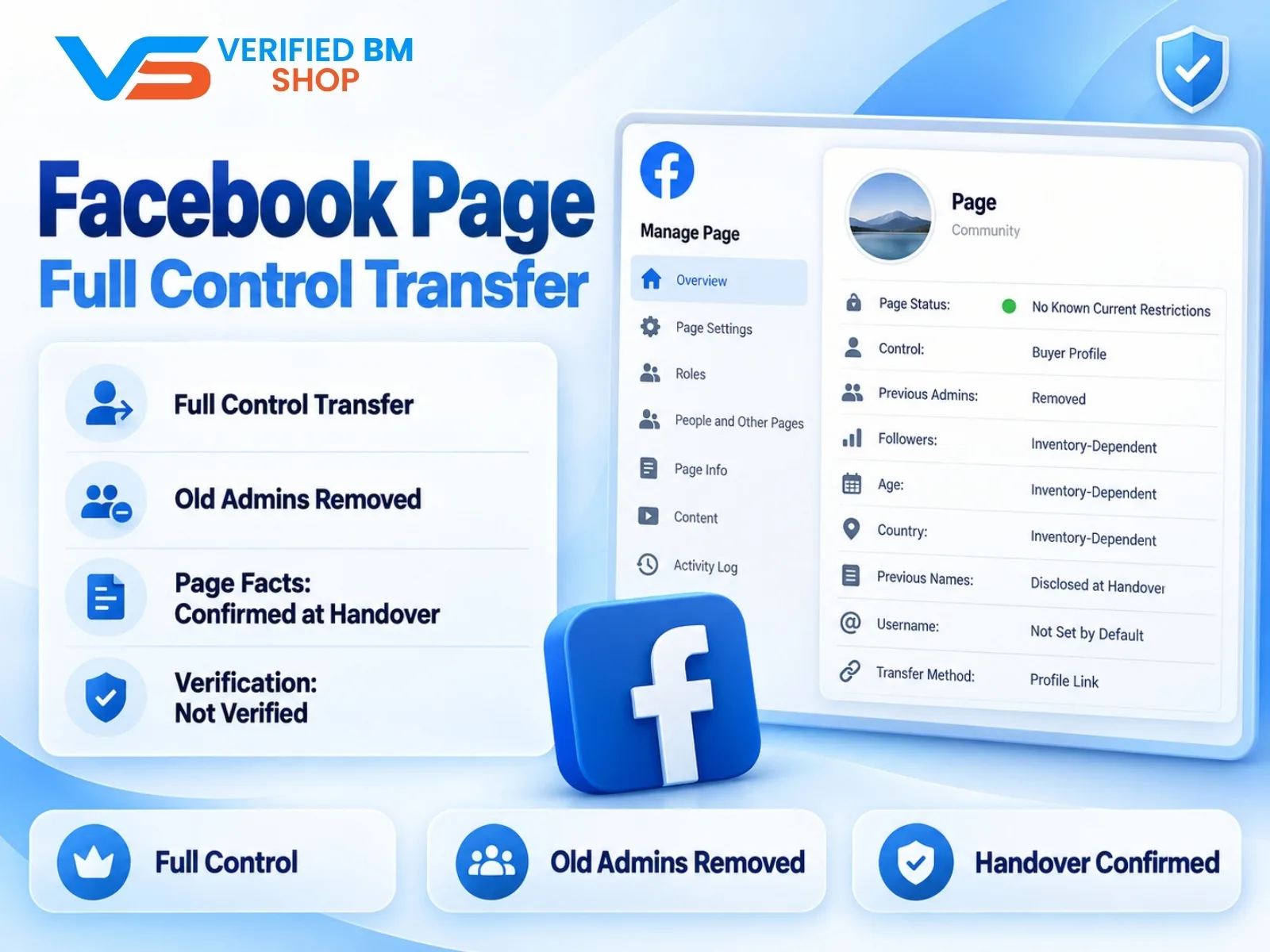
Facebook Page - Full Control Transfer

Written by
Verified BM TeamThe VERIFIED BM SHOP editorial team shares real-world experience in buying and selling verified Business Managers, WhatsApp API accounts and advertising platforms.
Comments (0)
No comments yet. Be the first to share your thoughts!
Leave a Comment
Your email will not be published. All comments are moderated.