
Quick Summary
Before you submit an ad, learn how to check Meta ad and account status, fix common policy issues, and send a clear review request without unsupported claims or avoidable errors.
Meta may review ads and related account or business activity before or after an ad runs. The process depends on the case and the steps that apply. A practical ad account review and approval process starts with correct business details, safe access, clear ad claims, and a working destination.
Approval is not permanent. An ad may face another review after changes or when Meta finds a reason to check it again. The exact triggers are not public. No setup ensures approval, so fix avoidable issues before you submit an ad.
What Is Ad Account Review and Approval?
Ad review checks whether an ad follows Meta’s Advertising Standards. It may cover the ad, its destination, and its targeting. Check the relevant Meta policy for current details.
Account checks may cover details linked to the account, business, payments, or past enforcement. Meta does not share every review rule. Some checks use automated tools, while others may use people. Public guides may not list every factor behind a decision.
Meta treats business verification and ad review as separate processes. Completing one does not mean that every ad has approval. See Meta’s official Business Help Centre for current rules and available steps.
| Review area | What it may involve | Possible outcome |
|---|---|---|
| Ad review | Ad content and related elements such as targeting or the destination | Approval, rejection, or another status shown in the interface |
| Payment issue | Billing details or payment activity associated with the account | Payment accepted, declined, or an account notice |
| Business verification | Business information and supporting documents requested in the process | Verified, pending, or unable to verify |
| Account restriction | Advertising access or another activity identified in the notice | Access restored, limited, or denied |
What Meta May Review Before Approving Advertising Activity
The review may cover the ad, its destination, and its targeting. A compliant headline may still need work if the landing page makes a different claim or leaves out key terms.
- Ad content: Claims, images, video, text overlays, offers, and calls to action.
- Landing page: Product details, pricing, contact information, privacy terms, and page function.
- Targeting: Audience choices, age limits, location, and any applicable restricted-category rules.
- Business information: Business name, website, Page details, and documents requested in a notice.
- Payment information: Billing details or payment issues associated with the account.
- Account security: User access, asset ownership, and signs of unauthorised access.
An ad may face review when you submit it and again after changes or other account events. The exact conditions are not fully disclosed.
How to Check Your Ad, Campaign, and Account Review Status
First, open Meta Ads Manager and choose the relevant ad account. Check the Delivery column at the campaign, ad set, and ad levels. Ads Manager may show statuses such as review, active, rejected, processing, or not delivering. Labels vary by account and interface version.
Next, select the affected ad to read its delivery details and any policy explanation. For wider account issues, check the Account Quality, Business Support, or account-status area in your Meta interface.
If Meta offers a review option, use the button in the notice, such as Request Review or Ask for Another Review. Save the notice, ad ID, account ID, and any case number before you submit.
Ad Account Approval Checklist
Confirm Accurate Business and Account Information
Use real legal or trading details that match your business records. Keep the business name, address, phone number, website, Page, and payment profile consistent where possible.
Do not upload changed documents or use another business’s identity. If the notice asks for proof, send real, readable records that match the account and follow its instructions. This Meta Business Manager document checklist can help you prepare without turning this review into a separate verification guide.
Secure User Access and Administrator Permissions
Give each person their own Facebook profile and only the access level needed for the work. Remove former staff, unknown users, and unused partners.
Turn on two-factor authentication for admins and check connected apps. An access audit can show old permissions. Use this Meta Ads access audit guide for a set check.
Check Your Facebook Page, Website, and Domain
Your Page should represent the same business named in the ad. Keep contact details and other business information correct. Avoid copied brand content that could suggest impersonation.
Test each landing page on mobile and desktop. It should load, match the ad, use a secure connection, and explain what the customer gets before asking for payment or personal data.
- Show a clear business name and contact route.
- Display prices, conditions, delivery terms, and refund rules when relevant.
- Use a privacy notice if you collect leads or other personal data.
- Remove broken links, forced redirects, fake buttons, and unfinished pages.
- Check that the selected domain matches the advertised destination.
Verify Your Payment Method and Billing Details
Use a payment method that belongs to the business or approved payer. Check the card number, expiry date, billing address, account currency, and available funds.
Avoid repeated payment changes until you address the bank or billing issue. For a failed-card review, see why Meta may disable an ad account after adding a card.
Review Ad Copy, Creative, Targeting, and Landing Pages
Read the ad as a customer would. Avoid claims that promise a fixed result, point to personal traits, create fear, or hide key terms.
Make the creative and destination tell the same story. For example, an ad for a discount should send people to a page that shows the discount, eligibility rules, and end date.
- Remove unsupported health, financial, employment, housing, or performance claims.
- Avoid before-and-after images that imply guaranteed personal results.
- Check spelling, brand ownership, and product details.
- Choose an audience that fits the offer and any applicable special-category rules.
- Confirm that the landing page does not ask for data unrelated to the offer.
Common Reasons Meta May Not Approve Ads or Ad Accounts
A rejection notice may name a policy area, but its visible reason can be brief. Check the following issues against the notice and the relevant Meta policy:
- Misleading claims, unclear pricing, or an offer that the destination does not support.
- Personal-attribute language, such as assuming a person’s health, finances, or identity.
- Restricted products, missing age controls, or unsuitable audience settings.
- Low-quality destinations, broken pages, pop-ups, forced downloads, or hidden terms.
- Intellectual-property concerns, copied branding, or misleading business identity.
- Failed payments, chargebacks, or unresolved billing problems.
- Unusual login activity, shared credentials, unknown administrators, or compromised access.
- Repeated submissions without addressing the stated policy issue.
Business verification and ad review are separate processes. Different notices may affect different assets or activities, so check the specific Meta notice to see what is affected.
What to Do After an Ad Is Rejected
Open the rejection reason in Ads Manager. Compare it with the full ad, audience, and destination. Do not make random edits that create a new policy issue.
- Follow the actions available in the rejection notice.
- Identify the claim, image, audience choice, or page element at issue.
- Fix the underlying problem rather than changing one word only.
- Check the whole customer path, including the form, checkout, and terms.
- Where editing or resubmission is offered, correct the issue before submitting again.
If the ad is accurate and the decision seems wrong, request a review with a short explanation. State what the business sells, what changed, and why the ad follows the relevant policy. Avoid emotional language. Do not send duplicate requests unless the notice or support process tells you to do so.
What to Do If Your Ad Account Is Restricted
An account restriction affects advertising access. It is not always the same as one rejected ad. Check the account-status or support area to see what the specific Meta notice identifies.
Secure the account before you appeal. Remove unknown users, reset passwords, turn on two-factor authentication, check payment activity, and review recent ads. Do not create replacement accounts to evade an active restriction. Use the appeal or support route linked to the affected account.
Prepare a factual appeal with the account ID, business details, recent changes, and steps taken to secure the account. If the notice asks for identity or business documents, send real, readable records that match the account and follow its instructions.
How to Request a Review or Appeal a Decision
Use the review link in Ads Manager, Account Quality, Business Support, or another account-status area in your Meta interface. Choose the review or appeal option shown with the specific decision, if one is available.
A useful appeal includes:
- The affected ad account, Page, campaign, or ad ID.
- A plain description of the business and advertised product.
- The policy concern you checked and the changes you made.
- Links to the landing page, terms, privacy notice, or business records when requested.
- Evidence of unauthorised access if the account may have been compromised.
Review timing varies. Check the notice and current Meta support guidance for the process that applies. Do not rely on a fixed timeframe. Avoid opening duplicate cases unless Meta tells you to do so.
How to Prevent Repeated Approval Problems
Add a review step to every campaign launch. One person can check policy while another tests the destination and billing path.
- Keep business, Page, domain, and payment details current.
- Limit administrator access and review it on a set schedule.
- Use two-factor authentication for every administrator.
- Record ad changes, approvals, rejections, and appeal results.
- Use supportable claims and resolve billing issues before launch.
- Review policy rules before launching a new product or offer.
Businesses that need organised advertising infrastructure can review the Verified BM category after confirming their own compliance needs. Business verification should not be presented as a guarantee of ad approval.
When to Contact Meta Support
If a support or appeal option is available, use the route shown in your Meta interface when the notice is unclear, billing remains blocked, or you suspect unauthorised access.
Include one clear timeline, the affected IDs, screenshots, and the exact error text. The Meta technical support guide explains how to organise a case without sending scattered requests.
Final Ad Account Review and Approval Checklist
- Business and payment details match genuine records.
- Administrators use separate profiles with two-factor authentication.
- Unknown users, partners, apps, and unnecessary payment methods are removed.
- The Page, domain, website, and offer represent the same business.
- The landing page works on mobile and shows clear terms.
- Copy avoids personal attributes, false urgency, and unsupported results.
- Creative, targeting, and destination fit the advertised product.
- You have checked available delivery, account-status, and billing notices.
- An appeal contains facts, IDs, changes, and genuine supporting evidence.
Good preparation cannot control every Meta decision, but it can remove many preventable issues. Keep your business identity clear, secure access carefully, and fix the full customer journey before requesting another review.
For questions about available account options or setup assistance, contact VERIFIED BM SHOP.
Official Sources
Frequently Asked Questions
Quick answers to the questions buyers ask most.
What does Meta check during an ad account review and approval process?
Meta may review your ads, business details, payment information, landing pages, and account activity. It checks whether they comply with Meta’s advertising policies and other applicable terms.
How can I prepare my ad account for review?
Use accurate business and contact information, complete any requested business verification, and ensure your ads, website, offers, and payment method are consistent and functional. Review Meta’s Advertising Standards and fix any policy issues before submitting or launching ads.
How long does Meta ad account review usually take?
Review times can vary depending on the account, ad, and type of verification required. Meta may request additional information, so monitor your account notifications and Business Support inbox rather than assuming approval is immediate.
Why was my Meta ad account restricted after review?
An account can be restricted if Meta detects policy violations, suspicious or inauthentic activity, payment issues, or problems with business information. Check Account Quality for the stated reason and review the relevant policy before requesting another review.
How do I appeal a rejected ad account review?
Open Account Quality in Meta Business Suite or Business Manager, select the restricted account or asset, and follow the available review or appeal instructions. Provide truthful, complete information and explain any corrections you have made.
What documents are needed for Meta business verification?
Meta may request official documents that confirm your legal business name, address, or phone number, along with information about the business relationship. Requirements can vary, so follow the specific document instructions shown in Meta Business Suite.
Can I run ads while my business is still under review?
It depends on the type of review and the restrictions placed on your account. If Meta has limited advertising access, campaigns may not deliver until the review is completed or the restriction is resolved.
What should I do if my ad is approved but my account is later reviewed?
An approved ad does not guarantee that the account or future ads will remain approved. Keep your business information current, follow Meta’s policies consistently, and respond promptly if Meta requests verification or additional information.
How this helps verified BM buyers
Apply this guidance when buying verified Business Managers or WhatsApp Business API assets to reduce policy risk, improve account stability, and scale campaigns with cleaner operational workflows.
Next steps: learn what a verified bm is, compare products in the Shop, review implementation details in FAQ, and contact support from the Contact page.
Recommended for You
Hand-picked from our shop — delivered fast after payment.
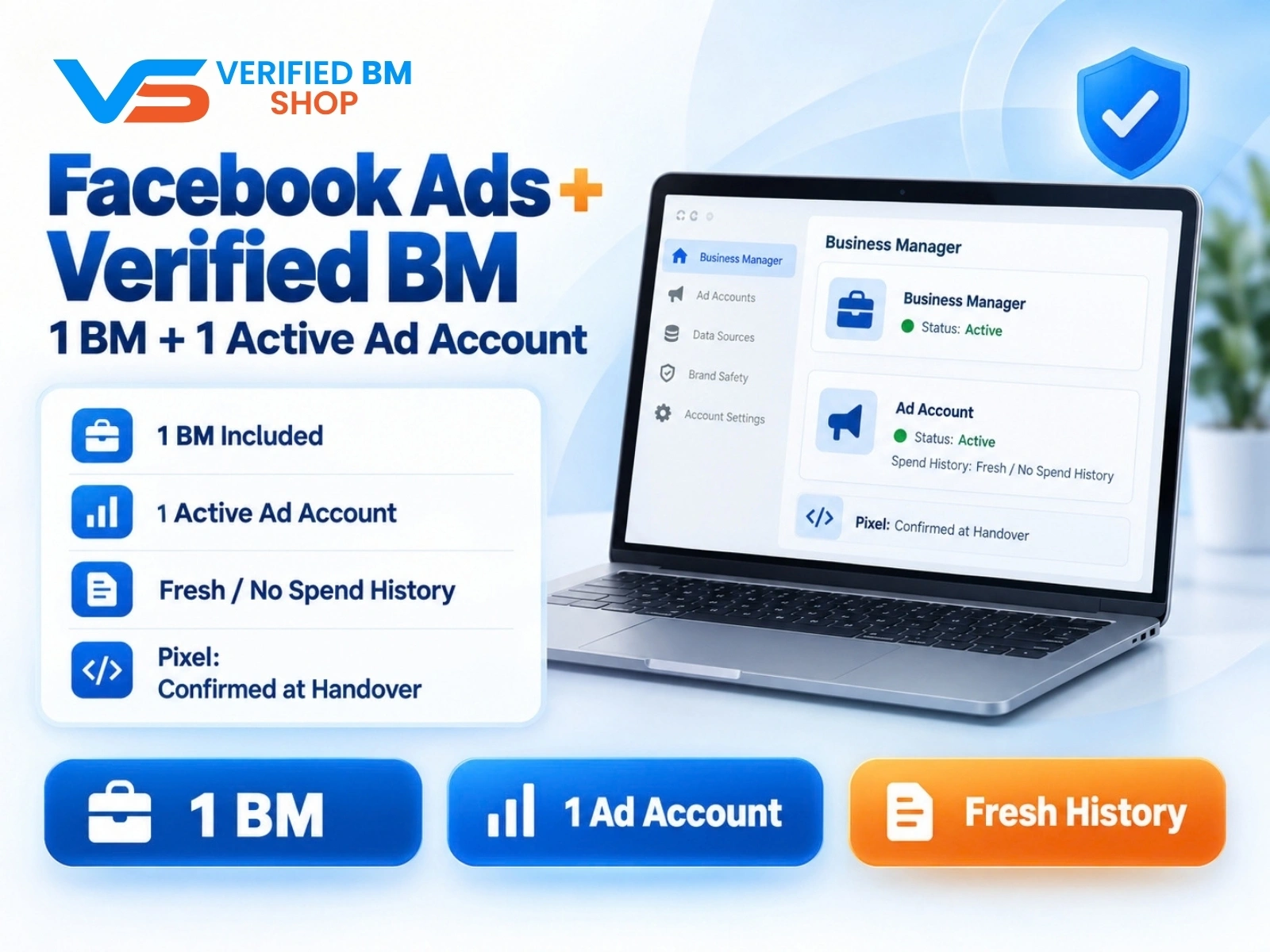
Facebook Ads Account + Verified BM Bundle
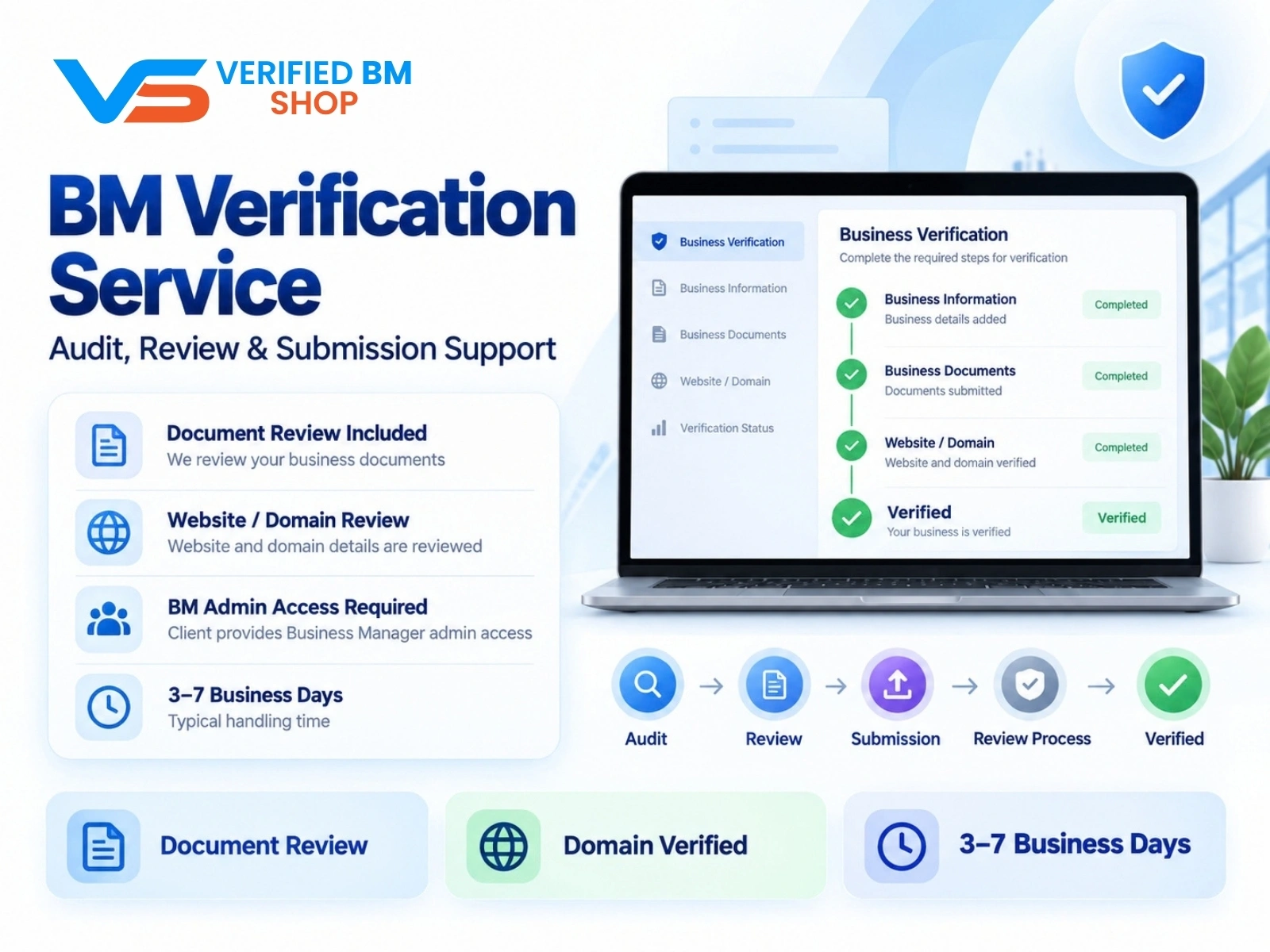
Meta BM Verification Service by VERIFIED BM SHOP
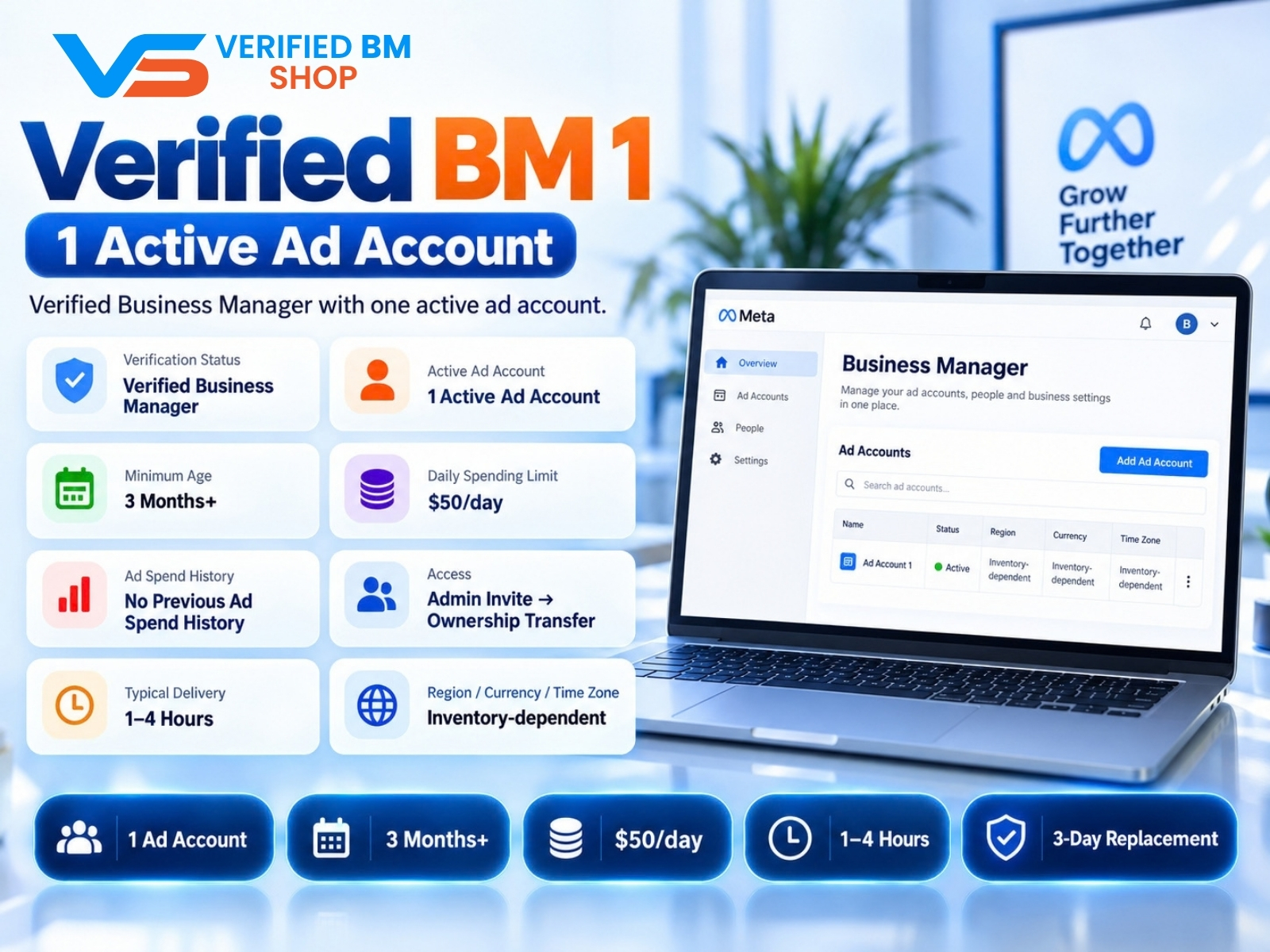
Verified BM 1 - Verified Meta Business Manager

Written by
Verified BM TeamThe VERIFIED BM SHOP editorial team shares real-world experience in buying and selling verified Business Managers, WhatsApp API accounts and advertising platforms.
Comments (0)
No comments yet. Be the first to share your thoughts!
Leave a Comment
Your email will not be published. All comments are moderated.