
Quick Summary
Learn how to top up a Meta ad account, verify billing settings and payments, and troubleshoot missing, pending, declined, or reversed transactions.
In accounts that support prepaid or manual payments, a top-up may add funds that can be used for eligible advertising charges. If the option is missing or a payment fails, check the account’s billing arrangement, permissions, currency, payment method, and status before trying again.
Meta can vary menu names and payment options by country, currency, account history, and billing configuration. Use the current controls shown in your own Ads Manager instead of relying on an older screenshot or guide.
What Is an Ad Account Top Up?
A top-up is a manual payment made to an ad account. Where supported, Meta may apply an available prepaid balance to eligible charges associated with the ad account.
Top-ups are not the same as adding a card. A card is a payment method; a top-up is a payment made with an available method that may create or increase a prepaid balance.
Ad accounts may show different billing arrangements, such as prepaid or manual payments and automatic billing, depending on the account and region. A manual-payment account may display Add funds or Make a payment, while another account may show payment thresholds, scheduled charges, or different billing controls.
How Meta Ad Account Billing Works
Meta billing depends on the payment setup assigned to the ad account. The available billing options may be fixed or limited after account creation; check the billing controls shown for the specific account.
Billing arrangement | How charges may work | What you may see |
|---|---|---|
Manual or prepaid payments | You may add funds that can be applied to eligible charges, where this arrangement is supported. | Available balance, Add funds, or Make a payment |
Automatic billing | The account may charge an available payment method according to the billing controls shown for that account. | Payment threshold, next bill, or payment activity |
Invoicing | Some eligible advertisers may have invoicing or another billing arrangement, subject to Meta’s current requirements and approval. | Invoices and billing documents rather than a standard top-up balance |
Adding funds may provide a balance for eligible charges, but it should not be assumed to change any spending limit or restriction shown in the account. If funds or an available payment method cannot cover a charge, ad delivery may be affected.
See our guide to Meta ad account setup, access, and billing for related account-management considerations.
What to Check Before You Top Up
A failed payment can result from an account setting, payment method, or provider decision. Review these items first:
Correct ad account: Confirm the account ID, business portfolio, currency, and time zone.
Payment permission: The required role depends on the business and ad-account setup; check the permissions available to the person managing billing.
Billing arrangement: Check whether the account displays manual-payment controls or another billing flow.
Account status: Look for disabled, restricted, closed, or payment-review notices.
Outstanding balance: An unpaid balance may affect the payment options shown; review the account notice and follow the instructions displayed by Meta.
Payment method: Confirm that the selected method is available for the account and can support the proposed transaction.
Currency and limits: Check the minimum, maximum, and accepted currency shown at checkout.
Business details: Make sure the billing name and address match the payment provider’s records where required.
Do not ask several people to retry the same payment at once. Repeated attempts may result in duplicate pending authorisations or additional payment checks, so first review Meta’s payment activity and your bank statement.
How to Top Up a Meta Ad Account
1. Open the correct billing area
Open Meta Ads Manager, select the relevant business and ad account, then go to Billing & payments or the equivalent billing page. Menu labels can vary by account and region.
2. Review the balance and payment method
Check the available balance, outstanding amount, payment activity, and selected payment method. If the account has more than one available method, confirm which one the payment flow identifies for use.
3. Choose the payment action
Select Add funds, Make a payment, or a similar button when it appears. If you only see Add payment method, the account may use a different billing arrangement, may not support manual top-ups, or you may not have the required permissions.
4. Enter an allowed amount
Enter an amount within the range shown by Meta. Use a planned amount that matches your near-term campaign budget instead of adding funds without a spending plan.
5. Select and confirm payment
Choose a payment method that Meta currently displays as available for the specific account and region. Review the currency, amount, business details, and any fee shown before confirming.
6. Wait for the result page
Keep the page open until Meta shows a success, pending, or declined result. Save the transaction reference and take a screenshot if the balance does not update.
How to Confirm Your Top-Up Was Successful
A payment may appear in the account’s payment activity or transaction history, but the status and balance can take time to change. Rely on the payment status and transaction record shown in Meta and by the payment provider.
Check all three records:
Available balance: Confirm whether the expected funds appear in the correct ad account.
Payment activity: Look for the transaction status, date, amount, and payment method.
Receipt or billing document: Download the record if Meta provides one for the transaction.
Do not submit a second payment just because your bank shows a pending authorisation. First check Meta’s payment activity and your bank statement.
Why the Top-Up Option May Be Missing
If manual-funding controls are absent, the account may use a different billing arrangement or the user may lack the required permissions. Follow the options and notices shown in the account.
Other possible explanations include:
You have ad access but not the permission needed to manage payments.
You opened the billing page for a different ad account.
The account has an unpaid balance, review, restriction, or disabled status.
The account’s country or currency does not support the displayed payment flow.
A business portfolio administrator controls payment access or the payment method.
Meta has changed the billing action available to that account.
Ask a business administrator to check your permissions, then confirm the account’s billing arrangement. Do not try to bypass a missing option by creating duplicate accounts or using mismatched payment details.
What to Do If Your Top-Up Fails or Remains Pending
Card declined or payment rejected
Check the card number, expiry date, security code, billing address, available funds, and any online-payment setting that applies. Contact the bank if it may have blocked the transaction or requires confirmation.
Use a payment method owned by the business or authorised payer where required. Repeated retries with different methods may cause more declines or additional payment checks.
Bank or PayPal payment pending
Pending payments may require confirmation from the bank or payment provider. Wait for the status to change before sending another payment, and compare the provider’s transaction ID with Meta’s payment record.
Billing profile mismatch
Correct the business name, address, tax details, or payment profile where Meta allows changes. Differences between the billing profile and payment-provider records may affect transaction approval.
Top-up reversed or balance removed
A payment may be reversed or removed after a payment-provider or account review. Check Meta’s transaction record and contact the relevant support channel for the specific reason.
For card-related failures and account billing issues, review our guide to Meta ad accounts disabled after adding a card.
How Top-Ups Affect Ad Delivery and Spending Limits
Where supported, a prepaid balance may provide a source for eligible ad charges. It does not guarantee that campaigns will spend the full balance, because delivery can also depend on review, audience, budget, and account settings.
A low balance may affect delivery when the account cannot cover an eligible charge. Other billing arrangements may follow the payment controls shown for the account, and a failed payment can affect campaign delivery.
The account may display separate settings for budgets, spending limits, billing thresholds, and available funds. Review the definitions shown in the relevant Meta controls instead of assuming that adding money changes a limit or removes a restriction.
Best Practices for Topping Up Ad Accounts Safely
Use a business-owned payment method with matching billing details where required.
Turn on two-factor authentication for administrators and finance users.
Limit payment access to people who need it.
Keep receipts, transaction IDs, and bank records for each payment.
Set campaign budgets before funding the account.
Review active campaigns after a payment so an old campaign does not spend unused funds.
Do not share card details in chats, support tickets, or screenshots.
Use Meta’s own billing pages instead of links sent by unknown users.
Business verification may be relevant to certain account or business records, but it should not be presented as removing payment checks, restrictions, or other Meta requirements. Our Verified BM safety guide covers access controls and safer account routines.
Managing Top-Ups Across Multiple Ad Accounts
Balances and billing details are generally shown per ad account, but confirm the applicable arrangement in Meta before assuming funds can or cannot be shared. Do not assume that a payment made in one account will be available in another.
Use a simple tracking sheet with the account ID, billing arrangement, payment method, top-up date, amount, balance, and receipt link. This helps agencies reduce the risk of funding the wrong account.
Set a review routine for campaign spend, failed charges, and low balances. Our guide to managing ad spend across multiple active accounts provides a practical workflow for larger teams.
When to Contact Meta Support
Contact Meta when a completed payment is missing, a reversal has no clear reason, the account shows an incorrect balance, or every valid payment method fails.
Include the ad account ID, business ID, payment date, amount, currency, transaction reference, error message, and screenshots without exposing full card details. Use Meta’s official support route or the billing support option shown inside Ads Manager.
Our Meta technical support and case guide explains how to prepare a clear case. Meta support may be able to review account-specific billing information through the official support channel available to the account, but no outside service can promise payment approval or restriction removal.
Quick Checklist Before You Retry
Confirm the correct business and ad account.
Check the permissions available to the person managing billing.
Read the billing status and account notices.
Verify the payment method and billing details.
Check for a pending charge before trying again.
Record the result and transaction reference.
If the top-up option remains unavailable after these checks, the account may not support manual funding, may use another billing arrangement, or may need account-specific review. Follow Meta’s displayed instructions rather than creating duplicate payment attempts.
Frequently Asked Questions
Quick answers to the questions buyers ask most.
How do I top up my Meta ad account?
Which payment methods can I use for an ad account top up?
What should I do if my Meta ad account top up fails?
Why is Meta asking me to verify my business or payment details before adding funds?
How this helps verified BM buyers
Apply this guidance when buying verified Business Managers or WhatsApp Business API assets to reduce policy risk, improve account stability, and scale campaigns with cleaner operational workflows.
View all Facebook options · Next steps: compare products in the Shop, review implementation details in FAQ, and contact support from the Contact page.
Recommended for You
Hand-picked from our shop — delivered fast after payment.
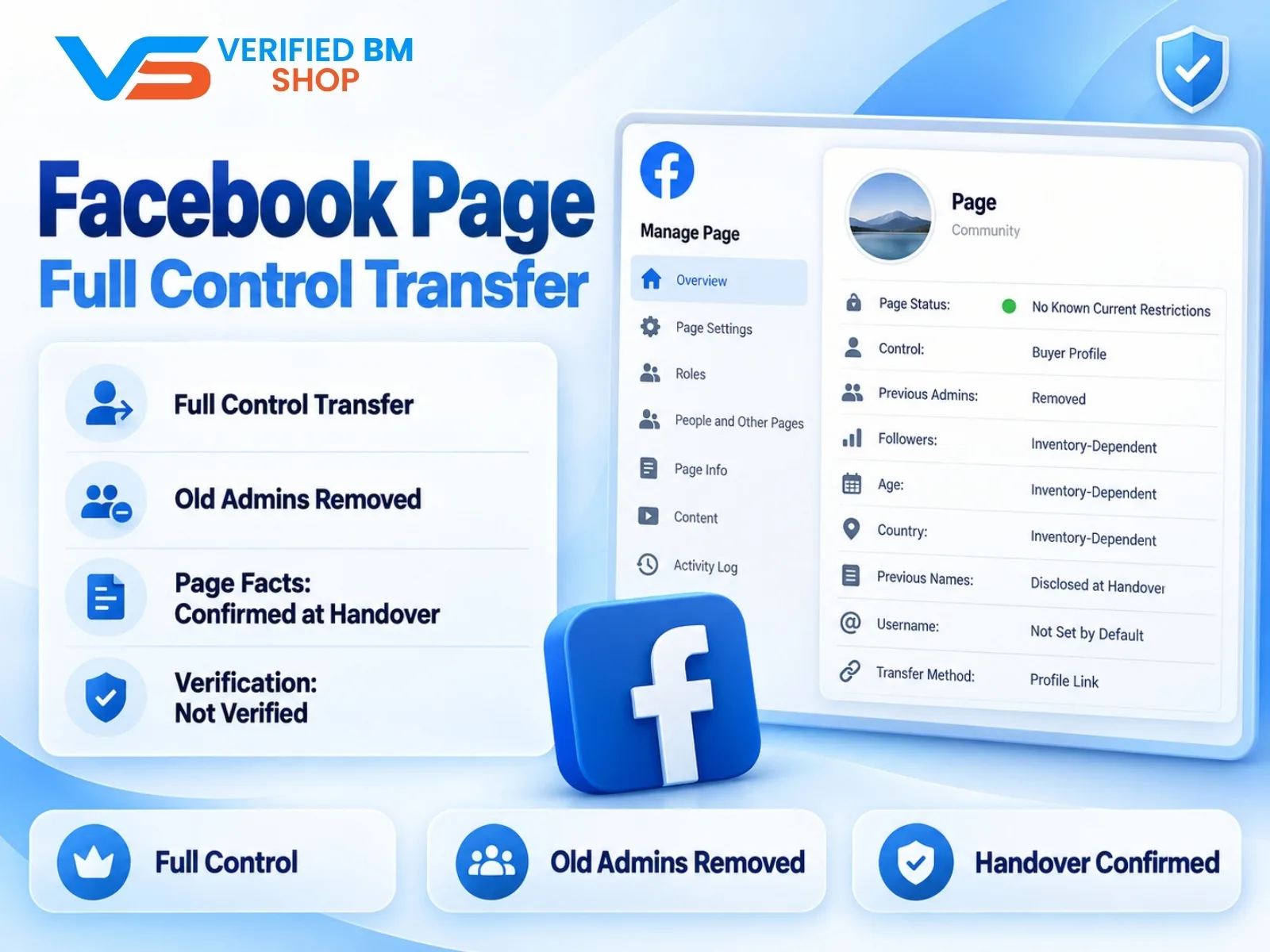
Facebook Page - Full Control Transfer
Written by
Verified BM TeamThe VERIFIED BM SHOP editorial team shares real-world experience in buying and selling verified Business Managers, WhatsApp API accounts and advertising platforms.
Comments (0)
No comments yet. Be the first to share your thoughts!
Leave a Comment
Your email will not be published. All comments are moderated.