
Quick Summary
Learn how to review Meta business access, reduce unnecessary permissions, protect administrator recovery paths, and maintain a repeatable audit process.
A Meta ads access audit identifies who can enter your business, manage ad accounts, and use connected assets. It helps you remove outdated access before a former worker, unknown partner, or compromised profile creates a security or continuity problem.
Use this guide to review people, partners, roles, and assets without removing the only available path to recover your business.
What Is a Meta Ads Access Audit?
An access audit is a structured review of every person, partner, and permission linked to your Meta business. It covers business-level and asset-level access, including ad accounts, Pages, Instagram accounts, pixels, datasets, catalogs, domains, and payment tools.
Meta may show business portfolio in newer screens instead of Business Manager. Names and menus can vary by account, region, asset, and interface version, so use the permissions displayed in your account as the source of truth.
Why You Should Audit Meta Business and Ad Account Access
Access often grows faster than a team. A contractor may retain access after a project ends, while an agency may still have permissions to an old ad account or Page.
Unused access can expose customer data, ad settings, payment details, and business assets. It can also make incident response harder because you may not know which profile changed a campaign or permission.
Run an audit after staff changes, agency changes, ownership changes, security alerts, or a major account restructure. A quarterly review suits many teams, while agencies with frequent client changes may need monthly reviews.
What to Gather Before You Start
Do not remove access based on memory alone. First create a current list of people, partners, assets, and the entities responsible for them.
The legal business name and business portfolio ID.
All people with full-control or equivalent administrative permissions, plus at least one additional trusted person who can help recover access where appropriate.
Ad account IDs, Page names, Instagram handles, pixel or dataset names, catalogs, domains, and payment contacts.
Current staff, contractors, agencies, vendors, and their required duties.
Recent contracts or offboarding records showing who should retain access.
A secure place to record findings, dates, approvals, and changes.
Take screenshots before making changes if your internal policy allows it. Do not store passwords, recovery codes, or full payment details in the audit file.
Step 1: Open Meta Business Settings
Open Meta Business, select the correct business, and open Settings or Business Settings. In some accounts, these controls are available through Meta Business Suite and then business settings.
Confirm the business name and ID before editing anything. Agencies often manage several portfolios, and a change in the wrong business can disrupt a client account.
Meta’s official business help pages explain current access and business-management controls, but the exact menu can change. Use the settings visible in your account as the final guide.
Step 2: Review Everyone With Business Access
Open Users, then People, or the closest available menu. Review each profile’s name, email, business role, invitation status, and current relationship with your company.
Classify each person as an owner representative, internal staff member, contractor, agency contact, vendor, or unknown user. Do not approve an unfamiliar profile because its name resembles someone you know.
Check for:
Former employees and past contractors.
Personal profiles that no longer belong to the named worker.
Pending invitations that no one requested.
Duplicate users with broad access.
People who need one asset but have business-wide control.
Ask the person’s manager or the responsible business representative to confirm unclear access. Keep the account active until you confirm the change, unless you have evidence of compromise.
Step 3: Check Admin and Employee Permissions
Meta may display different role and task-permission options depending on the business, asset, account type, and interface. Review the permissions actually shown for your account rather than relying on a universal role name.
Access type | Typical use | Audit question |
|---|---|---|
Full control or equivalent administrative access | Business settings, users, partners, and assets | Does this person need to change security, access, or ownership-related settings? |
Employee, partial, or task-based access | Work on assigned assets without broad business control | Are the assigned tasks limited to the person’s role? |
Finance access | Billing, invoices, and payment details | Does this person handle business finance? |
Asset task access | Campaigns, content, insights, or technical work | Can a narrower task set meet the need? |
Maintain at least one additional trusted person who can help recover access, where appropriate, and give full control only to people who genuinely need it. Each person should use their own real profile and secure login; do not create shared or convenience accounts.
Step 4: Audit Partners and Agency Access
Open Users, then Partners, or the partner area shown in your settings. A partner is usually another business that receives access to selected assets, such as an agency managing campaigns.
Check the partner’s business ID, name, assigned assets, and purpose. Compare the list with active contracts. An agency that manages ads may not need Page ownership, domain control, finance access, or full business control.
Ask each partner to confirm its own staff list. Removing a partner may not revoke access granted through another business, a direct asset role, or a connected system, so review those access paths separately.
For agency setup ideas, see our guide to safer Business Manager access for agencies.
Step 5: Review Ad Account Permissions
Open Accounts, choose Ad accounts, and select each account. Review people, partners, and permission levels one account at a time.
Look for access to campaign creation, reporting, billing, account settings, and administration. A media buyer may need campaign tools and insights, while a finance user may need billing access without campaign control.
Record the ad account owner and the business that owns it. An account can appear in your portfolio while another business owns it or shares it with you. That difference matters when an agency relationship ends.
Test the list against recent work. If no one can explain a user’s access, pause before deleting it and check whether a system, partner, or active contract depends on that permission.
Step 6: Check Access to Pages, Instagram Accounts, Pixels, Catalogs, Domains, and Other Assets
Repeat the review under each asset group. Meta can assign different rights for each asset, so business access alone does not show the whole picture.
Pages: Check full control, content, messages, ads, and insights access.
Instagram accounts: Confirm the connected account and who can publish, message, or advertise.
Pixels and datasets: Review who can view, edit, or use data sources in campaigns.
Catalogs: Check product, commerce, feed, and advertising permissions.
Domains: Confirm the business controls each domain and remove unknown users or partners.
Payment assets: Limit finance access to trusted staff and check payment-related roles separately.
Ownership is not the same as access. A business may own an asset while another business has partner access, and a person may manage an asset without owning the business or the asset.
Removing a person from one business may not revoke access granted through another business, a direct asset role, or a connected system. Verify access separately for each relevant asset and access path.
Step 7: Remove Unnecessary or Suspicious Access Safely
Use a staged process for normal offboarding. Save the audit record, confirm the replacement user, remove the old permission, and then test the required work.
Confirm that another trusted person can sign in and help with recovery if needed.
Check which assets and tasks the user or partner currently controls.
Confirm that any required work can be continued by another authorized user. Where Meta provides no transfer function, document or recreate the work as appropriate.
Remove the user, partner, invitation, or asset assignment.
Review each related asset and access path again, then record the result.
If access looks suspicious, protect the business first. Remove the unknown user or partner, review recent changes, secure affected personal profiles, and check connected apps. Do not confront a suspected attacker through the compromised account.
Step 8: Confirm Ownership and Administrator Continuity
Identify the legal entity responsible for the business, the businesses that own or share each asset, and the people who currently have full-control or equivalent administrative permissions. These may be different entities or people, especially in agency accounts.
Do not remove the only available administrator before confirming another recovery path. After adding a replacement administrator, confirm that the person can sign in and has the specific business and asset permissions needed for recovery and day-to-day work.
Changing administrators or full-control permissions may require confirmation steps that vary by account and interface. Follow the prompts shown in your account and avoid removing the only available administrator before confirming another recovery path.
Business verification can help confirm business details in eligible cases, but it does not replace access reviews. Verification also does not grant ownership of assets that another business owns.
Step 9: Secure the Business With Two-Factor Authentication
If your business settings provide a two-factor-authentication requirement, apply the broadest enforcement scope that your account supports and that is appropriate for your organization.
Ask users to secure their personal Facebook profiles, use unique passwords, and avoid shared logins. Review login alerts and remove old devices or sessions when Meta shows those controls.
For setup detail, use our guide to setting up two-factor authentication for agency Business Managers. Store recovery codes in a controlled business password system, not in a public chat.
Step 10: Document the Audit and Schedule Regular Reviews
Keep a simple access register with the review date, reviewer, user or partner, asset, permission, responsible business, reason, and action taken. Add a target removal date for temporary access.
Set a calendar review at least every quarter. Trigger an extra review after an employee leaves, an agency contract ends, an administrator loses access, a new asset is added, or Meta reports suspicious activity.
Use an offboarding checklist so access removal does not depend on one person’s memory. Compare the register with Business Settings each time because permissions can change outside your normal workflow.
What to Do If You Cannot Remove Access or Have Lost Admin Control
If the only administrator is unavailable, do not create random replacement profiles or share credentials. Gather proof of the business relationship, asset ownership, and staff authority before contacting Meta.
If an administrator’s profile is compromised, secure the profile first, review all administrators and partners, remove unknown access, and inspect recent asset changes. Avoid paying an unverified person who promises instant recovery.
For a structured recovery path, read our Meta Business account recovery guide. If the issue remains, use Meta technical support options and keep your case details consistent.
Do not delete the business or abandon an active portfolio while trying to fix access. Those actions can create new ownership and recovery problems.
Meta Ads Access Audit Checklist
Confirmed the correct business portfolio and business ID.
Listed all administrators, employees, contractors, agencies, and pending invitations.
Removed former staff and unknown users after checking dependencies and other access paths.
Reviewed partners, partner IDs, contracts, and shared assets.
Checked ad account roles, billing access, and ownership.
Reviewed Pages, Instagram accounts, pixels, datasets, catalogs, domains, and payment assets.
Separated business ownership from employee, partner, and task access.
Confirmed another recovery path before removing an administrator with full control.
Applied the broadest two-factor-authentication enforcement scope supported by the account and appropriate for the organization.
Recorded each change and scheduled the next review.
Final Takeaway
A good access review is more than a list of names. It connects each person and partner to a clear business need, a defined asset, and the least permission that will do the job.
Complete the audit before changing ownership or removing major access. If you cannot resolve a verification, access, or recovery issue, document what you found and contact support with clear proof.
Frequently Asked Questions
Quick answers to the questions buyers ask most.
What is a Meta Ads access audit?
How do I perform a Meta Ads access audit?
Where can I see who has access to my Meta ad account?
What permissions should I review during a Meta Ads access audit?
How do I remove an employee or agency from Meta Ads?
How should I audit agency and partner access in Meta Business Suite?
What should I do if I find an unknown user in my Meta business account?
How often should I repeat a Meta Ads access audit?
How this helps verified BM buyers
Apply this guidance when buying verified Business Managers or WhatsApp Business API assets to reduce policy risk, improve account stability, and scale campaigns with cleaner operational workflows.
Compare Verified BM options · Next steps: compare products in the Shop, review implementation details in FAQ, and contact support from the Contact page.
Recommended for You
Hand-picked from our shop — delivered fast after payment.
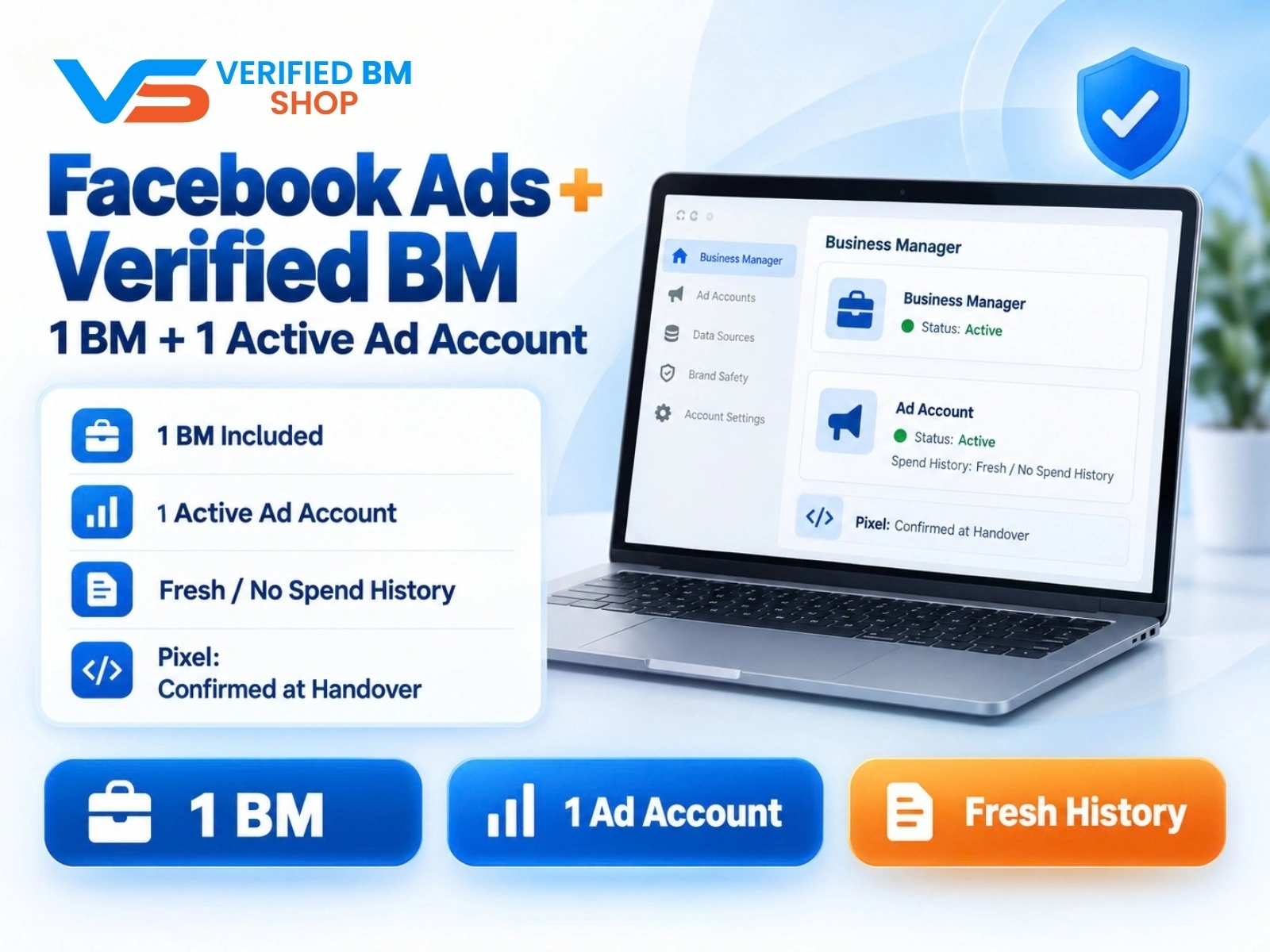
Facebook Ads Account + Verified BM Bundle
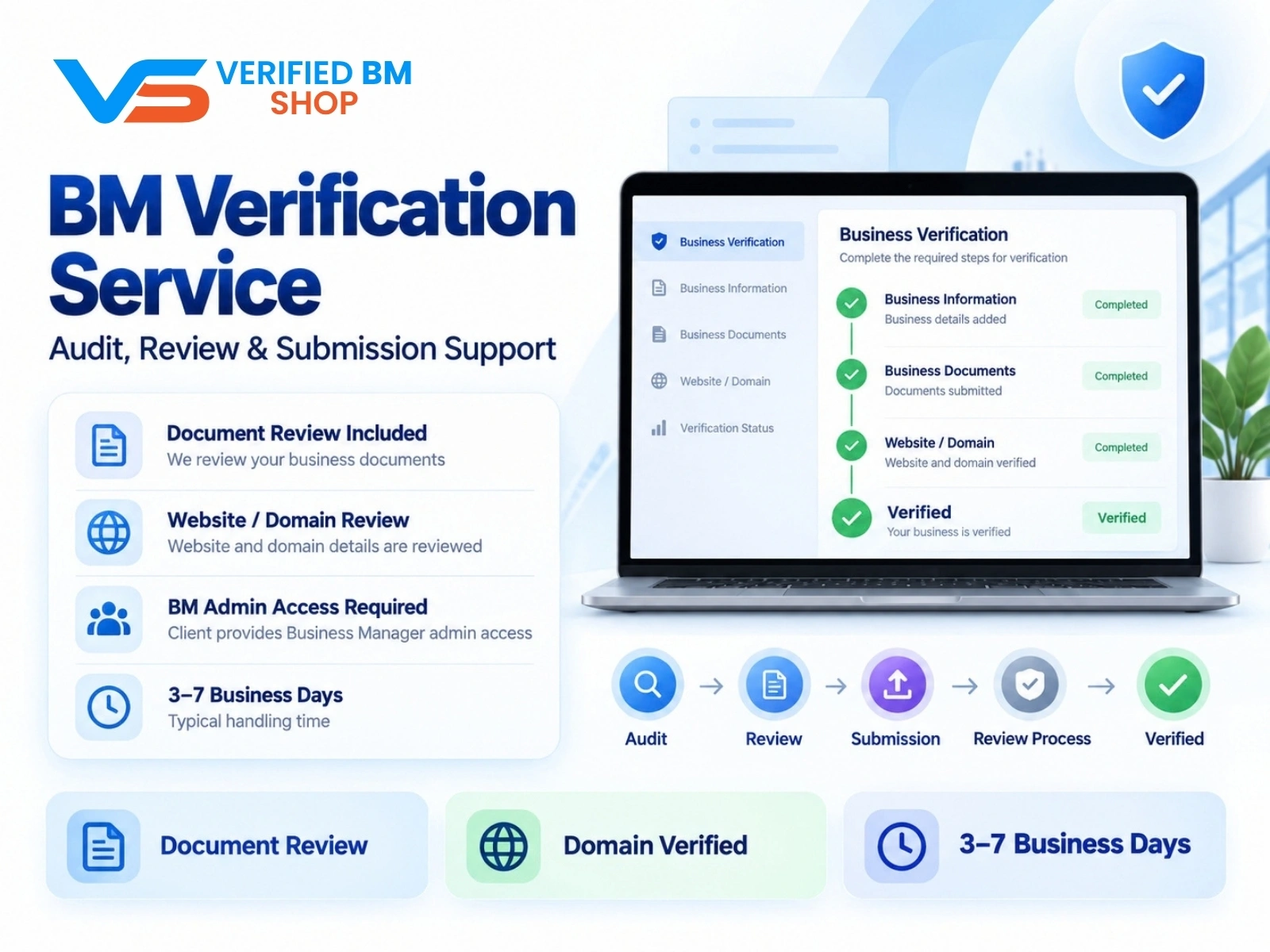
BM Verification Service
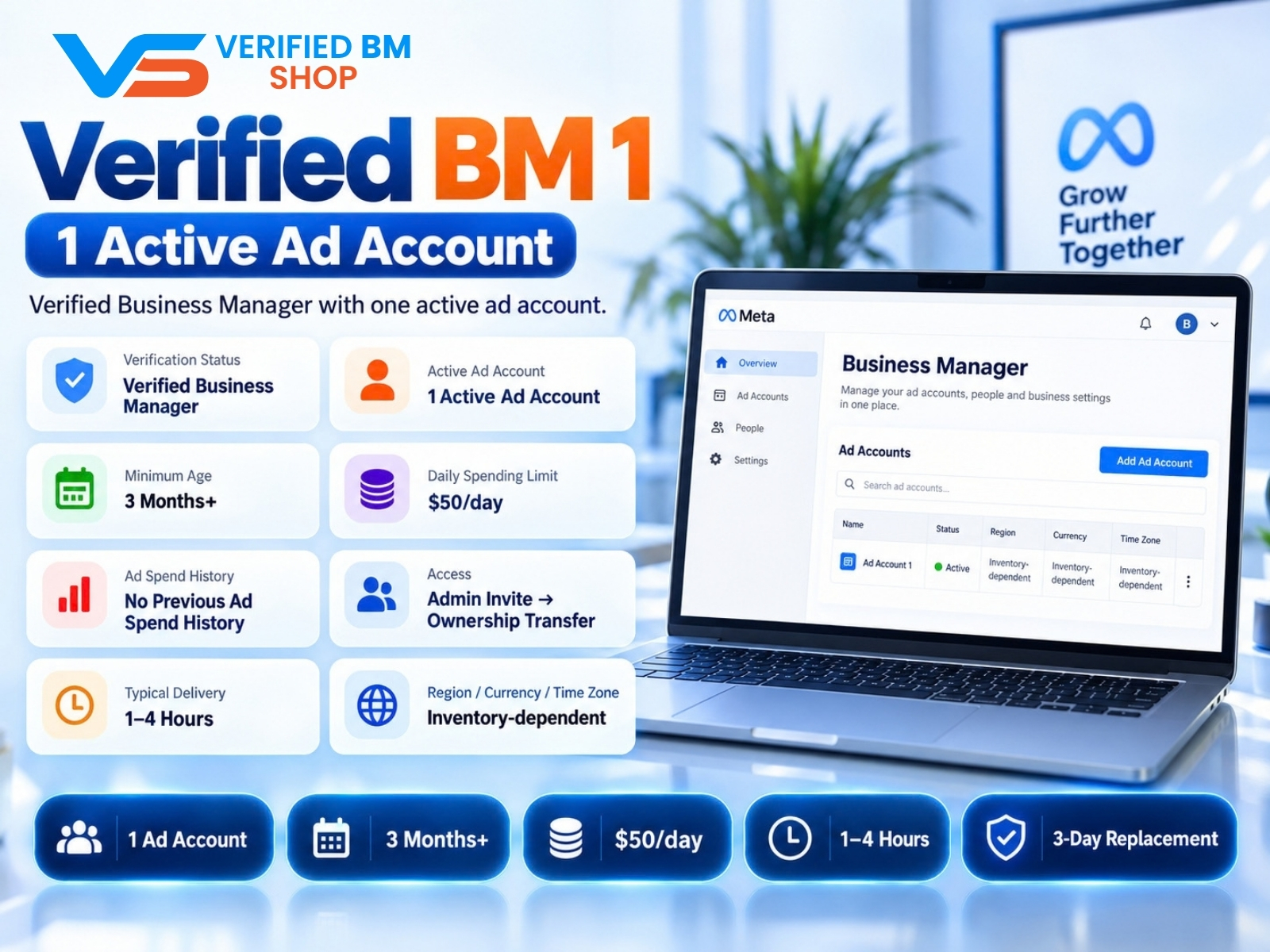
Verified BM 1 - Verified Meta Business Manager
Written by
Verified BM TeamThe VERIFIED BM SHOP editorial team shares real-world experience in buying and selling verified Business Managers, WhatsApp API accounts and advertising platforms.
Comments (0)
No comments yet. Be the first to share your thoughts!
Leave a Comment
Your email will not be published. All comments are moderated.