
Quick Summary
Learn how Facebook Pages differ from profiles and how to set up, secure, review, and transfer Page access and connected business assets.
Businesses, brands, creators, and groups can use a Facebook Page as a public presence on Facebook. Depending on the Page and account, it may support posts, messages, audience insights, reviews, ads, and other Meta tools.
Most risks start with setup, access changes, or a transfer. Since a Page may link to people, business portfolios, and other assets, review each link before giving full control.
What Is a Facebook Page?
Organizations, companies, products, services, public figures, and other eligible entities can use a Facebook Page as a public presence. People may follow it, view public content, and contact the organization through its available features.
A personal Facebook profile usually represents one person. By contrast, a Page represents a public presence that several people can manage through assigned access.
Meta expects Pages to represent real businesses, brands, people, or organizations. A Page must not copy another entity, mislead visitors, or promote activity that breaks Meta’s rules.
Facebook Page vs. Personal Profile
Feature | Facebook profile | Facebook Page |
|---|---|---|
Main purpose | Personal identity and connections | Business, brand, creator, or public presence |
Management | Usually controlled by the individual who owns it | Can have multiple people with different access levels |
Audience | Friends, followers, or approved connections | Public followers and visitors |
Business tools | Tools are generally tied to the individual account | May connect with Meta business tools, advertising, and reporting |
Public identity | Personal name and profile details | Business name, category, username, and contact details |
Professional mode can add creator tools to a profile. It does not turn the profile into a business Page. A company that needs shared admin work, brand details, or business asset links will usually use a Page.
Do not make a Page by posing as another person or company. Also, do not give your personal profile to a buyer or contractor. Change Page access through Meta’s controls instead.
Who Should Create a Facebook Page?
Businesses, agencies, shops, nonprofits, local services, media projects, public figures, and teams may suit a Page when they need a public presence on Facebook.
An agency may manage many client Pages. A small business may limit access to its owner and one trusted staff member. The right setup depends on who owns the brand and who needs each task.
Businesses: Share company details, updates, offers, and contact options.
Agencies: Ask for the right access instead of client login details.
Creators: Publish under a public identity while keeping personal activity separate.
Local organizations: Show hours, location, services, events, and reviews where those features are available.
What Can You Do With a Facebook Page?
Features vary by Page type, region, account status, and Meta’s current rollout. Common Page functions may include:
Publishing posts, videos, stories, and announcements.
Replying to comments and managing Page messages.
Adding a profile image, cover image, website, phone number, address, and service details.
Viewing audience and content insights.
Supporting ads through linked Meta business assets.
Assigning work to staff, freelancers, partners, or agencies.
Showing customer reviews or recommendations where the feature is available.
Some tools need more setup, approval, or a business portfolio link. A Page alone does not give access to an ad account, payment method, catalog, domain, or other business asset.
How to Create and Complete a Facebook Page
Meta can change menu names and paths. The main steps stay much the same. Start on Facebook or Meta Business Suite while signed in to an authentic personal account that you control.
Choose the option to create a Page.
Enter a name that truthfully shows the business, brand, person, or organization.
Pick the closest category and add a short description.
Upload a suitable profile image and cover image.
Add contact details, website, location, hours, and services where needed.
Choose a username if one is free and it truthfully relates to the Page.
Publish the Page and check how visitors see it.
Keep the name and category true. Meta may reject names that mislead, use too many symbols, replace the name with a slogan, or claim an official link without proof.
Before you run campaigns or invite customers, fill in key details. A clear name, working website, matching contact details, and steady branding help visitors know who runs the Page.
Rules can vary by account, country, and Page history. If a username is not free, choose a true option instead of adding confusing characters.
How to Manage Facebook Page Access
Page access is not the same as a person’s Facebook password. Use separate accounts and give each person only the access needed for the job.
Facebook access and task access
Meta often separates Facebook access from task access. Facebook access lets a person work through Facebook, with partial or full permissions. Task access lets a person do selected work through Meta Business Suite, Ads Manager, or other business tools.
Someone with full control may manage Page settings, give or remove access, change key details, and take actions that affect the Page. For that reason, give full control to an owner or senior operator, not every contractor.
Partial or task access may cover content, messages, community work, ads, or insights. Choices can change, so read each permission screen before you confirm access.
Safe access practices
Keep at least two trusted people able to recover the Page, while limiting full control.
Use personal accounts instead of shared logins.
Remove former staff, contractors, and agencies when their work ends.
Check business portfolio and partner links, not just the visible Page access list.
Ask agencies to use partner access when they do not own the Page.
You can usually manage access in Page settings, Meta Business Suite, or Business Settings. The path depends on whether the Page sits in a business portfolio and which account controls it.
Connecting a Facebook Page to Meta Business Suite
Meta Business Suite puts Page posts, messages, alerts, and some reports in one workspace. A business portfolio can also group Pages with ad accounts, Instagram accounts, catalogs, and other assets.
To connect a Page, the person who starts the process usually needs the right Page access. If another business owns the Page, that business may need to approve the request or share the asset with a partner.
Before you connect anything, check the right business portfolio ID and Page URL. Similar names can lead to the wrong asset, especially when an agency handles many clients.
For current steps, read Meta’s official Business Help Center. Its help is more reliable than old screen shots or third-party checklists.
When Meta Business Verification May Be Required
Meta may ask for business checks for some products, features, legal duties, or account reviews. The rules depend on the account, business, region, and current Meta process.
Meta may ask for a legal business name, address, phone number, website, registration details, or proof files. Details sent for review should match the business portfolio, public website, and related records.
Business checks differ from Page access and a public check badge. They do not promise approval, higher ad limits, ongoing access, or safety from enforcement.
Use Meta’s own check process first. If the process is unclear or a case stays pending, our Meta Business Verification Assistance guide shows where outside help may aid prep without replacing Meta’s review.
Facebook Page Full Control and Transfer Checklist
Full control is a permission level, not a simple password handoff. It may let the recipient change settings, manage people, remove access, and affect the Page or its links.
Before a transfer, record what the recipient will get and what stays with the current business. A Page may link to an Instagram account, ad account, business portfolio, shop, catalog, domain, or partner connection.
Review these items before approval
Confirm the Page identity: Check its name, URL, category, username, history, and public details.
Confirm the recipient: Use the person’s authentic Facebook account and check the right business portfolio.
List connected assets: Record Instagram accounts, ad accounts, catalogs, domains, pixels, shops, and partner links.
Check current access: Remove unknown users and note who has full control or business ownership.
Review active work: Check scheduled posts, campaigns, payment links, messages, and pending requests.
Agree on scope: Decide whether the recipient needs full control, partial access, or partner access.
Secure both sides: Turn on two-factor authentication and check recovery email and phone details.
Save records: Keep written approval, business details, the Page URL, and the final access screen.
Some transfers need a business portfolio ownership change or a release request, not a direct handoff between people. Meta may add approval steps, wait times, or security checks based on the Page and business setup.
For a planned handover, review the Facebook Page full control transfer service. Confirm the exact asset, access level, and included links first. Check service terms on the related product or service page. They do not promise Meta approval, ongoing access, or a set platform result.
How to Keep a Facebook Page Secure
Security starts with the people who control the Page. Use strong, unique passwords on personal accounts. Turn on two-factor authentication for everyone with admin access.
Do not accept urgent access requests from unknown messages. Check the sender’s profile, business email, and reason through a separate channel.
Review Page access and business portfolio users often.
Remove unused partners, apps, and agencies.
Limit full control to trusted owners.
Keep business records and contact details current.
Watch for fake copyright, support, and check messages.
Use official Meta forms and help channels for disputes.
Our guide to setting up two-factor authentication on agency business managers covers a useful step for teams that manage several assets.
Common Facebook Page Access Problems
The Page does not appear in Business Suite
You may use the wrong Facebook account, lack enough access, or face a Page owned by another business portfolio. Check the Page access list and the business portfolio ID before sending a new request.
A former admin still controls the Page
Another person with full control may need to remove that admin. If the Page belongs to a business portfolio, check Business Settings and the Page’s own access screen.
The Page is connected to the wrong business
Do not remove assets at random. Record the current setup, find the legal owner, and use Meta’s release or business support process where available.
No one can access the Page
Gather the Page URL, business records, past admin details, and proof of your role. Then use Meta’s official support routes. Our Meta Business Account Recovery guide covers steps to consider when access to the wider business account is lost.
For case prep, the Meta Technical Support contact and case guide can help arrange the details before you contact support.
Should You Set Up or Transfer a Facebook Page?
Create a new Page when the business has no fit public presence, the current Page has the wrong identity, or the owner wants a clean setup.
A managed or moved Page may fit when it shows the right brand and has a history of posts. Before you proceed, review its access list, linked assets, policy history, name, audience, and business ownership.
Do not judge by follower count alone. A poor audience fit, unclear ownership, inactive admins, or open limits can cause more work than a new Page.
For help checking Page ownership, full control, and business links, contact VERIFIED BM SHOP support before you approve a transfer. Confirm any support, replacement, or other service terms on the related page. They do not promise Meta approval, ongoing access, or a set platform result.
Frequently Asked Questions
Quick answers to the questions buyers ask most.
How do I create a Facebook Page for my business?
What is the difference between Facebook Page full, partial, and task access?
How do I give someone access to a Facebook Page?
How can I transfer a Facebook Page to another person or business?
Can I move a Facebook Page into Meta Business Suite?
What should I do if I lose access to my Facebook Page?
Is business verification required to manage a Facebook Page?
How do I remove an old employee’s access to a Facebook Page?
How this helps verified BM buyers
Apply this guidance when buying verified Business Managers or WhatsApp Business API assets to reduce policy risk, improve account stability, and scale campaigns with cleaner operational workflows.
Compare Verified BM options · Next steps: compare products in the Shop, review implementation details in FAQ, and contact support from the Contact page.
Recommended for You
Hand-picked from our shop — delivered fast after payment.
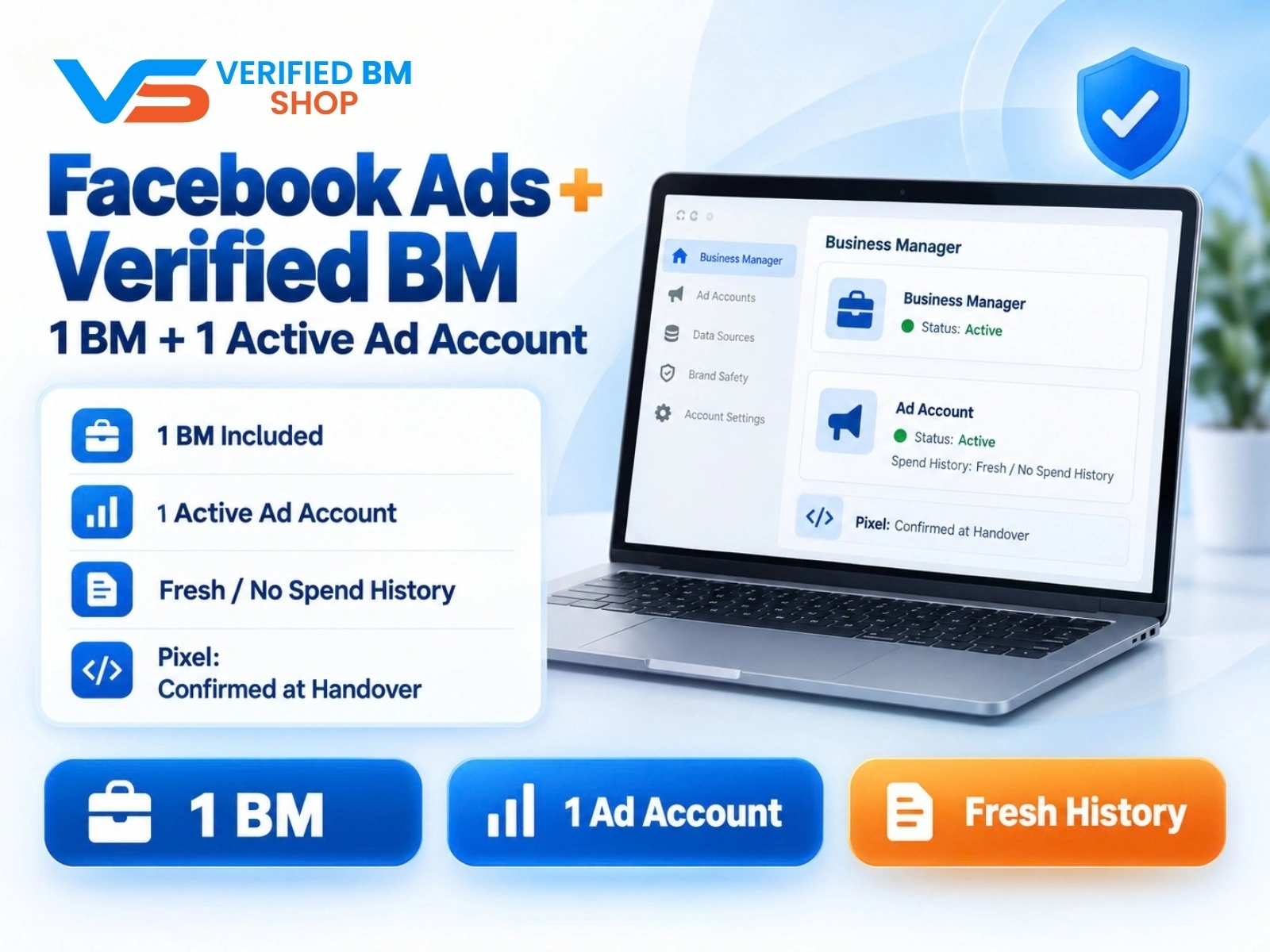
Facebook Ads Account + Verified BM Bundle
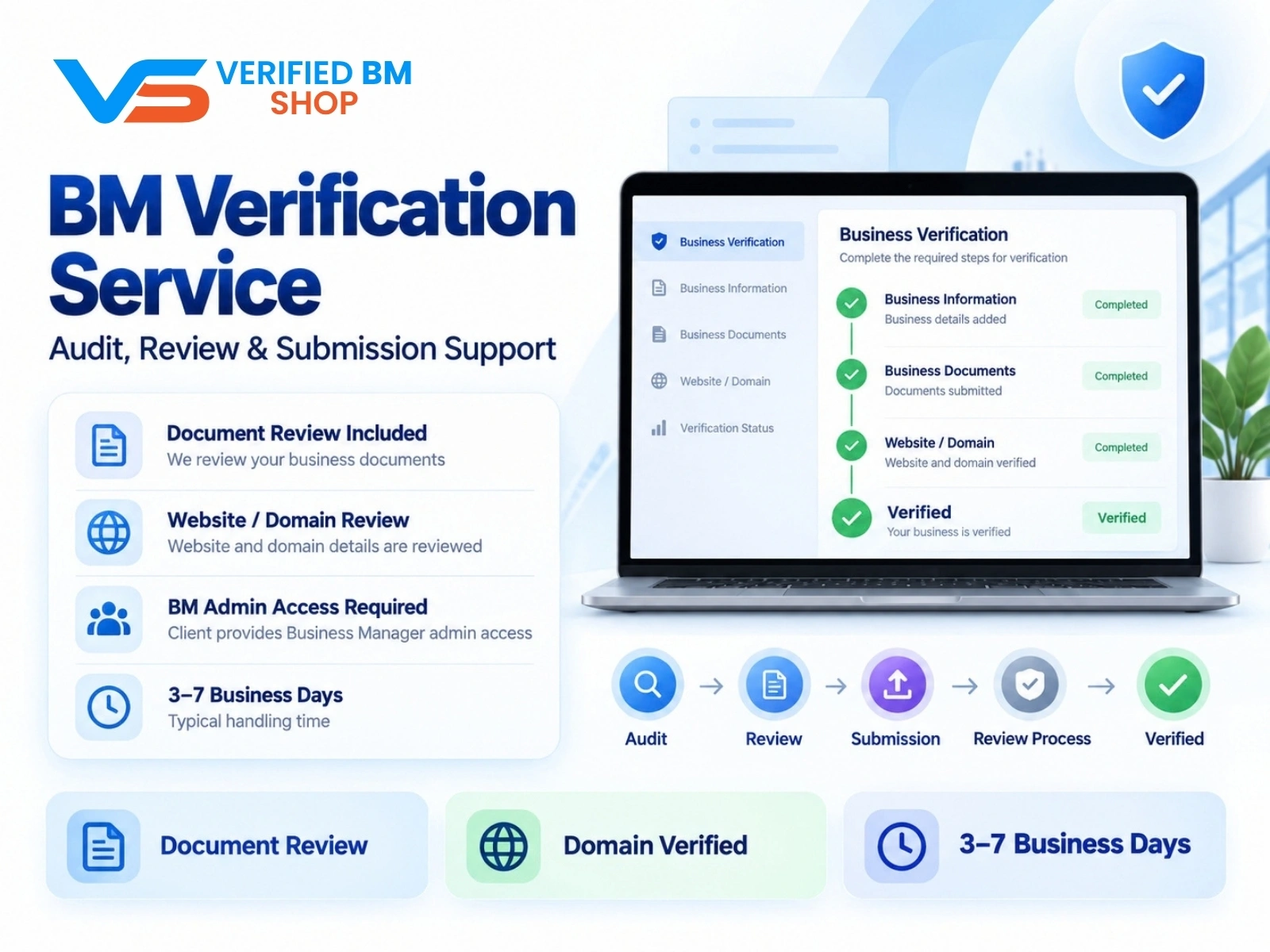
BM Verification Service
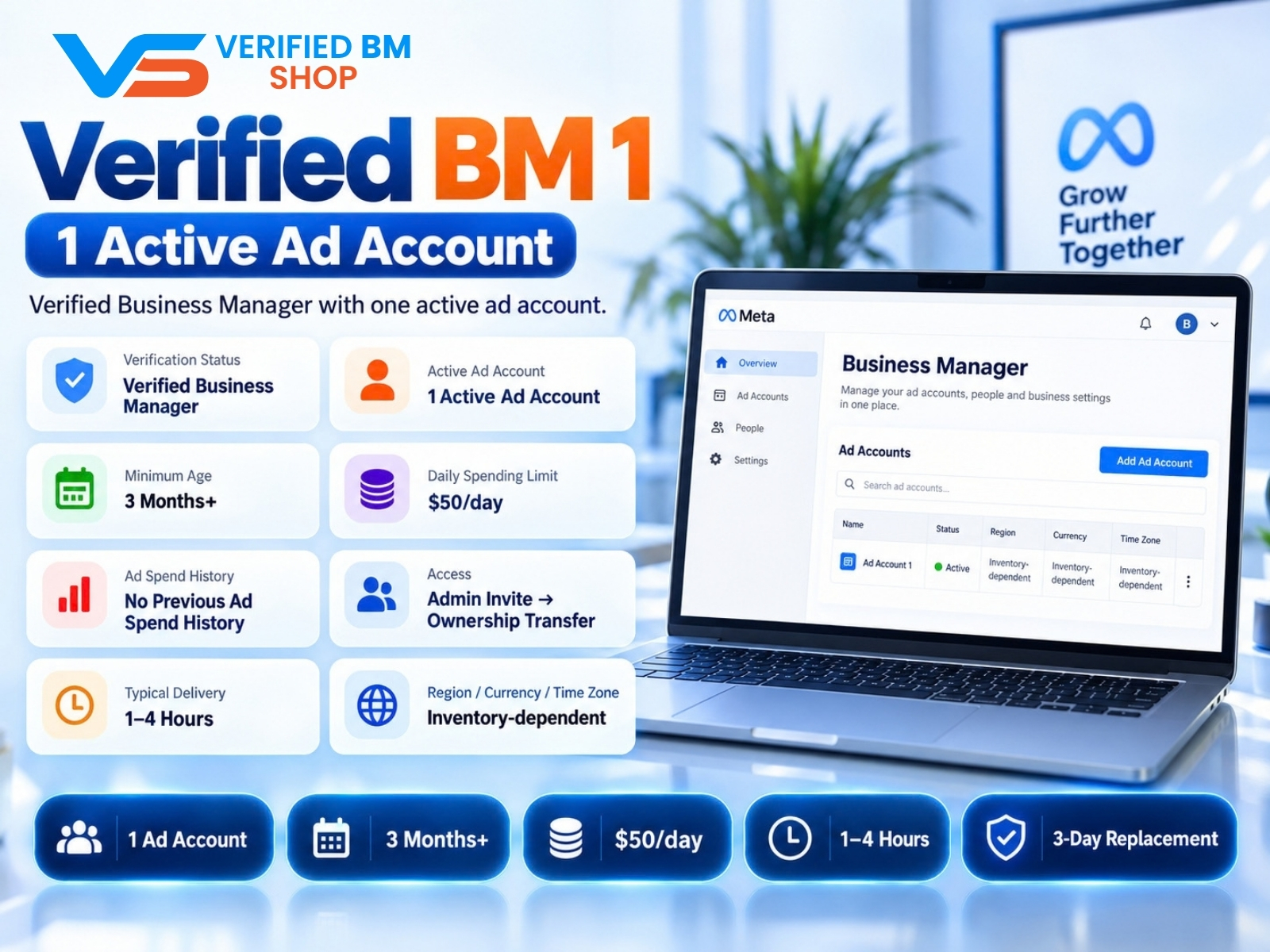
Verified BM 1 - Verified Meta Business Manager
Written by
Verified BM TeamThe VERIFIED BM SHOP editorial team shares real-world experience in buying and selling verified Business Managers, WhatsApp API accounts and advertising platforms.
Comments (0)
No comments yet. Be the first to share your thoughts!
Leave a Comment
Your email will not be published. All comments are moderated.