
Quick Summary
Learn how Google Ads manager accounts, formerly called MCCs, can organise linked accounts, permissions, billing, reporting, and security.
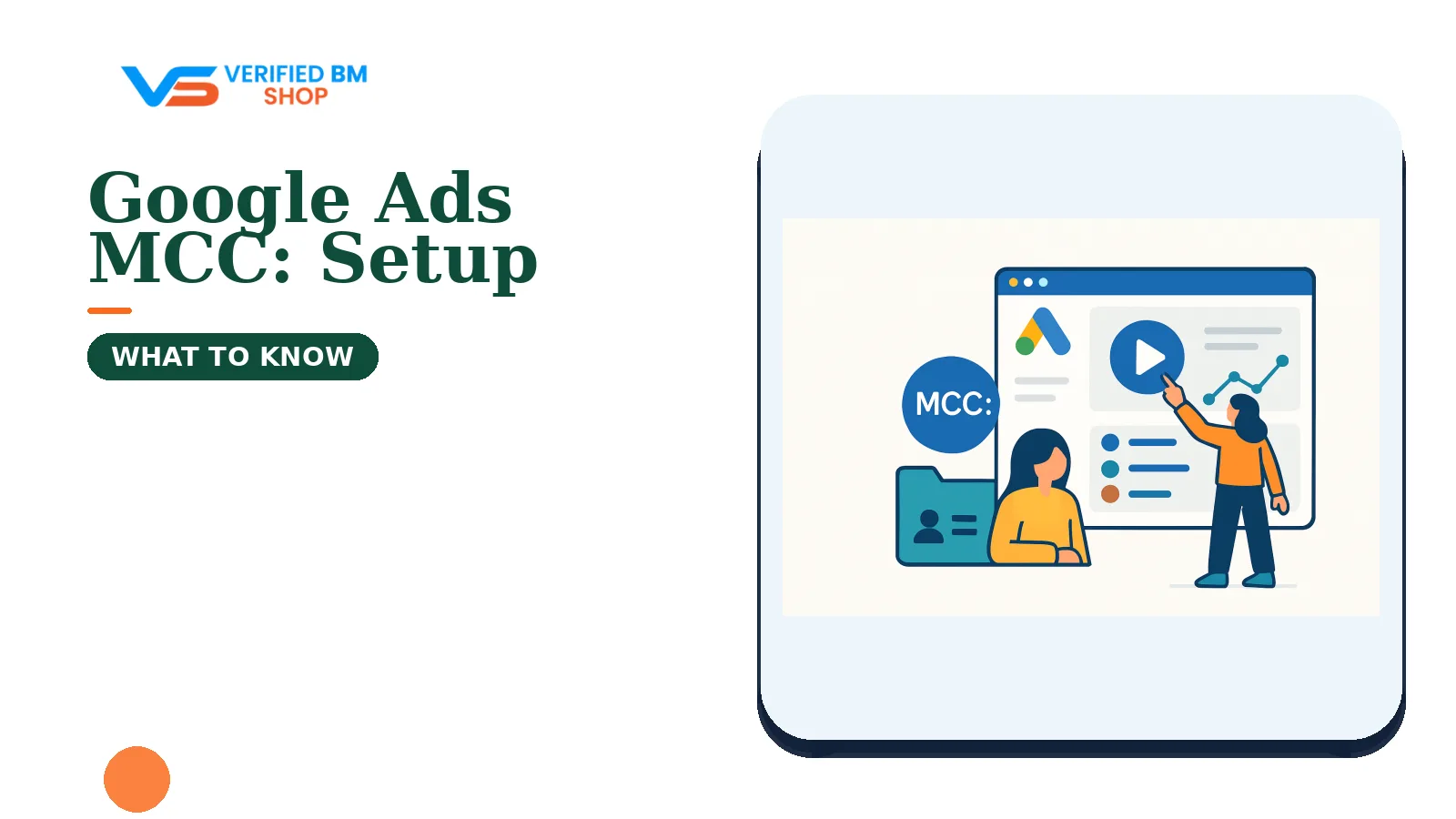
A Google Ads MCC is the former name for a Google Ads manager account. It is used to manage linked Google Ads accounts from a central interface, although the exact features available depend on permissions, account relationships, and current Google Ads settings.
A manager account does not replace the linked accounts beneath it. Instead, it can provide authorised users with a central way to navigate accounts, review selected reports, manage access, and use eligible shared resources.
What Is a Google Ads MCC?
A Google Ads manager account is an account used to manage linked Google Ads accounts. It may be at the top of a hierarchy or linked below another manager account, and the linked accounts may belong to one business, several brands, or different clients.
Depending on the user’s permissions and the account setup, a manager account may let authorised users navigate linked accounts and view selected alerts, campaign data, billing information, and reports from the manager interface.
A linked account remains a distinct Google Ads account, although some resources, reporting, billing arrangements, or access settings may be managed or shared through the hierarchy.
Area | Manager account | Individual Google Ads account |
|---|---|---|
Main purpose | Manage or oversee linked accounts from a central interface | Run ads for one business or advertising setup |
Campaign control | Depends on the linked account, hierarchy, and user permissions | Controls its own campaigns through its account access |
Billing | May support selected manager-related billing arrangements where available | Uses its own payment or billing setup, subject to the account configuration |
Ownership | Creates a management relationship but does not automatically own the client’s business | Retains its own account history, settings, and policy record |
Google Ads MCC vs Google Ads Manager Account
“MCC” means My Client Center, the former name for this Google Ads structure. Google’s current interface and help resources generally use “manager account”.
The terms often refer to the same type of account. Use “manager account” when looking for current Google Ads setup instructions, but expect agencies and clients to continue using “MCC”.
A manager account is not the same as a Google Ads client account. It is also separate from Google Merchant Center, a Google Analytics property, and Meta Business Manager.
Who Should Use a Google Ads MCC?
Manager accounts can suit teams that need a shared view across separate Google Ads accounts. They may be useful when accounts require separate billing, access rules, conversion settings, or policy records.
Agencies: Manage client accounts without asking clients to share personal passwords.
Freelancers: Organise several client relationships through one work login.
Multi-brand businesses: Review brands, regions, or divisions through a central structure.
Large advertisers: Separate accounts by market, legal entity, or business line.
In-house teams: Assign finance, media, and analytics staff permissions suited to their work.
A single local business with one Google Ads account may not need a manager account. An additional hierarchy can create administrative work if the business has no need for cross-account reporting or access management.
How a Google Ads MCC Works
Existing Google Ads accounts can be linked to a manager account as client accounts. Google Ads may also allow manager accounts to be linked in sub-manager arrangements, subject to current hierarchy rules and account eligibility.
For example, an agency might use one manager account while a regional team operates a sub-manager and separate client accounts sit at an appropriate level in the hierarchy.
Google may impose limits or eligibility requirements on hierarchy depth, account links, and related manager-account actions. Check the current Google Ads Help resources if the interface blocks a link or displays an account-specific warning.
What linking does and does not do
Linking creates a management relationship with the client account. It does not merge campaign history, turn separate accounts into one account, or remove the client’s responsibility for policy compliance.
In many setups, the client can retain its account access while granting an agency manager appropriate permissions, but confirm the exact ownership and user-role effects before linking accounts.
How to Create a Google Ads Manager Account
You can start the manager-account setup through Google Ads while signed in with a Google account that you control. Use a work-owned login rather than a temporary address or an account belonging to a former employee.
Open Google Ads and follow the current option for creating a manager account.
Review the available business, country, time-zone, currency, and billing settings.
Check the account details carefully before confirming the setup.
Complete the current setup flow and open the manager account interface.
Where available, add a second trusted administrator and enable Google’s applicable two-step verification or other security controls for privileged users.
Record the customer ID and document who controls the manager account.
Follow the prompts shown in your Google Ads account because labels, menus, available fields, and setup requirements can change. Some account settings may be difficult or unavailable to change later, so review them before confirming.
A manager account does not provide special ad approval, higher spend limits, or protection from suspension. Each linked account must follow Google Ads policies and complete any checks that apply to it.
How to Link Existing Google Ads Accounts
To link an existing account, a manager user normally starts from the manager account and chooses the current option to add or link an account. The manager user then enters the client account’s customer ID and sends an invitation.
An administrator on the client account must review the request and accept it through the relevant Google Ads interface. Confirm the intended ownership, access, and billing effects before completing the link.
Copy the client account’s customer ID exactly as shown in the current Google Ads interface.
Open the manager account’s current account-linking area.
Enter the customer ID and send the invitation.
Ask an administrator on the client account to review the request.
Accept the invitation from the correct Google Ads account.
Confirm that the account appears in the intended manager hierarchy.
Do not send invitations to personal addresses that the business cannot recover. Use named work accounts and keep a written record of the access agreement.
How to Create a New Google Ads Account From an MCC
Some eligible manager accounts may be able to create linked client accounts from the manager interface. Availability and requirements may vary by account and current Google Ads rules, so check the options shown in the relevant manager account.
If the option is available, follow the current creation flow and review the business details, time zone, currency, billing, and other settings before confirming. Some settings may be difficult or unavailable to change later.
A newly created account may need payment details, advertiser information, identity checks, conversion setup, and policy review before ads can run. Creating the account does not guarantee approval or delivery.
User Access, Permissions, and Account Ownership
Access should match the work a person performs. Someone who reads reports does not need the same permissions as a person who manages billing, account users, or campaign settings.
Access type | Typical use | Risk to review |
|---|---|---|
Administrative access | Manage users, links, and account settings | May change access or control, depending on the current role model |
Standard access | Work on campaigns and permitted account settings | May still affect spend and campaign delivery |
Read-only access | View campaigns and reports | Normally does not allow ordinary account changes |
Email-only access | Receive selected notices | Does not provide normal account-management control |
Billing-related permissions | Review or manage payment information where available | Can expose sensitive financial data |
Access may be granted through the manager hierarchy or directly on an individual account, depending on the current Google Ads permission model. Manager-level permissions may provide access to multiple linked accounts; review the current scope and inherited permissions before inviting a user.
Keep at least two trusted business administrators where the account setup supports this arrangement. Remove former staff promptly, review third-party access, and use Google’s account recovery options if an administrator loses access.
Billing and Payments in a Google Ads MCC
Account management and payment responsibility are separate decisions. An agency may manage campaigns while the client pays Google directly through the client account, but confirm the arrangement and permissions before making changes.
Google may offer consolidated invoicing or other manager-related billing arrangements to some eligible accounts. Confirm availability, requirements, and consequences with current Google Ads billing documentation or Google support.
A manager account does not automatically combine every payment method or invoice. Before changing billing, confirm:
Which legal entity is responsible for the advertising charges.
Who owns the payment profile and receives invoices.
Which accounts are included in the billing arrangement.
What happens when a client leaves the agency.
How tax details, refunds, chargebacks, and overdue balances are handled.
Do not add a client’s card to an account without written permission. Keep payment access separate from campaign access where the business process and available permissions allow it.
Key Features for Managing Multiple Accounts
Cross-account reporting
Manager accounts may support cross-account reporting for selected metrics, subject to the linked accounts, permissions, report type, and current Google Ads features.
Check that date ranges, attribution settings, currencies, and conversion definitions match before comparing results. A combined view can mislead you when accounts use different goals or measurement rules.
Labels and account organisation
Where available, labels and naming conventions can help teams group accounts by client, region, service, status, or review date. Use a system that remains understandable to someone joining the team later.
Shared audiences and conversion resources
Certain Google Ads manager configurations may support audience or conversion-resource sharing, subject to current eligibility, consent, ownership, and setup requirements.
Do not assume that a conversion action, audience, or remarketing list works across every linked account. Confirm ownership, data permissions, tag setup, and reporting effects before sharing a resource.
Budgets and account oversight
Depending on the account setup and permissions, a manager account may help teams review selected budgets, alerts, and account information from a central interface.
A manager account does not remove the need to monitor each account’s payment status, policy notices, campaign settings, and tracking.
Google Ads MCC Security and Compliance Best Practices
A central account can reduce password sharing, but it also becomes a high-value access point. Protect it as carefully as the accounts beneath it.
Use named Google accounts instead of one shared login.
Enable Google’s applicable two-step verification or other security controls for privileged users.
Keep two trusted administrators where the account setup supports this, while limiting admin rights to people who need them.
Review users, linked managers, apps, and API access on a defined schedule.
Use separate browser profiles or password tools for work accounts.
Record client approval before changing billing, ownership, or account links.
Keep business details, payment data, landing pages, and ad claims accurate.
Respond to policy alerts through Google Ads instead of creating replacement accounts to avoid enforcement.
Never promise that a manager account prevents suspension. Google may take enforcement or security actions affecting an account or associated billing or account relationships when it identifies policy or security concerns. Review the specific notice and applicable Google Ads policies.
Google Ads Account Verification vs Meta Business Verification
Google may require advertiser verification and request business, identity, payment, or other information depending on the account and applicable programme. Check the notice shown in the Google Ads account for the current requirements.
That process is separate from verifying a Meta Business Manager. A verified Meta business does not automatically verify a Google Ads account, and a Google manager account does not create Meta business verification.
For a Google-specific setup that includes advertiser identity verification, review the details of the Google Verified Ads Account before making a decision. Check ownership, access, billing, transfer terms, and policy duties rather than relying on the word “verified” alone.
Common Google Ads MCC Problems and Fixes
An invitation fails or never arrives
Check the customer ID, recipient email, spam folder, and pending invitations. Possible causes include an incorrect customer ID, an existing hierarchy or permission conflict, an expired invitation, or current account restrictions. Check the error or status shown in Google Ads.
Cancel an old invitation and send a new one only after confirming the correct account. Avoid sending repeated requests to several addresses because that can create confusion over control.
The linked account is inaccessible
Being listed in a manager does not guarantee access to every account setting. Ask the account’s administrator to confirm your user role, the exact account link, and any inherited permissions.
If the business lost all admin access, use Google’s account recovery and support channels. Prepare the customer ID, business details, past billing information, and proof of authority.
The account cannot join the hierarchy
A hierarchy change may fail because of existing links, permissions, account eligibility, or current Google Ads hierarchy limits. Review the account’s current links and any displayed error message.
Unlinking can affect reporting, shared resources, billing, and access. Document the current setup and obtain approval from the account owner before removing a link.
A linked account is suspended or restricted
A manager account cannot erase a suspension. Review the notice, fix the stated issue, and use the appeal path shown in Google Ads when an appeal is available.
Do not open replacement accounts to bypass an enforcement action. That can create additional policy problems and may affect associated accounts or billing relationships.
Google Ads MCC Setup Checklist
Use this checklist before inviting clients, staff, or contractors:
Choose a business-owned Google login for the manager account.
Review the manager’s name, country, time zone, currency, and billing settings.
Add a second trusted administrator where available and appropriate.
Enable applicable two-step verification or other security controls for privileged users.
Write down ownership, billing duties, and account exit terms.
Collect each client’s customer ID exactly as shown in Google Ads.
Send access invitations instead of requesting passwords.
Use the least access needed for each role.
Check conversion goals, audiences, labels, and reporting settings.
Review policy notices, payment status, and user access before launch.
Schedule regular access and security reviews.
When a Separate Manager Account May Be Appropriate
A second manager account may help when two agencies, legal entities, or internal divisions need separate administrative control. It can also keep client groups apart when contracts require distinct access and reporting.
Do not create extra managers simply to avoid policy action, payment issues, or account limits. A new hierarchy should reflect a genuine business need and remain transparent to the account owners.
Ask Google support before moving accounts if the change affects billing, ownership, linked managers, or a restricted account.
Final Takeaway: When a Google Ads Manager Account Makes Sense
A Google Ads manager account can help one team manage several separate Google Ads accounts. It may provide a central view, structured access, and reporting options, subject to the account hierarchy, permissions, and current Google Ads features.
Set it up with clear ownership, named users, appropriate security controls, and written billing rules. Each linked account still needs its own policy, payment, tracking, and security oversight.
If you are comparing account options, visit the Google Ads category. For help assessing a new manager account, an account review, or an access issue, contact the support team for an account-management assessment.
Frequently Asked Questions
Quick answers to the questions buyers ask most.
What is a Google Ads MCC account?
How do you set up a Google Ads MCC account?
How do you link an existing Google Ads account to an MCC?
Can a Google Ads MCC manage billing and user access?
How this helps verified BM buyers
Apply this guidance when buying verified Business Managers or WhatsApp Business API assets to reduce policy risk, improve account stability, and scale campaigns with cleaner operational workflows.
Compare Verified BM options · Next steps: compare products in the Shop, review implementation details in FAQ, and contact support from the Contact page.
Recommended for You
Hand-picked from our shop — delivered fast after payment.
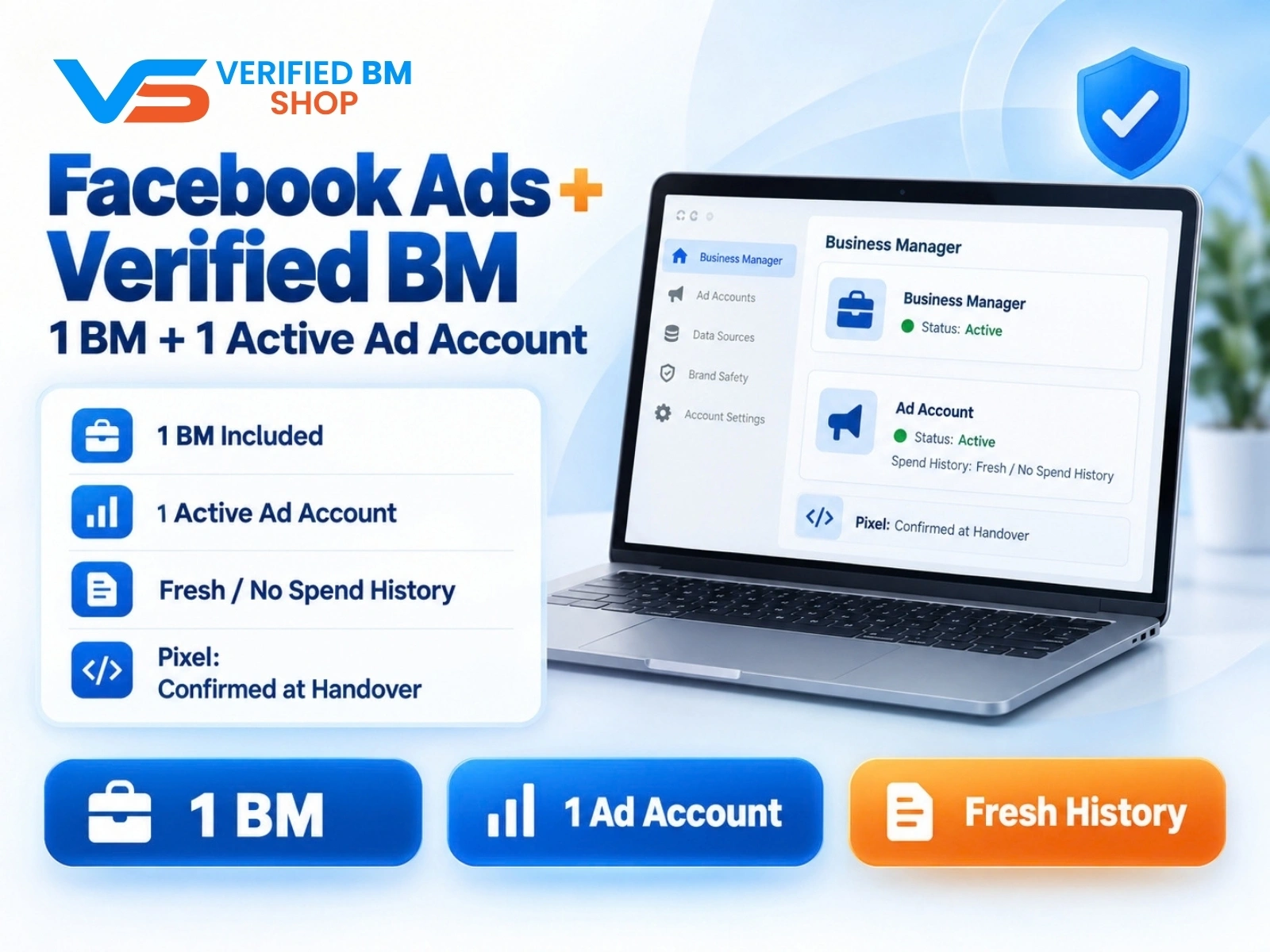
Facebook Ads Account + Verified BM Bundle
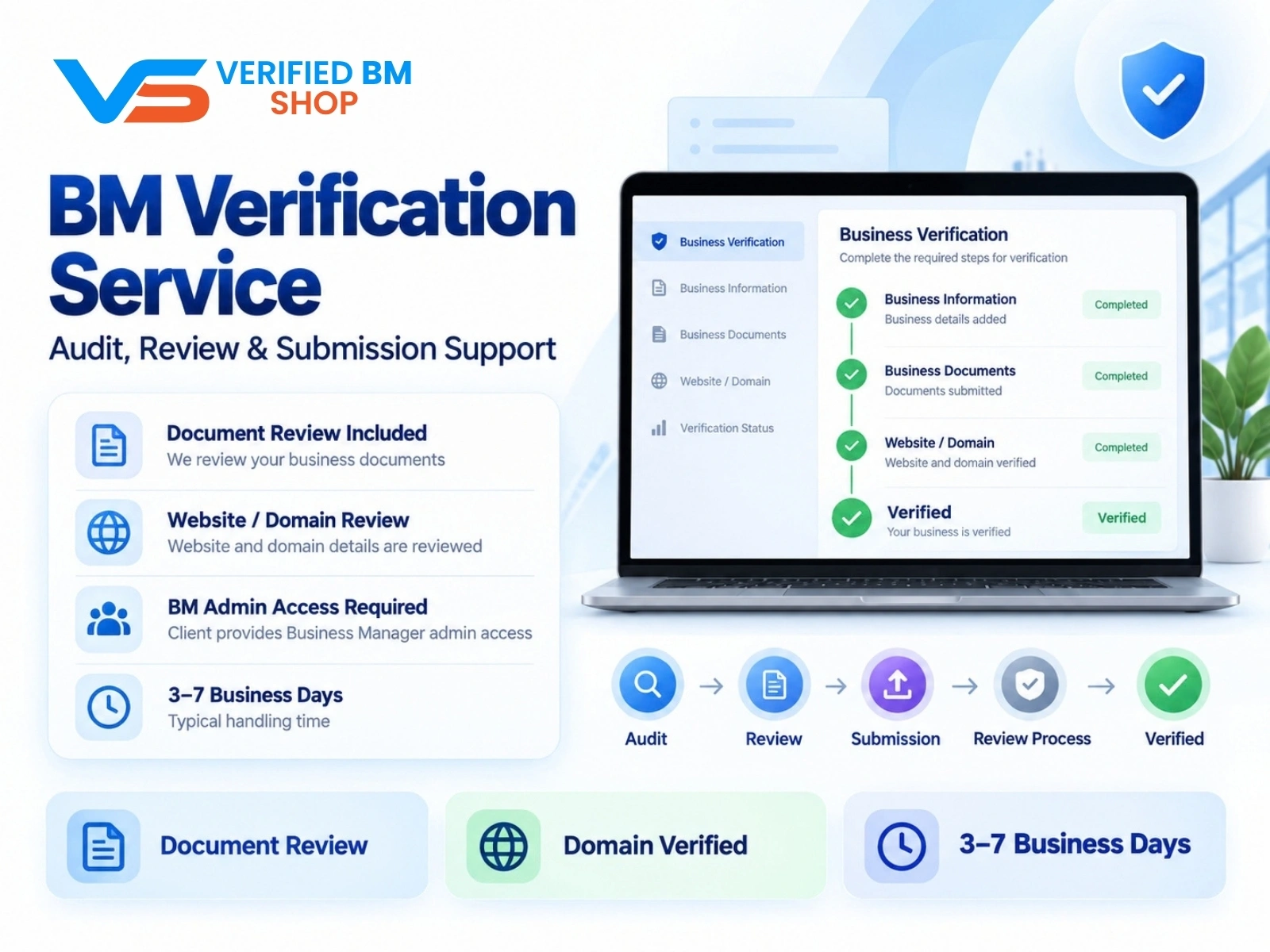
Meta BM Verification Service by VERIFIED BM SHOP
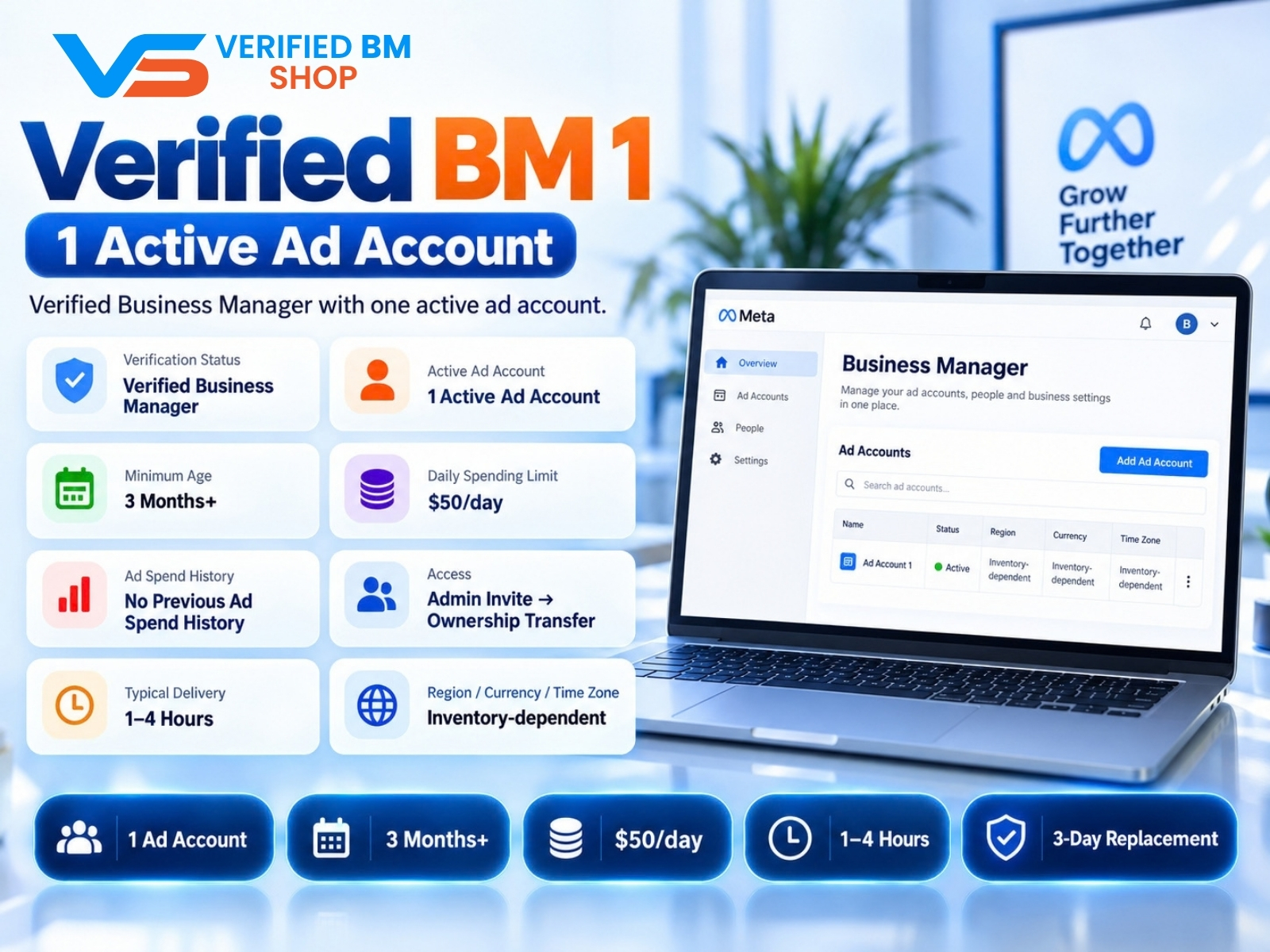
Verified BM 1 - Verified Meta Business Manager
Written by
Verified BM TeamThe VERIFIED BM SHOP editorial team shares real-world experience in buying and selling verified Business Managers, WhatsApp API accounts and advertising platforms.
Comments (0)
No comments yet. Be the first to share your thoughts!
Leave a Comment
Your email will not be published. All comments are moderated.