
Quick Summary
Learn how to find available Meta support options, choose an appropriate route, prepare evidence, track cases, and protect business access.
Meta’s available help and review options may cover issues such as Business Manager access, advertising, billing, verification, technical problems, and WhatsApp products, depending on the account and issue. The appropriate route usually depends on the affected asset and the options shown in Meta’s official interface.
Support options can vary by region, product, account context, and issue. Where Meta accepts a business-verification submission, completing that process may confirm or validate specified business details; it does not guarantee human support, faster replies, ad approval, account recovery, or reinstatement.
What Is Meta Platform Support?
Meta platform support refers to the help resources and review options Meta makes available for its business products. Depending on the product and account, Meta may provide help articles, automated flows, review options, or selected support channels such as chat or email.
Support does not replace Meta’s policies or enforcement systems. Where Meta provides a relevant support or review option, the process may allow you to submit information or request clarification, but available actions differ by issue.
Start with Meta’s official Business Help Center. It contains product guidance and links to support tools, but the options shown after login may differ from the public pages.
Why Platform Support Matters for Verified Business Manager Users
Agencies and business owners often manage several assets at once. One access error can affect pages, ad accounts, pixels, catalogs, payment methods, domains, or WhatsApp connections.
A clear support process helps you separate an account problem from a user, payment, policy, or technical problem. That distinction can make it easier to choose relevant evidence and avoid sending a billing issue through a policy-review route.
For example, a failed card payment is different from a disabled ad account. A missing admin may require access or security guidance, while a Cloud API error may require product documentation or a technical route.
Types of Meta Platform Support Available
Automated help and guided checks
Meta may present help articles, Account Quality information, prompts, or automated checks before offering a review or contact option. These resources may identify the affected asset and show any action available for that issue.
Use a prompt when it matches the problem. Do not submit an unrelated appeal simply to seek contact, because the selected category may not address the underlying issue.
Chat and email support
Depending on the product and account, Meta may offer selected support channels such as chat or email. Availability can differ by region, product, account context, and the issue selected.
If chat is missing, first check the logged-in business, product, region, and issue selection; missing chat may reflect availability or a technical problem. Do not treat the absence of one contact method as proof that the business account is faulty.
Account review and appeal tools
Account Quality or another notice-linked Meta review flow may be available for some restrictions; follow the options shown for the affected account. A review may ask you to confirm details, explain the issue, or submit documents.
Read the notice before responding. For context on restricted profiles, see this guide to a Facebook profile restricted from advertising.
Developer and WhatsApp support
Developer questions generally require product documentation or a technical route rather than a general billing case. Meta’s Developer site covers APIs, webhooks, permissions, app review, and technical errors.
WhatsApp Business Platform issues may involve a business portfolio, phone number, WABA, template, partner, or Cloud API request. Identify the exact layer before opening a case.
Where to Access Meta Business Support
Open Meta Business Suite or Business Manager while signed into the profile that has access to the affected business. Use the Help, Support, or question-mark menu if it is available, then choose the relevant product, asset, and issue.
Depending on the account and issue, Meta may show a help article, a case-management option, or a contact method after you select the relevant product and issue.
- Sign in through the official Meta business domain.
- Select the correct business portfolio or Business Manager.
- Open Help or Support from the business interface.
- Choose the asset and issue that best match the problem.
- Save the case number and any confirmation email.
Use the profile and business account that have access to the affected asset, because permissions and account context may affect what you can see or which support options are offered.
Which Support Route Should You Use?
| Problem | Best first route | Useful evidence |
|---|---|---|
| Business verification | Business verification flow or an available business-support option | Legal business details, matching documents, domain details, and the exact notice |
| Disabled ad account | Account Quality or the review link in the notice, if available | Ad account ID, restriction text, timeline, and policy response |
| Billing or payment failure | Billing section and any available business-support option | Ad account ID, transaction reference, date, currency, and payment error |
| Missing admin or lost access | Business account recovery and security tools | Business ID, user roles, prior admin details, and proof of business control |
| Technical fault | Product help or developer documentation and support | Error code, request ID, steps to reproduce, and time in UTC |
| WhatsApp API issue | WhatsApp or developer route linked to the product | WABA ID, phone number ID, message ID, API response, and provider details |
Do not combine unrelated problems in one case. A focused report gives the reviewer a clearer description of the issue and makes it easier to provide relevant evidence.
What to Prepare Before Opening a Support Case
Gather facts before you contact Meta. Your first message should identify the asset, describe the problem, and explain what changed.
- Business Manager or business portfolio ID.
- Ad account, page, app, domain, catalog, or WABA ID.
- The affected user profile and role, without sharing login details.
- Exact error text, notice, date, time, and time zone.
- Relevant screenshots with passwords, codes, and payment data hidden.
- Recent changes, such as a new admin, payment method, domain, or app release.
- Previous case numbers and the last response from Meta.
Keep documents consistent with the business details shown in Meta. If Meta asks for records, use the official upload form and submit only what the request requires.
For verification-specific document planning, review the Meta Business Manager verification document checklist. It is separate from a general support case.
How to Write a Strong Meta Support Request
Lead with the result you need, then provide the relevant facts. Avoid long background stories, blame, or several unrelated possible causes.
Example template: “Business ID [BUSINESS_ID] cannot add the domain [DOMAIN]. The interface shows ‘[EXACT_ERROR_TEXT]’. The issue started on [DATE] at [TIME] [TIME_ZONE] after we added the DNS record. We tested the record and attached a redacted screenshot. Please confirm the required next step.”
Use one case for one main issue. If a second problem appears, ask whether it needs a separate case rather than adding unrelated details.
State what you already tried. Include the result of each step, such as checking permissions, confirming a DNS record, or testing another payment method.
How to Track and Follow Up on a Support Case
If Meta provides a support inbox or case history for your account, save the case ID and monitor the status there or through the confirmation email.
Reply in the original thread when possible to keep the relevant case context together. If you open a new case, include the previous case ID and the key facts.
When Meta requests more information, answer each question in order. Attach readable files, name them clearly, and explain what each screenshot shows.
If the case closes without solving the issue, review the reason first. Then use an available review or appeal option, reply to the case if that option remains available, or contact Meta again with the old case ID and any new evidence.
What to Do When Meta Support Is Unavailable or Unhelpful
Some accounts or issues may present only help articles or automated flows rather than a direct contact option. Check the issue from the affected business, confirm that you selected the right product, and review the official guidance before trying another available route.
Do not create many duplicate tickets. Instead, improve the report with the missing ID, error text, timeline, or evidence that the first response did not address.
If a review option exists, use that official route. Avoid claims about special access, internal scores, or secret escalation paths because they cannot replace Meta’s own process.
Businesses that have already tried official support may want help organising their facts and documents. VERIFIED BM SHOP offers a Meta Business Verification Assistance service, but no outside provider can promise Meta approval or recovery.
Platform Support Safety: Scams, Fake Agents, and Sensitive Information
Use official Meta pages and the support interface inside your business account. Be cautious if someone contacts you first and claims to be a Meta agent.
- Never share your password, authentication code, recovery code, or session cookie.
- Do not give unrestricted admin access to a stranger.
- Hide full card numbers, security codes, and personal identity numbers in screenshots.
- Check the web address before signing in or uploading documents.
- Keep two or more trusted admins and turn on two-factor authentication.
Third-party support providers can help organise a case or explain public processes. They are not automatically affiliated with Meta, and they cannot control Meta’s review outcome.
Does a Verified Business Manager Guarantee Better Support?
No. Where Meta accepts a business-verification submission, completing that process may confirm or validate specified business details; it does not guarantee human support, faster replies, ad approval, account recovery, or reinstatement.
Support options can vary by product, region, account context, and issue; check the options shown in the relevant official Meta interface. A verified business should follow the same secure process as any other business and keep its information accurate.
For a wider comparison of account status and practical limits, read Verified vs unverified Business Managers.
When to Consider Specialist Assistance
Consider outside help when your team cannot identify the affected asset, has several linked issues, or needs to organise a complex case record. Specialist help can improve clarity, but it cannot replace official appeals or create rights that Meta has not provided.
Ask any provider what they will do, what access they need, and what they cannot promise. Keep control of your business assets and submit sensitive documents only through official Meta tools.
Platform Support Checklist
- Sign in through the official Meta business interface.
- Select the correct business and affected asset.
- Choose the route that matches the problem.
- Record IDs, error text, dates, and case numbers.
- Write one clear problem statement.
- Attach relevant evidence with sensitive data hidden.
- Reply in the original case thread when possible.
- Avoid duplicate tickets and unofficial agents.
- Never share passwords or authentication codes.
- Use specialist help for case organisation and guidance, not promised outcomes.
If you need help reviewing your next step after using official support, you can send a non-sensitive summary through the VERIFIED BM SHOP contact page.
Official Sources
Frequently Asked Questions
Quick answers to the questions buyers ask most.
How can I contact Meta platform support for a verified Business Manager?
Sign in to Meta Business Help Centre or Business Support Home with an account that has access to the business portfolio. If support is available for your account, select the relevant business asset and choose the contact or support option shown. Available contact methods and eligibility can vary by account, product, region, and issue.
Does business verification guarantee access to Meta support?
No. Business verification confirms information about the business, but it does not guarantee live chat, email, phone support, or a specific response time. Support access depends on Meta’s current eligibility rules and the products connected to the business.
What documents does Meta require for business verification?
Meta may request official documents that confirm the business’s legal name, address, or telephone number, such as registration, tax, licence, or utility documents. The information submitted should match the business details entered in Meta Business Suite. Requirements can vary by country and verification flow.
How do I check the status of my Meta business verification?
Open Meta Business Suite, go to Business Settings or Security Centre, and select the business verification section. The page should show whether verification is not started, in progress, approved, or requires action. If Meta requests more information, follow the instructions and resubmit the requested documents.
Why is my verified business still unable to access a Meta feature or support channel?
Verification does not automatically grant access to every Meta product, feature, or support channel. Check that you are using the correct business portfolio, have the required admin permissions, and meet the eligibility requirements for the specific product. If the option is missing, use Business Support Home to review available account notices and contact options.
What should I do if Meta rejects my business verification?
Review the rejection notice and compare your business details with the documents you submitted. Correct mismatched names, addresses, phone numbers, or document quality issues, then follow the available appeal or resubmission process in Meta Business Suite. Submit only current, readable documents that Meta accepts for your location.
How this helps verified BM buyers
Apply this guidance when buying verified Business Managers or WhatsApp Business API assets to reduce policy risk, improve account stability, and scale campaigns with cleaner operational workflows.
Compare Verified BM options · Next steps: learn what a verified bm is, compare products in the Shop, review implementation details in FAQ, and contact support from the Contact page.
Recommended for You
Hand-picked from our shop — delivered fast after payment.
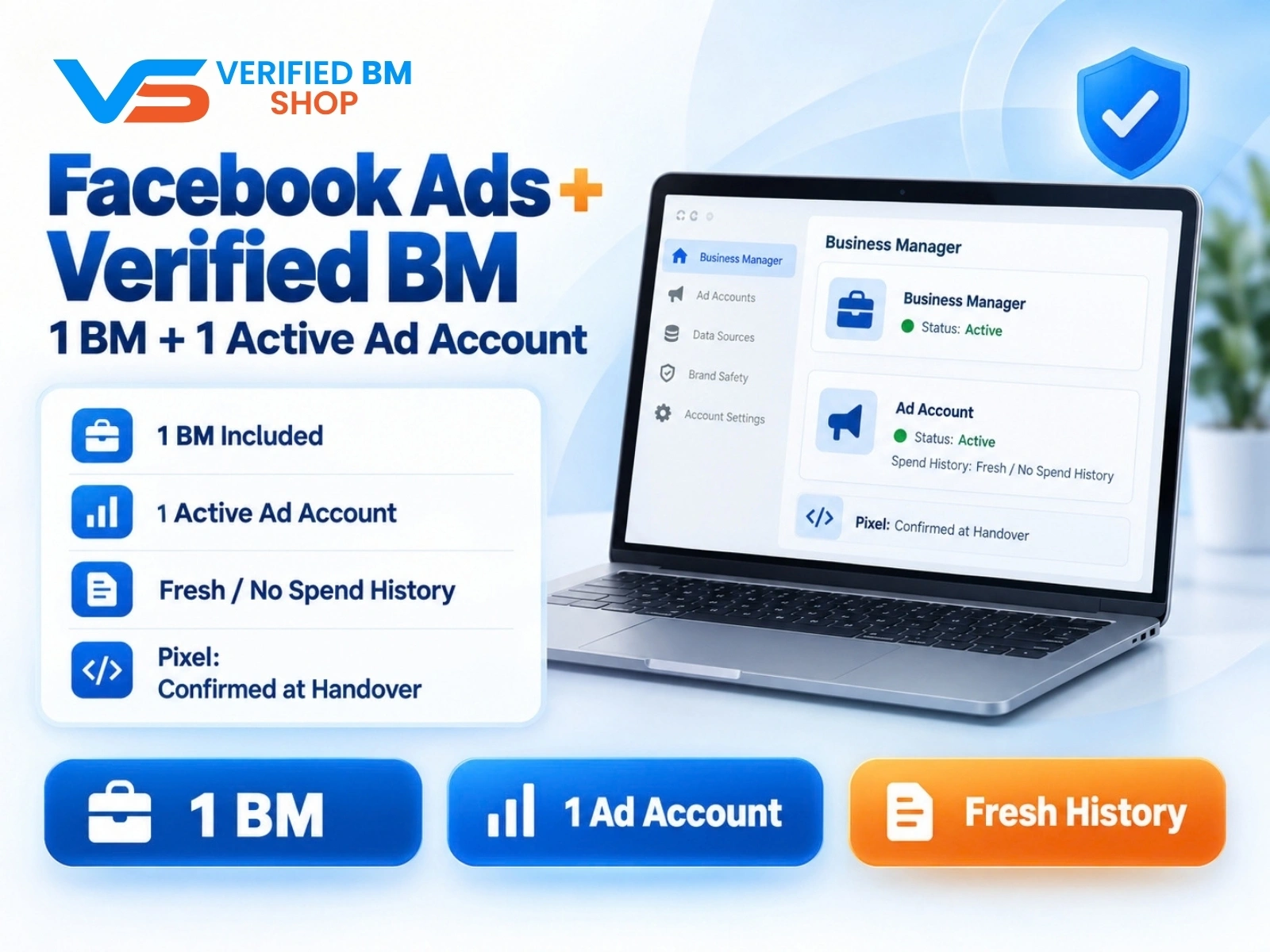
Facebook Ads Account + Verified BM Bundle
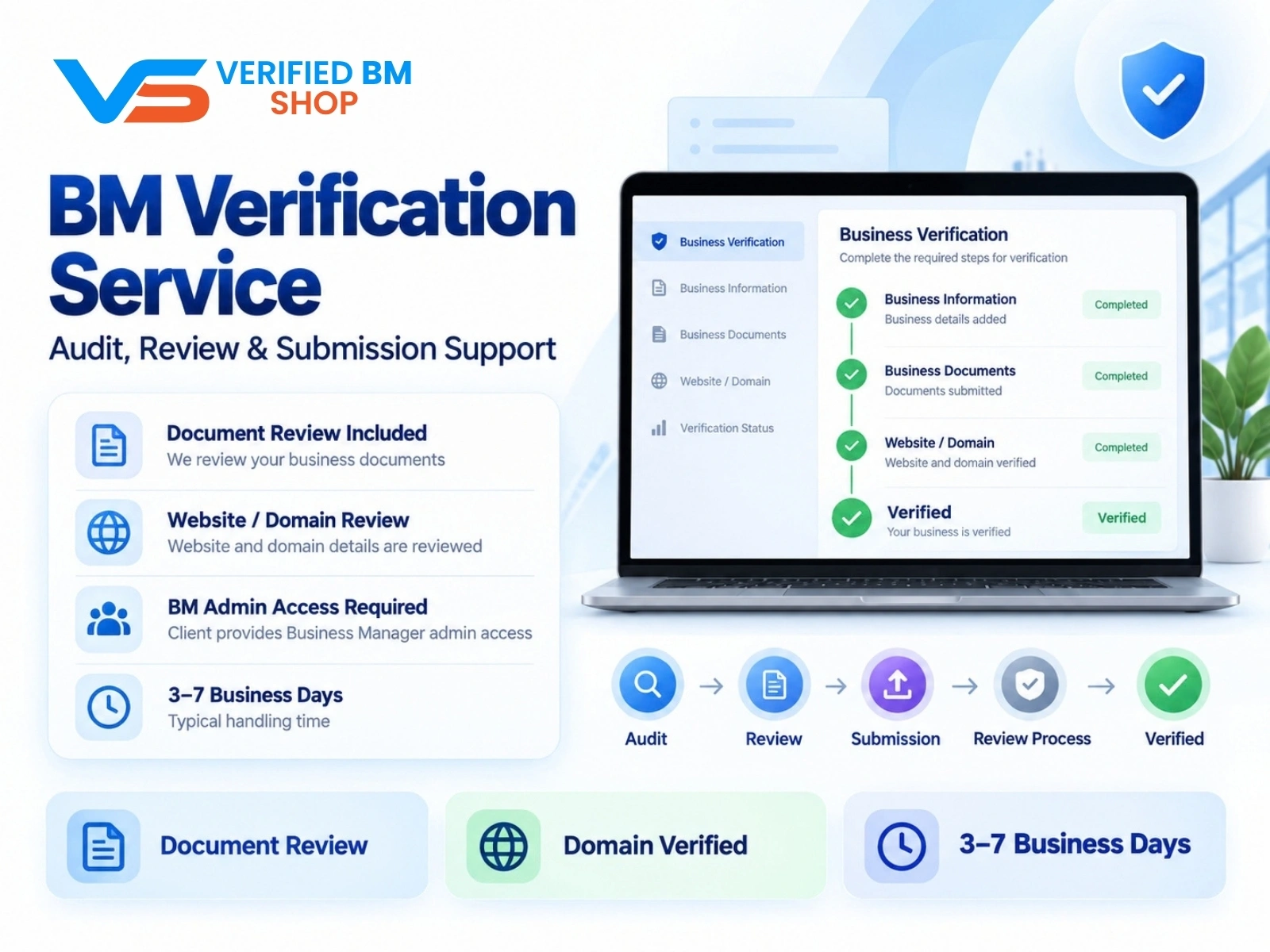
Meta BM Verification Service by VERIFIED BM SHOP
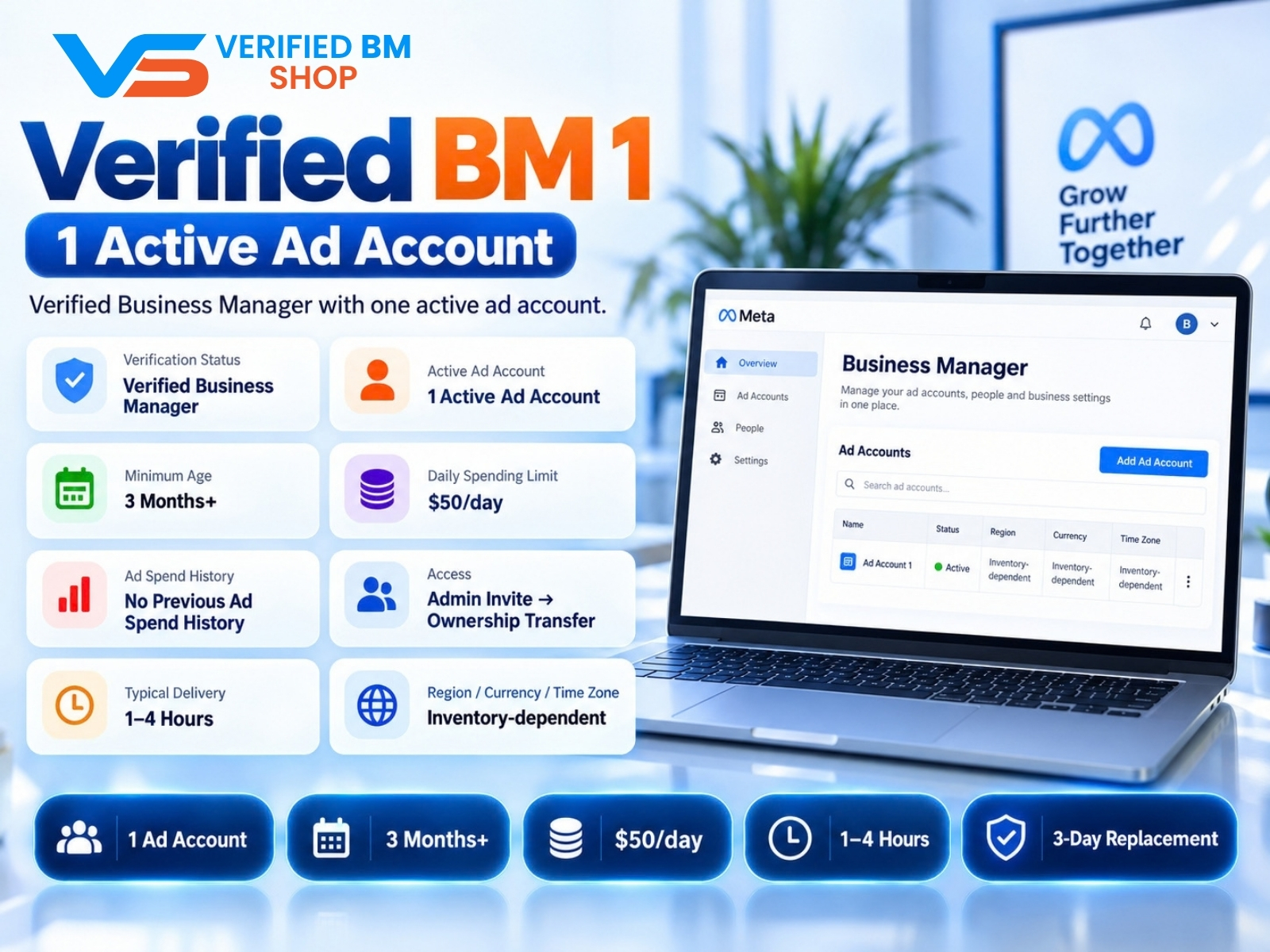
Verified BM 1 - Verified Meta Business Manager

Written by
Verified BM TeamThe VERIFIED BM SHOP editorial team shares real-world experience in buying and selling verified Business Managers, WhatsApp API accounts and advertising platforms.
Comments (0)
No comments yet. Be the first to share your thoughts!
Leave a Comment
Your email will not be published. All comments are moderated.