
Quick Summary
Manage Meta ad-account access for businesses, users, and partners. Check ownership, permissions, security, and account status before you make changes.
Meta ad-account assignment links an ad account to a business portfolio. It also gives access to users or partner businesses. First, check the account link. Next, give only the access needed and review it often.
Meta may call this area Business Manager or business portfolio. The name depends on the account interface. Labels and options can vary by account, status, business link, and your current permissions.
What Is Account Assignment in Meta Business Manager?
Account assignment sets which business, people, or partner businesses can work with an ad account. It usually manages access within Meta. However, it does not transfer a personal profile or replace records for contracts, billing, or legal ownership.
Ad accounts owned by a business may appear apart from accounts shared by another business. Check ownership and access in the relevant Business Settings area. Do this before ending an agency link or changing business control.
Meta’s documentation covers access controls for business assets. Read the current documentation and the interface for the options on your account. Treat each assignment as one access choice, not a general invite to the whole business.
What You Need Before Assigning an Ad Account
Check these points before you open Business Settings:
- You can log in to the correct business portfolio.
- Your profile has the permissions Meta now requires for the ad-account change you want.
- You know whether your business owns the ad account or shares it with another business.
- You have the right user details or partner business ID.
- Two-factor authentication is active where your business requires it.
- The account’s billing and payment status does not block the action.
Find the ad account in the current Business Settings interface. If it is missing, check the business portfolio, account ID, and permissions needed to view or manage it.
Store ownership records, business IDs, account IDs, and administrator details in a secure internal system. These records can help when staff leave, agency ties change, or Meta requests details about the business relationship.
Account Assignment Options: Business, Person, or Partner
| Recipient | What it means | Typical use |
|---|---|---|
| Business portfolio | The business may own the ad account or receive access to an account linked to another business. | Internal ownership or controlled business-to-business access. |
| Person | A named user gets the permissions available for the chosen ad account. | Employees, founders, contractors, or finance staff. |
| Partner | Another business gets access through its business ID, subject to Meta’s options. | Agencies, media buyers, developers, or outside consultants. |
For staff, use individual user assignments. For outside companies, use partner assignments when the setup supports them. Avoid adding an agency’s employees one by one unless you control its access process and have a clear reason.
How to Assign an Ad Account to Your Business Portfolio
The process may let you add an account, request access, claim an account, or create a new one. The choices and final relationship depend on the account and Meta’s options.
- Open the current Business Settings area for the right business portfolio.
- Open the section for accounts or ad accounts.
- Choose the available option for adding or assigning an asset.
- Choose whether to add, claim, create, or request access to an ad account.
- Enter the ad account ID if Meta asks for it.
- Read the ownership and access notice before you confirm.
Separate choices to add, claim, create, or request access may appear. Read the confirmation screen. Then check the ownership or access status.
If Meta says another business already has the ad account, follow the displayed access or ownership options. Ask the current owner to review the link. Removing a link may not remove past records. Confirm the effect for that account and keep records needed for billing or compliance.
For more on ownership, roles, and linked assets, see this guide to Meta assets and Business Manager.
How to Assign People to an Ad Account
Invite the person first
Use the current people or user controls in Business Settings to invite the person with an individual account. Meta may ask for an email or other account details. The business role can vary by setup.
After the person accepts, open the relevant ad account. Use its people or access controls to assign the user. If the name is missing, check the invite status, the account used to accept it, and the permissions needed.
Choose the person’s permissions
Role-based or task-based access may appear in Meta. Read the descriptions for your account. Give only the access needed for the person’s work.
- Reporting access: Use Meta’s permission description to see if the user can view performance data.
- Campaign access: Check whether the choice allows the campaign work the user needs.
- Billing access: Give payment or billing rights only when the person’s duties call for them.
- Full control: Keep the highest access level for a small group of accountable administrators.
Launching ads does not need full control. A media buyer may need campaign access. An analyst may need only the reporting rights shown in the interface.
How to Assign an Agency or Partner to an Ad Account
Ask the agency for its Meta business ID. Do not use an employee’s personal profile ID instead of a company-wide partner link.
- Open the current account and partner-access controls in Business Settings.
- Choose Meta’s option for adding or assigning a partner.
- Enter the agency’s business ID.
- Review the tasks or permissions available to the agency.
- Confirm the assignment and ask the agency to check its access.
The agency may be able to give access to its own users through its business settings. This depends on the partner relationship and the permissions it has. Confirm the setup before relying on it for campaign delivery or offboarding.
Keep an end date in your own records, even if the assignment screen has no end-date field. Review access after each campaign, contract renewal, or staff change.
Which Permissions Should You Grant?
Start with the smallest permission set that supports the job. Use the descriptions Meta shows for that account. Role names do not always have the same meaning.
| Work type | Access to consider | Do not grant by default |
|---|---|---|
| Analyst | Permissions described as access to performance data or reports. | Campaign editing or billing access. |
| Media buyer | Permissions that cover the campaign work required for the job. | Full business control. |
| Finance user | Payment or billing permissions, if the role needs them. | Ad editing unless the work needs it. |
| Business administrator | The control needed for documented admin duties. | Shared login details. |
Permission names and descriptions can change as Meta updates the interface. Read the task description beside each choice before saving, especially for billing and full control.
How to Review and Audit Account Assignments
Open the ad account’s current people, partner, and access controls. Compare the list with staff, contracts, and agency statements of work.
A useful audit checks:
- Which business does Meta show as the owner?
- Which people have direct access?
- Which partner businesses have access?
- Which permissions allow campaign, billing, or account-management work?
- Are former staff and past agencies still linked?
- Do payment and contact details match the business responsible for the account?
Keep a dated change log. Our Meta Ads access audit guide can help you record assigned users and assets in a repeatable way.
Account Assignment and Verified Business Managers
Meta may request or use business details for verification and eligibility decisions for some products or features. Verification alone does not give access to every Meta tool. It also does not replace user permissions, partner approval, two-factor authentication, or regular audits.
A verified business can still assign the wrong person, share an account too widely, or lose access when an administrator leaves. Keep ownership records and permission reviews separate from verification status.
If you are considering a business portfolio service, review the provider’s written terms for handover, administrators, assets, and support. Verification does not ensure a certain ownership structure or Meta result.
Common Account Assignment Problems and Fixes
The ad account does not appear
Check the business portfolio and account ID. The account may also be unavailable because of its ownership link, your permissions, its status, or a Meta interface change.
Meta says the account is already owned
Meta may not let more than one business portfolio own the same ad account at once. Check the ownership status and options for that account. Ask the current owner to review access or ownership. Keep billing and compliance records before you change anything.
The person cannot accept the invitation
Check the invite status and the account used to accept it. Review the user’s account and security needs in Meta’s interface. Resend or accept the invite only when Meta shows that option.
The partner cannot access the account
Check the agency’s business ID and the permissions chosen for the partner link. The agency may also need to assign the account to the right employee in its own business settings.
The assignment button is unavailable
Permissions, account status, or interface changes may disable the control. Read Meta’s notices. If the reason remains unclear, contact Meta Business Help.
Security Best Practices for Assigned Ad Accounts
- Give each person an individual login. Never share an administrator profile.
- Require two-factor authentication where your business and account settings support or require it.
- Use least-privilege access. Review full-control users first.
- Remove former staff and agencies when their work or approval ends.
- Keep business IDs, account IDs, and recovery contacts in a secure system.
- Review payment rights separately from campaign rights.
Agency owners should record who approves new administrators and partner requests. Our guide on two-factor authentication for agency Business Managers covers a security control that applies to these assignments.
How to Remove or Change an Account Assignment
Use the current people or partner controls for the ad account to lower or remove access. Follow the options Meta shows. If a user needs fewer rights, edit the assigned tasks instead of removing access when that choice is available.
When an agency relationship ends, remove or lower the partner’s access. Check whether its staff still have direct access. Also review pixels, pages, catalogs, and payment roles shared through separate assignments.
For a business ownership change, record the agreed transfer. Keep at least one trusted administrator active until the incoming business confirms access. Do not remove every administrator at once.
Account Assignment Checklist
- Confirm the right business portfolio and ad account ID.
- Check whether Meta shows your business as the owner or as a business with shared access.
- Confirm the permissions Meta now requires for the planned change.
- Add people with individual accounts, not shared logins.
- Use a partner business ID for agencies and outside companies when available.
- Give only the tasks needed for the person’s or partner’s work.
- Apply two-factor authentication where suitable for the account and business.
- Record the assignment, business purpose, and related approval.
- Audit access after staff, agency, or ownership changes.
Good account assignment keeps access in line with the business relationship and each person’s duties. Review the list often because permissions can remain after a project or contract ends.
Official Sources
Frequently Asked Questions
Quick answers to the questions buyers ask most.
How do I assign a Meta ad account to someone in my business portfolio?
In Meta Business Settings, open Accounts and select Ad accounts. Choose the ad account, select Add people, choose a person, and assign only the permissions they need. Save the assignment and ask the person to confirm access in their Meta account.
What permissions are needed to assign or manage a Meta ad account?
You generally need business or ad account administrative access to assign people and manage permissions. Advertiser access can create and manage ads, while analyst access is limited to viewing performance data. Use the least-privileged role that supports the person’s work.
What is the difference between assigning an ad account to a person and to a partner?
Assigning an ad account to a person gives access to an individual connected to your business portfolio. Assigning it to a partner shares access with another business, usually through that partner’s business ID, so the partner can allocate access to its own people.
Why can’t I see the ad account when trying to assign it?
You may be in the wrong business portfolio, or the ad account may belong to another business. You also may not have sufficient administrative permissions. Confirm the ad account ID, check your assigned role, and ask the owning business to add your business or person if necessary.
Can I assign a Meta ad account without giving someone full control?
Yes. Meta provides different access levels, so you can grant task-specific permissions instead of full administrative control. Review whether the person needs to create ads, view reporting, manage billing, or change account settings before selecting a role.
How do I remove someone’s access to a Meta ad account?
Open the ad account’s assigned people or permissions in Meta Business Settings, select the person, and remove the ad account assignment or reduce their permissions. Removing access does not delete the ad account or necessarily remove access they may have through another business.
Does business verification affect Meta ad account assignment?
Business verification is a separate process from assigning an ad account, but Meta may require verification for certain business features, limits, or access requests. Complete verification through Business Settings when Meta prompts you, and ensure your business details and documents are accurate.
How can I make ad account assignments safer?
Give access through the correct business portfolio, use individual user accounts rather than shared logins, and grant only the permissions required. Review people and partner access regularly, remove former team members promptly, and protect administrator accounts with strong security and two-factor authentication.
How this helps verified BM buyers
Apply this guidance when buying verified Business Managers or WhatsApp Business API assets to reduce policy risk, improve account stability, and scale campaigns with cleaner operational workflows.
Compare Verified BM options · Next steps: learn what a verified bm is, compare products in the Shop, review implementation details in FAQ, and contact support from the Contact page.
Recommended for You
Hand-picked from our shop — delivered fast after payment.
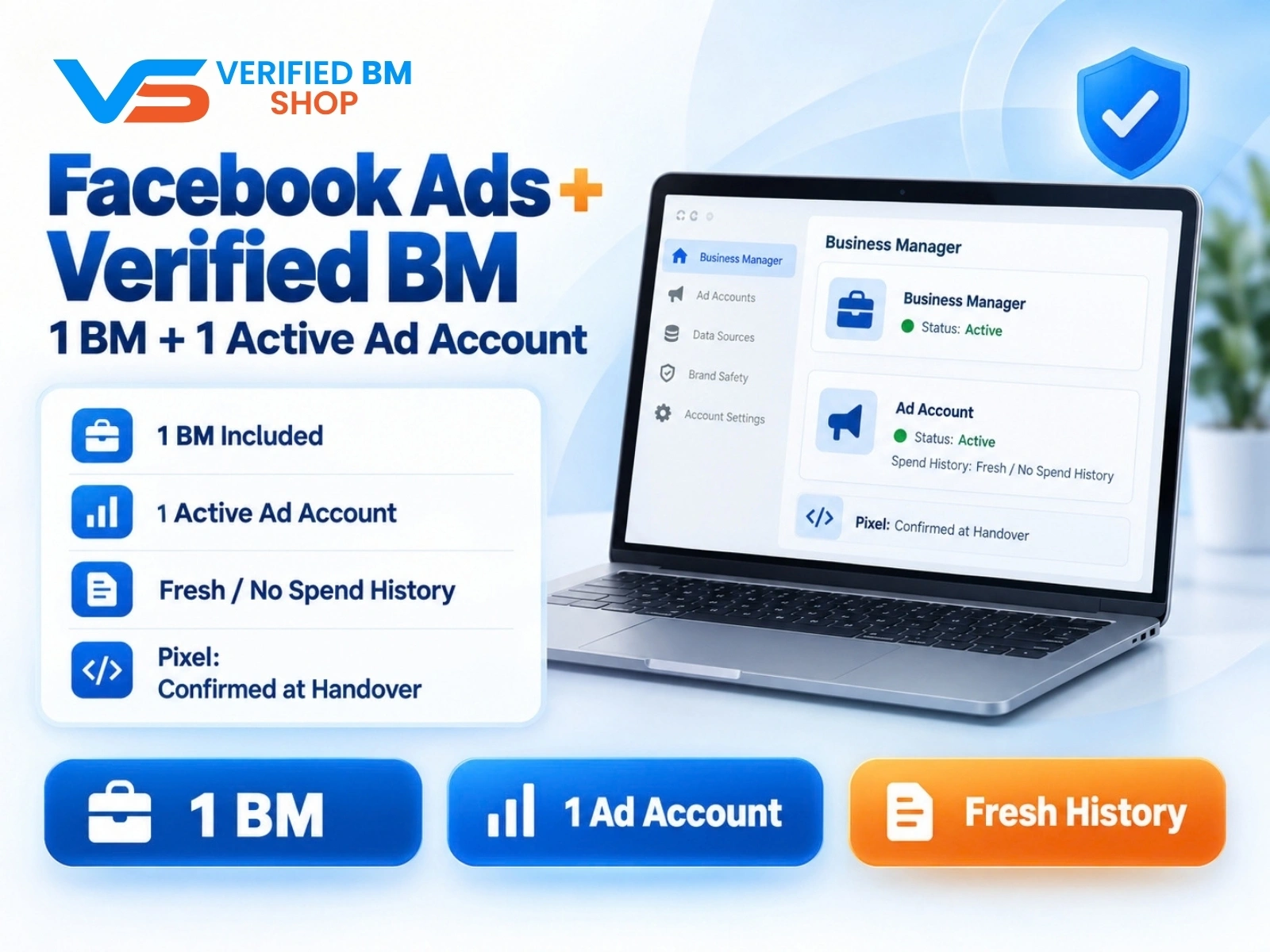
Facebook Ads Account + Verified BM Bundle
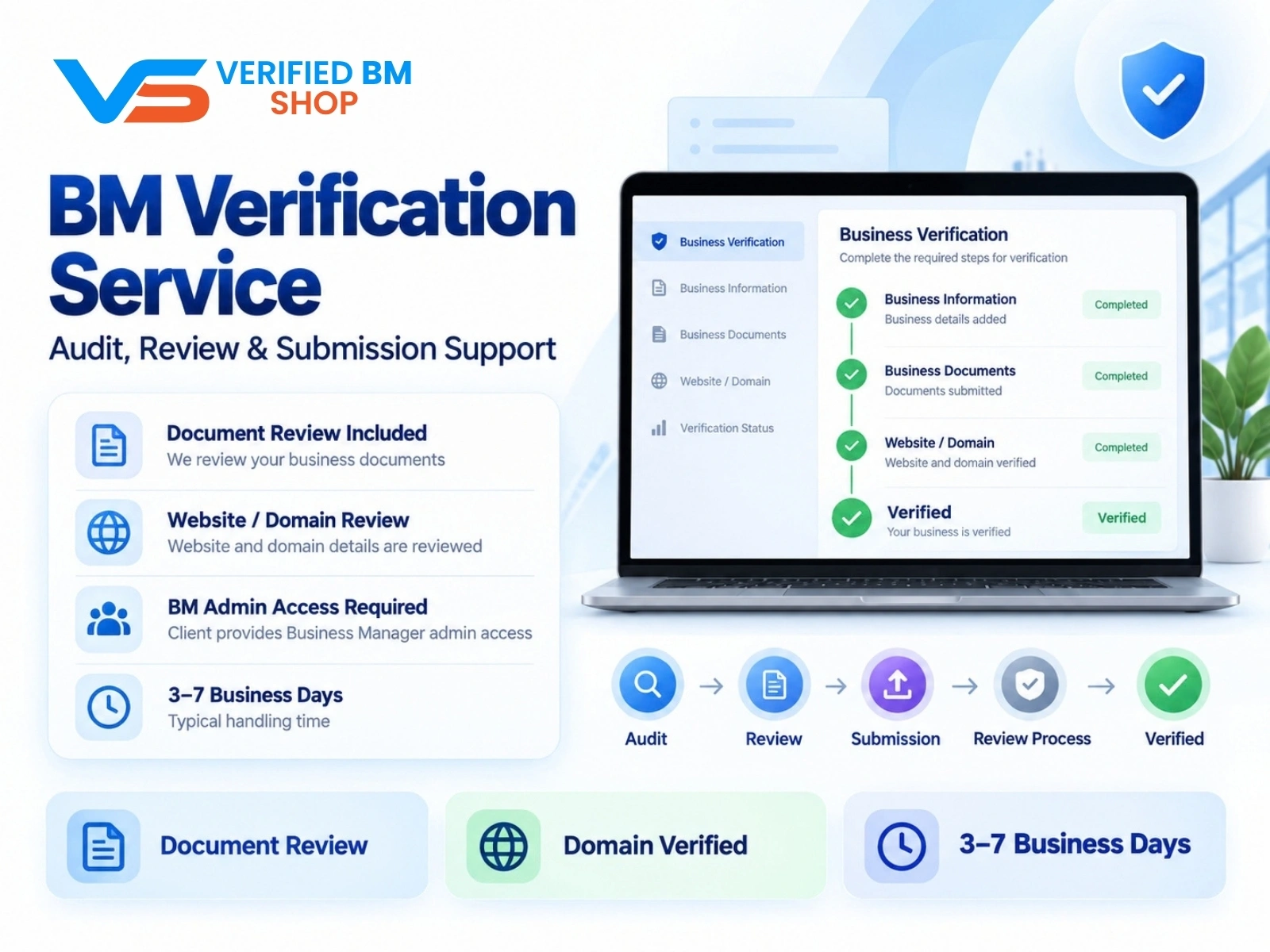
Meta BM Verification Service by VERIFIED BM SHOP
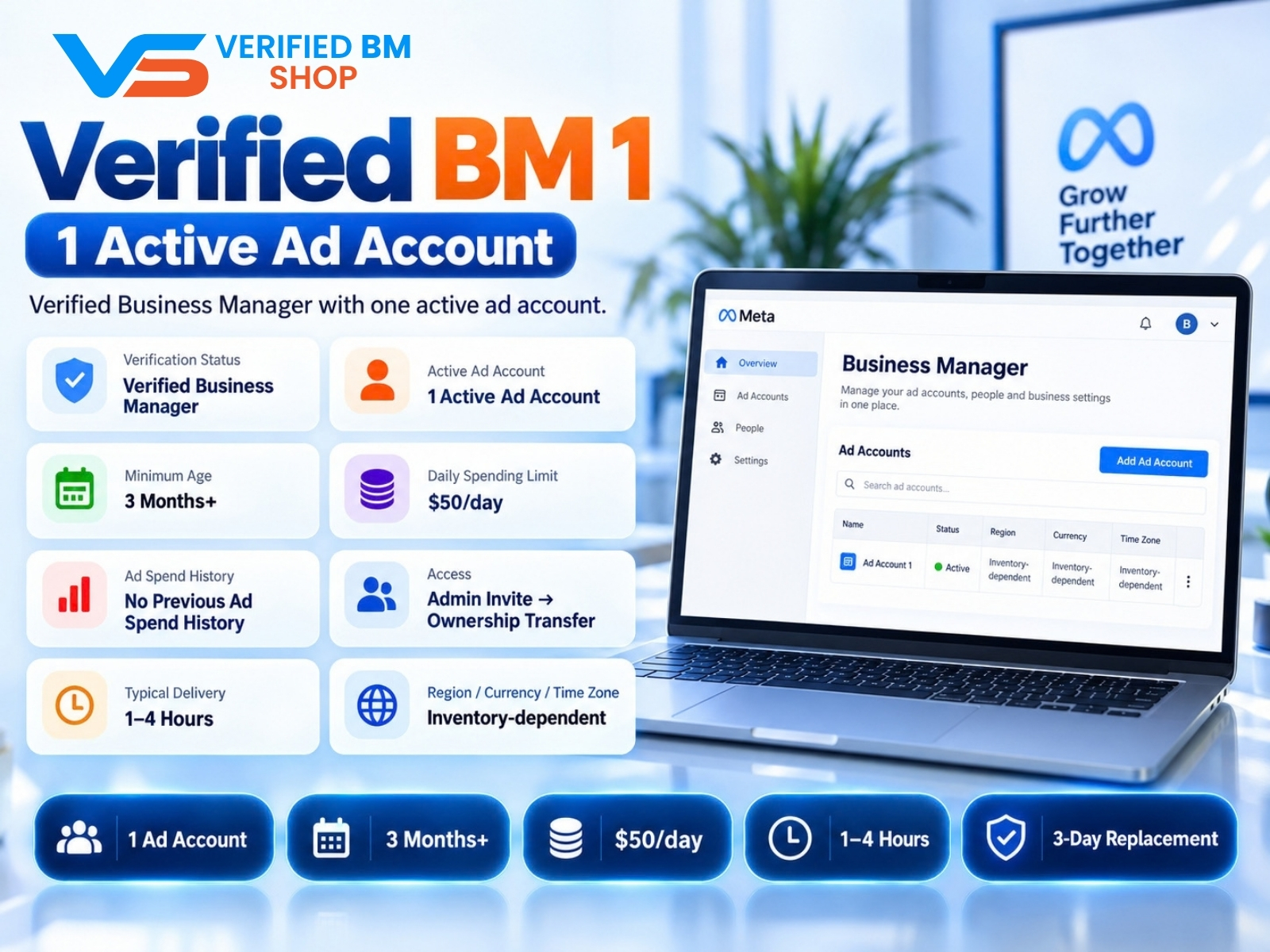
Verified BM 1 - Verified Meta Business Manager

Written by
Verified BM TeamThe VERIFIED BM SHOP editorial team shares real-world experience in buying and selling verified Business Managers, WhatsApp API accounts and advertising platforms.
Comments (0)
No comments yet. Be the first to share your thoughts!
Leave a Comment
Your email will not be published. All comments are moderated.