
Quick Summary
Learn how Meta ad account ownership differs from user access, how to review the current business association, and what to check before sharing or changing control.
Ad account ownership describes the business link that Meta assigns to an ad account. An account may link to a business portfolio. Labels and controls can vary by account setup, region, and Meta’s current policies.
Ownership differs from access. An admin, advertiser, analyst, or agency partner may use the account without owning it. To review the link, open the current Business Settings interface. Then check the account’s business or asset details.
What Is Ad Account Ownership?
In Meta’s business tools, an ad account may link to a business portfolio. That portfolio manages business access and related settings. The owning business may manage some access, billing, spending, and asset links. Its control depends on the account setup, permissions, and Meta’s controls.
The person who made the account is not always the business linked to it. A user may create an account inside a business. However, the business link remains separate from that user’s personal access.
Meta can change its menus and labels. Options may also vary by account type or country. Check Meta Business Help and the current interface before you follow a set workflow.
Ad Account Owner vs. Business Portfolio Admin vs. User Access
These roles answer different questions. A business link concerns the asset. In contrast, permissions show what people or partner businesses may do.
| Role or status | What it may mean | Typical access |
|---|---|---|
| Associated or owning business | The business portfolio or business link that Meta shows as linked to or owning the ad account, where shown | May manage some account access, billing, spending, and asset links, subject to permissions and platform controls |
| Business portfolio admin | A person with admin rights in a business portfolio | May manage people, partners, assets, and settings available to that admin |
| Ad account admin | A person with a high level of permission on the ad account | May manage many account settings, users, campaigns, and payment areas, depending on the account |
| Advertiser | A person allowed to create or manage ads | Campaign work without necessarily having business-level control |
| Analyst | A person with reporting access | May view performance data without campaign-editing rights |
| Partner access | Another business granted access to the account | Only the permissions assigned through that business link |
Admin access alone does not prove ownership. For example, an agency may have wide campaign rights but lack the power to change the business link or fix an access issue.
Why Ad Account Ownership Matters
The business linked to an account can matter for continuity. Still, ownership does not promise access, recovery, or a way around platform limits. Results may depend on available admins, account status, verification, and Meta’s support process.
- Billing: The linked business or named users may have billing and spending controls. This depends on the billing setup and Meta’s permissions.
- Permissions: The business or users with the right role may grant or remove access for people and partner businesses.
- Connected assets: Pages, pixels, catalogs, audiences, domains, and conversion data may have separate ownership or access links.
- Continuity: A team may lose working access if only an outside agency or a few users can manage the account.
- Compliance: Business details, payment activity, and identity checks may form part of Meta’s account or ad processes.
Ownership does not promise ad approval, higher spending limits, or protection from restrictions. Meta may review a business, ad account, payment method, or campaign under its current rules and controls.
How to Check Which Business Is Associated With an Ad Account
Start with a profile that can access the ad account. Review both the account settings and the business asset view. Menu names may differ from the steps below.
- Open Business Settings at Meta Business.
- Select Accounts, then Ad accounts, if those options appear.
- Choose the ad account. Review its business information, people, and partners.
- Look for business, ownership, or asset-link information in the current interface.
- Check whether your business is linked to the account or only has shared access.
You can also open Ads Manager. Compare the account ID, name, payment settings, and assigned users. These details help confirm that you have the right account. On their own, they may not prove the business link.
If the interface is unclear, record the account ID. Next, review Meta’s current documents or support options. A user’s admin status does not prove ownership.
Owned Ad Accounts vs. Shared Ad Accounts
An account may appear in your business tools because your business is linked to it. It may also appear because another business granted access. This difference matters because the business link and assigned permissions can limit or change your access.
| Question | Account associated with your business | Account shared by another business |
|---|---|---|
| Who is associated with it? | Your business, where Meta shows that link | Another business, where Meta shows that link |
| Can your business remove another business’s association? | Not usually applicable | Not through ordinary user access settings alone |
| Can access be revoked? | Users with the right roles may manage access | The linked business or users with the right roles may change or remove your access |
| Who handles billing? | Billing responsibility depends on the account setup and assigned permissions | It may stay with the linked business or named billing users |
Do not treat Add an ad account and Request access to an ad account as the same action. If another business is linked to the account, review Meta’s current options first. Where available, a request for access may fit.
A partner link may give your business campaign or reporting rights. It does not make your business the linked or owning business.
What You Can Do With Access Without Owning the Ad Account
Your assigned role sets much of your day-to-day work. For instance, an advertiser may build campaigns, while an analyst may view reports. An ad account admin may manage more settings without controlling the business link.
Before work starts, ask the relevant business or account admin for only the access you need. Keep billing and business admin with the company responsible for the ads, where the account setup and applicable policies support that plan.
For account setup, access, and payment context, see this guide to Meta ad accounts.
Can You Transfer or Change Ad Account Ownership?
Meta treats the business link as separate from a user setting. In general, Meta does not let a second business simply replace an existing link. The available ownership and transfer options depend on the account and Meta’s current rules.
If no other business links to the account, check the current Meta interface and documents. They can show whether adding or claiming the account is available. Availability is not promised. Also, the interface may block an action without giving the full reason.
Before you add or link an account, check the intended business and current steps. Reversal or reassignment options may be limited. Confirm the account ID, legal business, billing party, and planned long-term owner first.
If another business links to the account, review access or support options. Avoid trying to bypass the link. For a real ownership dispute or account error, contact Meta through an available support channel. Provide records that show the business relationship.
How to Manage Ownership When Working With an Agency
When your business pays for the ads and needs long-term control, consider linking the account to your business instead of an agency. The agency can then work through the partner or user access options in the current Meta tools.
- Keep at least two trusted company admins on the relevant business tools, where possible.
- Give the agency the lowest permission level that supports its work.
- Use a written agreement that names the account ID, billing party, assets, and access-removal process.
- Review people and partners before each contract renewal.
- Remove former staff and agencies promptly when work ends, subject to any required handover.
If an agency links to the account, check which campaigns, audiences, data, billing records, and connected assets can move or be rebuilt under Meta’s current rules. Do not assume that all account history or related assets will move to a new setup.
What to Check Before Accepting Ad Account Ownership or Access
Review the account before you connect your Page, payment method, pixel, catalog, or client data. A written handover may reduce confusion. However, it does not ensure a certain result in Meta’s reviews or enforcement steps.
- Match the ad account ID to the written handover details.
- Confirm the business link and the legal name supplied by the relevant party.
- Review current admins, users, partners, and unknown logins.
- Check payment methods, billing contacts, currency, time zone, and available spending controls.
- Review past policy notices, rejected ads, restrictions, and unpaid balances.
- Confirm which Pages, pixels, domains, catalogs, and audiences are owned or only shared.
- Turn on two-factor authentication for every admin, where available.
- Record the handover date, account status, and support case numbers.
Use the Verified BM safety guide for a wider security review. Business checks may require business information for review. Their effect on access, ad review, and asset ownership depends on Meta’s current process and the account.
What to Do If the Associated Business Is Inaccessible
First, find out whether the issue affects your user, the business tools, or the ad account. If another known admin remains, ask that person to review access.
If no trusted admin can help, gather business records, account IDs, payment evidence, domain records, and proof of your role. Submit a clear case through an available Meta support channel. Keep the replies and reference numbers together.
Avoid creating false ownership records, buying access from an unknown source, or asking a contractor to bypass security checks. For recovery planning, review Meta Business account recovery steps.
Ownership Best Practices for a Verified Business
Use the business with real commercial responsibility for the ads. Keep its records accurate. Verification may include a review of business information. It does not decide access, ad approval, or asset ownership by itself.
- Keep legal name, address, domain, payment, and contact data consistent where required.
- Maintain two trusted admins, each with two-factor authentication, where possible.
- Separate client assets from your own assets when contracts require it.
- Document every partner grant, removal, and ownership decision.
- Review access after staff changes, agency changes, and security alerts.
If you need business tools for valid operations, review Meta’s current requirements. Assess each provider or setup against Meta’s terms and your business records. Avoid plans that misstate the responsible business or rely on unverified access.
Final Checklist for Safe Ad Account Ownership
Before launching campaigns or accepting a handover, confirm these points:
- Your business knows which business link Meta currently shows for the ad account.
- Your team knows the difference between a linked business, admin rights, and partner access.
- The account ID, legal business, billing party, and payment details match the handover records.
- At least two trusted admins can access the relevant business tools, where possible.
- Former users and partners have been removed or reviewed.
- Connected assets have clear owners and suitable backup access.
- You have checked Meta’s current workflow before adding, claiming, or linking an account.
- You have a support and recovery plan if the linked business becomes inaccessible.
Clear records and controlled access can reduce avoidable disputes. Keep the account with the business that has real commercial responsibility. Before you change the setup, review Meta’s current rules.
Official Sources
Frequently Asked Questions
Quick answers to the questions buyers ask most.
How can I check who owns a Meta ad account?
In Meta Business Settings, open Accounts > Ad accounts and select the relevant account. Review the business portfolio connected to it and the people or partners with access; having access to an ad account does not necessarily mean you own it.
What is the difference between ad account ownership and ad account access?
The business that claims or creates an ad account is generally its owner. Other businesses, agencies, or users can be granted access to manage campaigns without becoming the owner.
How do I claim an ad account for my business?
In Meta Business Settings, go to Accounts > Ad accounts and choose the option to add an ad account, then select the option to claim an existing account. You may need the ad account ID, and Meta will not let a business claim an account that is already owned by another business.
Can I move an ad account from another business to my Business Manager?
If another business owns the account, you generally cannot claim it as your own. Ask the owning business to grant your business partner access, or create a new ad account if ownership must remain with your organisation.
Does Meta business verification prove that I own an ad account?
Business verification confirms information about the organisation, such as its legal name and contact details, when Meta requests supporting documentation. It does not by itself transfer ownership of an ad account or replace checking which business portfolio owns it.
How can I protect my ad account ownership?
Use two-factor authentication, keep the number of business admins limited, and review people and partner access regularly. Remove former employees or agencies, avoid sharing login details, and monitor payment methods, billing activity, and account changes for anything you do not recognise.
How this helps verified BM buyers
Apply this guidance when buying verified Business Managers or WhatsApp Business API assets to reduce policy risk, improve account stability, and scale campaigns with cleaner operational workflows.
Compare Verified BM options · Next steps: learn what a verified bm is, compare products in the Shop, review implementation details in FAQ, and contact support from the Contact page.
Recommended for You
Hand-picked from our shop — delivered fast after payment.
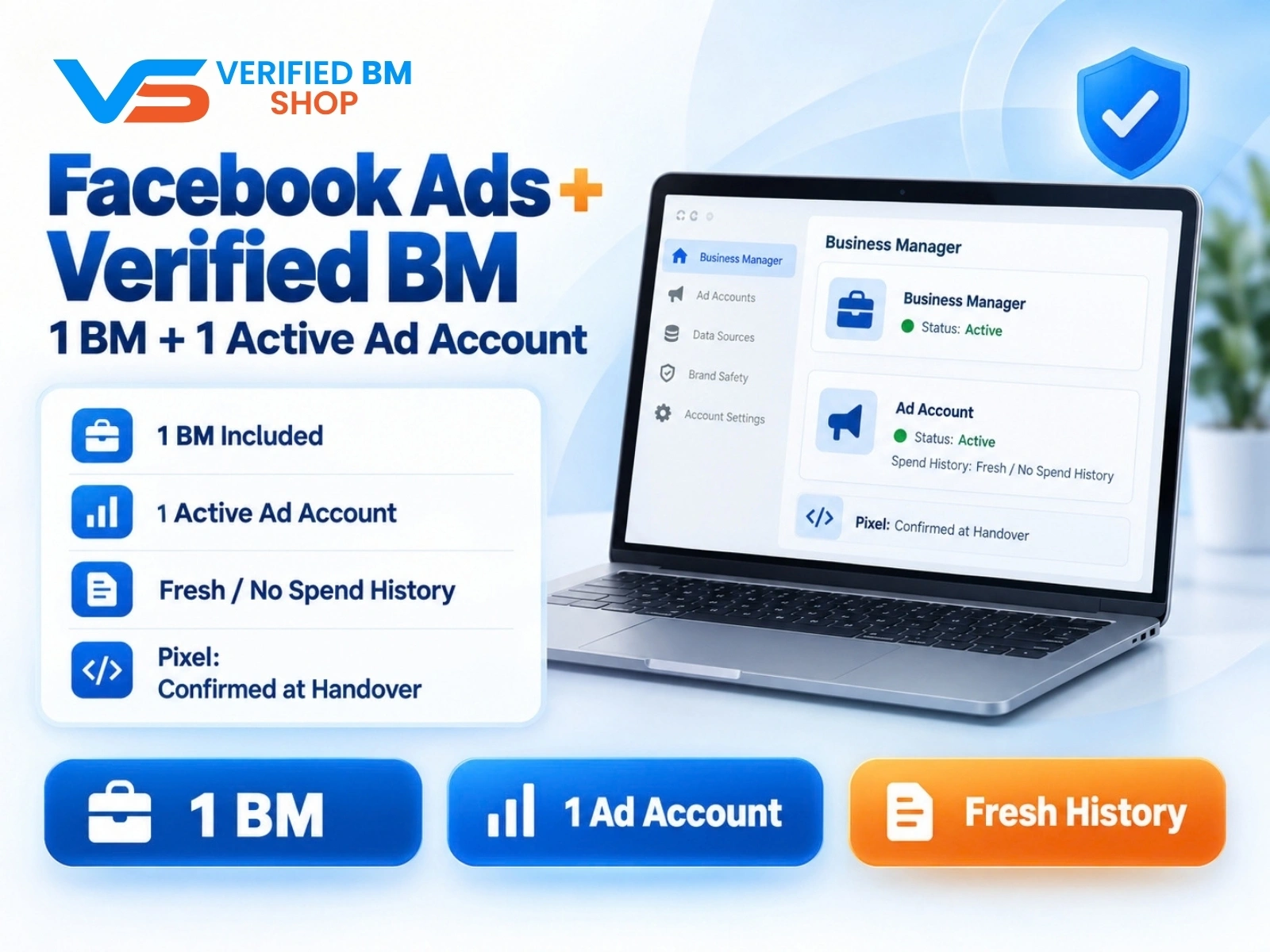
Facebook Ads Account + Verified BM Bundle
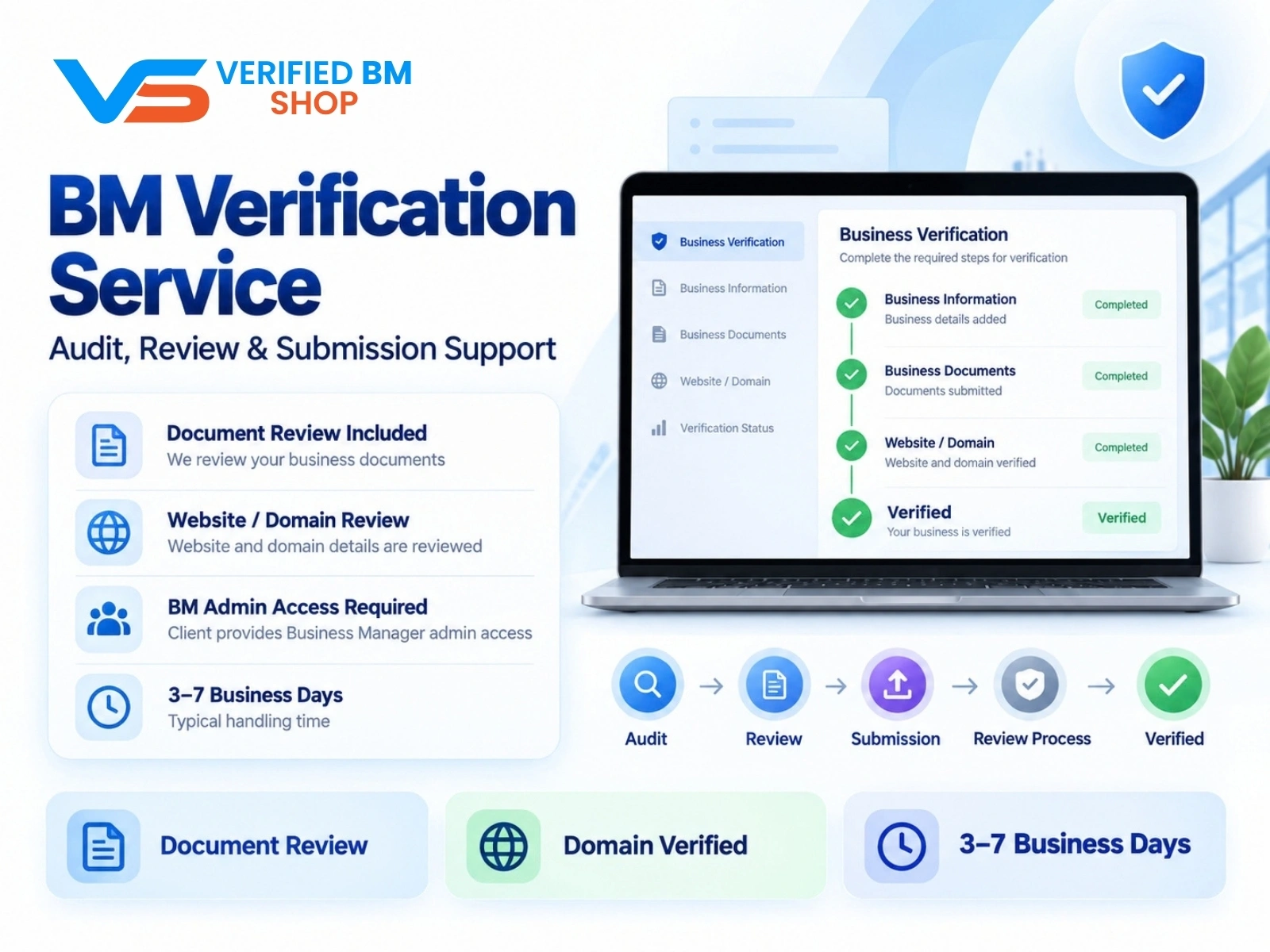
Meta BM Verification Service by VERIFIED BM SHOP
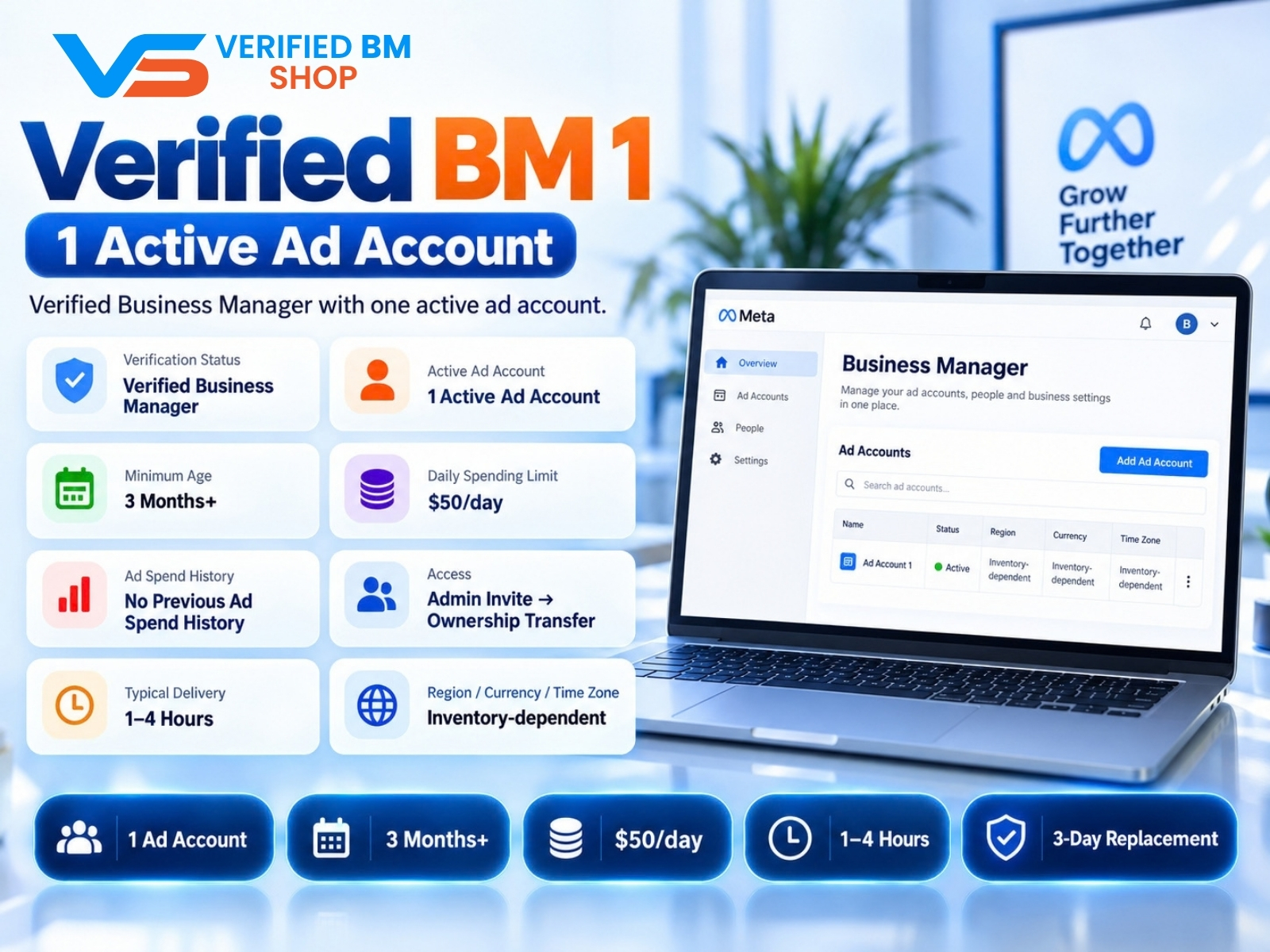
Verified BM 1 - Verified Meta Business Manager

Written by
Verified BM TeamThe VERIFIED BM SHOP editorial team shares real-world experience in buying and selling verified Business Managers, WhatsApp API accounts and advertising platforms.
Comments (0)
No comments yet. Be the first to share your thoughts!
Leave a Comment
Your email will not be published. All comments are moderated.