
Quick Summary
Follow a step-by-step guide to change your primary WhatsApp Business API phone number while preserving templates, verification, and delivery performance.
Meta Business Manager does not let you edit the digits on your sender line. To change the primary phone number on WhatsApp Business API, you must add, verify, switch, and delete. This guide shows each step. It also helps keep your account safe, message delivery steady, and settings intact.
Why You Can't Just 'Edit' the Number: Phone Number ID vs. WABA ID
Meta keeps your WhatsApp Business Account (WABA) separate from its phone lines. One WABA can hold many phone numbers. Each number has its own Phone Number ID.
Webhooks, message logs, and quality scores link to that ID. As a result, the system treats each phone number as a fixed asset. To replace a WhatsApp Business API number, add the new number as a separate asset under your current WABA. Then point your software to the new ID.
Pre-Migration Checklist: Verification, Permissions & Backups
Before you open the dashboard, check these Meta requirements:
Admin Access: You need full admin management permissions inside Meta Business Manager.
Clean Destination Number: Your new number must receive an SMS or voice call. It cannot be registered to standard WhatsApp or the WhatsApp Business mobile app.
Two-Factor Authentication: Your team should enable 2FA on every admin profile. Review the steps to set up two-factor auth on agency Business Managers to protect your session.
System Backups: Export your active customer lists. Also, record the display names in your current setup.
If your business identity is still incomplete, review our guide to connect WhatsApp API to verified Business Manager easily first. Meta limits unverified accounts to low test volumes.
How to Change Primary Phone Number on WhatsApp API via Meta Business Manager
For most WhatsApp Cloud API teams, the change takes four phases in the Meta dashboard.
Step 1: Add and Verify Your New Line
Open Business Settings and select WhatsApp Accounts. Click your WABA, choose WhatsApp Manager, and open the Phone Numbers tab.
Next, select Add Phone Number. Enter your company display name, choose your timezone, and enter the new number. Meta then sends an SMS or automated voice code to verify ownership.
Step 2: Update Your Webhooks and App Settings
Go to your developer dashboard at Meta for Developers. Change your production CRM or messaging software to use the new Phone Number ID. Then send several internal test messages.
Confirm that inbound and outbound webhooks receive events correctly.
Step 3: Delete Phone Number from WhatsApp Cloud API
After the new line handles traffic well, fix common WhatsApp API issues by retiring the old endpoint. Return to WhatsApp Manager > Phone Numbers to delete the old record.
Find the previous number, click the trash icon, and confirm its removal. This frees the old line completely.
Alternative: Programmatic Migration via WhatsApp Business Management API
Independent software vendors (ISVs) that manage many client numbers can run this sequence in code. Send a POST request to your WABA's /phone_numbers endpoint. Use your permanent system user access token.
POST https://graph.facebook.com/v19.0/{WABA-ID}/phone_numbers
{
  "cc": "1",
  "phone_number": "5550199",
  "verified_name": "My Business Name"
}
After you receive the registration response, request a verification code through /request_code. Verify the number with /verify_code. Then update your internal database mappings.
This moves WABA phone number routing without manual dashboard work.
What Happens to Templates, History, Limits & Quality Rating?
Account assets can carry over after you switch numbers. The table shows what changes and what you need to do.
Asset / Metric | Behavior During Migration | Action Required |
|---|---|---|
Message Templates | Preserved across the entire WABA | None; templates share across numbers |
Quality Rating | Resets to "Unknown" / Neutral | Warm up sending volume slowly |
Messaging Limits | Starts at tier default (usually 250 or 1K) | Scale conversations over several days |
Chat History | Stored on your server / CRM, not Meta | Migrate internally within your helpdesk |
Message templates belong to the WABA, not an individual SIM. Therefore, you keep all approved utility and marketing templates. The new number's messaging tier resets to the entry tier.
If your business needs high-volume broadcasts right away, plan the migration early. Give the new number time to warm up. Then grow its messaging tier at a natural pace, based on Meta's volume and quality guidelines.
Common Errors & Fixes
Migrations can face system rejections. These are the three most common issues:
Number Already in Use: Meta rejects a number that remains registered on a physical phone. Delete the WhatsApp account in your mobile app settings (Settings > Account > Delete Account) before adding the number to Meta.
Display Name Rejection: Meta denies a display name that does not match your legal entity or public branding. Update your brand assets or submit official documents that prove the trade name.
Silent Webhook Failures: Outbound messages send, but incoming replies do not reach your CRM. This occurs when your app subscription still uses the old Phone Number ID instead of listening globally to the WABA.
Post-Migration Validation Checklist
Complete this quick check before you resume customer campaigns:
Trigger a standard two-way customer service message to confirm bi-directional routing.
Send one paid utility template to ensure variable parameters render correctly.
Check Meta Business Manager to confirm your payment card applies to the new line.
Verify that your opt-out keywords (such as STOP) successfully log in your database.
When to Seek Expert Support
Changing sender lines during active marketing cycles can strain team resources. Contact us through our contact page if Business Manager shows compliance errors or your business verification has blocked controls.
Our specialists can review your account layout, help you replace WhatsApp Business API number assets, and keep your message infrastructure operational.
Frequently Asked Questions
Quick answers to the questions buyers ask most.
Can I change my primary phone number on the WhatsApp Business API without losing my message history?
What steps are required to migrate to a new primary phone number on WhatsApp Business API?
Is there a limit to how many times I can change my primary phone number on WhatsApp Business API?
Will changing my primary phone number affect my existing WhatsApp Business API pricing tier?
How long does it take for a new primary phone number to be fully activated on WhatsApp Business API?
Do I need to reconfigure my automated messages and quick replies after changing my primary phone number?
How this helps verified BM buyers
Apply this guidance when buying verified Business Managers or WhatsApp Business API assets to reduce policy risk, improve account stability, and scale campaigns with cleaner operational workflows.
View all WhatsApp API options · Next steps: compare products in the Shop, review implementation details in FAQ, and contact support from the Contact page.
Recommended for You
Hand-picked from our shop — delivered fast after payment.
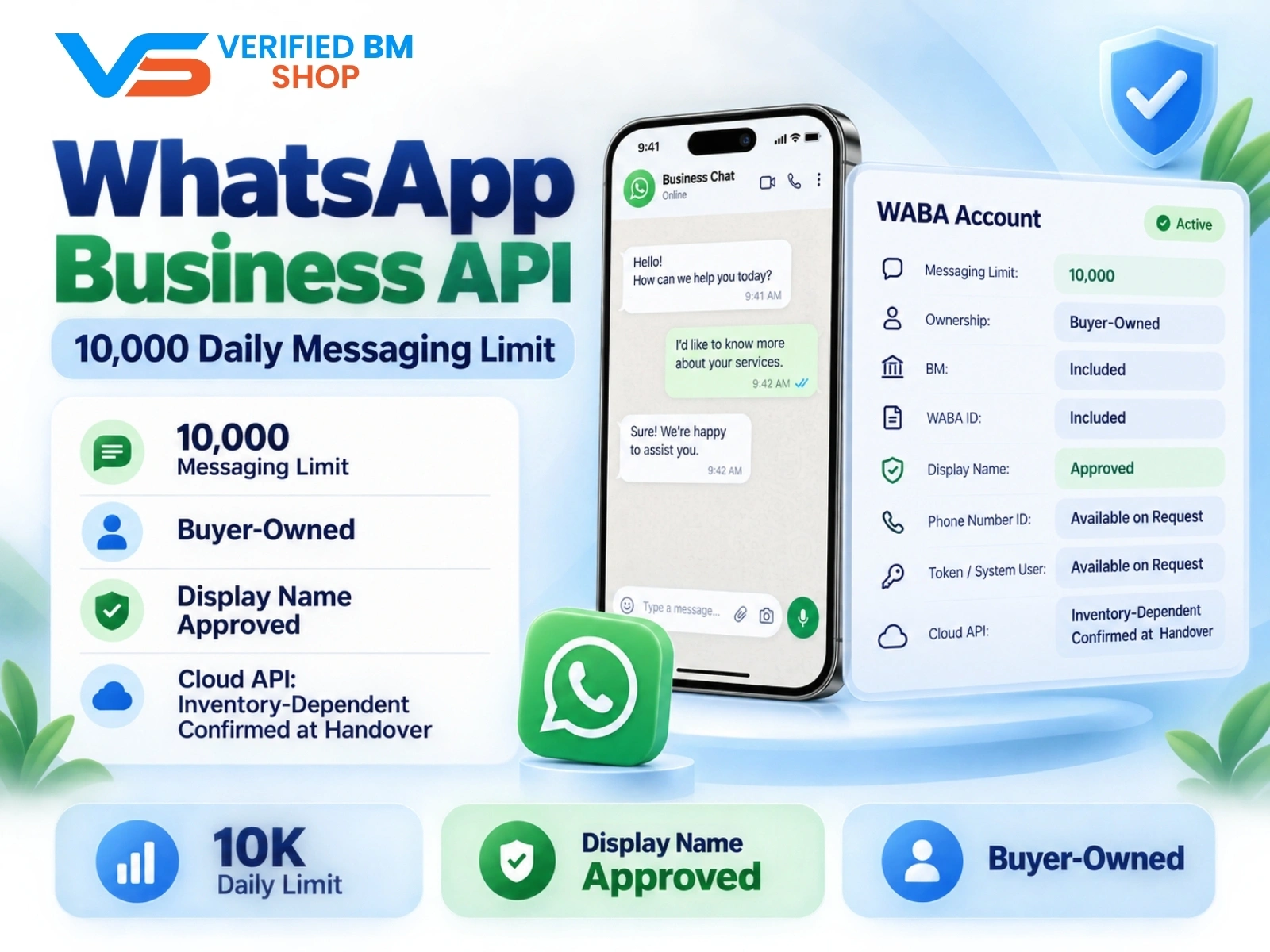
WhatsApp API 10000 | WABA 10K | VERIFIED BM SHOP
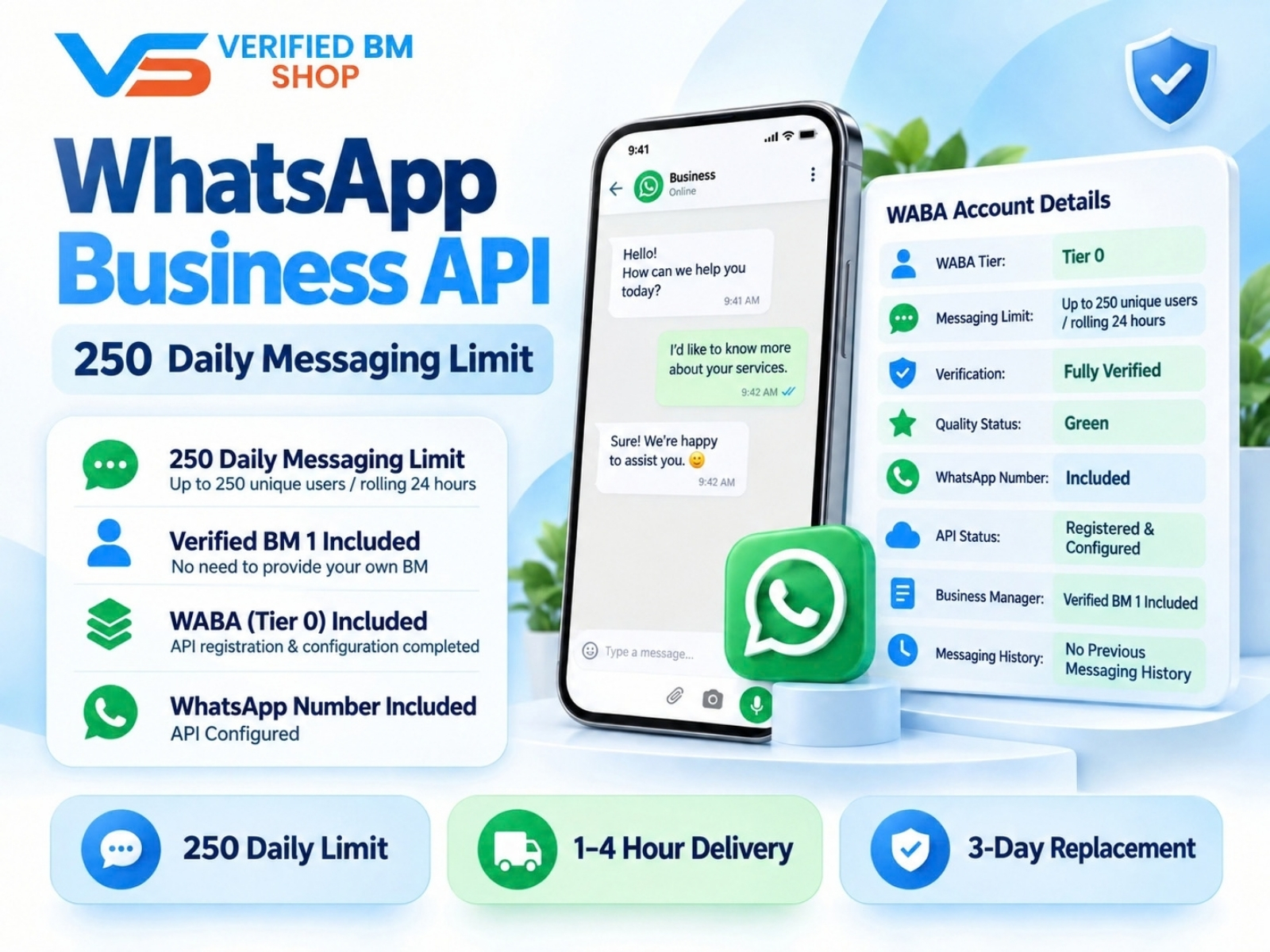
WhatsApp API 250 | WABA 250 | VERIFIED BM SHOP
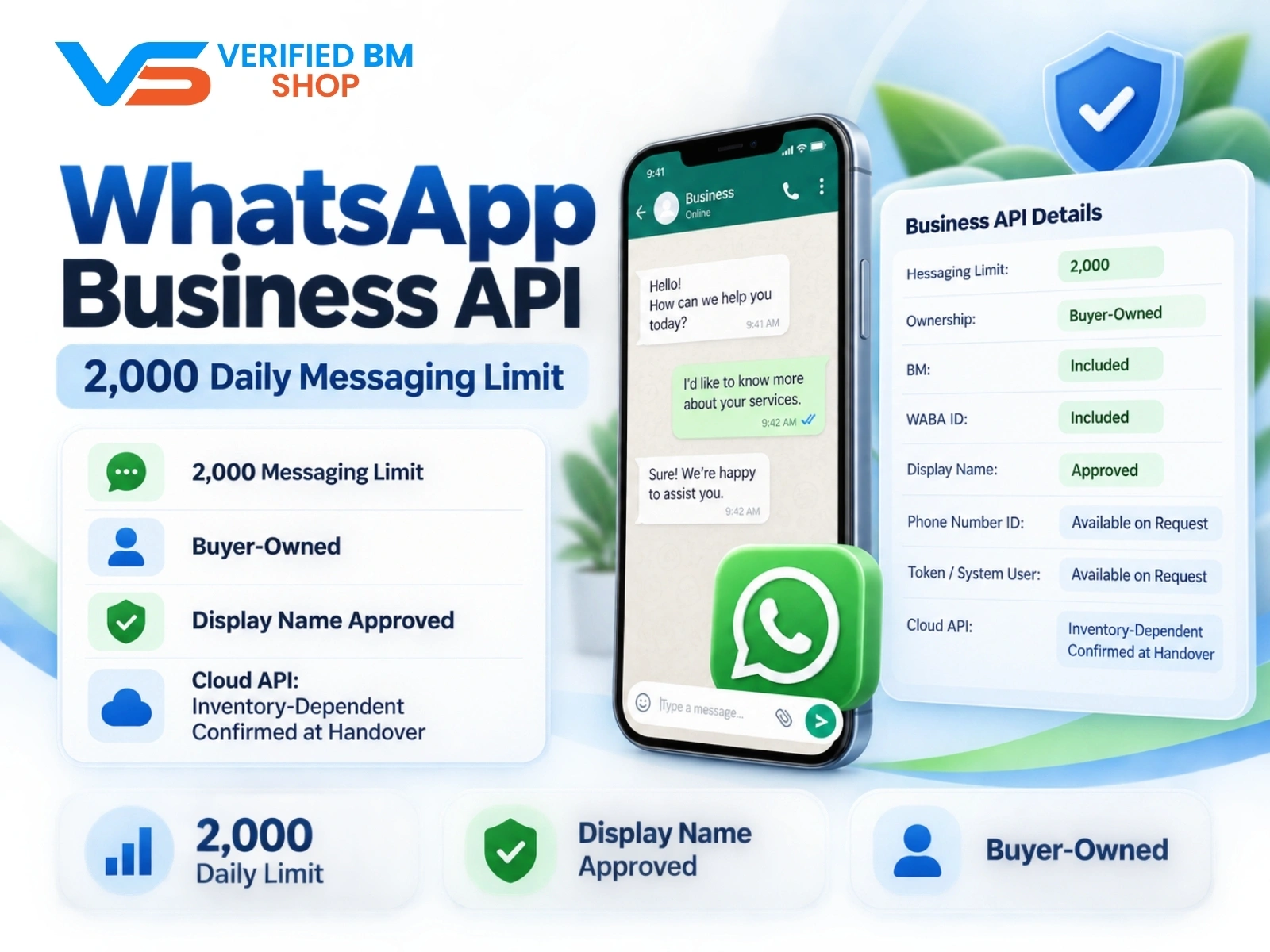
WhatsApp API 2000 | WABA 2K | VERIFIED BM SHOP
Written by
Verified BM TeamThe VERIFIED BM SHOP team shares real-world experience in buying and selling verified Business Managers, WhatsApp API accounts and advertising platforms.
Comments (0)
No comments yet. Be the first to share your thoughts!
Leave a Comment
Your email will not be published. All comments are moderated.