

Quick Summary
Learn how to plan a secure Meta Ads reporting dashboard, choose useful metrics, compare accounts consistently, and protect access across business and agency teams.
A custom ads dashboard turns campaign data into a focused view of spend, results, delivery, and account health. It can help advertisers and agencies review important signals without switching between multiple reports.
Meta Ads Manager may provide columns, filters, breakdowns, saved reports, exports, and scheduling options, depending on the account and current interface. A custom view can add structure around those options, while an external platform may combine Meta data with CRM, sales, or finance records.
What Is a Custom Ads Dashboard?
A custom ads dashboard is a report designed around your goals, accounts, campaigns, and reporting rules. It can exist inside Meta Ads Manager or in a connected reporting tool.
Compared with a default view, a custom report lets you select relevant metrics, set date ranges, apply filters, compare periods, and save a repeatable layout when those functions are available to the account.
| Dashboard type | Best use | Main limit |
|---|---|---|
| Meta Ads Manager view | Campaign checks and native reporting | Uses Meta's reporting model |
| Exported spreadsheet | Reviews, client packs, and manual analysis | Requires regular updates and careful data control |
| External dashboard | Combining advertising, sales, and business data | Requires setup, access controls, privacy review, and potentially paid tools |
Use Meta's interface for quick checks and Meta-attributed results. Consider an external tool when automation or additional business data justifies the extra setup and maintenance.
Why Use a Custom Dashboard With a Business Manager Setup?
A Business Manager setup can help organize users, ad accounts, Pages, pixels, catalogs, and partner access. The available structure depends on the account configuration and Meta's current tools.
Business verification may be relevant to certain business-management or compliance workflows, but it should not be marketed as a performance benefit or as an exemption from Meta's policies and review processes.
A clear structure can help agencies separate clients, assign named users, and review access before campaign data reaches a dashboard. It can also make it easier to identify missing assets, unusual delivery, or account notices.
Before connecting data, review the Meta assets security guide for advertisers. Keep ownership, partner access, and reporting access aligned with the actual business relationship.
The Metrics Every Custom Ads Dashboard Should Include
Start with metrics that answer business questions. A short report tied to decisions is usually easier to review than a screen filled with every available column.
- Spend: the amount reported for the selected date range and account currency.
- Impressions: the reported number of times ads were shown.
- Reach: the reported or estimated number of people reached, depending on the metric definition and account settings.
- Frequency: average impressions per reached person when the selected reporting definition supports that calculation.
- CPM: spend per 1,000 impressions.
- CTR: the click-through rate for the selected click definition, such as link clicks or all clicks.
- CPC: cost per click under the selected click metric.
- Conversions: results attributed to ads under the account's selected event and attribution settings.
- CPA: spend divided by the selected conversion result.
- ROAS: reported conversion value divided by ad spend when reliable value data is available.
- Delivery status: the status currently shown for the campaign, ad set, or ad, such as active, scheduled, off, rejected, limited, or a learning-related status.
Definitions can vary by campaign setup and selected columns. For example, link CTR and all CTR answer different questions, so label them clearly.
Reach, frequency, and conversion reporting may be estimated or revised as data is processed. Record the attribution setting, event definition, date range, and reporting level beside each report.
How to Plan Your Dashboard Before Building It
Decide who will use the report and what action each number should support. A client dashboard may need a short summary, while an internal agency view may require account, campaign, creative, and delivery details.
Choose the reporting structure
Organize views by one main dimension at a time:
- Ad account for finance and access checks.
- Campaign objective for traffic, leads, sales, or awareness.
- Funnel stage for prospecting, retargeting, and retention.
- Client, brand, or market for agency reporting.
- Reporting period for daily, weekly, monthly, and quarter-to-date reviews.
Use consistent campaign naming too. A name such as UK_Sales_Retargeting_Q2 makes filtering easier than an unclear label.
Set rules before you compare results
Choose one time zone, currency, attribution setting, and conversion event for each report. Do not compare a seven-day click view with a different attribution window without labeling the change.
Reported results may be revised after an export, depending on the metric, attribution settings, and data-processing status. Save the report date and note any data delay, event issue, or tracking change.
How to Create a Custom Ads Dashboard in Meta Ads Manager
- Confirm access. Select the correct business and ad account. Check that your user role can view the required performance data and connected assets.
- Set the date range. Choose a fixed period, such as the last 7 days, the current month, or a custom range. Add a comparison period if the current interface provides that option.
- Open column settings. Select the available performance, engagement, conversion, delivery, and value columns that match your reporting goal.
- Add filters. Filter by campaign name, objective, status, delivery, audience, placement, or account when those filters are available. Include important filters in the saved report name.
- Add breakdowns. Use any breakdowns currently available for the selected account, campaign type, and reporting level, such as placement, device, country, or time.
- Check attribution. Record the conversion event and reporting window. Compare like with like across periods.
- Save the view or report. Use a clear name such as
Client A | Sales | Weekly | 7-day click. Save and schedule options can vary by account, permissions, and interface version. - Export a test file. Check totals, currency, duplicate rows, date labels, and account identifiers before sharing the report.
Meta may change menu names and available settings. If a saved report, schedule, filter, or breakdown is missing, check the account role, selected reporting level, and current Ads Manager options.
Recommended Dashboard Views for Advertisers and Agencies
Campaign performance view
Show spend, impressions, reach, frequency, CPM, link CTR, link CPC, results, CPA, conversion value, ROAS, and delivery when those metrics are available and relevant. Sort by spend or CPA so small tests do not obscure higher-spend campaigns.
Creative performance view
Review results by ad, format, placement, and campaign when the selected breakdowns are available. Compare spend, clicks, CTR, conversions, and CPA, and define any creative-specific engagement metric before using it.
Do not judge a creative from CTR alone. A high click rate with poor conversion quality may indicate a landing-page problem, an audience mismatch, or a message that does not match the post-click experience.
Audience performance view
Use available age, gender, country, placement, device, or audience breakdowns where the account and campaign type support them. Look for high frequency, rising CPA, or spend that produces few results.
Billing and delivery view
Track account spend, the displayed delivery status, rejected items, learning-related notices, scheduled campaigns, and payment warnings when those fields are available. Review this view before a major launch and during routine monitoring.
Delivery problems can have different causes, including policy review, payment issues, audience limits, budget constraints, or account restrictions. A dashboard can flag symptoms, but it cannot replace account notices or the platform's support process.
How to Organize Reporting Across Multiple Ad Accounts
Give each client or business a clear account group. Keep separate views for account-level finance, campaign results, and creative analysis.
Agencies should use a shared naming system for account IDs, client names, markets, objectives, and periods. Store the source account beside every exported row.
Do not merge accounts just because they use the same currency or campaign goal. Account-level totals can hide different attribution settings, billing owners, conversion events, or reporting time zones.
Use the Meta Ads Access Audit guide to review users, partners, ad accounts, Pages, pixels, and other connected assets before granting report access.
How to Control Access and Protect Dashboard Data
Assign the least access needed for each job. An analyst may need reporting access, while an advertiser may need permission to create or edit ads; administrator access should remain with trusted owners.
- Use individual user accounts instead of shared logins.
- Turn on two-factor authentication for business users.
- Remove former staff and old partners promptly.
- Review ad account and asset permissions on a defined schedule.
- Share exports through approved storage, not open public links.
- Limit CRM and customer data to the fields needed for reporting.
Review Meta's official business help resources when a role, asset, or report option does not match your account.
Business verification alone should not be treated as granting access to every user. Access and available data depend on the permissions, assets, account status, and applicable privacy controls.
How to Use the Dashboard to Monitor Delivery and Account Health
Set review thresholds that lead to a defined action. For example, flag a campaign when spend rises without results, frequency climbs, or CPA exceeds the approved target.
Check trends rather than reacting to one small day. A new campaign may show a learning-related delivery status, and performance can change while delivery data accumulates; check the current status and Meta guidance for the account.
Watch for these early signals:
- Spend falls to zero while the campaign remains scheduled.
- An ad, campaign, or account changes to rejected, limited, or off.
- Frequency rises while CTR and conversion rate fall.
- CPA increases across several comparable periods.
- Payment, identity, domain, or policy notices appear.
- Events decline after a website, pixel, or Conversions API change.
For tracking issues, consult the Meta Pixel and Conversions API setup guide. For access or delivery concerns, keep screenshots, timestamps, account IDs, and report exports ready for support.
Common Custom Ads Dashboard Mistakes
- Using vanity metrics: impressions may look strong while sales remain weak. Tie each view to a decision.
- Mixing attribution windows: different settings can make similar campaigns look unequal.
- Duplicating data: joining exports without a unique account, campaign, ad, and date key can inflate totals.
- Ignoring currency: label each account currency before combining spend.
- Adding too many columns: crowded reports slow review and hide the main result.
- Sharing excessive permissions: report access does not require full business control.
- Trusting delayed data: recent conversion figures may change after processing.
- Skipping delivery checks: performance data cannot explain a campaign that did not serve.
Custom Ads Dashboard Template
This layout can work for agencies and advertisers managing multiple accounts. Adjust the fields to match the account's available metrics and reporting goals.
| View | Core fields | Review action |
|---|---|---|
| Executive summary | Spend, results, CPA, ROAS, reach, frequency | Compare targets and period changes |
| Campaign performance | Objective, budget, spend, CTR, CPC, conversions, delivery | Investigate efficient and inefficient campaigns |
| Creative review | Ad, format, placement, spend, CTR, CPA, results | Test or review weak messages |
| Audience review | Age, gender, market, device, frequency, CPA | Find costly or saturated segments |
| Account health | Account, delivery, rejected items, payment notices, spend | Resolve access and delivery problems early |
Meta Native Reporting vs External Dashboard Tools
Meta Ads Manager is a primary source for reviewing native campaign data, available delivery status, account filters, and Meta-attributed results. The exact fields and interface options can vary by account, permissions, reporting level, and platform changes.
An external dashboard can help when you need automated client reports, blended data, custom formulas, or links to sales systems. API access, token security, rate limits, field changes, costs, and privacy duties all require review.
Keep the source account, extraction time, attribution setting, and data refresh status with every external report. Do not treat a third-party total as authoritative until it has been reconciled with a controlled Meta report and the relevant business records.
Custom Ads Dashboard FAQs
Can I share a dashboard with a client?
You can share an export or use a reporting tool with its own viewer controls. Give the client only the account and data needed for the agreed report, and review the sharing method before sending customer or financial information.
Does business verification improve dashboard results?
Business verification may be relevant to certain business-management or compliance workflows, but it should not be marketed as improving campaign performance or exempting an account from applicable Meta requirements. Confirm the current effects with Meta's documentation.
Why do dashboard totals differ from my sales system?
Meta and a sales system can report different totals because their attribution, time-zone, event, currency, and deduplication settings may not match. Document those settings before judging performance.
When should an agency use an external platform?
Consider one when manual exports create repeated work or when clients need data beyond Meta. Start with a small test and confirm permissions, privacy terms, refresh behavior, and data accuracy.
Official Sources
Frequently Asked Questions
Quick answers to the questions buyers ask most.
What should a custom Meta Ads dashboard include?
Include the metrics that support your campaign goals, such as spend, reach, impressions, clicks, CTR, conversions, cost per result, and return on ad spend. Add filters for account, campaign, ad set, ad, placement, audience, device, and date range so users can investigate performance without rebuilding reports.
How can I connect Meta Ads data to a custom dashboard?
You can use Meta's Marketing API, an approved reporting connector, or an analytics platform that imports Ads Manager data. The connection generally requires the appropriate Meta Business permissions, ad account access, and an app or integration configured to request the required scopes.
Why do numbers in a custom Meta Ads dashboard differ from Ads Manager?
Differences can result from attribution settings, reporting time zones, date ranges, data refresh delays, breakdowns, or different definitions of conversions and spend. Compare the same account, dates, attribution settings, currency, and level of reporting before troubleshooting the data pipeline.
Do I need to verify my business to build a custom Meta Ads dashboard?
Not every dashboard setup requires business verification, but Meta may require verification for certain Business Manager features, app access, or permission reviews. Check the requirements for the specific data and API permissions your integration uses, and complete verification in Meta Business Suite if Meta requests it.
How this helps verified BM buyers
Apply this guidance when buying verified Business Managers or WhatsApp Business API assets to reduce policy risk, improve account stability, and scale campaigns with cleaner operational workflows.
Compare Verified BM options · Next steps: learn what a verified bm is, compare products in the Shop, review implementation details in FAQ, and contact support from the Contact page.
Recommended for You
Hand-picked from our shop — delivered fast after payment.
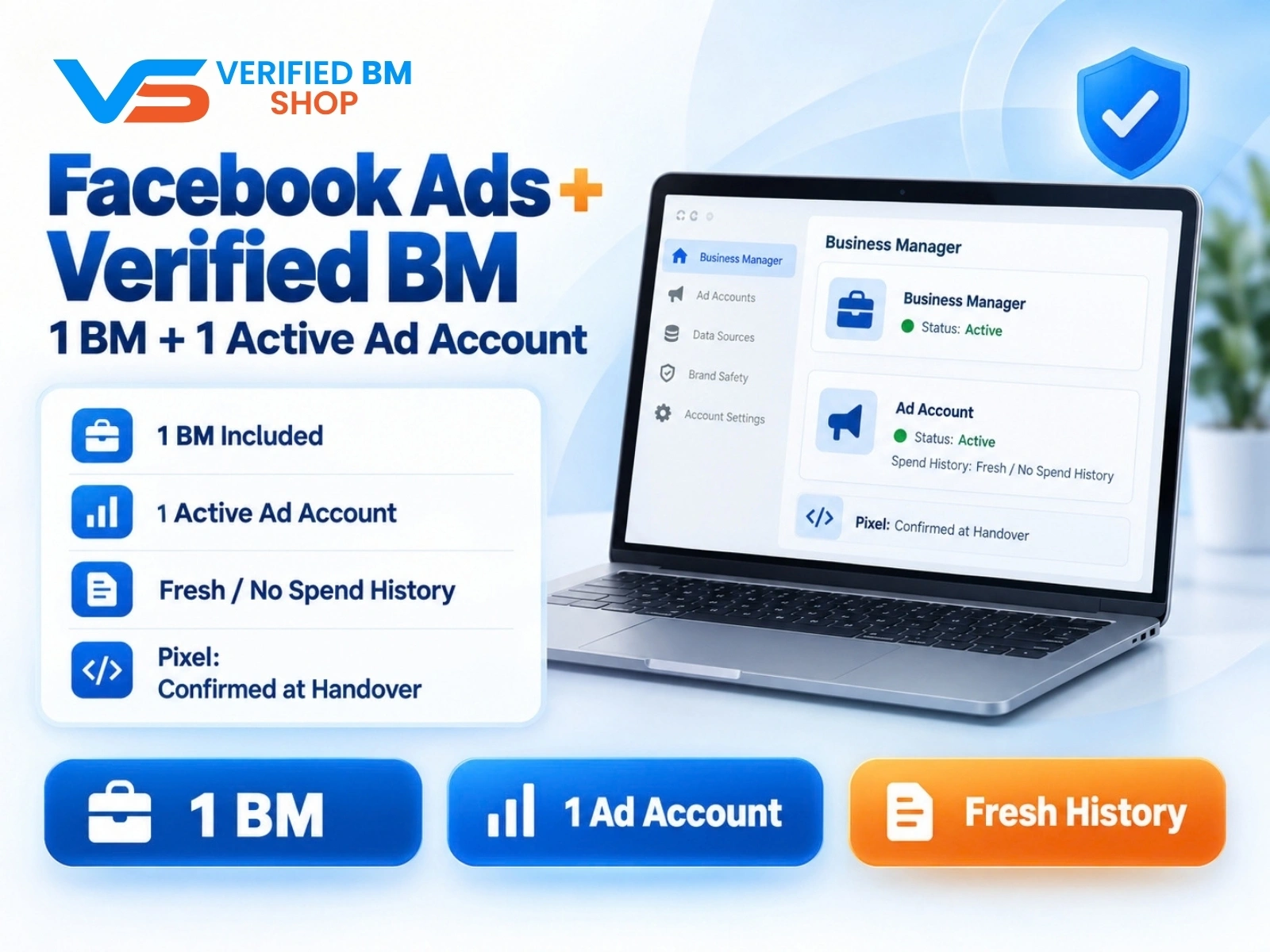
Facebook Ads Account + Verified BM Bundle
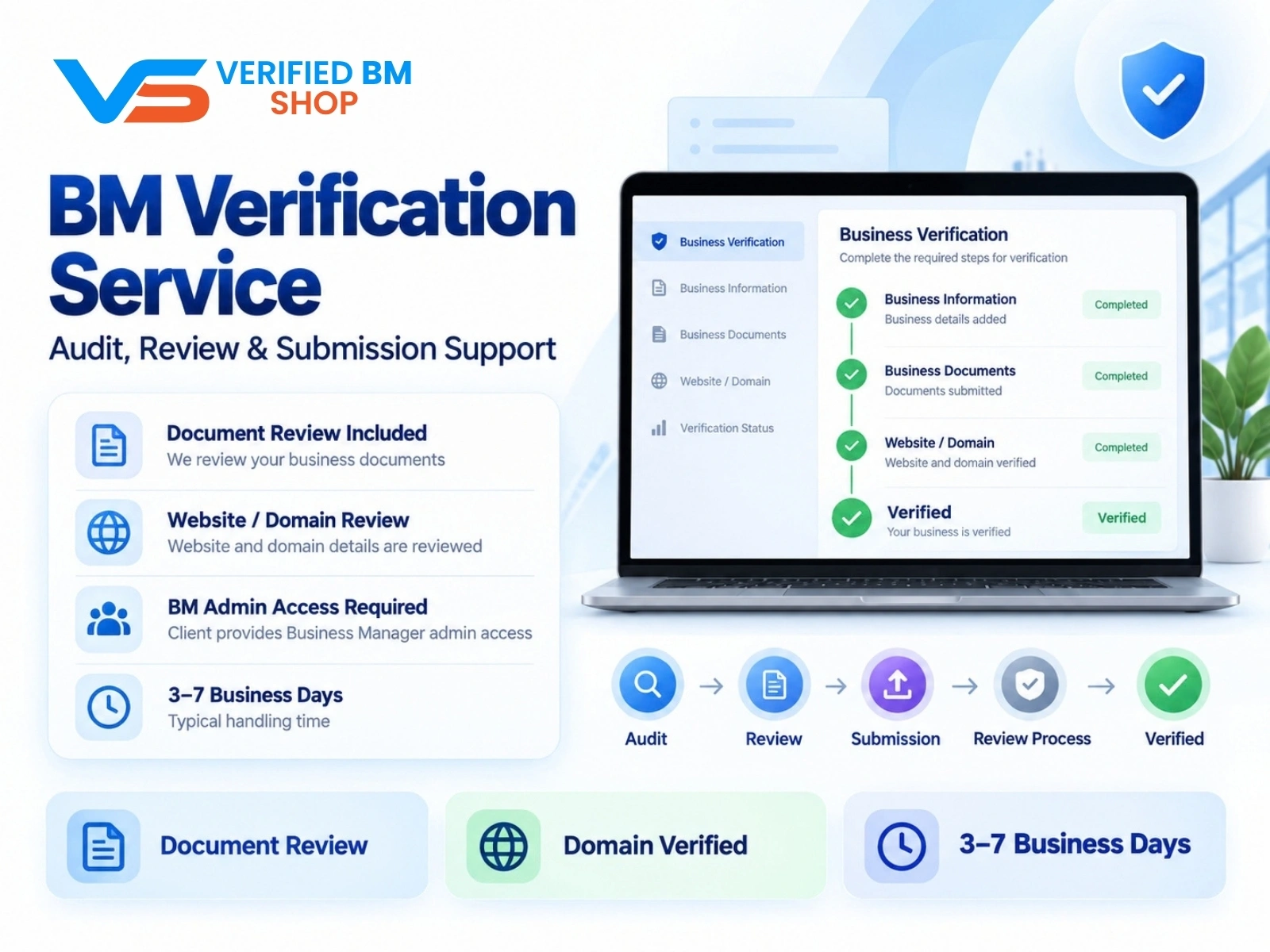
Meta BM Verification Service by VERIFIED BM SHOP
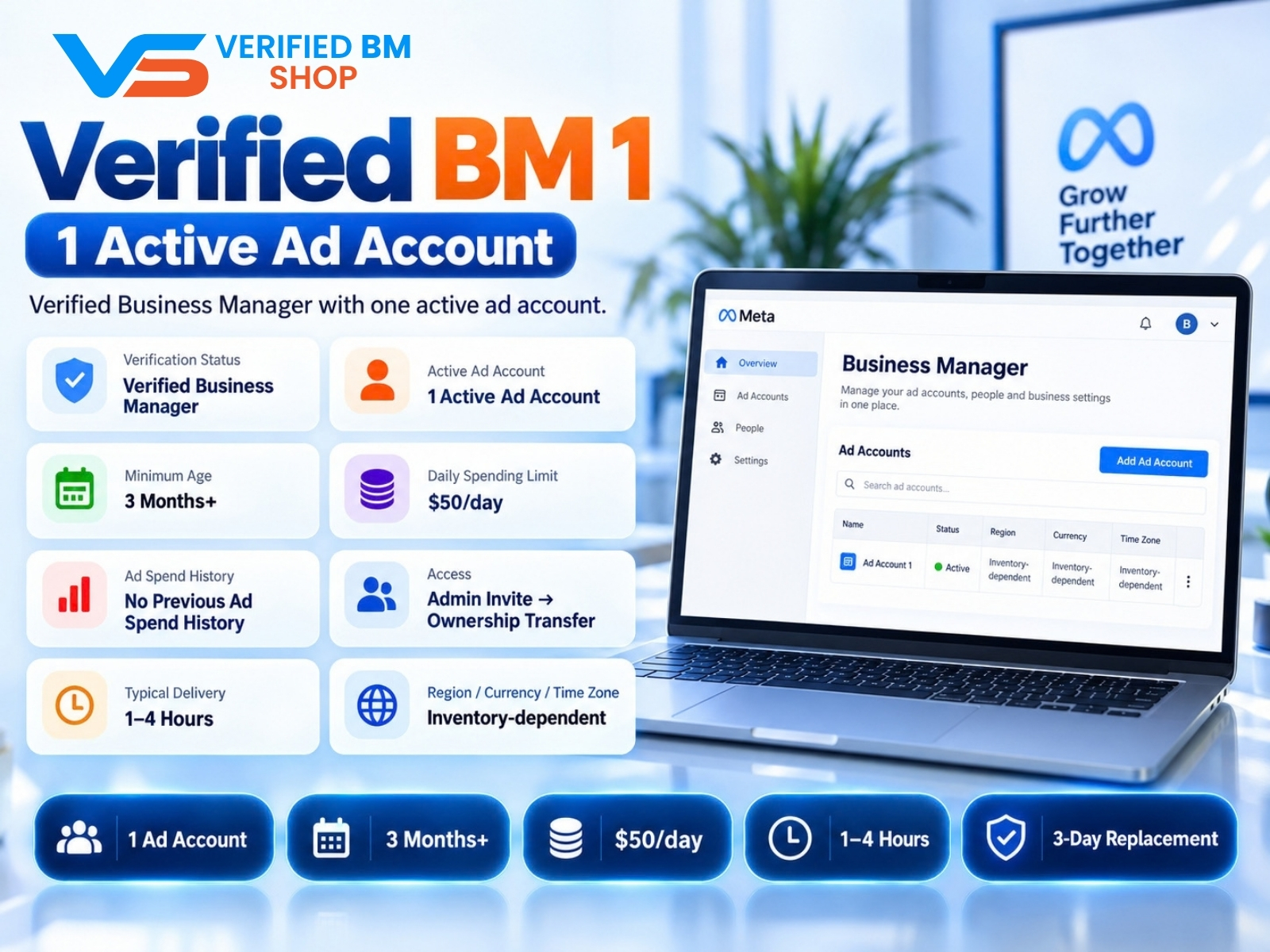
Verified BM 1 - Verified Meta Business Manager

Written by
Verified BM TeamThe VERIFIED BM SHOP editorial team shares real-world experience in buying and selling verified Business Managers, WhatsApp API accounts and advertising platforms.
Comments (0)
No comments yet. Be the first to share your thoughts!
Leave a Comment
Your email will not be published. All comments are moderated.