
Quick Summary
Learn how to identify failed Facebook ad payments, check balances and account notices, and choose the safest next step without guessing at the cause.
Facebook ad delivery may stop or decrease when a payment fails, an account spending limit is reached, or Ads Manager displays a billing or account restriction. Start with the exact notice shown in the affected account, then take the action that matches it instead of changing several settings at once.
This guide covers declined cards, expired payment methods, overdue balances, account limits, and payment restrictions. Menu names and available options can vary by account, country, currency, and Ads Manager version.
Facebook Ads payment issues: what the error may mean
A payment issue may affect one or more campaigns or the ad account. Confirm the scope from the billing and delivery notices in Ads Manager rather than assuming that every campaign has the same problem.
| Message or symptom | What it may indicate | Best first action |
|---|---|---|
| Payment failed or charge declined | The issuer, payment details, available funds, or account notice may indicate why the transaction did not complete. | Read the notice and ask the issuer about the declined transaction. |
| Outstanding balance | An amount shown as due has not been recorded as paid. | Review the displayed balance and available payment options. |
| Account spending limit reached | Ads Manager indicates that an applicable account spending limit has been reached. | Review the limit and any adjustment options available in that account. |
| Payment method disabled | The account requires the review or remediation described in its notice. | Follow the available review, update, or support instructions. |
| Ads paused after a charge attempt | Check whether the billing notice confirms a failed collection before treating billing as the cause. | Review billing activity, then check delivery and account notices. |
Delivery can also stop for reasons unrelated to billing. After reviewing the payment status, check campaign status, approval status, audience size, budget, and any account-level notice.
First, identify the exact billing problem in Ads Manager
Open the affected ad account in Meta Ads Manager. Go to Billing & payments or the billing area shown in the account menu, then review payment activity, payment methods, invoices, and the displayed balance.
Record the account ID, exact error text, charge amount, currency, time of the attempt, and last four digits of the payment method. Screenshots can help, but hide full card numbers, security codes, passwords, and login codes.
Check payment activity, not just the campaign screen
The campaign view may only show that delivery stopped. Billing activity may provide additional information about a failed charge, an amount due, a pending transaction, or a payment method that requires attention.
Compare the billing notice with your bank statement. A pending bank authorization does not by itself confirm that Meta recorded a successful payment, and a reversed transaction may not settle an amount shown as due.
For account structure and billing roles, see this guide to Meta ad accounts, access, and billing. Access to billing information and actions depends on the roles and permissions assigned in the relevant Meta business and ad account.
Common reasons a Facebook ad payment may fail
- Issuer decline: The bank or card issuer may reject the transaction or require additional confirmation.
- Expired or replaced card: The expiry date, card number, or security code may no longer match.
- Insufficient available funds: The available balance may not cover the displayed charge or a currency-converted amount.
- Incorrect billing details: The name, address, postal code, country, or other details may not match the issuer’s records.
- Spending limit: Ads Manager may show that an applicable account or campaign limit has been reached.
- Outstanding balance: The account may show an amount due that still requires payment.
- Payment compatibility: The available method may not support the account’s country, currency, or billing arrangement.
- Account-specific review: Meta may request additional information or action for a security or payment issue. Use the notice shown in the account rather than assuming a particular trigger.
Meta’s available payment methods vary by country, currency, and account. Options may include cards, PayPal, direct debit, or local manual methods, but confirm the choices shown in your own account and check Meta’s official Business Help documentation for current availability.
Step-by-step fix for a declined or failed payment
- Open the billing alert. Read the full message and note whether it asks you to retry, update a method, provide information, or request a review.
- Check with the issuer. Ask the bank why the transaction was declined and whether it requires approval or supports the relevant transaction type.
- Review payment details. Compare the card number, expiry date, security code, account name, billing address, postal code, country, and currency with the information requested by the account.
- Confirm available funds. Check that the payment method can cover the displayed amount and any applicable currency-conversion difference.
- Retry only when the cause has changed or the notice instructs you to. Repeating the same failed attempt does not establish that the underlying issue is resolved.
- Recheck delivery. After the billing status updates, review campaign and account notices to determine whether a separate delivery issue remains.
If the bank says it approved the transaction but Ads Manager still shows a failure, save the bank’s reference number and the transaction date. Include those details if Meta provides a support or review channel for the issue.
For a card-related account disablement, read why Meta may disable an ad account after adding a card. Adding a new card is not a guaranteed solution when the notice concerns the account rather than the payment method.
How to resolve an outstanding balance
An unpaid balance may affect campaign delivery or further billing activity. Check the account’s billing and delivery notices, find the amount shown as due, and use the available Pay now, Retry payment, or similar option.
Use this order when a balance remains unpaid
- Check that the selected payment method is active and has sufficient available funds.
- Review the full displayed balance before submitting a payment.
- Confirm whether the status changes from failed or pending to paid.
- Check payment activity for a duplicate, reversed, or still-pending transaction.
- Review campaign delivery and any displayed spending-limit notice after the balance status changes.
If the account shows a pending retry or payment attempt, follow the status shown in Ads Manager and confirm the transaction with the bank. Do not assume that a pending attempt has settled the amount due.
If payment succeeds but delivery does not resume, review the account for any separate billing, policy, identity, delivery, or spending-limit notice. The payment result alone does not identify the reason for continued delivery problems.
What to check when your card is valid but Meta still rejects it
A card can work elsewhere and still fail for an advertising transaction because the issuer, payment method, country, currency, or account-specific checks may differ. Ask the issuer about the transaction and compare its response with the notice in Ads Manager.
Run these checks before replacing the card
- Ask the issuer whether the transaction requires approval or is subject to a payment restriction.
- Confirm that the billing address and postal code match the issuer’s records.
- Check that the card and account are compatible with the account’s country and billing setup.
- Review whether the card is expired, locked, replaced, or otherwise unavailable.
- Look for a bank alert or request to approve the transaction.
- Review the ad account currency and the payment method’s supported currency.
- Ask the bank whether a verification authorization was blocked, reversed, or left pending.
Avoid repeated or unrelated payment-method changes. First identify the decline reason and follow the instructions shown in the account.
Adding a backup payment method safely
Add a backup method only after confirming that it belongs to the business or authorized payer. Use the billing area in Ads Manager, choose Add payment method if that option is available, and follow the account’s prompts.
The method must be compatible with the account’s country, currency, and billing setup. Keep the primary method current, configure a backup only where the account provides that option, and remove old methods only when doing so will not affect an outstanding balance or active billing arrangement.
A backup method may help with a future payment problem, but it does not erase an overdue balance or remove an account restriction. Resolve the existing notice first and confirm that the method has been accepted.
Payment issues caused by account, security, or billing restrictions
Payment restrictions can be account-specific. Check the exact notice and any requested review or verification steps in Meta’s account and support interfaces rather than assuming that a particular event caused the restriction.
Review Account Quality, Business Support Home, and the billing page for separate notices. Read the reason carefully before changing a payment method, because the displayed action may concern account information or review rather than the card itself.
Do not create new accounts to avoid a billing review or submit inaccurate business details. Use the account’s stated review process and provide information that matches your records.
For a broader explanation of payment-related account limits, see this guide to Facebook ad account restrictions. It focuses on legitimate review and recovery steps, not ways to bypass enforcement.
Does Meta Business verification fix payment problems?
Business verification does not, by itself, ensure payment approval or resolve every billing, account, balance, or spending-limit issue. Follow the specific request and status shown in the affected account.
Use accurate information that matches your business records, and submit documents only when Meta requests them for that case. Verification should not be treated as a substitute for resolving a failed payment or reviewing an account restriction.
Business verification and account permissions are separate from payment resolution. Billing outcomes depend on the information and status shown for the relevant account and payment method.
When to contact Meta support
Contact support when the bank confirms approval but the account still shows a failure, the displayed balance does not update, the payment page loops, or the account shows a restriction without a clear review path. Support may also be appropriate for a duplicate charge or an unknown transaction.
Prepare these details before opening a case
- Business Manager ID and affected ad account ID
- Exact error message and the page where it appeared
- Charge amount, currency, and date
- Payment method type and last four digits only
- Bank response or transaction reference, if available
- Screenshots with card numbers, passwords, security codes, and personal identifiers hidden
- Steps already taken and the current campaign delivery status
Keep the case focused on one billing problem and provide a short timeline. This gives the support agent the account, transaction, and status details needed to review the issue.
Use this Meta technical support and case guide to organize your request. Never share a full card number, CVV, password, or login code in a support message.
How to prevent future Facebook Ads payment issues
- Keep an approved payment method available with sufficient funds.
- Review billing activity on a regular schedule, not only after delivery changes.
- Update expired payment details before they stop matching the account.
- Keep billing names, addresses, currency, and business records consistent where the account requires them.
- Give billing access only to trusted users and protect those profiles with two-factor authentication.
- Plan payment-method changes carefully and verify the new method before relying on it for an important campaign.
- Where available, record the spending-limit information and balance status shown for each managed ad account.
- After a failed attempt, identify the cause before trying the same payment again.
Teams running several ad accounts should record each account ID, currency, payment owner, displayed billing threshold or limit, and approved backup method where applicable. A shared process can reduce missed balances and duplicate troubleshooting.
Facebook Ads payment issues checklist
- Read the exact billing message in Ads Manager.
- Check payment activity, invoices, balance, and any displayed spending-limit notice.
- Confirm card details, billing address, currency, and available funds.
- Ask the bank about the specific transaction and any approval or payment restriction.
- Use the account’s available payment option for an amount shown as due.
- Review Account Quality and security notices for account-level restrictions.
- Add a legitimate backup method only when needed and when the account offers that option.
- Contact Meta with the account ID, exact error, dates, amount, and masked payment details.
- Check campaign delivery again after the billing status changes.
Start with one question: does the bank’s response explain the failed transaction, or does Ads Manager show an account-level notice? Once the evidence points to one of those paths, take the smallest action that matches the notice.
Official Sources
Frequently Asked Questions
Quick answers to the questions buyers ask most.
Why did my Facebook ad payment fail?
A payment can fail because the card is expired, has insufficient funds, has incorrect billing details, or was declined by the bank. Meta may also pause billing if the ad account has an outstanding balance or a payment-related restriction.
How do I fix a failed Facebook Ads charge?
Open Ads Manager, go to Billing and payments, and review the payment activity and account balance. Update the payment method or add a new one, then follow the prompt to pay any outstanding amount.
How do I update my payment method for Facebook ads?
In Ads Manager, open Billing and payments and select Payment settings or Payment methods. Add a supported card or other available method, set it as the primary method if required, and remove the old method only after any pending charges are resolved.
What should I do if my bank keeps declining Facebook ad payments?
Check with your bank that online, international, recurring, and advertising transactions are allowed for the card. Confirm the billing address and card details in Meta, then try another supported payment method if the bank continues to decline the charge.
How can I pay an outstanding balance on my Facebook ad account?
Go to Billing and payments in Ads Manager and look for the outstanding balance or failed payment notice. Select the option to pay now and use an available payment method; advertising may remain limited until the balance is successfully paid.
Why is my Facebook ad account disabled after a payment problem?
Repeated failed charges, unusual payment activity, or other account and advertising policy concerns can result in restrictions. Review the account status and billing notices in Meta Business Suite or Ads Manager, and use the available review or support option if you believe the restriction is incorrect.
Does verifying my business fix Facebook Ads payment issues?
Business verification does not automatically fix a declined card or unpaid balance, but Meta may require verification for certain business or account features. Complete verification in Meta Business Suite if Meta requests documents or displays a verification prompt.
How do I contact Meta about a Facebook Ads payment issue?
Check the Billing and payments section in Ads Manager first for the specific error and available resolution steps. If the issue remains, use Meta Business Help or the support option available in your business account, and include the ad account ID, charge details, and any error message.
How this helps verified BM buyers
Apply this guidance when buying verified Business Managers or WhatsApp Business API assets to reduce policy risk, improve account stability, and scale campaigns with cleaner operational workflows.
Compare Verified BM options · Next steps: learn what a verified bm is, compare products in the Shop, review implementation details in FAQ, and contact support from the Contact page.
Recommended for You
Hand-picked from our shop — delivered fast after payment.
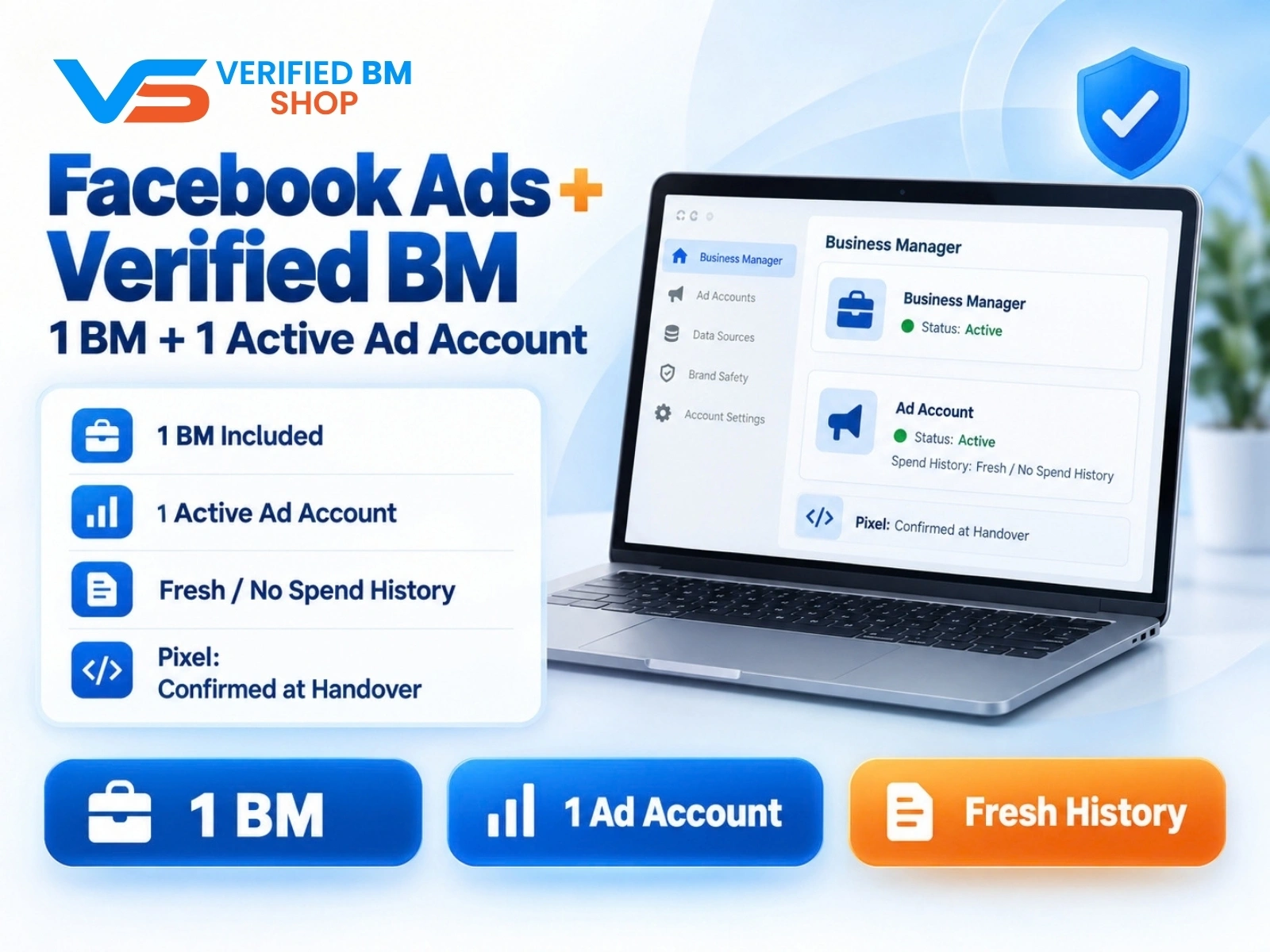
Facebook Ads Account + Verified BM Bundle
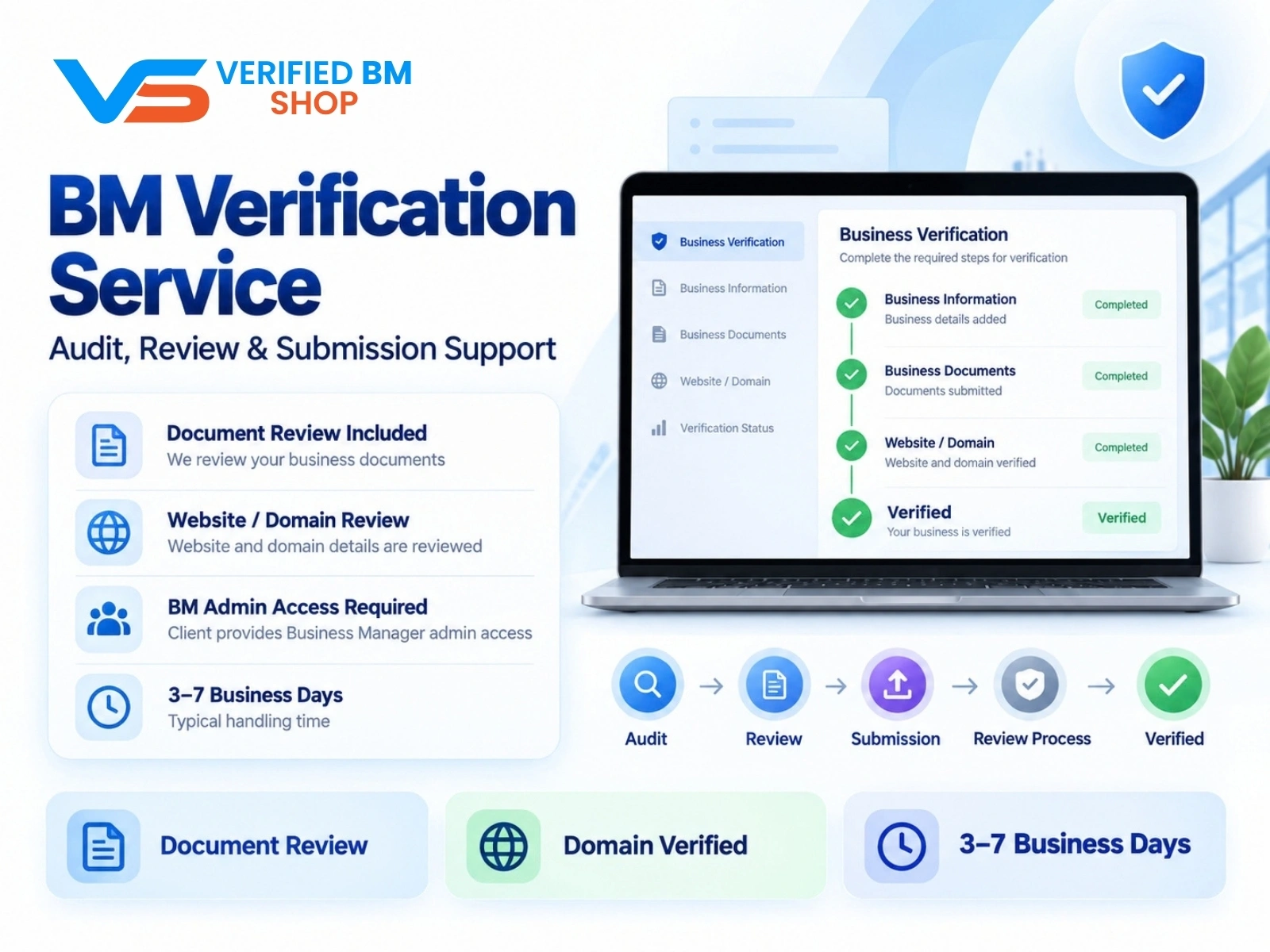
Meta BM Verification Service by VERIFIED BM SHOP
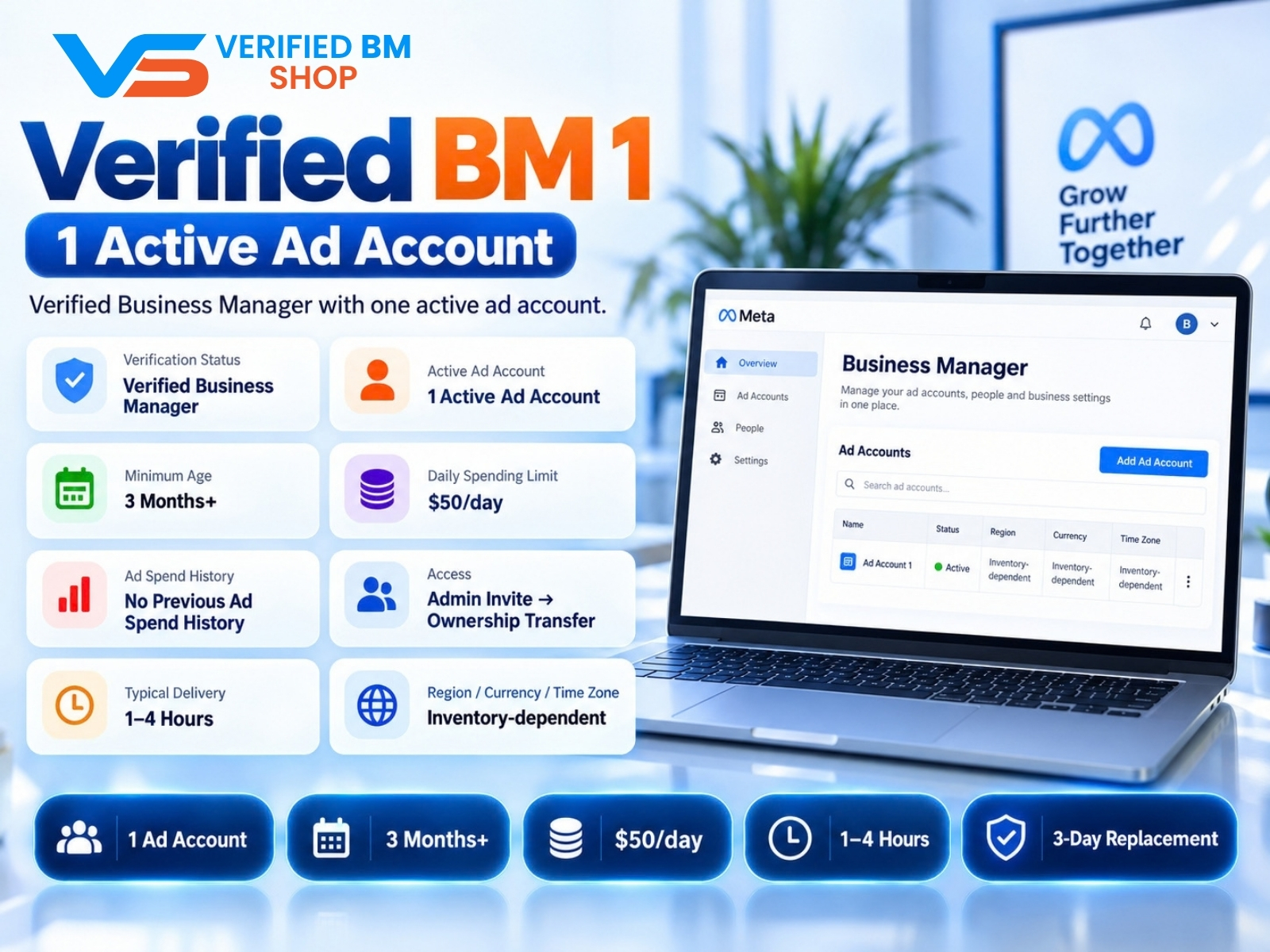
Verified BM 1 - Verified Meta Business Manager

Written by
Verified BM TeamThe VERIFIED BM SHOP editorial team shares real-world experience in buying and selling verified Business Managers, WhatsApp API accounts and advertising platforms.
Comments (0)
No comments yet. Be the first to share your thoughts!
Leave a Comment
Your email will not be published. All comments are moderated.