
Quick Summary
Learn how individual Facebook profiles connect to Meta business assets, how to assign advertising permissions, and how to handle security and access issues.
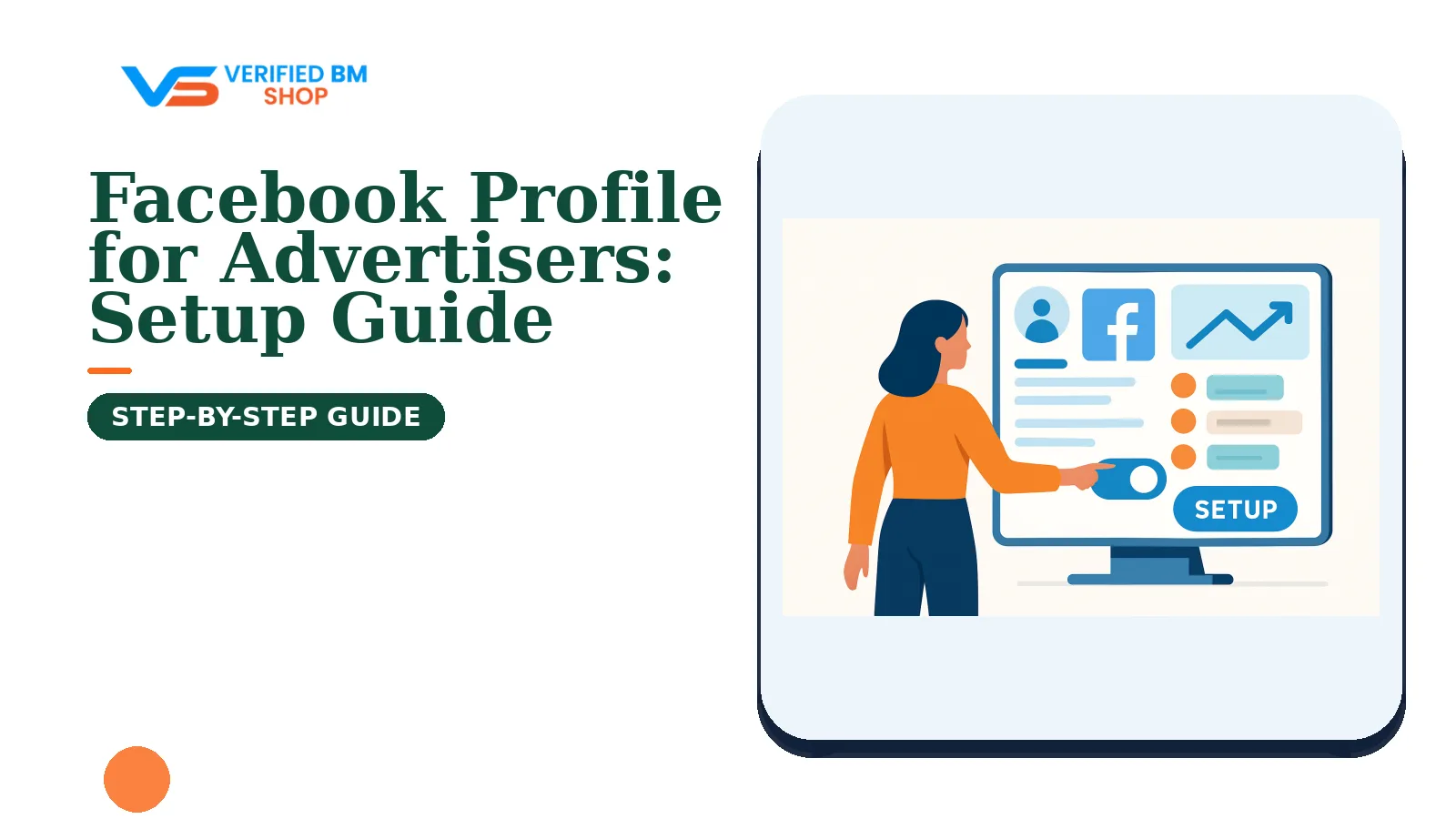
A Facebook profile for advertisers is an individual profile used to access Meta Business Suite, business portfolios, Pages, ad accounts, and other business assets. A Page or business portfolio does not replace the person-level login used in many Meta workflows.
In most setups, each team member should use their own profile. The business can then grant only the access that person needs.
What Is a Facebook Profile for Advertisers?
One person owns a Facebook profile. It stores login details, security settings, account history, and an activity record. That record can help show who took an action in a business tool.
However, this profile is not a company Page. It should not act as a brand, agency, or shared login. Shared login details weaken security and make it hard to see who took an action. Use one profile per person and follow any security checks Meta shows.
An advertiser may use the profile to:
Accept an invitation to a business portfolio or Business Manager.
Manage a Facebook Page or connected Instagram account.
Create, edit, or monitor campaigns.
View assigned results, billing information, catalogs, data sources, or other assets.
Request access to assets owned by a client or partner business.
Still, access does not mean that your profile owns every asset it can use. The business or asset owner grants that access.
Facebook Profile vs. Facebook Page vs. Ad Account vs. Business Manager
These parts work together, but each serves a different purpose. Knowing the difference can help prevent wrong access requests and ownership issues.
Asset | What it represents | Typical use |
|---|---|---|
Personal Facebook profile | An individual user | Authentication, identity, and access to business tools |
Facebook Page | A public brand, organization, or creator presence | Publishing content, receiving messages, and running Page-based ads |
Ad account | A container for campaigns, billing, audiences, and reporting | Creating and managing Meta advertising |
Business Manager or business portfolio | A business-level control area | Organizing assets, people, partners, and permissions |
One person may manage several Pages and ad accounts without owning them. For example, an agency can get partner access to chosen client assets while the client keeps ownership.
Meta changes labels and menus at times. New screens may say “business portfolio,” while older help content may say “Business Manager.” The basic model stays the same: businesses hold assets, and people get assigned access through individual profiles.
Do You Need a Personal Facebook Profile to Advertise?
Many Meta tools for ads and business tasks use an individual Facebook profile for login and assigned access. However, needs vary by product, account type, workflow, and tech setup.
The personal profile does not need to be the public face of a brand. You can link it to a business portfolio and work with the company’s Page, ad account, and Instagram account.
One shared profile should not serve the whole team. Give each worker their own access. That way, access for one person can end without affecting the rest of the team.
Some products and features may involve identity checks, business verification, rules for regulated ads, or other entry terms. A profile alone does not ensure access to every Meta tool.
How to Prepare a Facebook Profile for Advertising
Use a real individual profile with correct contact details. Keep the account up to date, use it in a steady way, and answer any security prompts from Meta.
Prepare the account before requesting access
Use a genuine profile controlled by one person.
Confirm the email address and phone number linked to the account.
Turn on two-factor authentication with an available approved method.
Review recent login activity and remove devices you do not recognize.
Complete identity or security checks shown by Meta.
Follow Meta’s account and advertising policies.
Do not buy, rent, share, or resell personal profiles. Never give a contractor your password. Instead, invite that person through the right business or asset settings.
If a profile has a restriction, check its current status before linking it to key business assets. This guide to two-factor authentication for agency Business Managers covers account safety but does not replace Meta’s own security checks.
How to Connect Your Profile to Meta Business Suite or Business Manager
Usually, the business owner or an existing admin sends the invite. Button names and menu paths can differ by interface and account setup.
Open Meta Business Suite or Business Settings.
Select the business portfolio that owns or manages the assets.
Open the people, users, or access section.
Choose to add a person and enter the user’s email address.
Select employee access or another suitable role.
Assign only the required Pages, ad accounts, Instagram accounts, catalogs, data sources, or other assets.
Send the invitation and have the person accept it from their own profile.
Agencies that serve several clients can also use partner access. The client can share chosen assets with the agency’s business portfolio without giving up ownership.
Use Meta’s official Business Manager and advertising setup guidance if your screen does not match these steps.
If an invite does not arrive, check the email address, spam folder, pending invites, business limits, and notice settings. An admin may need to cancel an old or wrong invite and send a new one.
How to Assign Advertising Permissions Safely
Match access to the person’s tasks, not their rank. For example, a media buyer may need campaign control without ownership or full control of the business portfolio.
Common roles
Employee or basic access: Access to selected assets and assigned tasks.
Advertiser: Create and manage ads for an assigned ad account, subject to the permissions granted.
Analyst: View performance data without changing campaigns.
Page task access: Work on posts, messages, ads, or insights without full Page control.
Business admin: Manage people, settings, assets, and permissions across the business.
Names and permission levels differ by asset and Meta screen. Therefore, check each asset on its own before you grant access.
For example, a profile may have advertiser access to an ad account but no Page permission. That person may build campaigns but may not be able to make ads that use the Page as the identity.
Where practical, keep at least two trusted admins with the right access. This can reduce reliance on one account. Still, it does not ensure recovery from every access issue, so do not give admin rights to every worker. Review access after major team changes.
What Access Can an Advertiser Receive?
Access may cover the whole business or just certain assets. A user might get one ad account, one Page, and one data source, but no billing or business settings access.
Asset | Possible work | Access question |
|---|---|---|
Page | Create posts, reply to messages, view insights, or run ads | Does the person need content, message, or advertising access? |
Ad account | Create campaigns, edit ads, view reports, or manage billing | Does the person need campaign control or only reporting? |
Catalog | Manage product sets and use items in ads | Should the person edit products or only advertise them? |
Pixel or data source | View or use event data for assigned campaigns | Is technical access needed, or only ad delivery access? |
Access to an asset may not include the right to delete it, change its owner, or edit business settings. Check the task before giving a higher role.
Security and Compliance Best Practices for Advertising Profiles
Protect the profile first. Then protect the business assets linked to it. A hacked admin profile can expose Pages, ad accounts, billing data, and customer data.
Use a unique password and two-factor authentication.
Keep recovery email and phone details current.
Review active sessions and login alerts.
Use individual user access instead of shared credentials.
Limit admin rights and review them on a regular schedule.
Train staff to spot fake Meta messages and login pages.
Separate billing access from routine campaign work where practical.
Follow advertising, data protection, consumer protection, and Page content rules.
When Meta asks for business verification, it may review business details and documents for the product or feature involved. Verification does not replace a real user profile. It also does not ensure ad approval, higher limits, or protection from enforcement.
Read this comparison of verified and unverified Business Managers for more context on verification and access structure.
Why a Profile May Lose Access to Advertising
Access may be limited after a security or identity check, an account or ad policy issue, or another open review. An admin may also remove a user, or the business may change its permissions.
Some issues are admin issues, not penalties. For example, the user may be signed into the wrong profile, looking at the wrong business portfolio, or missing the Page access needed for a campaign.
Check Account Status or Account Quality, Business Settings, notices, and assigned assets. Do not make duplicate profiles to get around a restriction. That step can cause more account issues.
Some limits affect ads only. Others affect the profile or business. The right response depends on the notice Meta shows.
What to Do If Your Facebook Profile Is Restricted From Advertising
Read the restriction notice and follow the review steps inside Meta. Send correct information, save a copy of the notice, and avoid repeat requests with conflicting details.
Do not give your login to a third party that promises instant access. While the case is open, do not link the profile to unknown businesses or ad accounts.
Our guide to Facebook profile advertising restrictions explains the usual review path and what to prepare. If the issue involves the business itself, use the Meta technical support case guide.
Does Business Verification Replace a Facebook Profile?
No. Business verification does not turn a company into a login. It also does not remove the need for individual users.
When Meta asks for business verification, it may review business details and documents for the product or feature involved. Needs vary, so send details that match the business and its records.
Business verification may be needed for some Meta products or features. It does not replace user access controls or give broad approval to the business, its ads, or its account activity.
If your business has a valid reason to seek verification, BM verification assistance can help review the setup before submission. No service can promise approval or change Meta’s final decision.
Final Checklist for Setting Up a Facebook Profile for Advertising
Use this checklist before launching campaigns or inviting an agency:
Each user has an authentic, individual Facebook profile.
The profile has accurate contact details and two-factor authentication.
The business owns or has valid access to the Page and ad account.
Every user receives only the permissions needed for their role.
At least two trusted admins have appropriate access where practical, without treating this as a guaranteed recovery method.
Former staff and partners no longer have active access.
Billing, Page, catalog, and data permissions have been checked.
The profile and business follow Meta’s advertising and account rules.
Any verification request uses accurate business information.
A sound ad setup starts with individual user access, clear asset ownership, and limited permissions. A business portfolio can organize the team without replacing the individual profile used to confirm access.
Frequently Asked Questions
Quick answers to the questions buyers ask most.
Do I need a personal Facebook profile to advertise for a business?
Should I use a Facebook profile or a Facebook Page for advertising?
How do I connect my Facebook Page to an advertising account?
Is business verification required before I can run Facebook ads?
Why can’t I access a Facebook Page or ad account as an advertiser?
How this helps verified BM buyers
Apply this guidance when buying verified Business Managers or WhatsApp Business API assets to reduce policy risk, improve account stability, and scale campaigns with cleaner operational workflows.
Compare Verified BM options · Next steps: compare products in the Shop, review implementation details in FAQ, and contact support from the Contact page.
Recommended for You
Hand-picked from our shop — delivered fast after payment.
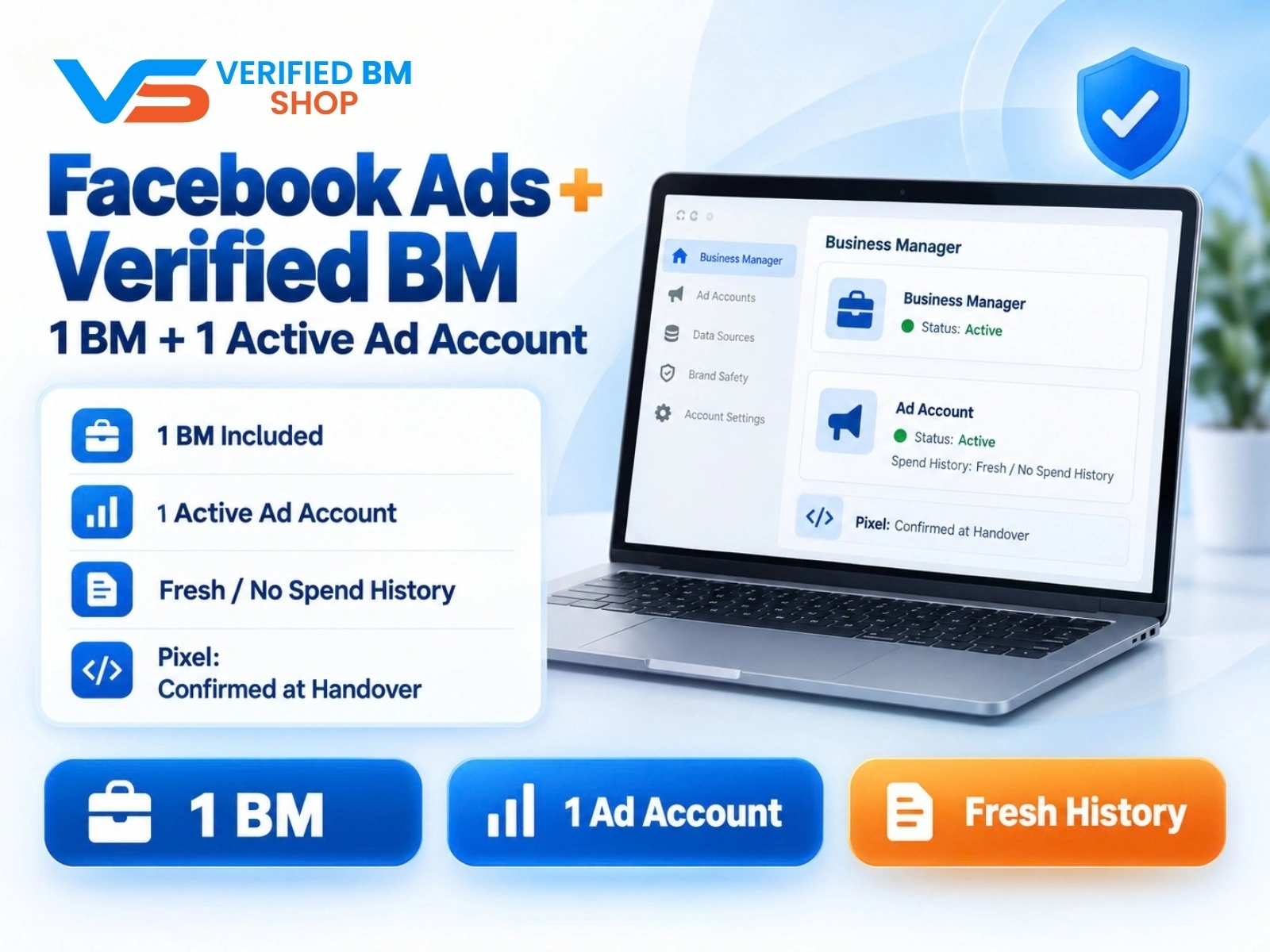
Facebook Ads Account + Verified BM Bundle
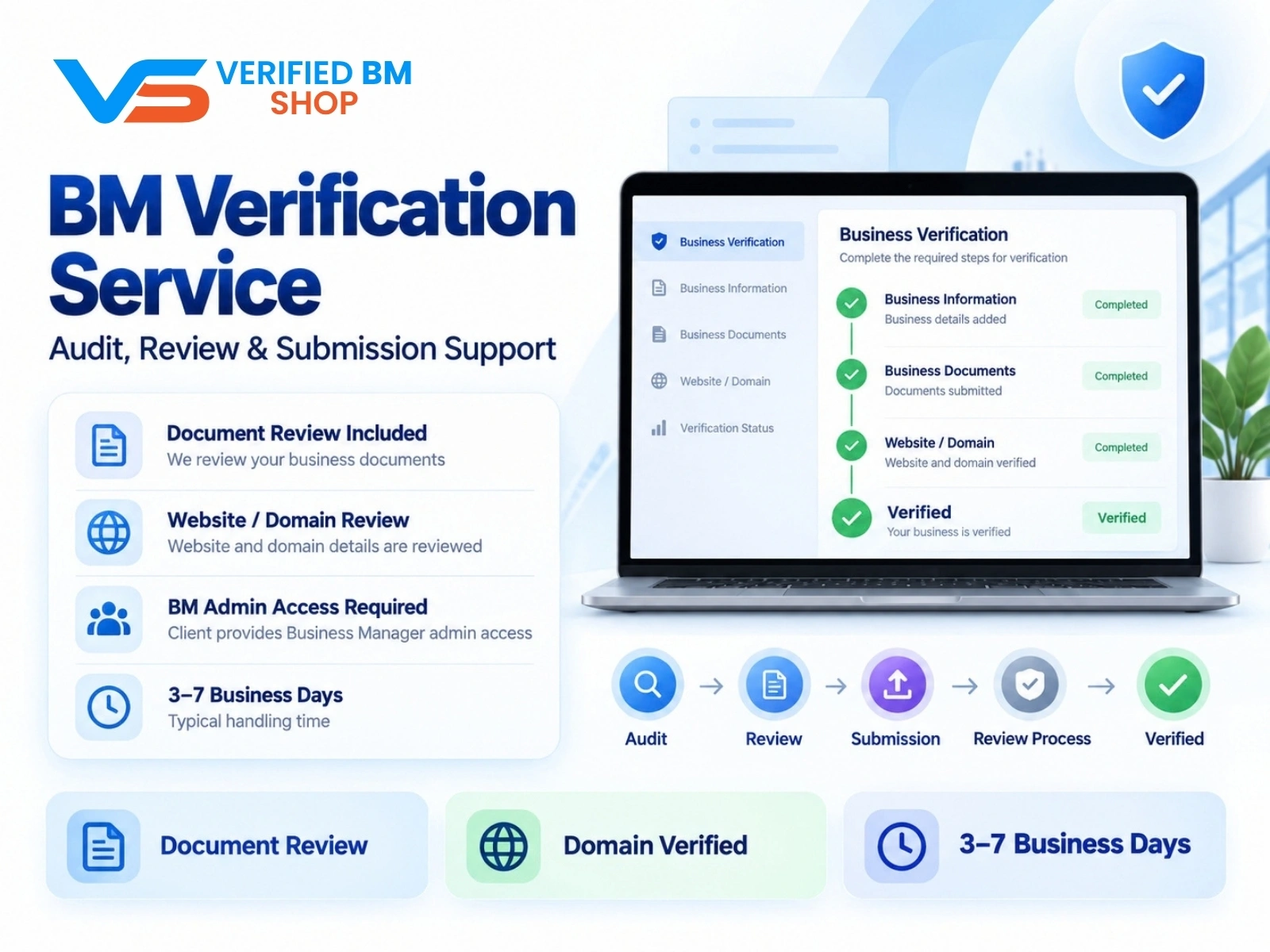
BM Verification Service
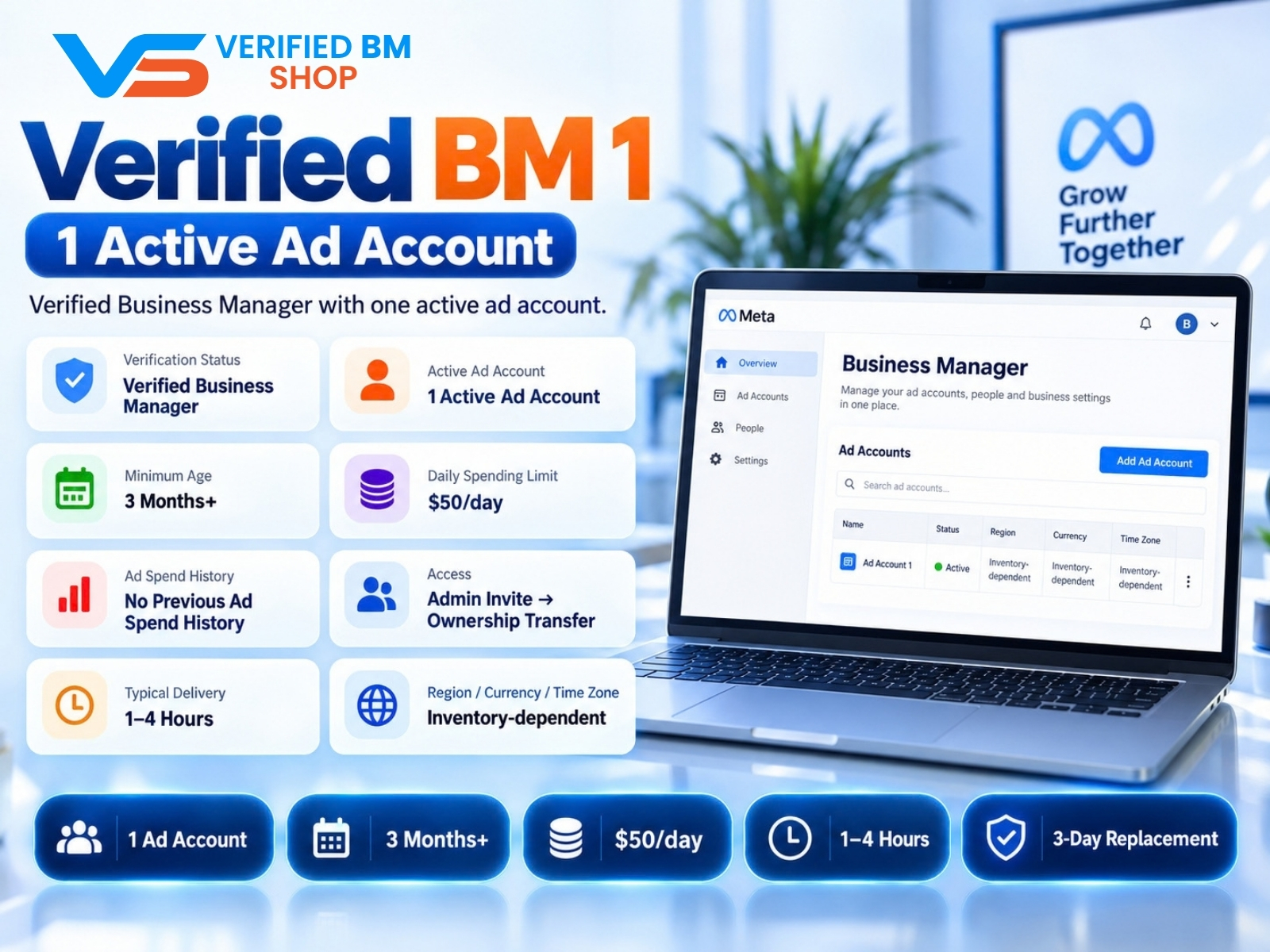
Verified BM 1 - Verified Meta Business Manager

Written by
Verified BM TeamThe VERIFIED BM SHOP editorial team shares real-world experience in buying and selling verified Business Managers, WhatsApp API accounts and advertising platforms.
Comments (0)
No comments yet. Be the first to share your thoughts!
Leave a Comment
Your email will not be published. All comments are moderated.