
Quick Summary
Prepare your business details, creative, destination, billing, and account access to reduce avoidable issues without bypassing Meta’s policy review.
Faster ad approval comes from careful preparation, not shortcuts. Meta may review the ad and related business, destination, targeting, payment, or account information before delivery, depending on the campaign and applicable policies.
A verified Business Manager does not guarantee approval or bypass review. The steps below focus on accurate information, policy compliance, and practical checks that can help you avoid preventable problems.
Faster Ad Approval on Meta: What It Really Means
Faster approval means submitting an ad that does not require avoidable corrections or additional review. It does not mean skipping review or receiving a guaranteed approval time.
Review may consider the ad’s text, images, video, offer, audience, landing page, business information, payment details, or account context under Meta’s current systems and policies. The exact checks can vary by campaign and situation.
For example, an ad might promote one service while the landing page presents another. A business name on the website might also differ from the name used in connected Meta assets. Keeping these details aligned helps you identify discrepancies before submitting a campaign, but it does not control review timing.
Can a Verified Business Manager Make Ad Approval Faster?
Meta may ask eligible businesses to provide information or documents to verify business details under its current verification process. Requirements and eligibility can vary by business type, location, product, and verification pathway.
Verification does not promise faster review, higher spending limits, or approval. An ad can still be rejected if its offer, claims, targeting, destination, or other elements do not meet applicable requirements.
Use Meta’s official Business Help Centre for current verification steps, documents, and eligibility information. Follow the instructions shown in your own Business settings rather than relying on outdated screenshots or third-party claims.
How Meta Ad Review Works
Meta reviews ads before they run and may use automated systems and other review processes, depending on the circumstances. Review may consider the ad and, where applicable, related account or destination information under Meta’s current policies.
Potential review areas include:
- Ad copy, images, video, and calls to action.
- The product, service, price, and claims in the offer.
- Targeting choices and any applicable audience restrictions.
- The website, app, form, or other destination.
- Relevant business, payment, or account information.
Changes to an ad or its surrounding campaign may result in another review. Approval does not prevent Meta from taking later action under its current policies.
Complete Business Verification Before You Advertise
Finish the business setup before launching campaigns where possible. Keeping business details complete and consistent can help your team prepare campaigns and respond to information requests; it does not control Meta’s review timing.
Check your legal business name, address, phone number, website, time zone, and business category against your records. Keep relevant documents available in case Meta asks you to confirm business details.
For a document list and preparation tips, see the Meta Business Manager verification document checklist. Use the current instructions inside Meta Business settings as the final reference.
Do not submit altered, borrowed, or misleading documents. Information that is inaccurate or cannot be supported may create account problems and can affect access to business tools.
Keep Your Business Information Consistent
Review whether your Business Manager, Page, ad account, website, and payment profile describe the same business. Keeping information consistent across connected assets can make your records clearer and help you identify discrepancies before submitting a campaign.
| Area | What to check |
|---|---|
| Business Manager | Legal name, address, phone, and business category match your records. |
| Facebook Page | Page name, description, contact details, and profile links identify the same business. |
| Website | Brand name, contact details, policies, and service information are clear and accurate. |
| Billing | Payment and billing details are valid and appropriate for the business or approved payer. |
Review who has access to each asset before launching. The guide to setting up and securing Meta assets can help agencies review roles, ownership, and access.
Check Your Website, Domain, and Landing Page
Review the destination as carefully as the ad. The page should support the promise made in the creative and give people enough information to understand the offer.
Before submission, confirm that:
- The page loads on mobile and desktop.
- The advertised product or service appears clearly.
- Prices, terms, availability, and limits are easy to find.
- Contact details are accurate and consistent with your business information.
- Privacy, refund, shipping, or subscription terms apply to the offer.
- The domain uses a secure connection and does not redirect to an unrelated site.
Use a domain that your business controls. If domain verification fails, review the common causes in this domain verification troubleshooting guide.
Review Ad Copy and Creative for Policy Compliance
Make the creative, offer, and landing page describe the same customer experience. Clear, supportable wording can also make it easier for your team to check the campaign against applicable policies.
Use claims you can support
Avoid promises that suggest guaranteed results, instant wealth, certain health outcomes, or personal attributes. Claims should be specific, fair, and supported by evidence where law or policy requires it.
Do not write copy that assumes a sensitive personal condition. Instead of saying, “Are you struggling with debt?”, describe the service neutrally, such as “Tools for planning monthly expenses.”
Make the offer easy to understand
State what the customer receives and what action they must take. Hidden fees, unclear subscription terms, fake urgency, and misleading buttons can create compliance and user-experience problems.
Check spelling, branding, pricing, and formatting before submission. Edits may result in another review, so check the final version carefully before submitting it.
Check Prohibited and Restricted Content
Some products and services cannot be advertised. Others may have requirements or limits involving wording, audience, location, documentation, or campaign setup.
Review the current Meta advertising guidance before submitting campaigns involving areas such as:
- Health, medicine, and personal health services.
- Financial products, loans, credit, and investment offers.
- Housing, employment, and other special ad categories.
- Alcohol, dating, gambling, gaming, and regulated products.
- Before-and-after content, body claims, or sensitive personal topics.
- Political, social issue, or election-related advertising.
Do not try to disguise a restricted offer with vague copy or a different landing page. Describe the offer honestly and follow the requirements that apply to the product, audience, and location.
Build a Stable, Trustworthy Advertising Setup
A clear account structure helps your team manage access, billing, and campaign records. It does not replace policy compliance or guarantee faster approval.
Use accurate business details, named admins, two-factor authentication, and role-based access. Keep payment methods current and make billing changes carefully, particularly during an active launch.
Changes to budgets, access, or connected assets can affect account administration or may result in review under Meta’s current systems. Make changes deliberately and follow applicable policies rather than assuming that any particular change will trigger or avoid review.
Keep records of campaigns, invoices, approvals, and policy decisions. These records help your team understand what changed and avoid random or contradictory edits.
Avoid Changes That Can Trigger Additional Reviews
After approval, review major changes to the offer, destination, billing, access, or asset structure against Meta’s current guidance. Changes may affect campaign eligibility or require additional checks.
Before making a substantial change, check:
- Whether the offer or landing page still matches the approved creative.
- Whether a new domain or redirect changes the customer destination.
- Whether billing information remains valid and appropriate.
- Whether asset ownership and access still reflect the real business relationship.
- Whether new administrators have the correct roles and secure access.
- Whether replacement ads address the rejection rather than repeating the same issue.
Make meaningful changes only when needed, then check the full customer journey again. Do not assume an earlier approval covers a materially different offer or destination.
What to Do When Meta Rejects an Ad
Read the rejection reason before editing anything. The notice may point to the creative, destination, product, targeting, or account rather than one word in the ad.
If the decision appears incorrect, request a review through the option shown in Ads Manager. Explain the relevant facts clearly and identify the policy area you believe the ad follows.
Do not submit repeated appeals with different explanations or create replacement ads that conceal the same offer. First address the stated issue, record the change, and then use the available review path.
For wider account problems, see common reasons Meta ad accounts get restricted. A rejected ad does not, by itself, establish that the entire business has failed compliance checks.
Faster Ad Approval Checklist
- Complete accurate business details and pursue verification where eligible.
- Check that the Page, website, domain, billing profile, and Business Manager describe the same business.
- Test the destination on mobile and desktop.
- Match the ad’s claim, offer, price, and call to action to the landing page.
- Remove unsupported claims, misleading urgency, and sensitive personal references.
- Review prohibited and restricted categories before launch.
- Use valid billing details and secure administrator access with two-factor authentication.
- Check the final version carefully before submitting it.
- Save the rejection reason and use Meta’s review option when appropriate.
When to Contact Meta Support
Contact Meta Support when the issue involves a verification block, repeated disputed rejections, disabled payment access, missing review options, or a technical error.
Prepare your Business Manager ID, ad account ID, screenshots, rejection notices, domain details, and a short timeline. Clear evidence can make it easier to explain the case to support, but it does not guarantee a faster response or resolution.
For help organizing a case, see this guide to opening and managing a Meta technical support case. Do not share passwords, full payment details, or security codes with anyone claiming to offer support.
Final Takeaway: Improve Readiness, Not Circumvention
The practical route to fewer avoidable approval problems is accurate business information, consistent records, honest creative, a working destination, and careful account administration. None of these steps guarantees a particular review time or outcome.
Business verification may help eligible businesses provide requested information through Meta’s current process, but it cannot guarantee approval or remove policy checks.
If your team needs help organizing its setup, review the Verified BM category and compare the available options against your real business requirements. Keep every campaign aligned with Meta’s current rules and the experience presented on your website.
Official Sources
Frequently Asked Questions
Quick answers to the questions buyers ask most.
How can I get my Meta ad approved faster?
Use accurate ad copy and landing-page information, follow Meta's Advertising Standards, and make sure your targeting and creative match the product being promoted. Complete any requested business or identity verification before submitting the ad.
How long does Meta ad approval usually take?
Meta says ad reviews are typically completed within 24 hours, although some reviews can take longer. Delays may occur when an ad requires additional checks or when business verification is incomplete.
Why is my Meta ad still under review?
An ad may remain under review while Meta checks its creative, text, targeting, destination, and business details. Avoid repeatedly editing or duplicating the ad, because significant changes can trigger another review.
What should I do if Meta rejects my ad?
Read the rejection reason in Ads Manager and compare the ad with the relevant Meta Advertising Standards. Correct the specific issue and request another review if you believe the decision was made in error.
Can editing an ad make approval take longer?
Yes. Changes to an ad's creative, copy, targeting, or destination can cause Meta to review it again. Make all necessary corrections before submitting rather than making repeated minor edits.
Does verifying my business help Meta approve ads faster?
Business verification can help confirm that your business and account information are authentic when Meta requires it. It does not guarantee approval, because every ad must still comply with Meta's advertising policies.
Which ad elements commonly cause approval problems?
Common issues include prohibited or restricted products, misleading claims, inaccurate before-and-after representations, personal-attribute language, and landing pages that do not match the ad. Review the full ad experience, not just the image or headline.
Can I appeal a Meta ad rejection?
If you believe the rejection was incorrect, you can request another review from the delivery or account-quality area shown in Meta's tools. Provide accurate business information and change the ad only when the rejection identifies a genuine policy issue.
How this helps verified BM buyers
Apply this guidance when buying verified Business Managers or WhatsApp Business API assets to reduce policy risk, improve account stability, and scale campaigns with cleaner operational workflows.
Next steps: learn what a verified bm is, compare products in the Shop, review implementation details in FAQ, and contact support from the Contact page.
Recommended for You
Hand-picked from our shop — delivered fast after payment.
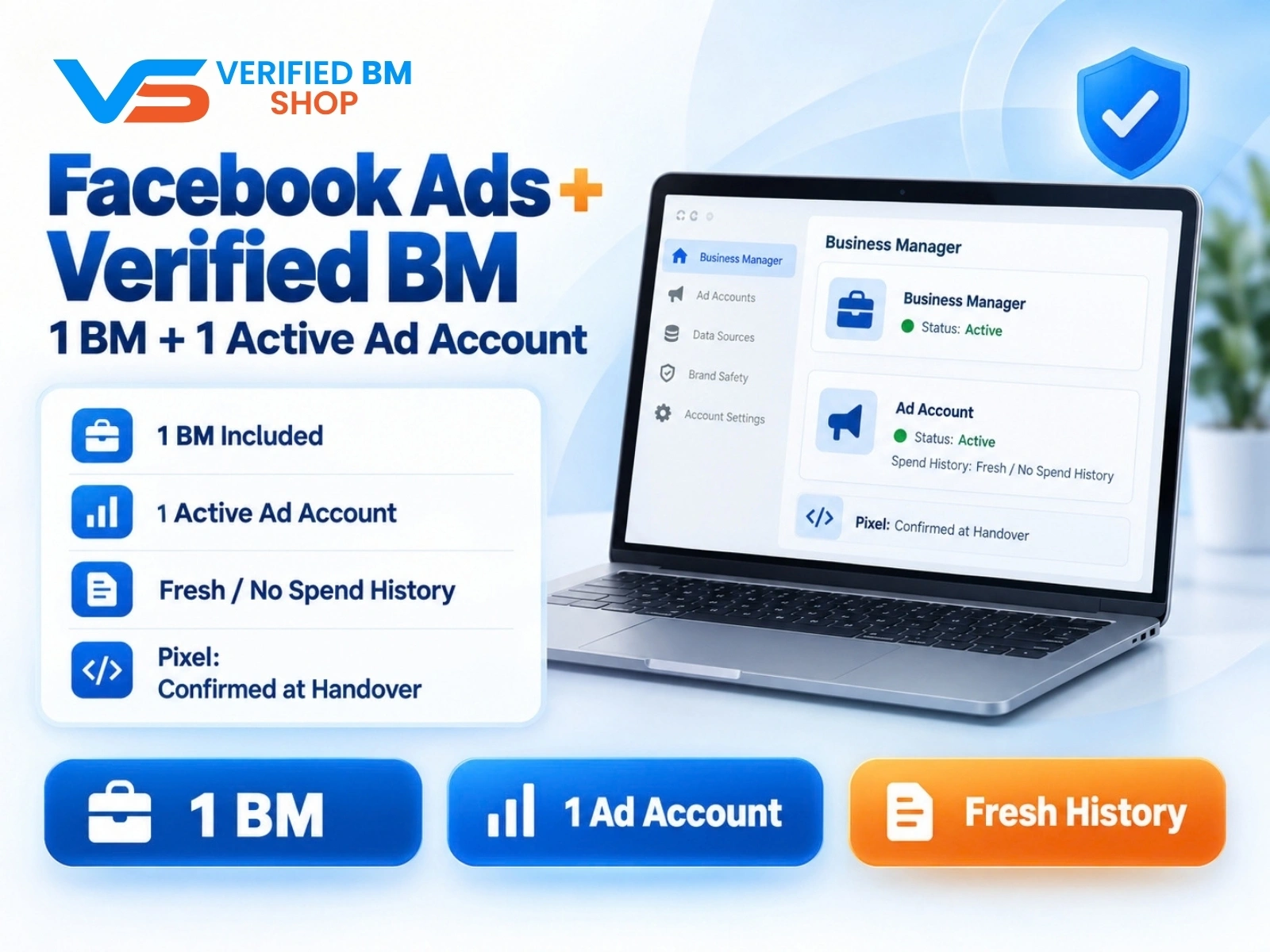
Facebook Ads Account + Verified BM Bundle
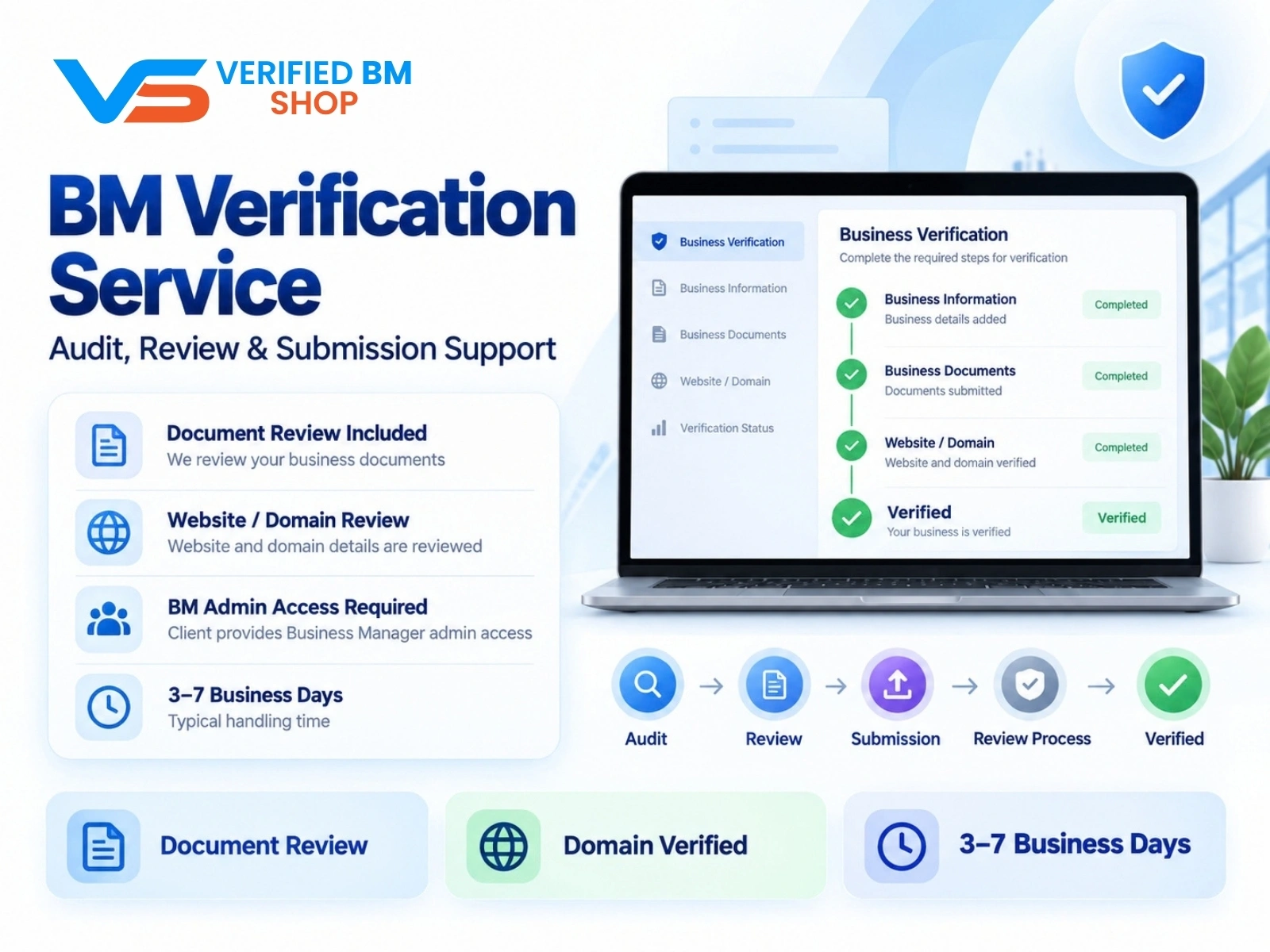
Meta BM Verification Service by VERIFIED BM SHOP
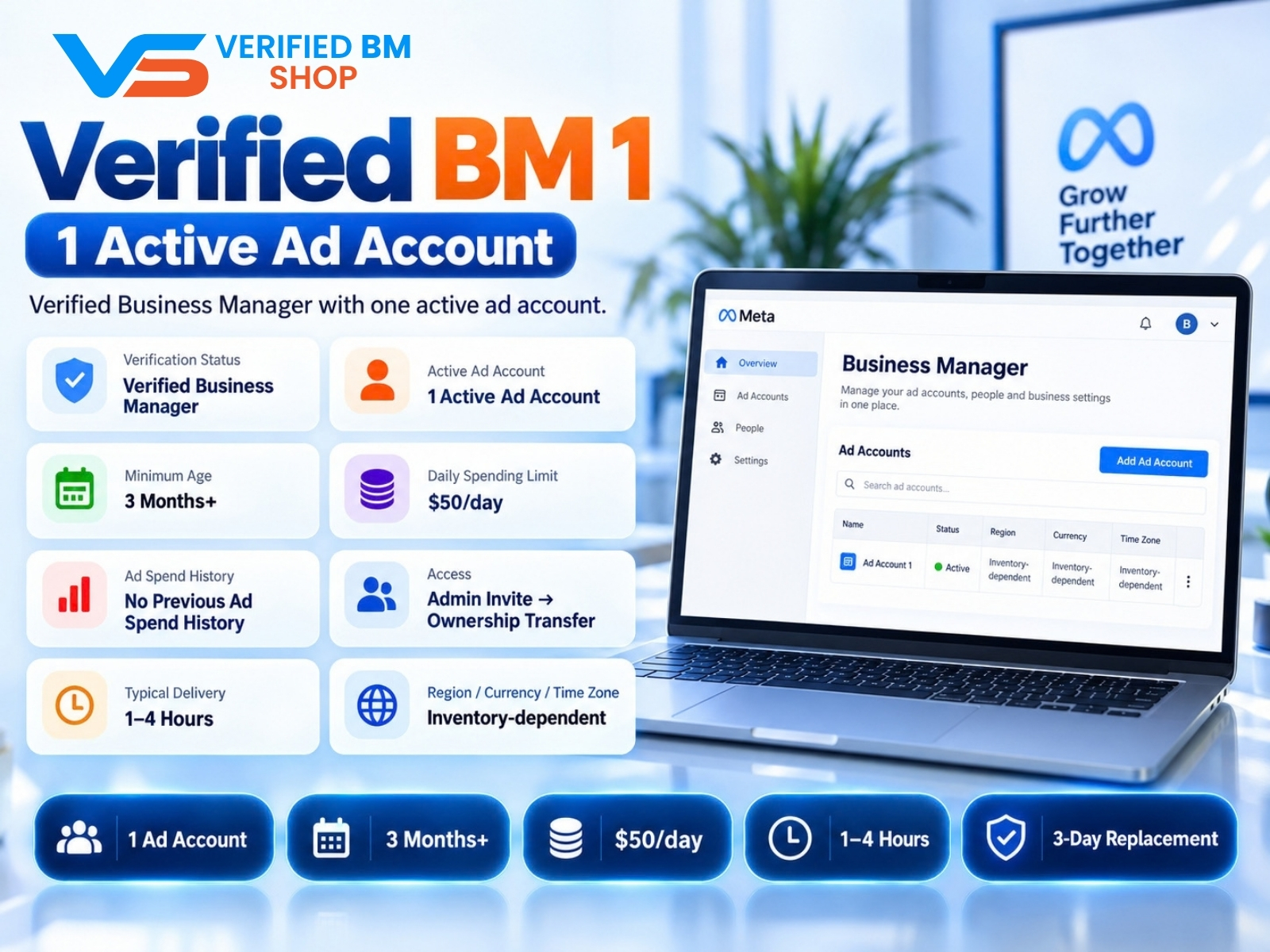
Verified BM 1 - Verified Meta Business Manager

Written by
Verified BM TeamThe VERIFIED BM SHOP editorial team shares real-world experience in buying and selling verified Business Managers, WhatsApp API accounts and advertising platforms.
Comments (0)
No comments yet. Be the first to share your thoughts!
Leave a Comment
Your email will not be published. All comments are moderated.